
If your clinic is supporting you through a weight-loss treatment such as Mounjaro or Wegovy, the My Weight page in your client portal shows how your weight is changing, the doses you've been on and your next review. You can also send your clinic a quick check-in between visits.
NOTE: My Weight only appears if your clinic offers it. If you can't see it in your menu, ask your clinic.
Step 1: Open My Weight
Sign in to your client portal.
- In the menu, under Clinical Records, click My Weight.
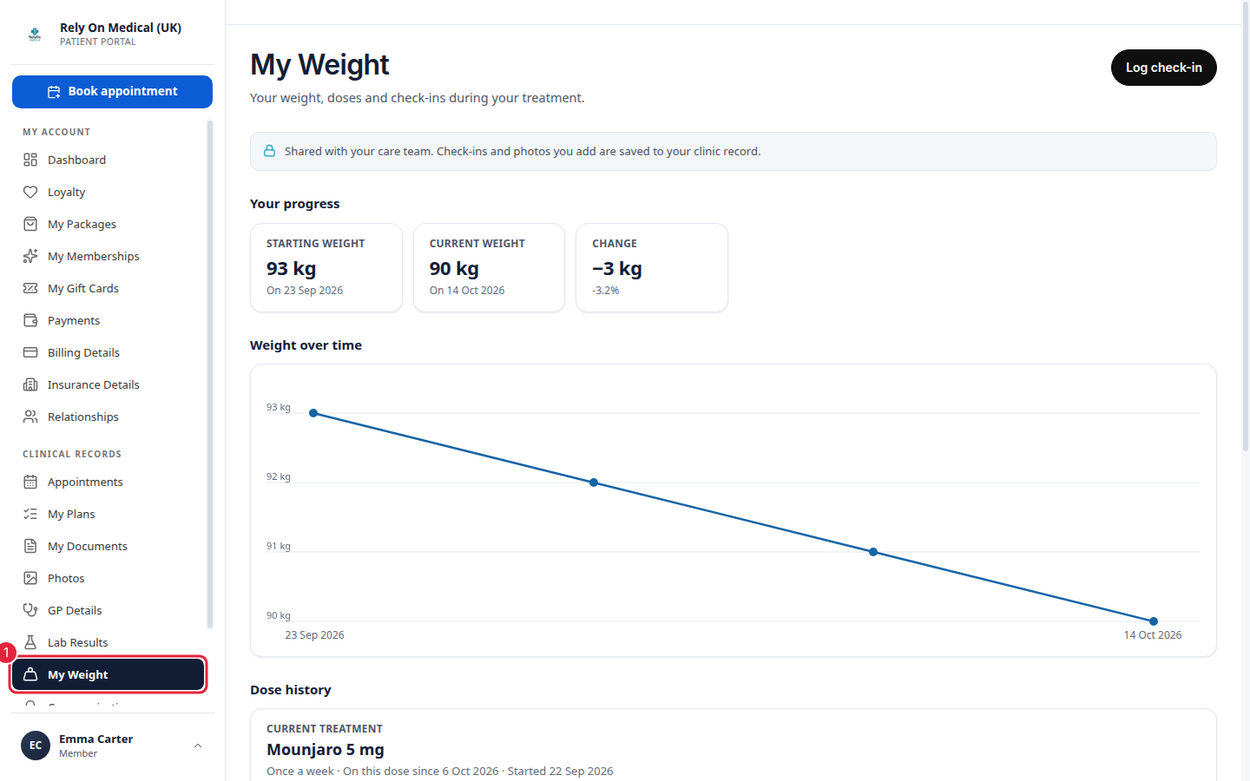
My Weight is in the Clinical Records part of the menu
Step 2: See Your Progress
- Your progress shows your Starting weight, your Current weight and the Change in between, in your weight unit and as a percentage. If your clinic shares your measurements, you also see your BMI.
- Weight over time charts each weight. Tap or hover over a point to see its date and whether it was Recorded by your clinic or came From your check-in. Photos you add with a check-in appear on the chart too; click one to view it.
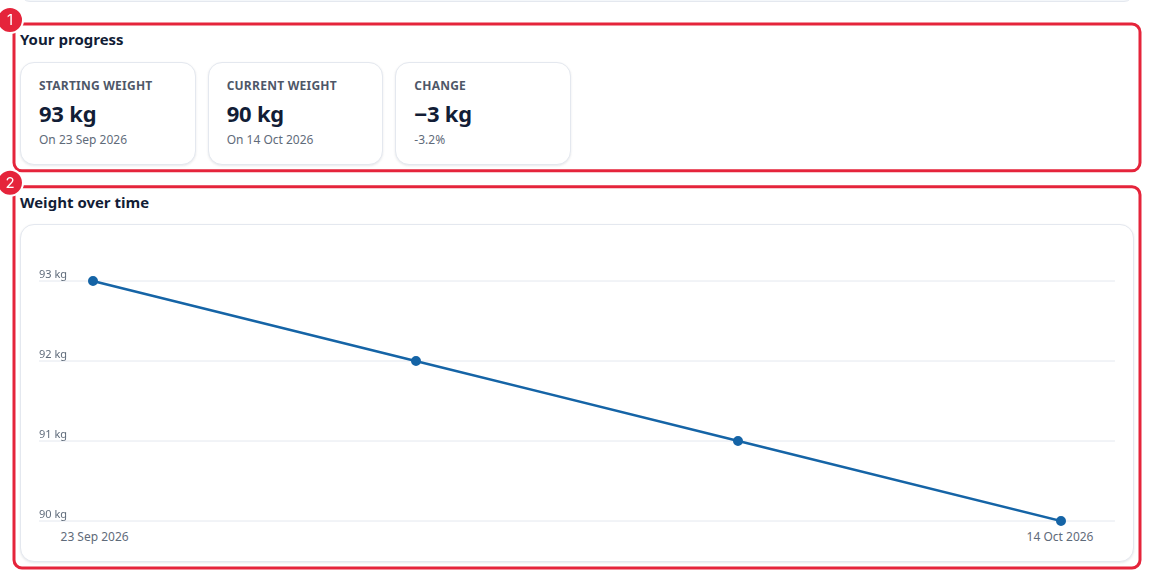
Your progress and your weight chart
TIP: Weights taken at the clinic appear here when your clinic shares your measurements in the portal. Weights from your own check-ins always appear.
Step 3: Check Your Doses and Next Review
- Dose history shows your Current treatment: the medicine and dose, how often you take it, when you started this dose and when you started treatment. The row of doses underneath shows the usual dose steps for your medicine, with your current dose highlighted, and each earlier dose is listed with the date it started.
- Next review shows your next review appointment and who it's with. Click View appointment to see its details. If nothing is booked yet, you'll see No review booked yet.
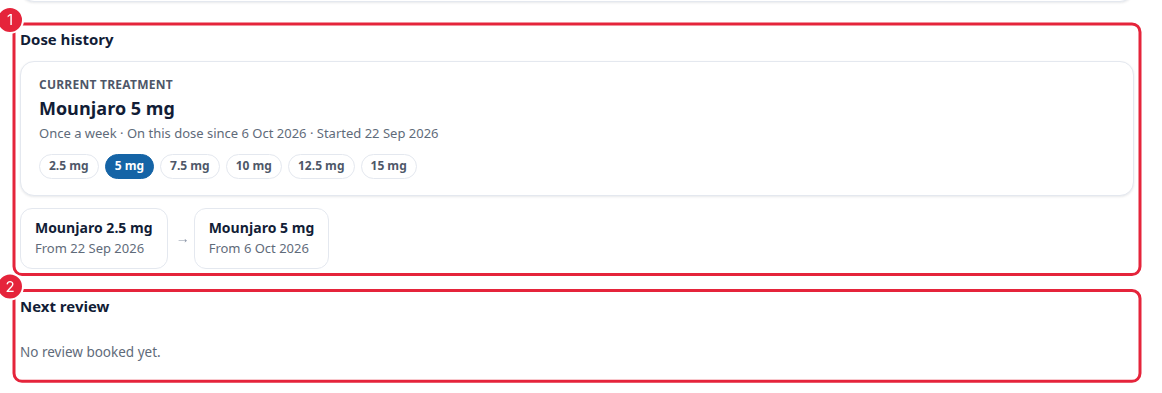
Your doses and your next review
Step 4: Log a Check-In
Your clinic may ask you to check in regularly, for example after each weekly dose.
- Click Log check-in at the top of the page.

Log check-in opens your clinic's check-in form
- Answer your clinic's questions. These are set by your clinic, and usually ask for the date of your last dose, the dose you took, your weight and any side effects. If there's a photo question, you can add a progress photo.
- Click Save and continue.
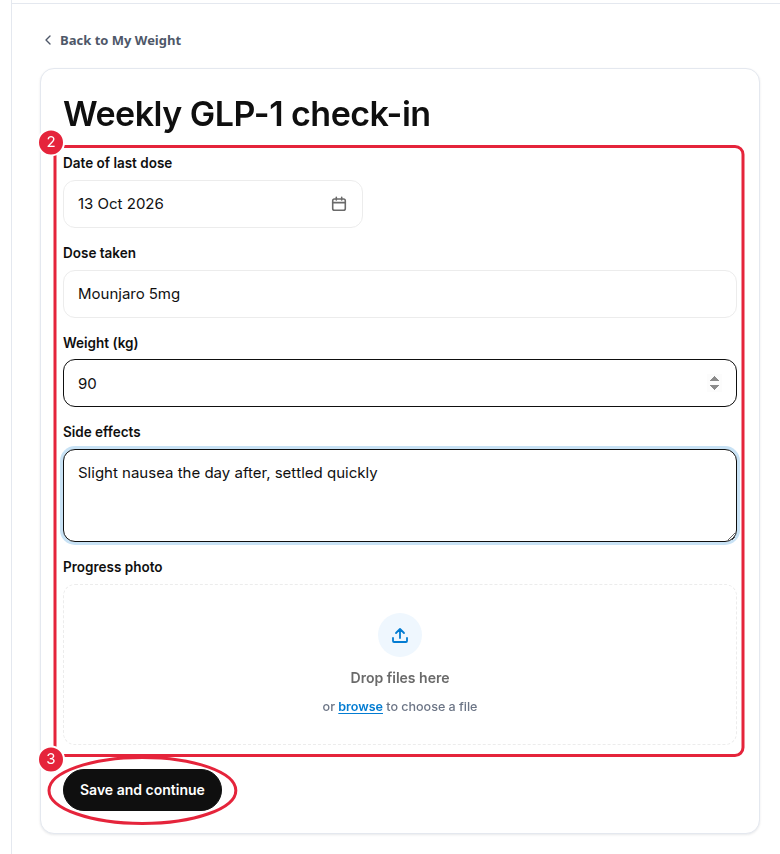
Fill in the check-in and save it
NOTE: If Log check-in is greyed out, check-ins aren't available right now. Please contact your clinic.
Step 5: See Your Check-Ins
You'll see Check-in saved and return to My Weight, where your chart has updated.
- Your new check-in is at the top of Your check-ins, with the weight you entered and the date you took your dose.
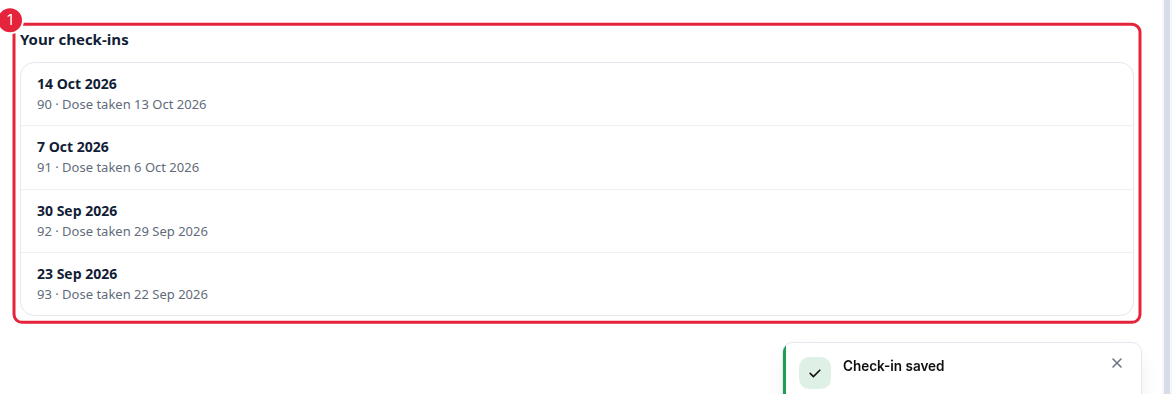
Every check-in you send is listed here
Your check-ins are shared with your care team: the answers and any photos you add are saved to your record at the clinic, so your clinician can review them before your next appointment.
What's next?
- How to Use Your Client Portal (New Client Portal)
- How to Book an Appointment Online (New Booking Page)
- How to Complete a Medical Form Before Your Appointment
Was this guide helpful? Let us know by voting below - your feedback helps us write clearer articles.
For more guides, browse the related articles below or use the search bar at the top of the page. You can also watch our video learning series, the Pabau Academy, or visit the Support page for additional help.