
Pabau has a new look for your standard client emails: a compact header with your clinic logo, larger and easier-to-read text, a clear appointment summary and, when clients have forms to complete, a highlighted Action required panel. Switching to it is a one-off step a clinic administrator takes from the Notification Messages page. It updates all your standard email templates at once and keeps your own wording and settings.
NOTE: This feature is being rolled out to clinics gradually. If you don't see it in your account yet, message us via the in-app chat.
Step 1: Open Client Notifications
- Go to Setup and, under Marketing & Communication, click Client Notifications.
- If your clinic hasn't switched yet, Pabau asks Switch to new notification templates as the page opens. When a newer design comes out later, the same window is called New template designs are available.
Step 2: Switch to the New Designs
- Read what the switch does: your clinic’s standard email designs are replaced with the latest style, and your wording, branding, delivery settings and custom templates are kept.
- Click Switch to new (or Update designs). When it's finished, Pabau shows Your notification templates have been updated.
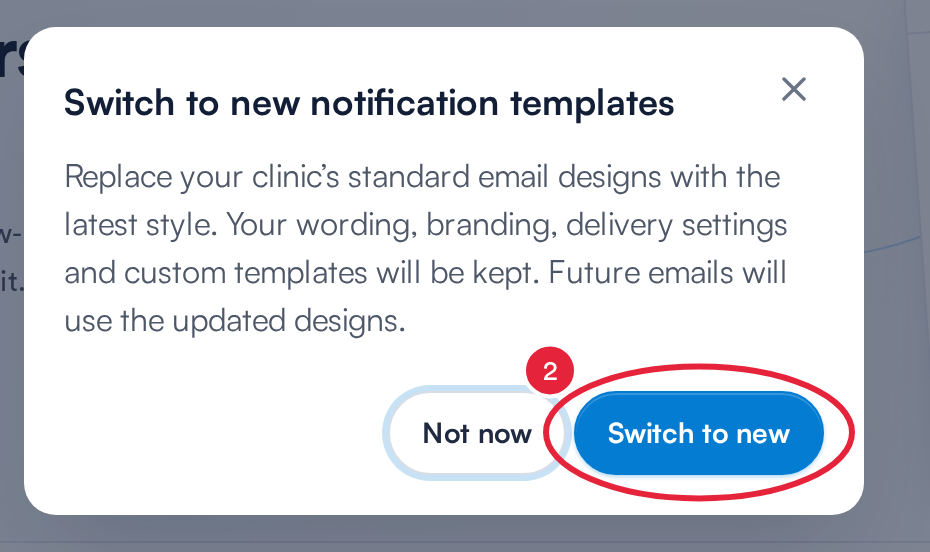
Only a clinic administrator can switch
Not ready? Click Not now. Nothing changes, and Pabau asks again the next time you open the page.
What Changes and What Stays the Same
The switch changes the layout of every standard email template in your clinic's language. Everything you've set up is carried over:
- Your wording, merge tags and links.
- The details you show or hide, such as the service, the employee name or the cancellation policy.
- Your brand colours and footer content. The header always uses your current clinic logo from Business details.
- Email subjects, SMS messages, the Send via switches and attachments.
Custom templates (“Your own design”) are not changed.
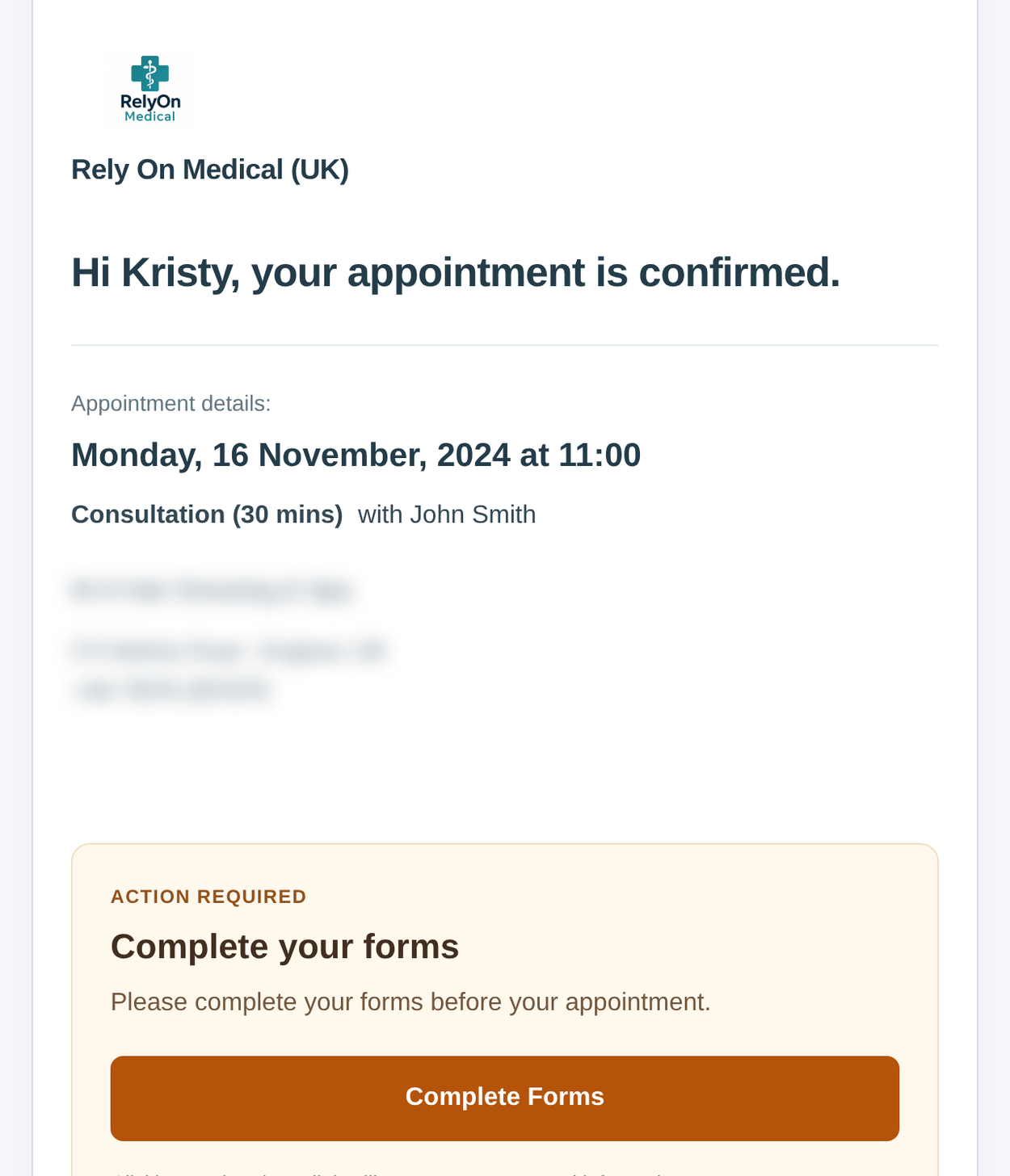
The new design for New appointment is booked
TIP: Want to see the new design first? Click Edit template on any message: the Live preview in the notification studio already uses the new layout. Saving a message in the studio saves that one message in the new design.
NOTE: If you're not a clinic administrator, the window says Ask a clinic administrator to switch your standard emails to the new designs. and the switch button is greyed out.
If the Switch Doesn't Work
- If you see We couldn’t update your notification templates., someone may have been editing a template at the same time. Reload the page and try again.
- If you see We couldn’t check for template updates. Please try again., click Try again.
IMPORTANT: You can't switch back to the old designs yourself. Pabau keeps a copy of your previous templates, so if you need them back, message us via the in-app chat.
What's next?
- Understanding the Notification Messages Page
- How to Edit a Client Notification in the Notification Studio
- How to Brand Your Client Email Notifications with the Theme Tab
- How to Upload Your Logo
Was this guide helpful? Let us know by voting below - your feedback helps us write clearer articles.
For more guides, browse the related articles below or use the search bar at the top of the page. You can also watch our video learning series, the Pabau Academy, or visit the Support page for additional help.