
NOTE: This switch is on the new client card. It is on for every client until you turn it off. Only appointments booked one client at a time in the new appointment panel follow it — see What does it change? below.
Step 1: Open the Client’s Communication Preferences
Open the client’s card. On the Personal tab, click the bell icon (Communication preferences).
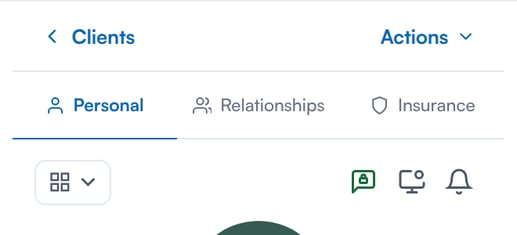
The bell icon on the Personal tab opens Communication preferences
Step 2: Turn Off Send Feedback Requests
Under Feedback requests, turn off Send feedback requests. The change saves straight away — you don’t need to click Save Changes — and you’ll see Feedback requests turned off.
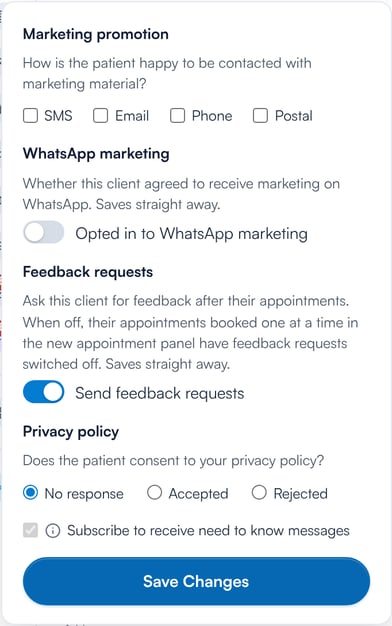
The Feedback requests section in Communication preferences
To start sending feedback requests to the client again, turn the switch back on.
What Does It Change?
When you book an appointment for this client on its own in the new appointment panel, the Review notification is switched off for you. Its Email, SMS and WhatsApp options can’t be turned on, and hovering over Review shows This client has opted out of feedback requests on their client card. The appointment is saved without a feedback request.
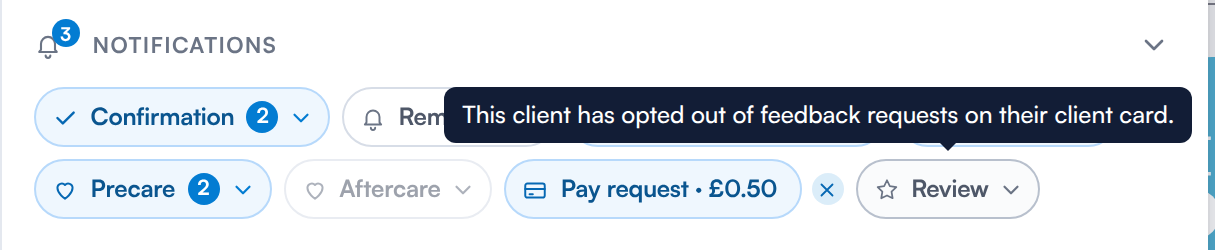
The Review notification is held off for a client who has opted out
IMPORTANT: These still follow your clinic’s feedback settings, not this switch: group bookings, the classic booking form, online bookings, and appointments booked before you turned the switch off. Check the Review notification on those bookings yourself.
Does This Turn Off Feedback for My Whole Clinic?
No. It only affects this one client. To change feedback requests for every client, see How to Enable Reviews.
What's next?
To manage the rest of a client’s contact settings, see How to Adjust Communication Preferences in the Client Card (New Client Card).
Was this guide helpful? Let us know by voting below - your feedback helps us write clearer articles.
For more guides, browse the related articles below or use the search bar at the top of the page. You can also watch our video learning series, the Pabau Academy, or visit the Support page for additional help.