
This article shows you how to start a brand-new conversation in Engage — for example to text a client who has never messaged you before.
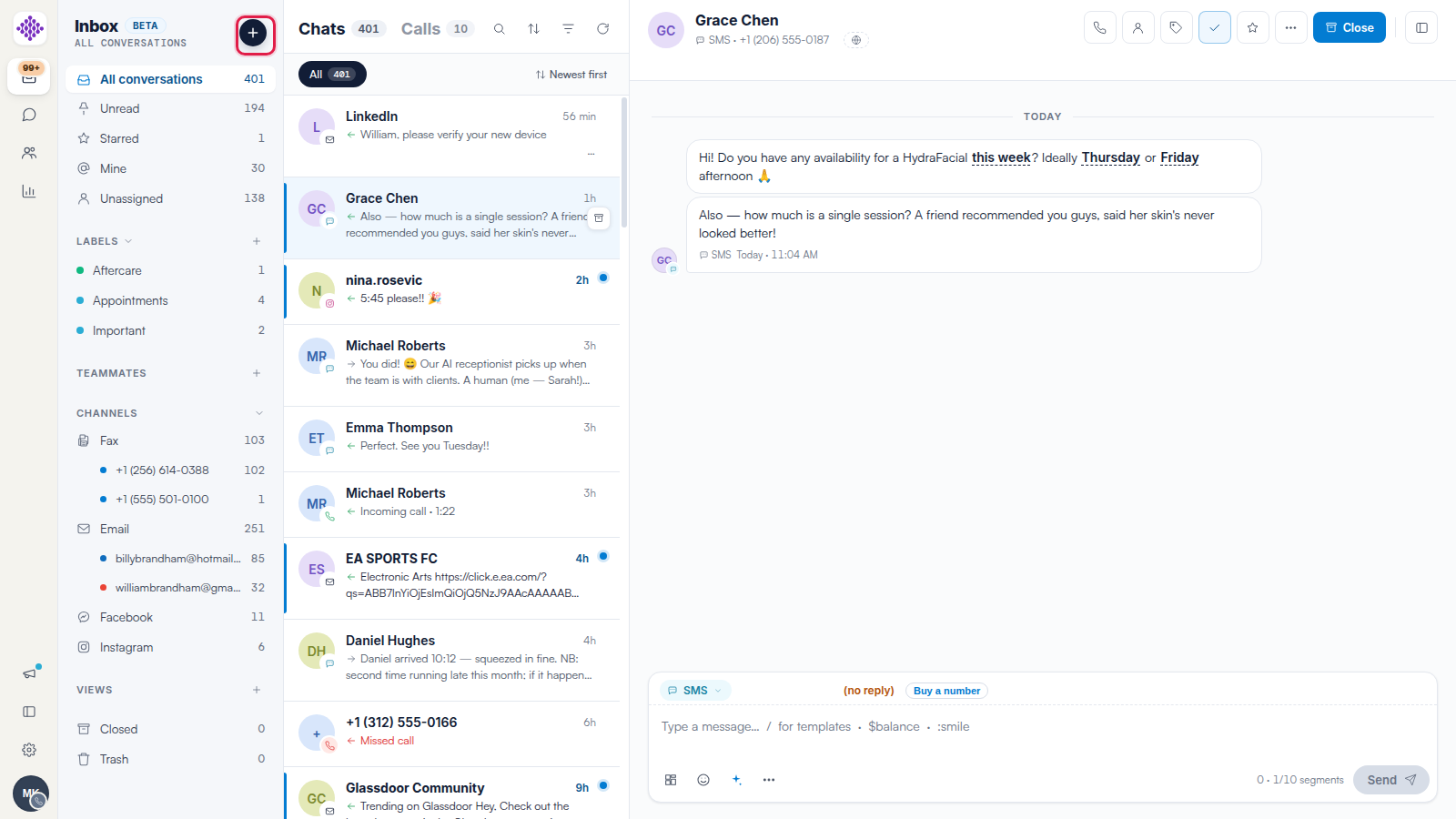
Step 1: Click the + Button
In the inbox, click the + button at the top of the sidebar.
Step 2: Find the Client or Lead
A search window opens. Start typing a name, phone number, email address or card ID — results narrow as you type, grouped into clients and leads, showing each person's phone, patient number and date of birth so you can pick the right record.
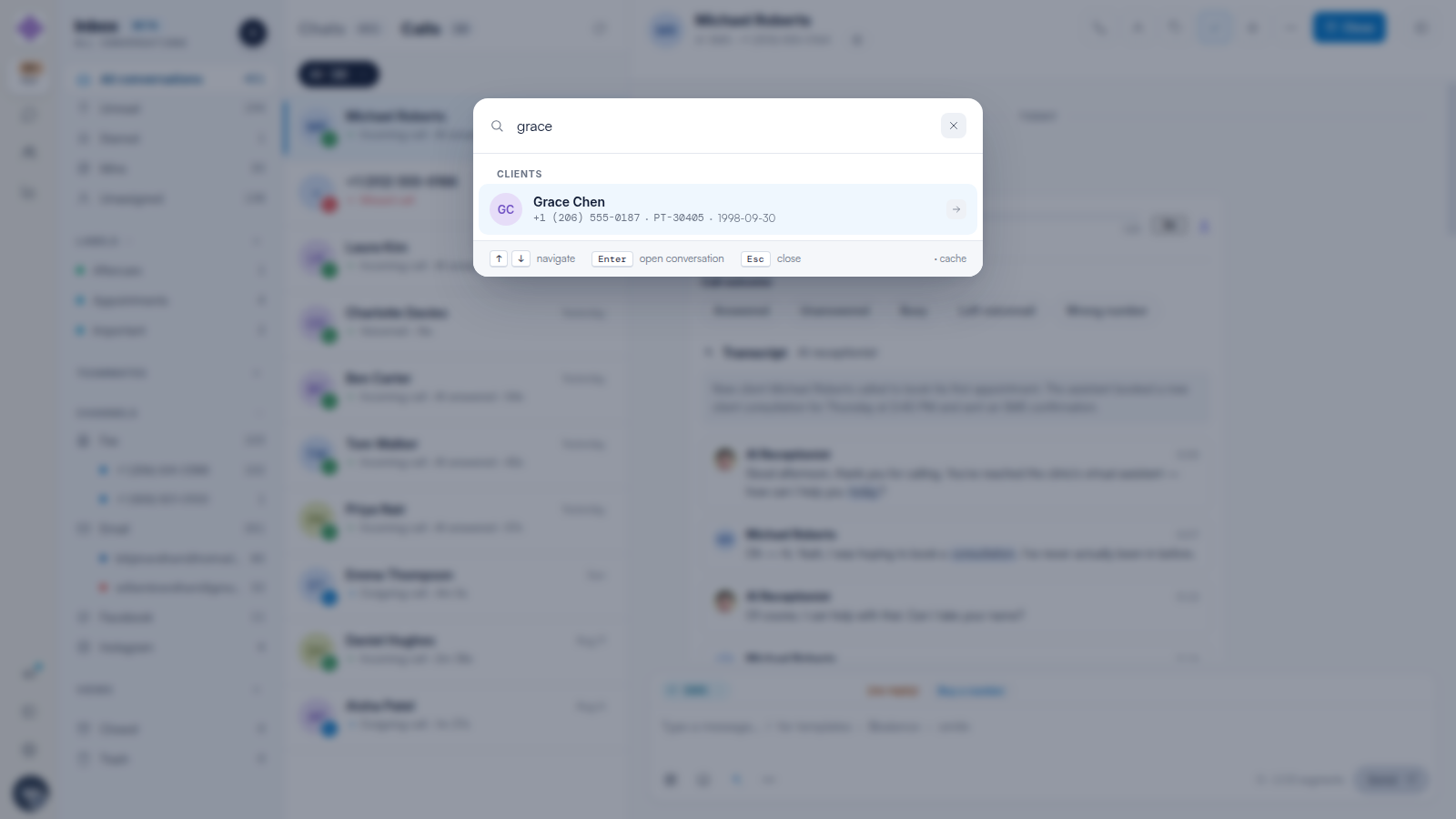
TIP: You can drive the whole flow from the keyboard: ↑/↓ to navigate, Enter to open the conversation, Esc to close.
Step 3: Send the First Message
Selecting a person opens their conversation — including the full history if your clinic has messaged them before. Choose the channel in the composer (SMS, email or WhatsApp), write your message and click Send.
NOTE: Starting a WhatsApp conversation more than 24 hours after the client last replied requires an approved message template — see our WhatsApp Templates and the 24-Hour Window article.
Related Articles
We suggest reading our How to Reply to Messages and Switch Channels in Engage article for everything the composer can do.
For more guides, refer to related articles below, select additional guides, or use the search bar at the top of the page. These guides will help you get the most out of your Pabau account.
Additionally, to help you fully utilize and understand your Pabau account, we recommend exploring additional guides and resources offered at the Pabau Academy.