Skip to content
  • There are no suggestions because the search field is empty.

How to Start a New Conversation in Engage

This article guides you through starting a brand-new conversation from the Engage inbox, so you can reach out to a client before they message you first.

Step 1: Click New Message

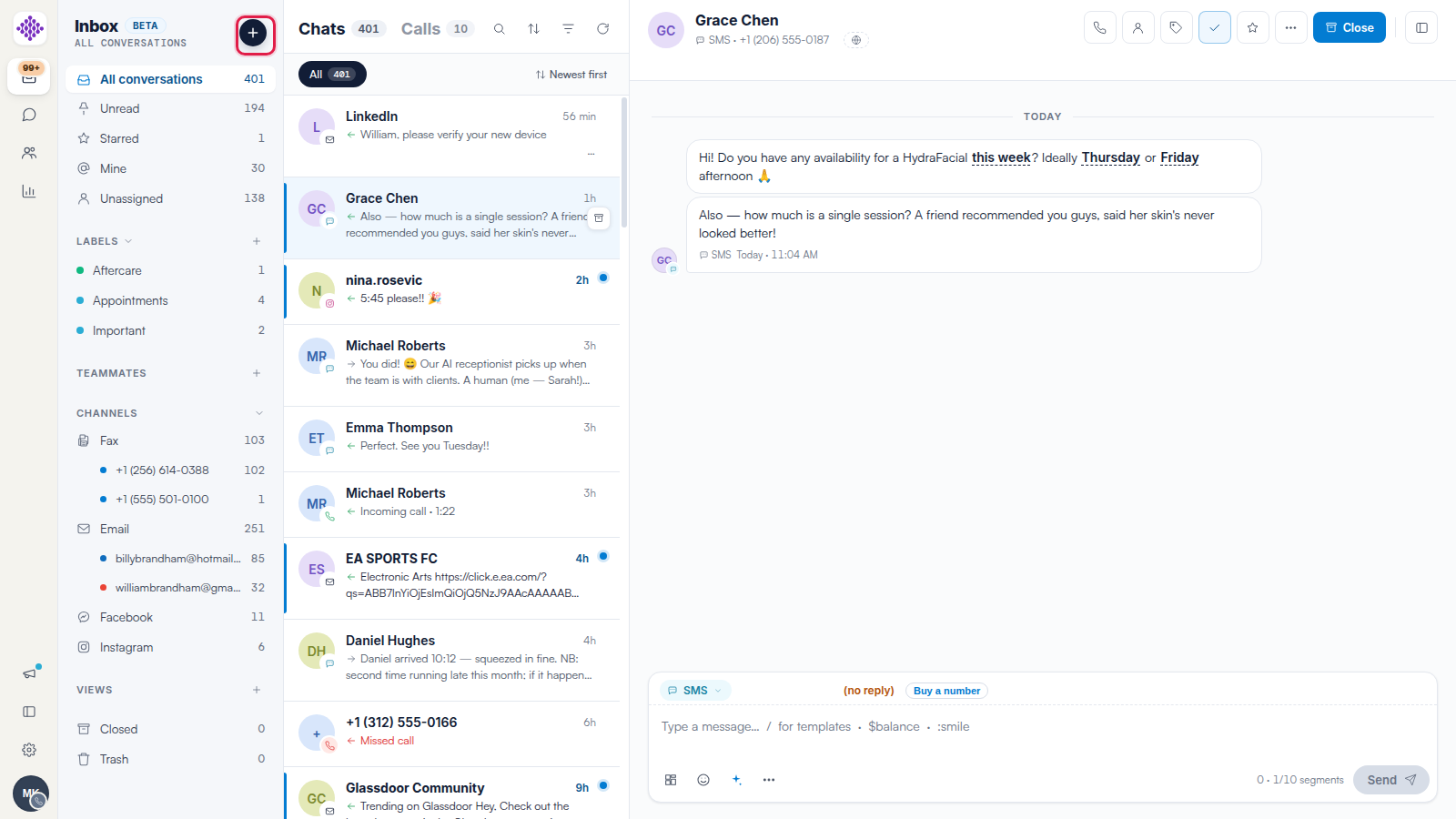
In the navigation rail on the left side of the Engage inbox, click the New message button at the top. This opens the client picker.

The Engage navigation rail with the New message button at the top, above the conversation filters, labels and channels

NOTE: Conversations started from the New message button begin on the SMS channel, so your clinic needs a two-way number to send the message. We suggest reading our How to Set Up Two-Way SMS in Engage article if you have not purchased one yet.

Step 2: Search for Your Client

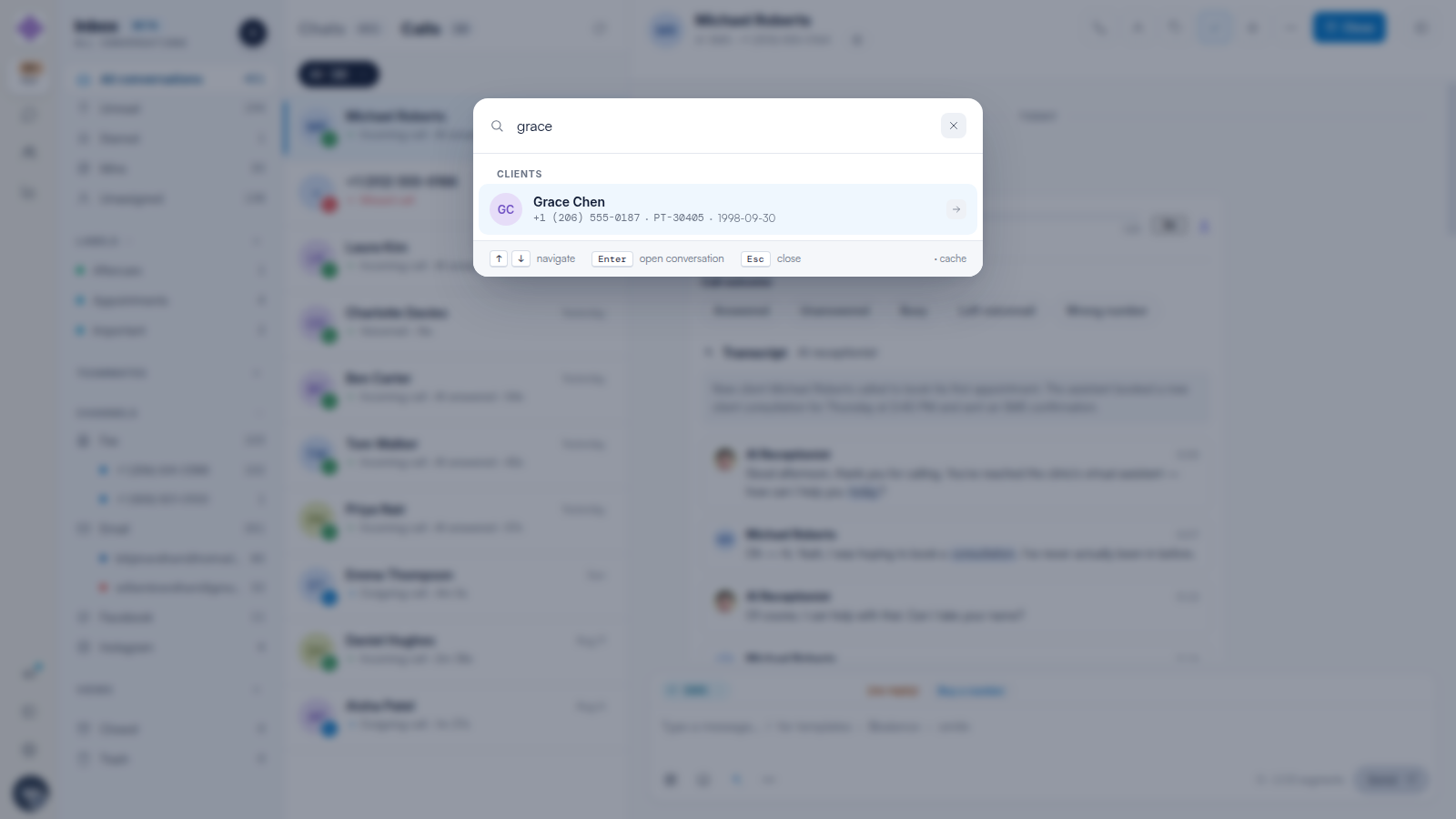
Start typing in the search box, which reads Type a client name, phone, or card ID…. Engage shows Searching… while it looks through your client list, then displays the matching clients. Each result shows the client's name, phone number, card ID and date of birth, so you can be sure you have the right person.

You can work entirely from the keyboard: press and to move through the results, Enter to open the conversation, and Esc to close the picker.

The New message picker with a phone number typed, showing three matching clients with their phone numbers, card IDs and dates of birth

NOTE: You can only start a conversation with someone who already exists as a client in Pabau. If your search finds nobody, the picker shows No matches - press Enter to start a conversation with "your text" — but pressing Enter on free text shows a Patient not found in CRM message instead of opening a conversation. Add the person as a client in Pabau first, then search for them again. If someone new messages your clinic, their conversation arrives in the inbox automatically — we suggest reading our How to Create a Lead or Client from a Conversation in Engage article for saving them to Pabau from there.

The New message picker with a name that matches no clients, showing the "No matches - press Enter to start a conversation" state

Step 3: Open the Conversation

Click the client you want to message, or press Enter on the highlighted result. What happens next depends on whether you already have a conversation with them:

  • If an open text conversation with this client already exists, Engage takes you straight to it and shows Opened existing conversation — you will never create a duplicate.
  • If there is no open conversation, Engage creates one and shows SMS conversation started.

NOTE: Conversations you have archived stay archived. Starting a new conversation with the same client creates a fresh one; the old conversation remains under Archived in the navigation rail.

Step 4: Write and Send Your Message

The new conversation opens in the inbox with the message box ready. Type your message and click Send. To save time, you can insert one of your clinic's message templates instead of typing from scratch — we suggest reading our How to Use Message Templates in Engage article for how templates and personalisation work.

TIP: There is no channel selector inside the New message picker — conversations started this way always begin as text messages. Once the conversation is open, you can switch it to another channel the client is reachable on. We suggest reading our How to Reply to Messages and Switch Channels in Engage article for how channel switching works.

We suggest reading our How to Manage Conversations in Engage (Read, Star, Archive and Trash) article for keeping your new conversations organised once they are underway.

For more guides, refer to related articles below, select additional guides, or use the search bar at the top of the page. These guides will help you get the most out of your Pabau account.

Additionally, to help you fully utilize and understand your Pabau account, we recommend exploring additional guides and resources offered at the Pabau Academy.