
Having your Terms and Conditions visible at the point of booking is important for legal transparency and building client trust. Pabau allows you to link your own T&Cs in the online booking flow.
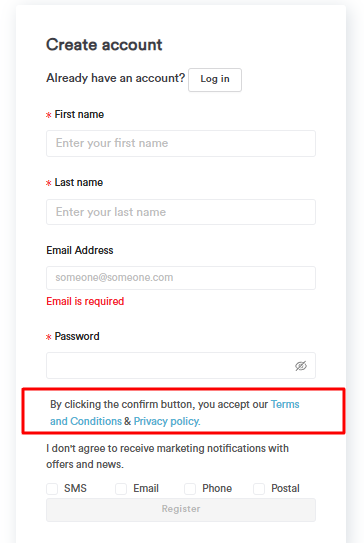
NOTE: If you do not add your own Terms and Conditions link, Pabau will display its own default Privacy Policy and Terms and Conditions on the client registration page during online booking. We strongly recommend adding your own to ensure clients are agreeing to your clinic's specific policies.
Step 1: Navigate to Online Booking Settings
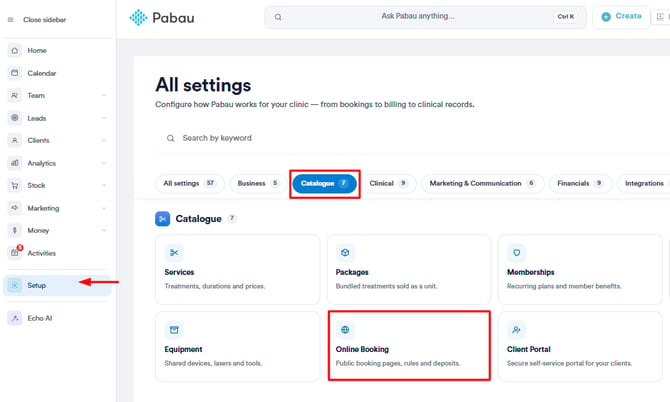
Log into your Pabau account and click on Setup in the left sidebar. Under the Catalogue section, select Online Booking.
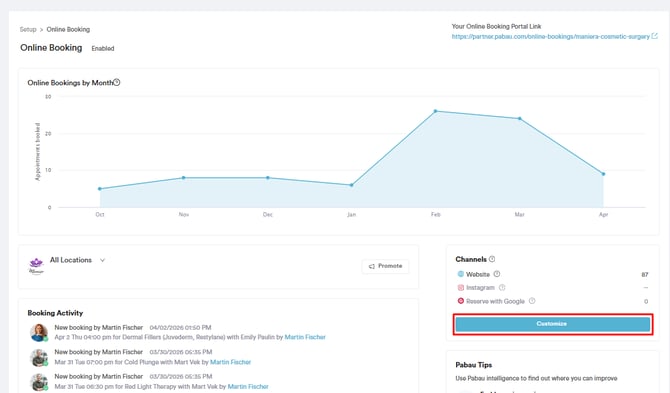
Then click Customize on the right side of the screen.
Step 2: Open the Customize Tab — General
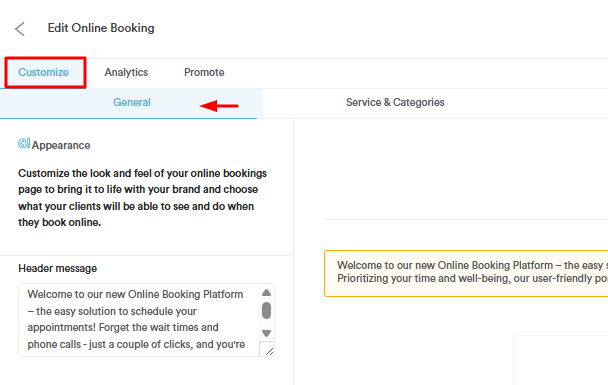
You will land on the Customize Online Booking screen. The Customize tab is selected by default at the top, then click General in the sub-navigation row beneath it.
Step 3: Scroll Down to Terms and Conditions
Scroll down the left-hand panel past the Header message and Footer message fields. You will see two fields:
- Terms and Conditions — enter the full URL of your clinic's Terms and Conditions page here (e.g.
https://yourclinic.com/terms) - Privacy Policy — enter the full URL of your clinic's Privacy Policy page here (e.g.
https://yourclinic.com/privacy)
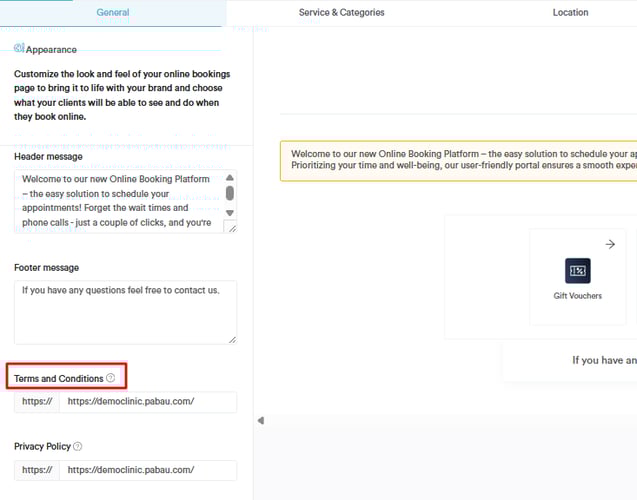
The tooltip on this field confirms: "You can include your own Terms and Conditions link below, which will appear on the registration page on the Connect portal."
NOTE: Both URLs must be publicly accessible web pages. If your clinic does not yet have dedicated pages for these, speak to your web provider or create them before linking here.
Step 4: Save Your Changes
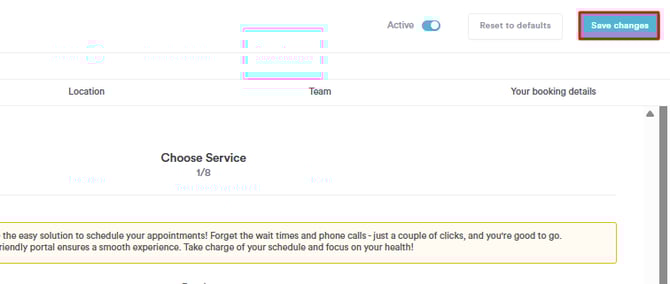
Click Save changes in the top right corner of the screen.
Your Terms and Conditions and Privacy Policy links will now appear on the client registration page when a new client books online through your Connect portal.
By following these steps, you can easily include your terms and conditions in your online booking portal.
For more guides, refer to related articles below, select additional guides, or use the search bar at the top of the page. These guides will help you get the most out of your Pabau account.
Additionally, to help you fully utilize and understand your Pabau account, we recommend exploring additional guides and resources offered at the Pabau Academy. It offers in-depth video tutorials and lessons, offering a holistic learning experience that can equip you with the essential skills for achieving success with Pabau.