
Some treatments don't have one fixed price. You might charge for the units of an injectable, the syringes of filler, the minutes of a massage or the areas you treat. A pricing rule tells Pabau how a service is charged. At checkout your team enters how much was used, or ticks what was treated, and Pabau works out the price.
NOTE: Each service can have one pricing rule. You can change it or remove it at any time.
Step 1: Open the Pricing Rules for the Service
- Go to Setup → Services and click the service you want to set up.
- Select the Pricing tab.
- Click Pricing Rules.
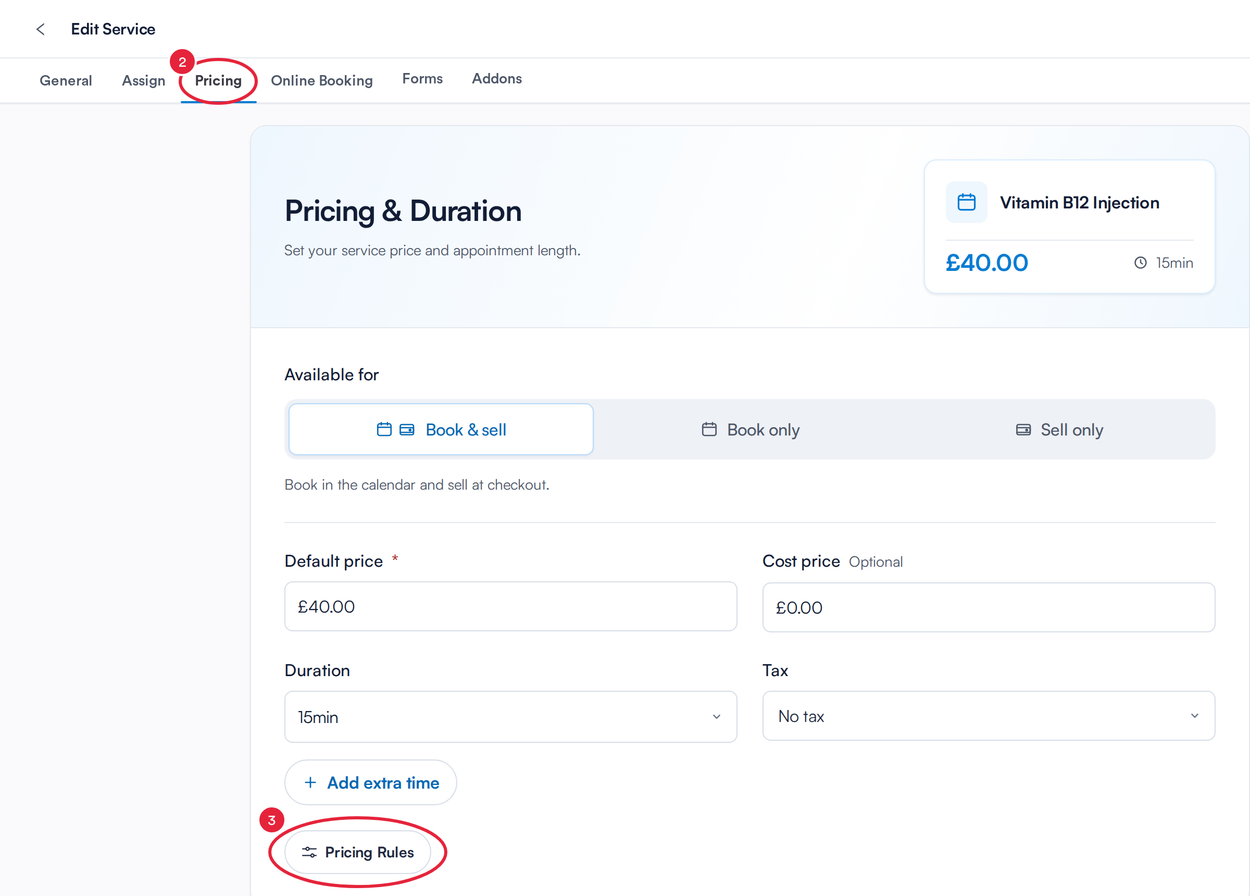
The Pricing Rules button sits below the price, duration and tax
Step 2: Choose How You Charge
Under How do you charge for this service?, click the rule that fits the treatment:
- Per unit: charge for each unit used, such as units of an injectable.
- Per syringe / vial / ampoule: charge for each container used.
- Per mL / cc: charge by the volume used.
- Per minute: let the appointment length set the price.
- Per hour: set an hourly rate for your time.
- Per area: set a price for each treatment area, such as underarms and legs.
- Per body part: price each body part separately, such as the left and right knee.
- From a form answer: use a number recorded on a completed form, such as the number of units given.
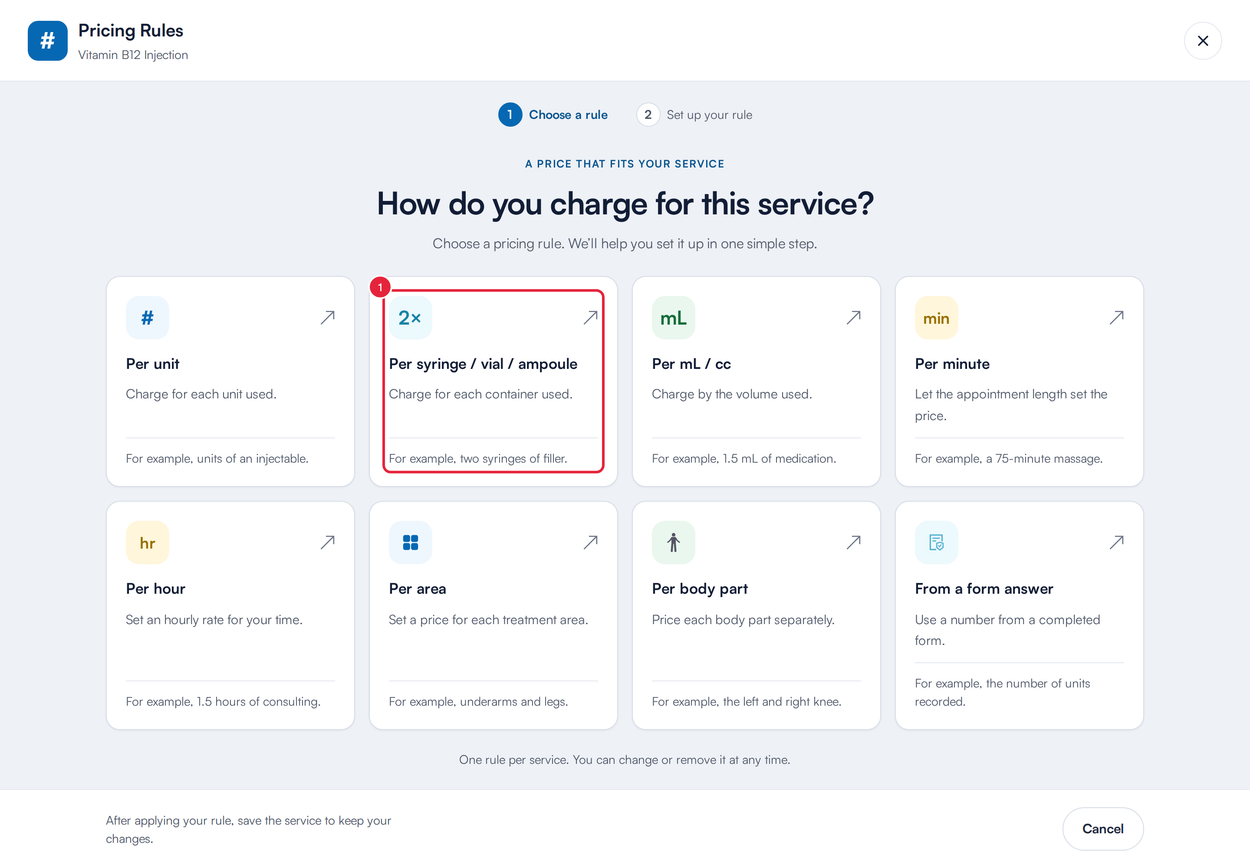
Pick the rule that matches how you charge
Step 3: Set Your Rate
For a unit, container, volume, minute or hour rule:
- For Per syringe / vial / ampoule or Per mL / cc, choose what you charge by under What do you charge by?: Syringe, Vial or Ampoule, or mL (millilitres) or cc (cubic centimetres).
- Enter your rate, for example in Price per ampoule (the label also shows your currency). This becomes the service's default rate.
- Check the Price preview. It works through an example, such as two ampoules, so you can sense-check the rate. It's an illustration only: taxes and discounts are applied at checkout.
- Click Apply rule.
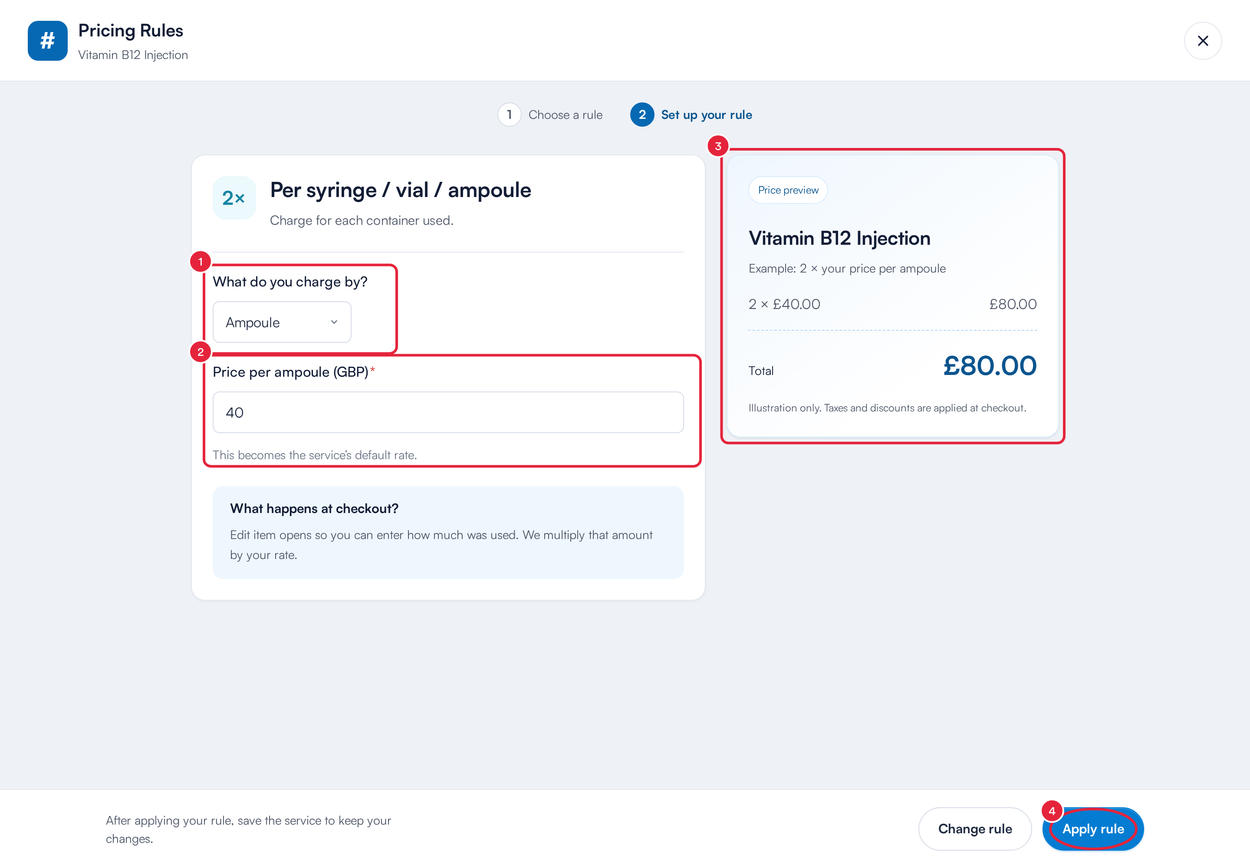
A per ampoule rule, with the price preview on the right
The What happens at checkout? box tells you what your team will see. For unit, container and volume rules, the item opens at checkout so they can enter how much was used, and Pabau multiplies that amount by your rate. For Per minute and Per hour, Pabau uses the appointment length to work out the price, and your team can adjust the time if the treatment ran longer or shorter.
Step 4: Add Your Areas or Body Parts
For a Per area or Per body part rule, list everything you treat and what each one costs:
- Enter a Name and a Price for each area or body part. A new rule starts with no rows, so click + Add another option to add the first one. Click Remove to delete one.
- Click + Add another option to add the next one.
- Click Apply rule.
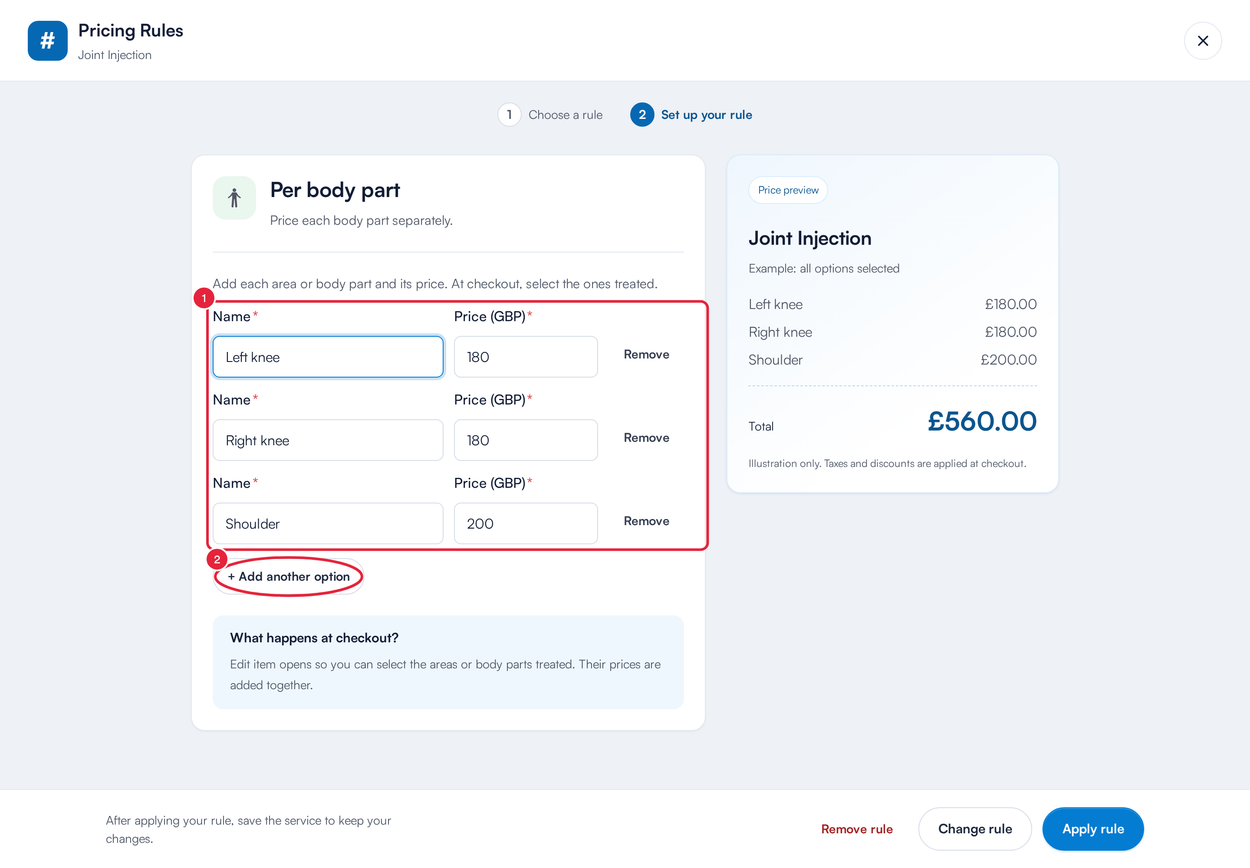
Each body part has its own price
Give each option a different name. The price preview adds up every option, and at checkout your team ticks the ones they treated and Pabau adds those prices together.
Step 5: Use a Number From a Form
A From a form answer rule reads a number your practitioner records on a form, such as the units given, and multiplies it by your rate:
- Under 1. Choose a form, pick the form your team completes for this treatment. You can search your forms.
- Under 2. Choose a number field, pick the field that holds the amount. Only number fields can be used for pricing.
- Enter the Price per recorded unit in the box at the top, then click Apply rule.
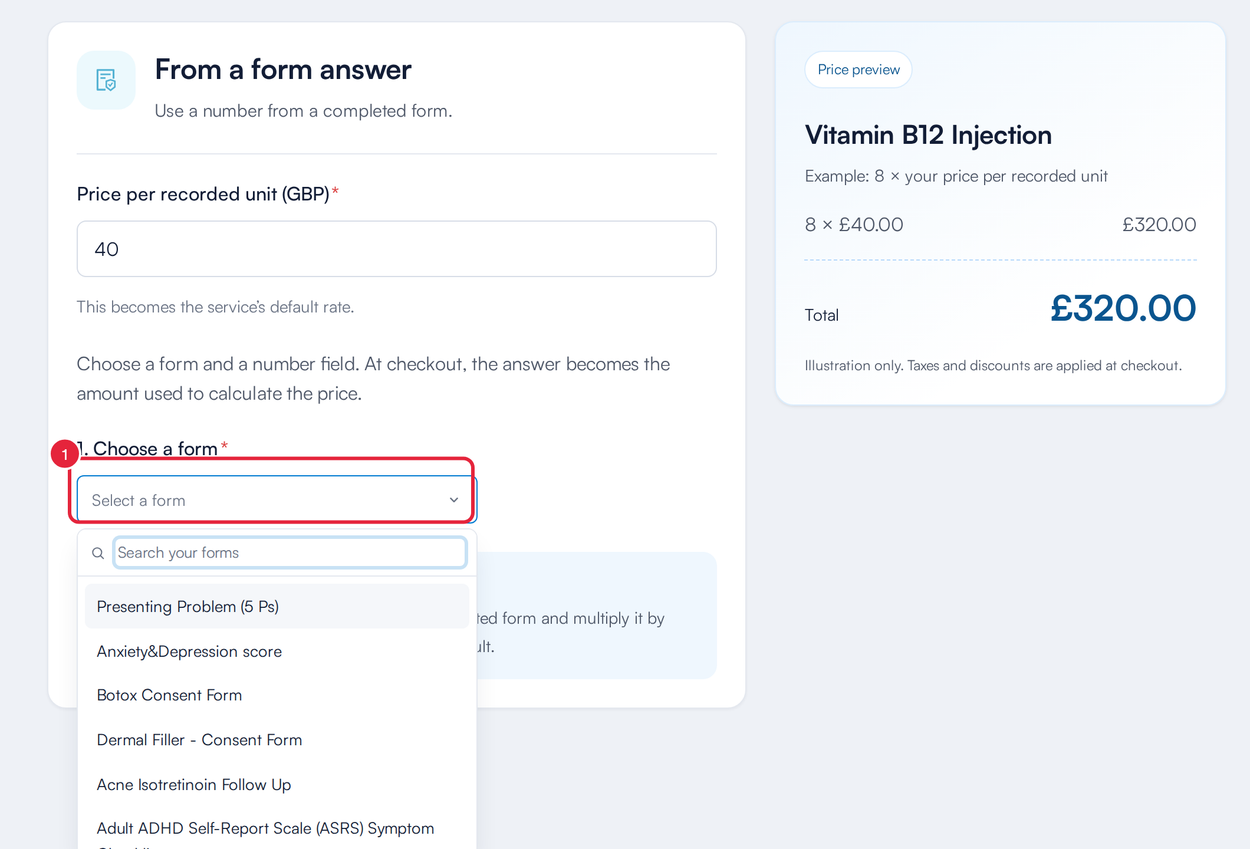
Choose the form, then the number field on it
At checkout Pabau uses the form completed for that appointment, or the client's latest completed copy of the form, and your team checks the number before saving.
TIP: If a form has no number fields, Pabau says so when you pick it. In the form builder, add a short-answer field with its input type set to Number, give it a clear name that no other field on the form uses, then come back and choose it.
Step 6: Save the Service
- Back on the Pricing tab, the name of your rule now shows next to Pricing Rules.
- The price card at the top shows your rate with its unit, for example £250.00 per syringe. For a rule with a single rate, the service’s price (Service price, or Default price if your clinic uses insurance billing) is updated to that rate too.
- Click Save. The rule is only kept once you save the service.
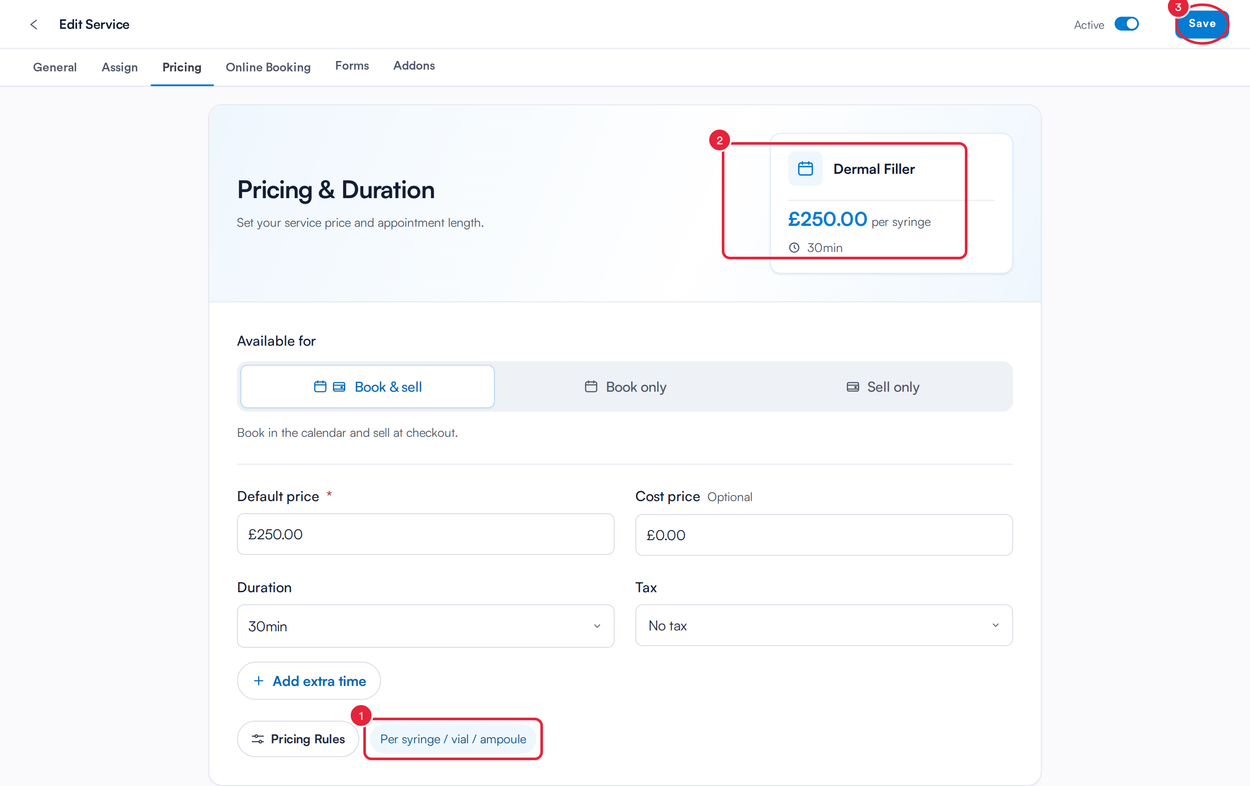
Save the service to keep your rule
On Setup → Services, the Price column now shows the rate and its unit, such as £250.00 per syringe. For a per area or per body part rule it shows From and your lowest option price, such as From £180.00 per body part.
Changing or Removing a Rule
Open the service, select the Pricing tab and click Pricing Rules. It opens on your current rule:
- Edit the rate or options, then click Apply rule.
- Click Change rule to pick a different type of rule.
- Click Remove rule to go back to a fixed price.
Then click Save on the service.
NOTE: If you see This rule needs to be set up again before it can be used. next to the Pricing Rules button, open Pricing Rules and set the rule up again, then save the service. Until you do, your team can't take payment for the service in the Point of Sale.
What's next?
- How to Charge for a Service with a Pricing Rule at Checkout
- How to Edit a Service
- How to Create a Service
- How to Create an Add-on
Was this guide helpful? Let us know by voting below - your feedback helps us write clearer articles.
For more guides, browse the related articles below or use the search bar at the top of the page. You can also watch our video learning series, the Pabau Academy, or visit the Support page for additional help.