
A payment schedule lets you spread the cost of a service over the weeks before the appointment. The client pays a percentage when they book, and the rest is charged to their card automatically before the appointment. It suits high-value treatments, procedures and courses where you want a commitment up front and the full amount in before the day.
NOTE: This feature is being rolled out to clinics gradually. If you don't see it in your account yet, message us via the in-app chat.
NOTE: A payment schedule is used when your team books the service in the new Create Appointment panel in the Calendar. It needs Pabau Pay (Stripe), because the balance is charged to the client's card. Online bookings are not put on a schedule: they still take the service's usual deposit.
Step 1: Open the Service
Go to Setup, click Services under Catalogue, and click the service you want to set up. Edit Service opens.
- Select the Pricing tab.
- Scroll down to Deposits & online payments and click Change to show its settings.
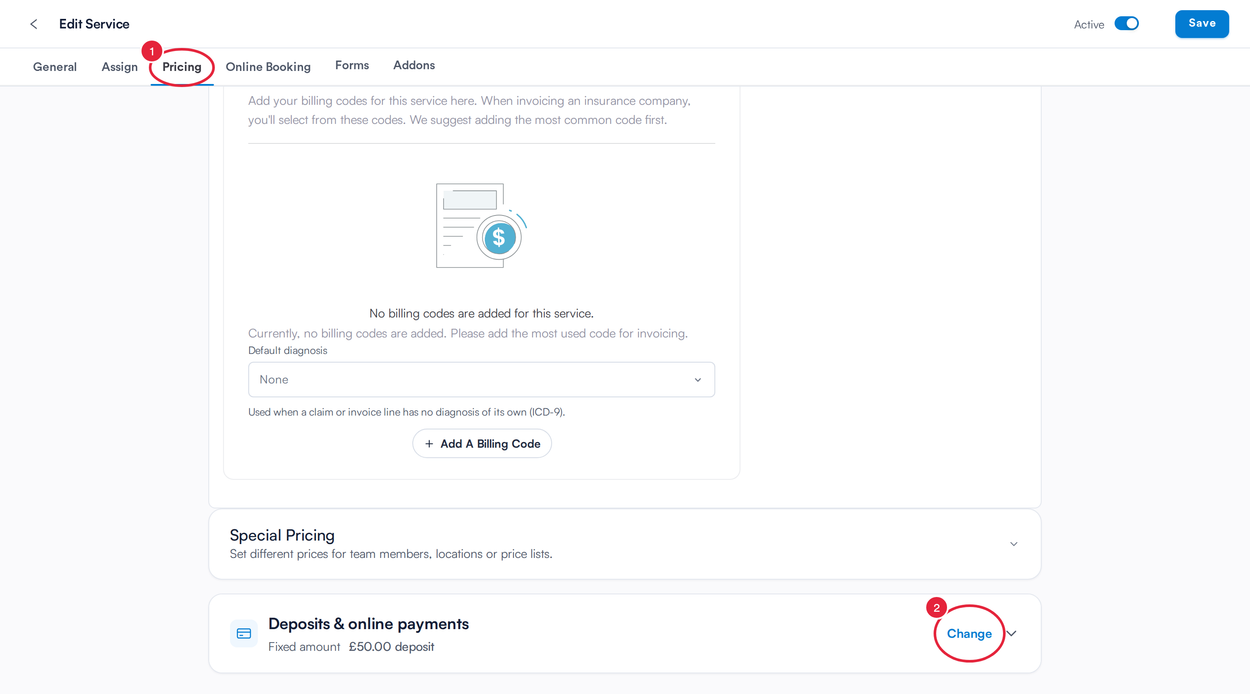
Open the Pricing tab, then Change on Deposits & online payments
Step 2: Turn On the Payment Schedule
- Below the deposit settings, switch on Payment schedule.
- Under Upfront payment, choose how much the client pays when the appointment is booked, from 5% at booking to 75% at booking.
- Under Balance charged, choose when the rest is charged to the client's card: On the day of the appointment, or 7, 14, 21 or 28 days before the appointment.
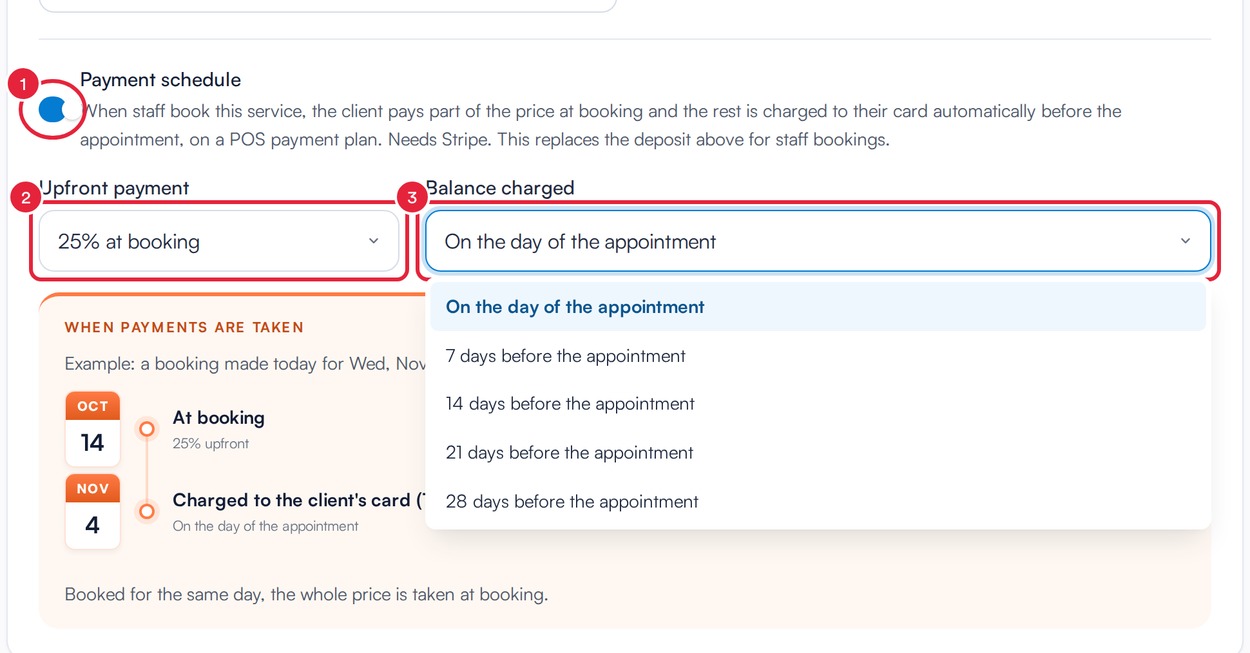
Choose the upfront percentage and when the balance is charged
NOTE: The schedule replaces the deposit set above it for bookings your team makes, so the client is not asked for both. The deposit still applies to online bookings.
Step 3: Check the Preview
The When payments are taken box plays your schedule out on an example: a booking made today for an appointment a few weeks away, using the service's price. It shows:
- At booking: the upfront percentage and amount, taken today.
- Charged to the client's card: the balance and the date it is charged.
- Appointment: the day of the appointment.
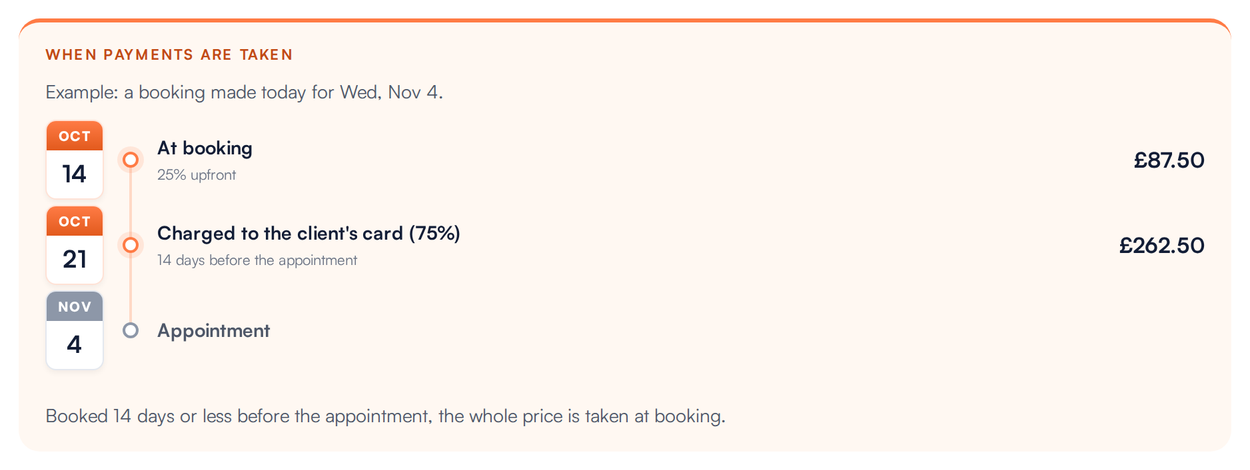
A 25% upfront payment, with the balance charged 14 days before the appointment
The line under the timeline explains late bookings. When an appointment is booked inside the balance window (for example, 14 days or less before it), there is no time to schedule the balance, so the whole price is taken at booking.
Step 4: Save the Service
Click Save at the top right. Pabau confirms that the service was updated.
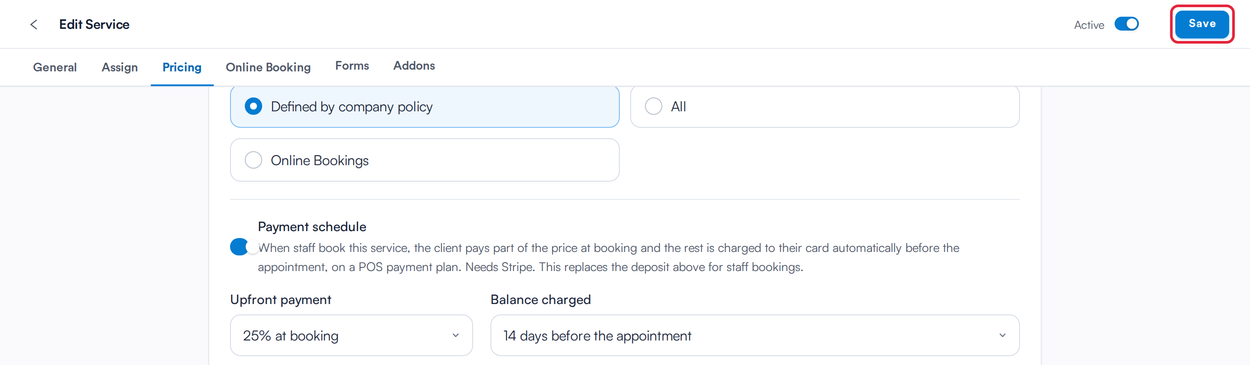
Save the service to keep the schedule
IMPORTANT: If you see The service was saved, but its payment policy was not, the rest of the service saved but the schedule did not. Open the service again and save the schedule once more.
What Happens When Your Team Books the Service
When the service is added to a new appointment, the Payment Policy section of the booking shows the schedule instead of the usual deposit choice. Booking the appointment saves it and opens the Point of Sale with a payment plan already filled in: the upfront payment today and the balance on its due date. Your team takes the client's card there, and the balance is charged to that card on the due date.
- If the appointment is inside the balance window, the whole price is taken when the appointment is booked.
- If Pabau Pay isn't connected, or the price of the booking is worked out at checkout (for example, a service with a pricing rule), the schedule can't be set up and nothing is taken for the service at booking.
- Staff can still choose not to use the schedule for a particular booking.
TIP: An older schedule may show Nothing at booking. A payment plan needs a first payment, so choose an upfront percentage and save the service again.
Turning a Schedule Off
Open the service, select the Pricing tab, click Change on Deposits & online payments, switch off Payment schedule and click Save. New bookings then use the service's deposit again. Payment plans already set up for existing bookings are not changed.
What's next?
- How to Book an Appointment for a Service with a Payment Schedule
- How to Set Up Service-Specific Deposits
- How to Set Up a Payment Plan in Point of Sale
- How to Edit a Service
Was this guide helpful? Let us know by voting below - your feedback helps us write clearer articles.
For more guides, browse the related articles below or use the search bar at the top of the page. You can also watch our video learning series, the Pabau Academy, or visit the Support page for additional help.