
Before You Start
- The package you want to price must already be created. To set one up, read our How to Create a Package article.
- Location-specific pricing applies per site, so your locations must be set up in the system. To add them, read our How to Create a New Location article.
Location-specific pricing lets you charge a different price for the same package at each clinic, which is useful for premium or regional sites where your rates vary. You set one base price for the package, then override it for any location that should differ.
Step 1: Navigate to Packages
Start by logging into your Pabau account. In the left sidebar menu, click on Setup, then select Packages under "Catalogue".
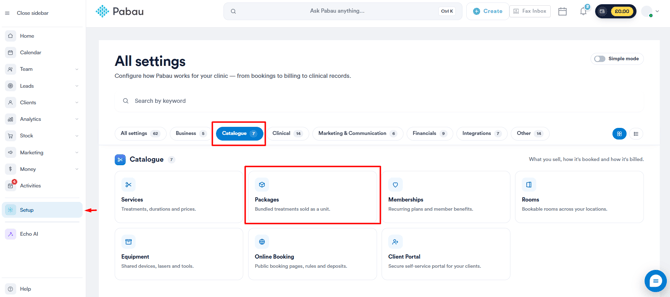
On the Packages page, click the name of the package you want to price.
Step 2: Open the Pricing Tab
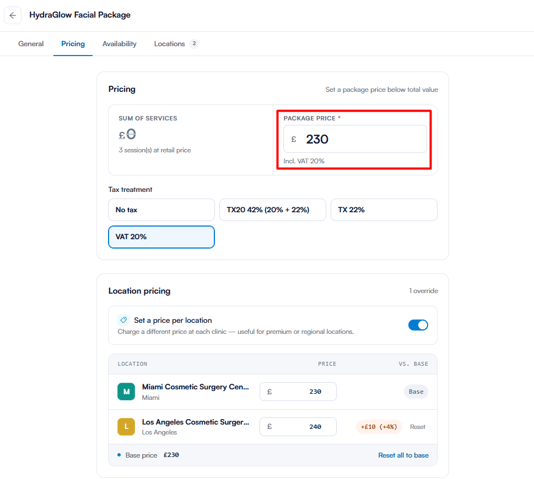
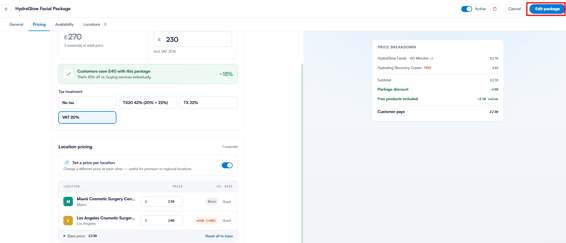
In the package, switch to the Pricing tab. The "Package Price" field shows the base price customers pay. This is the default price that applies at any location you don't override in the next step.
Step 3: Enable Location Pricing
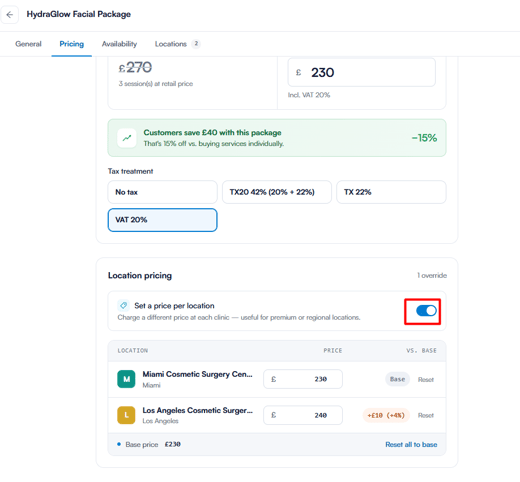
In the "Location Pricing" section, turn on the "Set a price per location" toggle. Your clinics then appear as a list, each with its own price field.
Step 4: Set a Price for Each Location
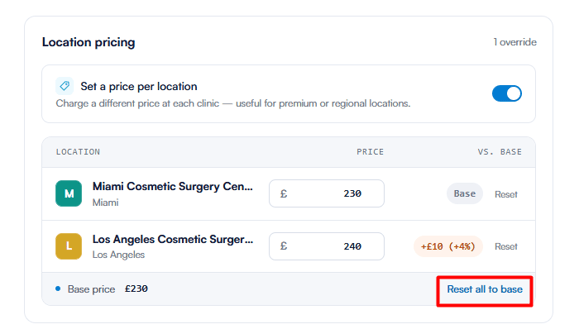
Enter the price for each clinic that should differ from the base. Each location shows its price next to the base price, so you can see how they compare. Any location you leave unchanged keeps the base price. To revert all clinics to the base price at once, click "Reset all to base".
Step 5: Save Your Changes
Click the "Edit Package" button in the top right corner to save. If you're setting this up while creating a new package, the button reads "Create Package" instead.
Bundles handle locations differently. A bundle inherits which clinics it's sold at from its included packages, and you adjust this on the bundle's Locations tab rather than setting a separate per-location price. To learn more, read our How to Create a Bundle article.
By following these steps, the same package can be sold at a different price across your clinics, with any location left unchanged defaulting to the base price.
For more guides, refer to related articles below, select additional guides, or use the search bar at the top of the page. These guides will help you get the most out of your Pabau account.
Additionally, to help you fully utilize and understand your Pabau account, we recommend exploring additional guides and resources offered at the Pabau Academy. It offers in-depth video tutorials and lessons, offering a holistic learning experience that can equip you with the essential skills for achieving success with Pabau.