
Packages let you sell a set number of sessions of a service as a single pre-paid course, usually at a discounted rate.
Before You Start
- The services you want to include must already exist in your system. To set one up, read our How to Create a Service article.
- To sell your package online, your clinic must have Stripe integrated. To connect it, read our How to Integrate with Stripe article.
Step 1: Navigate to Packages
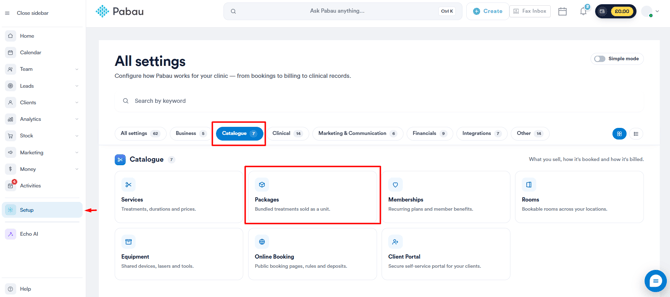
Log in to your Pabau account, and in the left sidebar menu, go to Setup, then click on "Packages" under the Catalogue section.
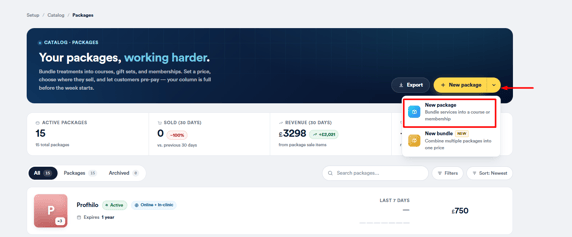
On the Packages page, click the "New Package" button in the top right corner. The button's dropdown also includes a "New Bundle" option, but for a single-service course, select "New Package".
Step 2: Fill In the General Tab
The General tab covers the package's core details across three sections.
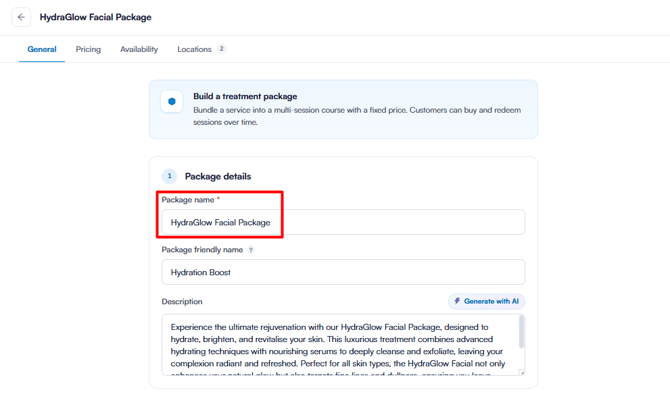
1. Package Details
- Package Name: Provide a name for internal reference.
- Package Friendly Name: Enter the name customers see in your online store.
- Description: Add a short summary of the package, or click "Generate with AI" to create one automatically, which you can then edit.
2. What's in this Package
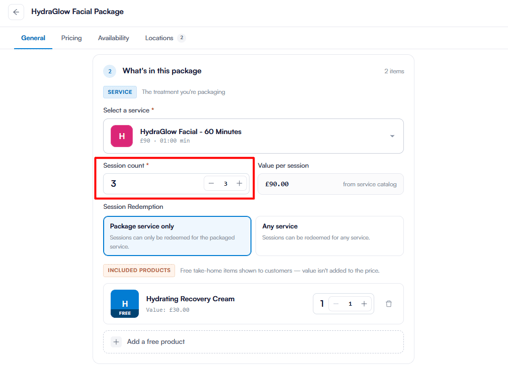
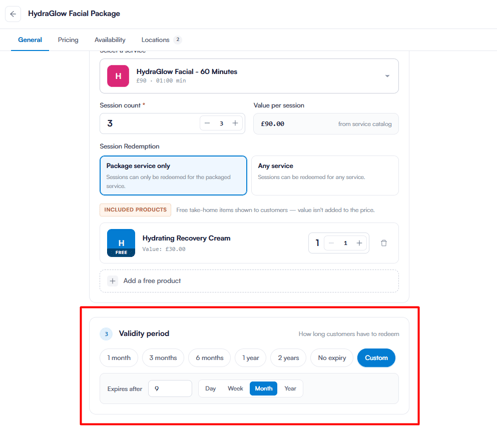
- Select a Service: Choose the service this package covers.
- Session Count: Specify the total number of sessions included in the package.
- Value per Session: Pulled automatically from your service catalogue.
- Session Redemption: Choose "Package Service Only" so sessions apply only to the selected service, or "Any Service" so they can be redeemed against any service.
- Included Products: Optionally add free take-home items shown to customers. Their value isn't added to the package price.
3. Validity Period
- Validity Period: Set how long customers have to redeem their sessions. Choose a preset (1 month, 3 months, 6 months, 1 year, 2 years, or No expiry), or set a custom duration by day, week, month, or year.
Step 3: Set the Pricing Tab
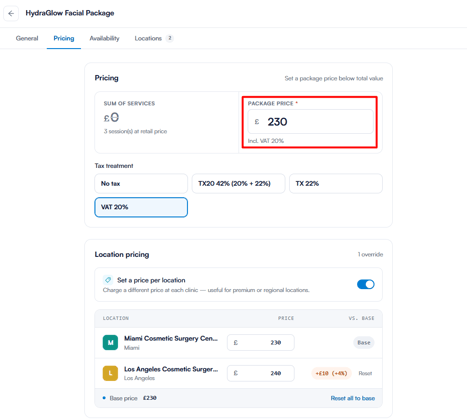
Switch to the Pricing tab to set what customers pay.
- Package Price: Set the price customers pay. Enter it below the combined retail value of the services to create a saving; the percentage saving is calculated automatically.
- Tax Treatment: Choose the applicable tax for the package.
- Location Pricing: Turn on the "Set a price per location" toggle to charge a different price at individual clinics. Enter a price for each location; any location you don't override keeps the base price, and all can be reset to base at once.
Step 4: Set the Availability Tab
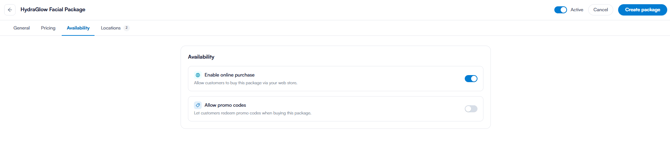
Switch to the Availability tab to control how customers can buy the package.
- Enable Online Purchase: Makes the package available to buy on your online booking portal.
- Allow Promo Codes: Lets customers apply promotional codes at checkout.
Step 5: Set the Locations Tab
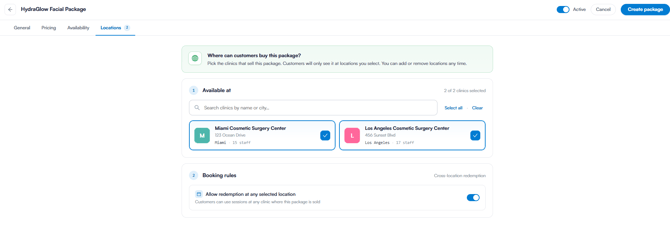
Switch to the Locations tab to control where the package is sold.
- Available at: Select which clinics sell the package. Customers only see it at the locations you choose.
- Booking Rules: Turn on the "Allow redemption at any selected location" toggle to let customers redeem their sessions at any clinic where the package is sold.
Step 6: Activate and Create the Package
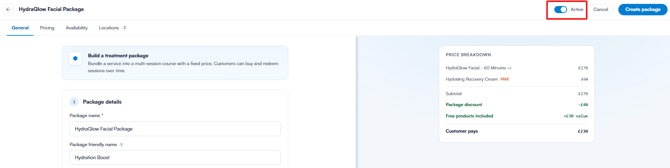
Make sure the Active toggle in the top right corner is enabled.
Use the Price Breakdown on the right to confirm the service total, any included free products, the package discount, and the final price customers pay. When you're ready, click the "Create Package" button in the top right corner to save it.
NOTE: You can also learn about this topic by watching a lesson on Pabau Academy. To combine several packages into one offering, read our How to Create a Bundle article.
For more guides, refer to related articles below, select additional guides, or use the search bar at the top of the page. These guides will help you get the most out of your Pabau account.
Additionally, to help you fully utilize and understand your Pabau account, we recommend exploring additional guides and resources offered at the Pabau Academy. It offers in-depth video tutorials and lessons, offering a holistic learning experience that can equip you with the essential skills for achieving success with Pabau.