
You can set a mandatory patch test for your services as you create them or by editing existing services. Read our articles on how to create a service and how to edit a service to learn more.
Step 1: Navigate to Services
Start by logging in to your Pabau account using your login credentials. Then, navigate to Setup at the bottom of the sidebar menu on your left-hand side. Under the Catalogue section, you will find the Services tab.
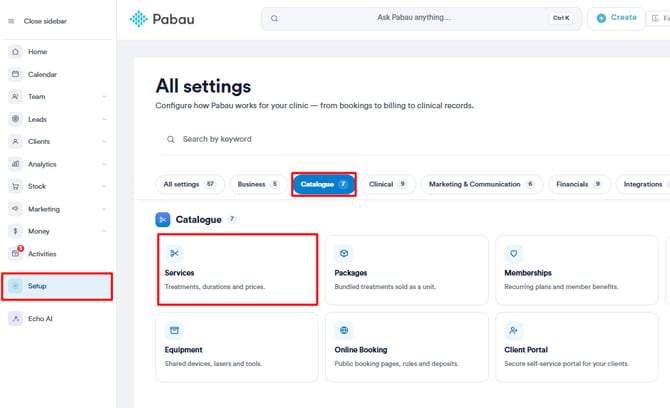
Step 2: Select a Service
To set this requirement for a service you will need to edit the Advanced settings of the service. To access Advanced settings, you need to scroll down to the bottom of the General tab.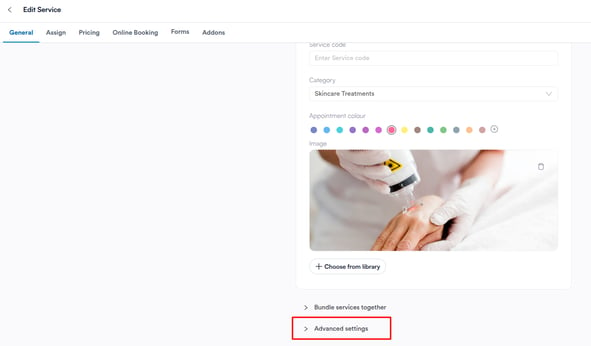
Step 3: Enable the Patch Test Requirement
Scroll down to the "Other Information" section. At the bottom of this section, you will find the Patch Test toggle with the label "Set if this service requires a patch test at all." Toggle this on to make a patch test mandatory for this service.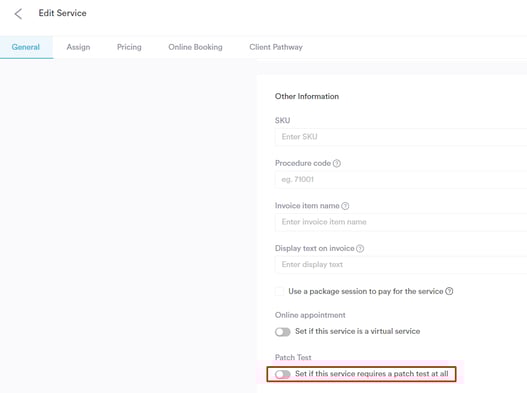
Once enabled, click "Save" to apply the changes. From this point on, if a client does not have a patch test recorded in their card, a warning will appear when attempting to book an appointment for this service.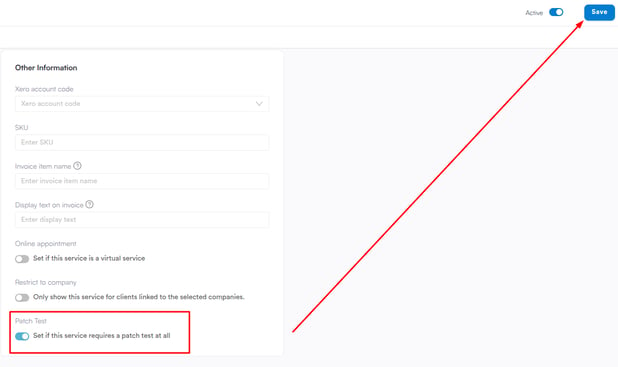
If you try to book an appointment with a service that has this requirement but the client doesn't have a patch test associated with their card, a booking warning will appear.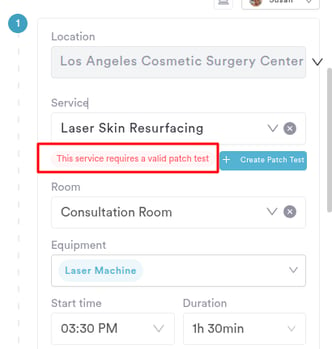
By following these steps, you can set a service to have a mandatory patch test.
Was this guide helpful? Let us know by voting below - your feedback helps us write clearer articles.
For more guides, browse the related articles below or use the search bar at the top of the page. You can also watch our video learning series, the Pabau Academy, or visit the Support page for additional help.