
Once two-way SMS is set up, texting a client works like any other Engage conversation. This article covers the SMS-specific details.
Step 1: Open or Start the Conversation
Incoming texts appear in the inbox under the SMS channel. To text someone first, click the + button in the sidebar and search for the client — see our How to Start a New Conversation in Engage article.
Step 2: Write the Message
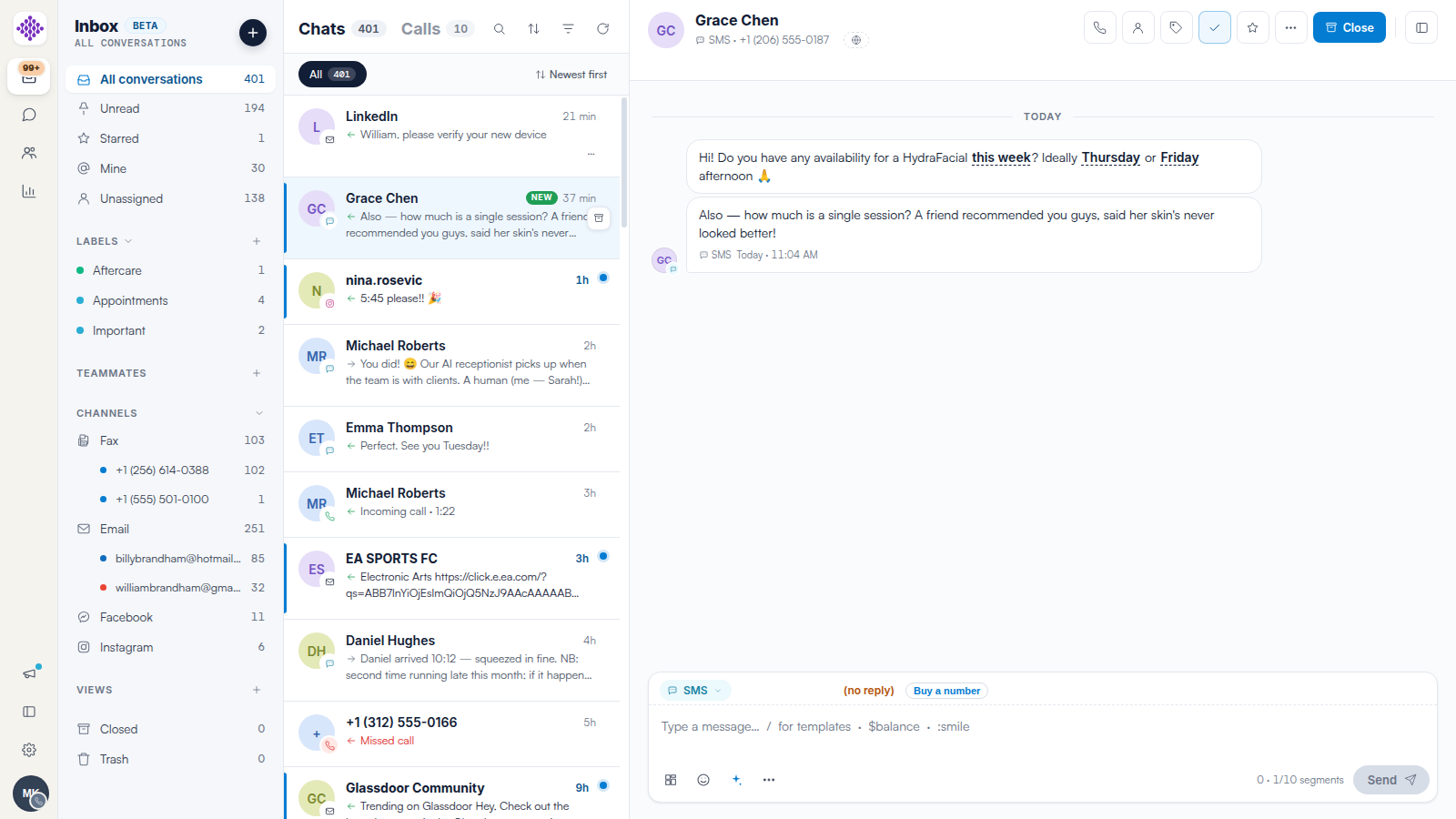
Make sure the composer’s channel pill shows SMS, then type your message. Use / for templates, $ for variables such as the client’s first name or balance, and : shortcodes (like :smile) for emoji.
Step 3: Watch the Segment Counter
SMS is billed per segment. The counter next to Send (for example 0 · 1/10 segments) shows how many segments your message uses as you type — carriers accept up to 10 segments per message. Emoji and long messages increase the count.
Step 4: Send and Track
Click Send. The message appears on the timeline with its delivery time. Replies land in the same conversation, and unread replies surface in the Unread filter.
NOTE: If the composer shows (no reply) with a Buy a number chip, the conversation’s SMS route cannot receive replies — your clinic needs a two-way number. See our How to Set Up Two-Way SMS in Engage article.
Related Articles
We suggest reading our How to Use Message Templates in Engage article to save your team typing the same texts twice.
For more guides, refer to related articles below, select additional guides, or use the search bar at the top of the page. These guides will help you get the most out of your Pabau account.
Additionally, to help you fully utilize and understand your Pabau account, we recommend exploring additional guides and resources offered at the Pabau Academy.