How to Send and Receive SMS in Engage
This article guides you through sending text messages from the Engage inbox and explains how your clients' replies find their way back to you. Once your clinic has an SMS-capable number, every text conversation happens in the same inbox as your other channels — no separate app needed.
Step 1: Open a Conversation or Start a New One
Open an existing conversation from the list, or click the New message button at the top of the navigation rail to start one. Search for the client using the Type a client name, phone, or card ID… field and select them from the results — Engage opens their conversation and confirms with SMS conversation started (or Opened existing conversation if you have already messaged them). We suggest reading our How to Start a New Conversation in Engage article for more detail on starting conversations.
Step 2: Check the Channel and the Sending Number
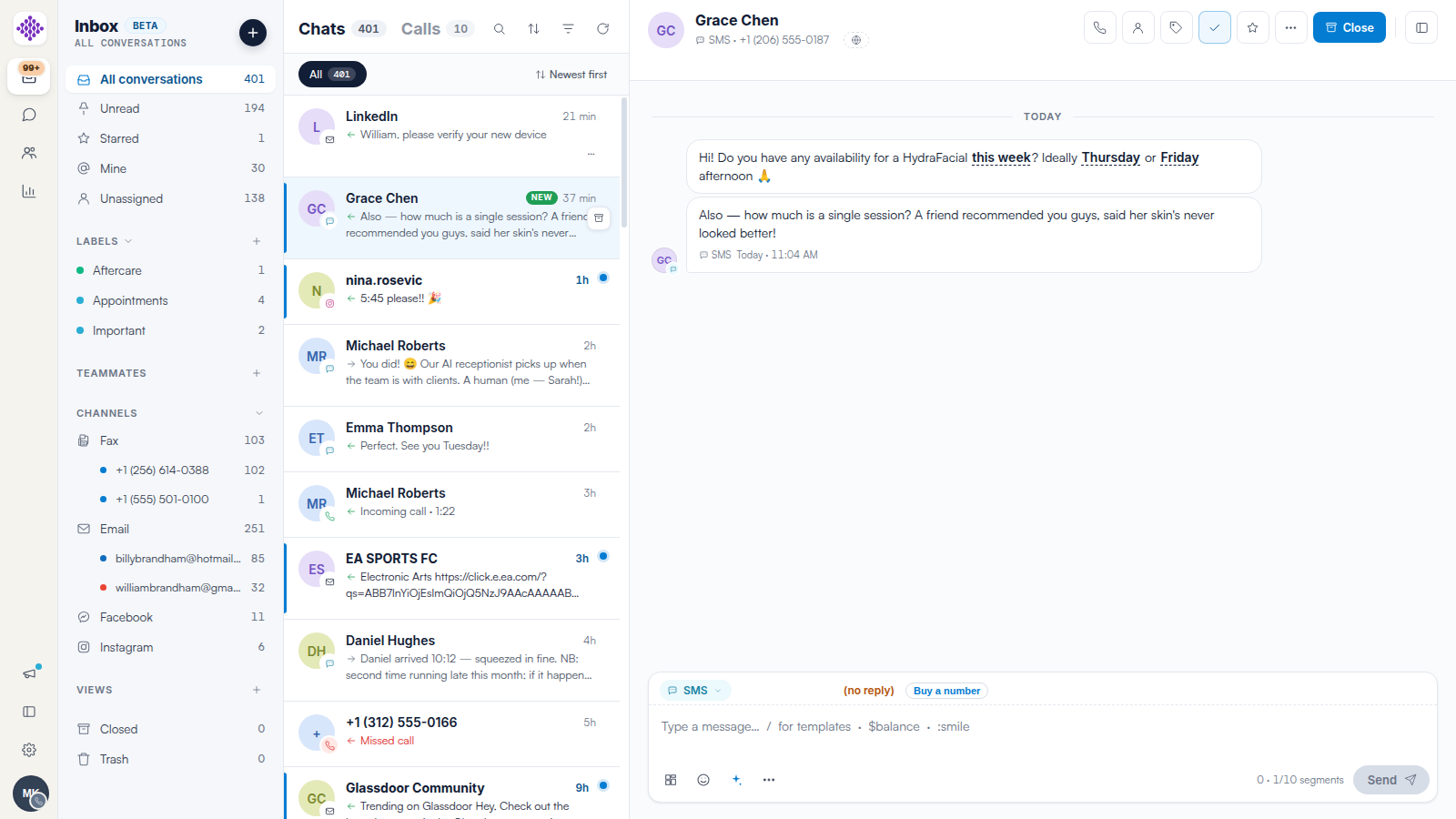
At the bottom of the conversation, make sure the channel chip on the composer is set to SMS — click the chip to switch channels if needed. The SMS option is only offered when the client has a phone number on file. The composer header confirms who you are texting and which number the message will send from — for example, to Alice Warren · +447700900123 · from +18505550142 · replies on ✓. Replies on means the client can text you back and their reply will arrive in this inbox.

NOTE: If the header shows an amber (no reply) tag instead, your clinic does not own a two-way number yet, so messages send from a text-only sender that clients cannot reply to. Click the Buy a number button next to the tag to set one up. We suggest reading our How to Set Up Two-Way SMS in Engage article for the full walkthrough.

Step 3: Write and Send Your Message
Type your message and click Send. The message bubble shows a spinner while it sends and a double tick once it has been sent. Keep an eye on the segment counter next to Send — long messages are split into multiple segments, and each segment uses credits. We suggest reading our SMS Pricing and Sending Limits in Engage article for how segments and credits work.
Step 4: Retry or Unsend a Failed Message
If a message cannot be sent, its bubble shows Failed to send with a red ✕ — you do not need to retype it. Click the failed bubble and choose Retry to send it again, or Unsend to remove it. Common causes include a conversation that is not linked to a client, a client with no mobile number on file, or reaching the daily sending limit for that recipient.
Step 5: Receive Replies in the Inbox
Receiving is automatic. When a client texts your number, the reply lands in their existing conversation in real time — the inbox and the open conversation update as the message arrives. Each client has one conversation across all channels, so an SMS reply joins that same conversation even if you last messaged them on a different channel (the conversation simply switches back to SMS). Incoming and outgoing texts are also logged to the client card in Pabau, with incoming texts appearing there within about 30 seconds — we suggest reading our What Engage Logs to the Pabau Client Card article for details.
NOTE: A text from a phone number that does not match any client in Pabau will not appear in your inbox. It is held and delivered once a client with that mobile number exists in your account.
TIP: You can act on replies automatically — for example, confirming an appointment when a client texts "CONFIRM", or opting them out when they text "STOP". We suggest reading our Routing Recipes: CONFIRM and STOP Keywords and Common Setups article to set these up.
Step 6: Find Your SMS Conversations
To see only text conversations, click the SMS row under Channels in the navigation rail — its badge shows your open SMS conversations. You can also click the funnel icon above the conversation list and choose SMS only from the Show dropdown.

NOTE: Replies to Pabau appointment reminders and campaigns do not always come back to Engage, because reminders send from your Pabau sender address, which may differ from your two-way number. If reminder replies are not reaching your inbox, we suggest reading our How to Make Pabau Reminders Reply-Capable (SMS Sender Warning) article.
We suggest reading our How to Reply to Messages and Switch Channels in Engage article to learn about replying to clients on your other channels.
For more guides, refer to related articles below, select additional guides, or use the search bar at the top of the page. These guides will help you get the most out of your Pabau account.
Additionally, to help you fully utilize and understand your Pabau account, we recommend exploring additional guides and resources offered at the Pabau Academy.