
In the new Client Portal, clients don’t have a password: they sign in with their email address and a six-digit code, or the link in the same email. So there is no portal password to reset. If a client can’t get in, work through the steps below.
Step 1: Check the Email Address
- Open the client’s card and check the email address on it. The client must sign in with that exact address to see their own records — a different address creates a new, empty client account.
Step 2: Send Them Your Portal Link
- Go to Setup → Online presence → Client Portal.
- Click Copy portal link and send it to the client by email or text.
- Ask them to enter their email, click Continue with email and type the six-digit code from the email.

Copy portal link
TIP: Codes and sign-in links last for 8 hours. If a client’s code has run out, they simply request a new one. If the email doesn’t arrive, ask them to check their spam or junk folder.
Step 3: Patient App Passwords
If your clinic has a patient app that asks for a password, clients set or change that password themselves in the portal:
- They click their name at the bottom of the portal menu and choose Personal details.
- Under Password, they click Set a password (or Change password). They don’t need their old password, because they are already signed in.
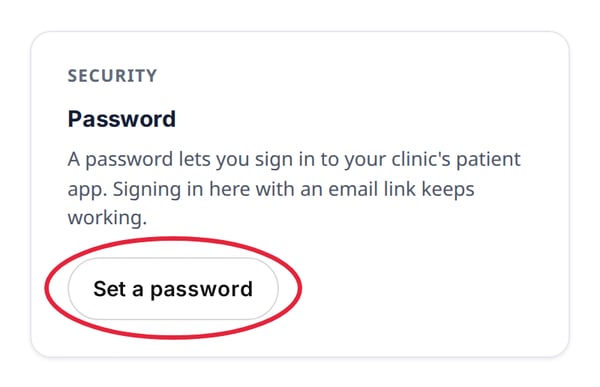
Set a password, in the client’s personal details
Signing in to the portal itself still uses the emailed code, even after a password is set.
NOTE: You may still see Reset password under Actions on the client card, and Send reset link in the Portal account window. You don’t need them for the new Client Portal — send your portal link instead.
What's next?
See How Client Portal Accounts Work, and send your clients How to Use Your Client Portal (New Client Portal).
Questions? Reach us any time via the in-app chat — we’re happy to help.
Was this guide helpful? Let us know by voting below - your feedback helps us write clearer articles.
For more guides, browse the related articles below or use the search bar at the top of the page. You can also watch our video learning series, the Pabau Academy, or visit the Support page for additional help.