
You no longer need to create portal accounts for clients. In the new Client Portal, clients set up their own account the first time they sign in with their email address — there is no password to set. In this article, you will learn how that works and what you can still see and do from the client card.
Step 1: How a Client Gets an Account
- The client clicks Sign in on your booking page, or opens your portal link.
- They enter their email address.
- They click Continue with email.
- They enter the six-digit code from the email, or click the link in it.
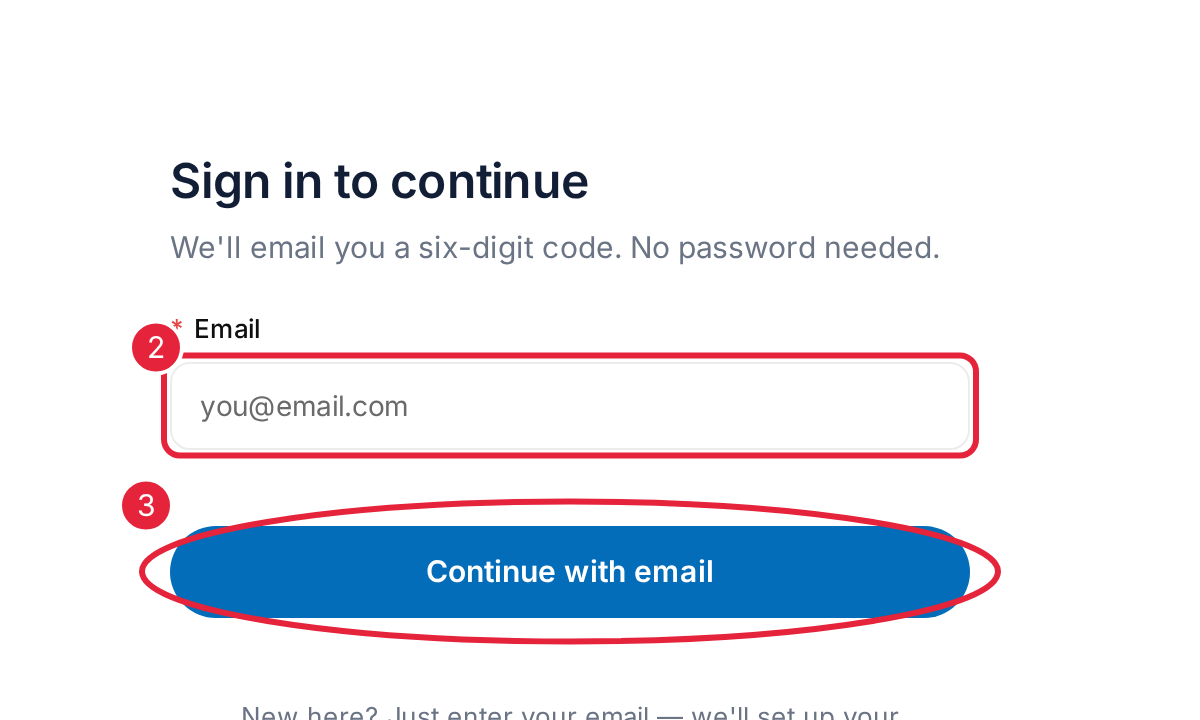
Clients sign in with their email address and a code
If the email matches a client already in Pabau, the portal account is linked to that client card, so they see their own appointments, invoices and records. If it doesn’t match, a new client is created — new clients are asked for their name.
IMPORTANT: Ask clients to sign in with the email address on their client card. A different address can’t be matched, so Pabau creates a new client for them and their history won’t show.
Step 2: Check a Client’s Portal Account
- Open the client’s card.
- Click the portal badge on the client’s photo. A green tick on the badge means the client has a portal account.
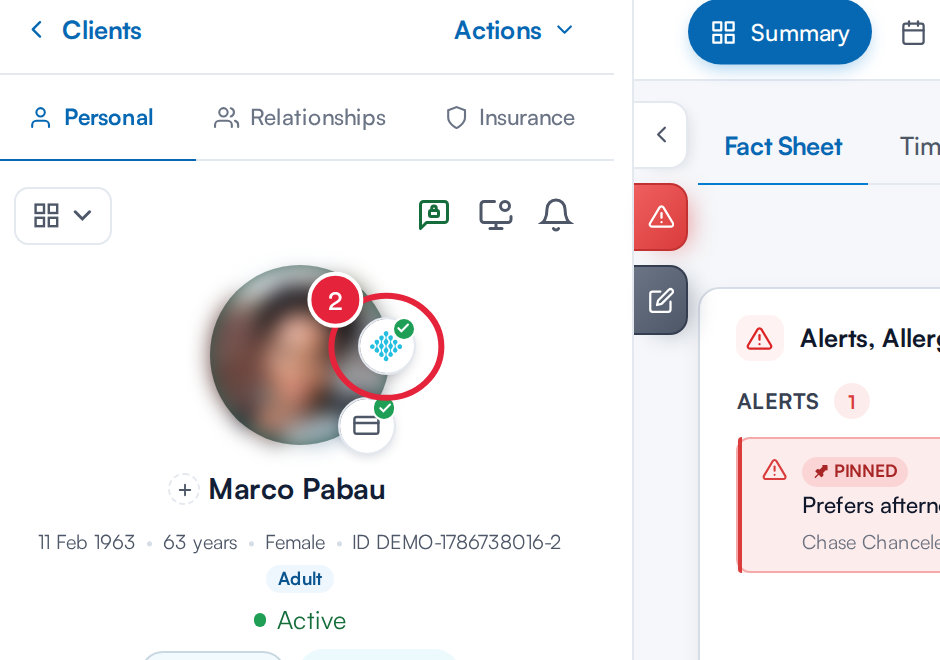
The portal badge on the client’s photo
The Portal account window shows the email the account uses and Account active.
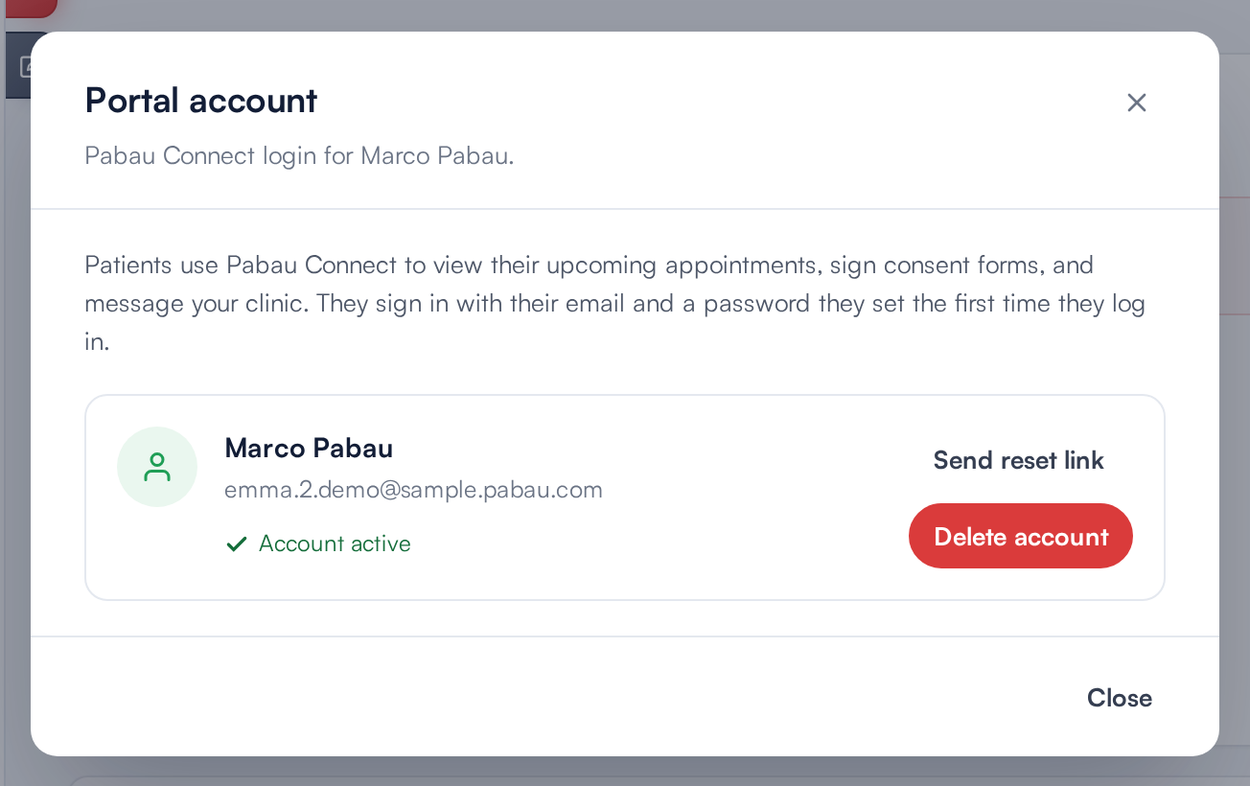
The Portal account window
- Delete account — removes the client’s portal login. Their appointments and clinical records are not affected, and they can create a new account by signing in again. It also removes any Google or Apple account connected to it.
- For a client without an account, the window shows No portal account yet and Create portal account. You don’t need it for the new portal — send the client your portal link instead and they will be set up when they sign in.
NOTE: Clients can update their own name, date of birth, mobile number, photo and marketing preferences in the portal. To change the email address on their account, they are asked to contact your clinic.
Choose How Clients Sign In
Every client can sign in with an emailed code. You can also let them sign in with Google, Apple or a code texted to their mobile number.
- Go to More → Online Bookings and click Customise page.
- Click Sign in in the bar of booking pages at the top.
- Hover over the sign-in dialog and click the Sign-in methods label.
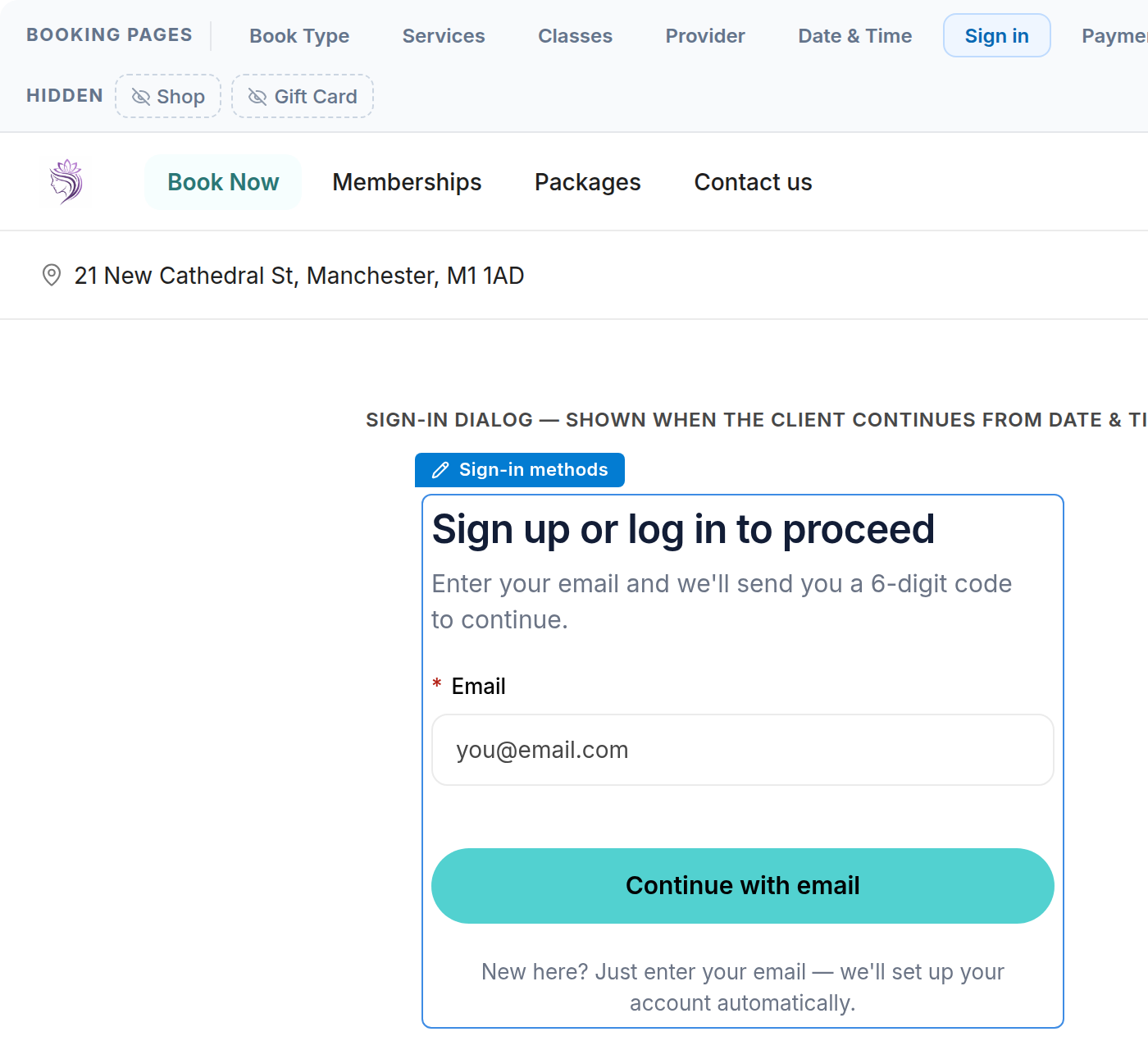
The Sign-in methods label on the sign-in dialog
- Switch on Sign in with Google, Sign in with Apple or Mobile number. Magic link (the emailed six-digit code and sign-in link) is always on and marked Required.
- Click Publish.
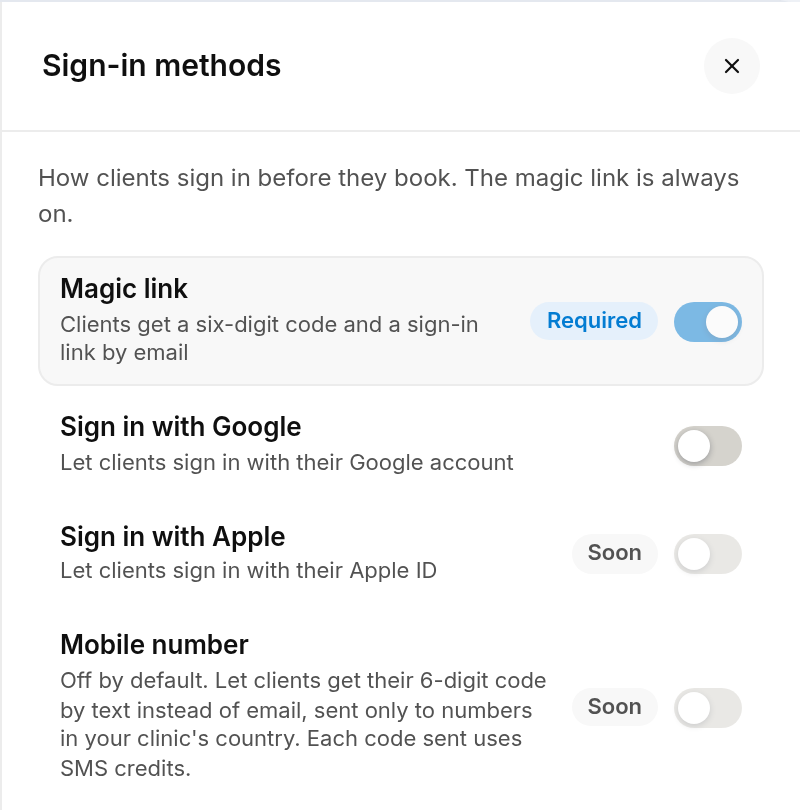
The Sign-in methods panel
Google, Apple and Mobile number are all off until you switch them on. A method marked Soon is not available for your clinic yet, so its switch stays off.
- Google and Apple show as Continue with Google and Continue with Apple on your clients’ sign-in screens: on your booking page, in your online store and on the client portal sign-in page.
- Mobile number adds Use my mobile number instead when clients sign in to book or buy online. Codes are only texted to numbers in your clinic’s country, and each code sent uses SMS credits.
NOTE: If clients open your booking page on your own domain, the Google and Apple buttons don’t show there. They show only on your Pabau booking page address.
The first time a client signs in with Google or Apple, Pabau matches them by email, just like the emailed code: an email on a client card signs in to that client’s portal account, and a new email creates a new client. The Google or Apple account is then connected to that portal account, so it keeps signing in to the same account even if the client later changes the email on their Google or Apple account. Clients can see and disconnect connected accounts in the portal under Personal details. If the email address of the portal account is changed, its connected Google and Apple accounts are removed, and the client’s next Google or Apple sign-in is matched by email again.
Using the older Client Portal (email and password)?
On the older portal, clients sign in with their email and a password they set the first time, not a six-digit code. To invite a client, open their card, click the portal badge and click Create portal account. Pabau sends them a welcome email with a link to set a password. The client needs an email address on their card first.
For a client who already has an account, click Send reset link to email them a link to set a new password.
NOTE: If you see Portal account created, but no email was sent, the Connect registration email is switched off in Setup → Client Notifications, or it couldn't be sent. The client can't sign in until they set a password, so click Send reset link when they need access.
What's next?
If a client can’t sign in, see How to Help a Client Who Can’t Sign In to the Client Portal. Send your clients How to Use Your Client Portal (New Client Portal).
Questions? Reach us any time via the in-app chat — we’re happy to help.
Was this guide helpful? Let us know by voting below - your feedback helps us write clearer articles.
For more guides, browse the related articles below or use the search bar at the top of the page. You can also watch our video learning series, the Pabau Academy, or visit the Support page for additional help.