
Some payers will not pay a claim without the clinical note behind the visit. Workers’ compensation carriers almost always want it, and other payers ask for it for certain services. Pabau can send the note electronically, so the document travels with the claim and you do not need to upload it to the payer separately. In this article, you will learn how to pick the document, choose its type and send it.
NOTE: Insurance billing is currently available for practices in the United States. Claims are submitted electronically through the Claim.MD clearinghouse.
Before You Start
- The document must be a PDF. Claim.MD does not accept other file types.
- If the visit has a treatment note in Pabau, you can send it as it is. Pabau turns it into a PDF when you send the claim.
- Other documents, such as a referral or a progress report, must be on the client’s record as a PDF, or you can upload one while you work on the claim.
Step 1: Choose the Document
Open the claim from More → Claims. Then:
- Click Attach Document at the bottom of the claim.
- Tick Send a chart note with this claim.
- Pick the document to send. Treatment notes for this visit — sent as a PDF lists the visit’s notes, and PDFs on the patient's record lists the client’s PDF documents. Click the eye icon to preview one.
- If the document is not listed, click Upload a PDF and choose the file. It is saved to the client’s record and selected.
- Check Attachment type. Support data for claim (OZ) suits most notes. Choose another type, such as Progress report (09) or Physical therapy notes (PN), if the payer asks for it.
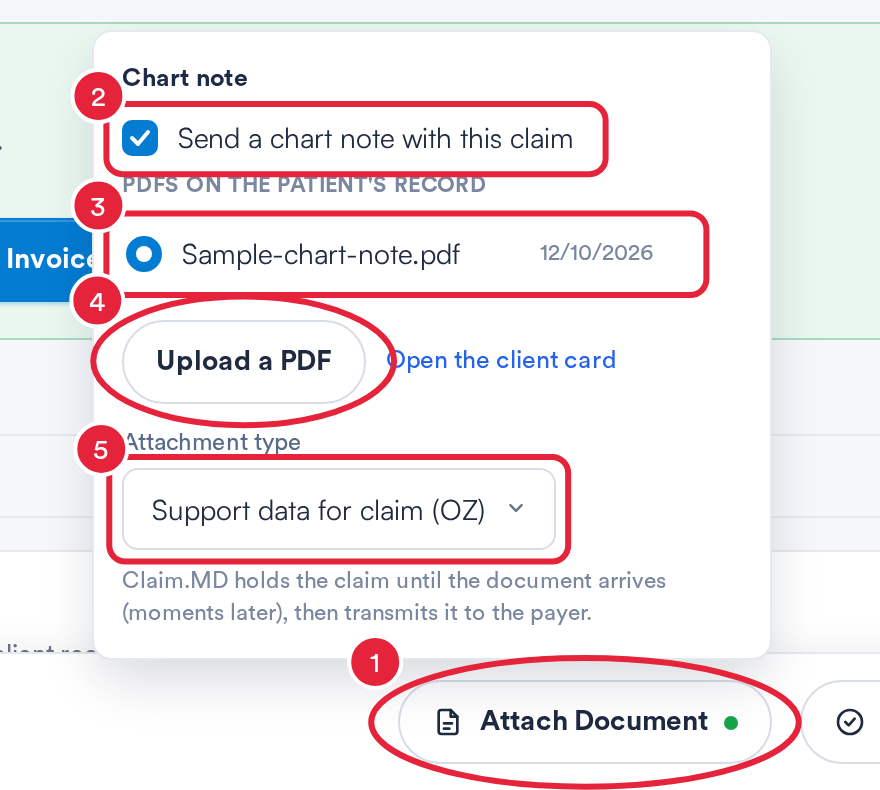
Choose the chart note, its type and send it with the claim
A green dot on Attach Document shows that a document will be sent with the claim. Pabau picks the visit’s own treatment note for you when it finds one, and you can change the choice.
TIP: If you tick the box but pick nothing, Pabau sends the newest PDF on the visit’s insurance case.
The attachment type tells the payer what kind of document it is:
- Open Attachment type.
- Choose the closest match from the list.
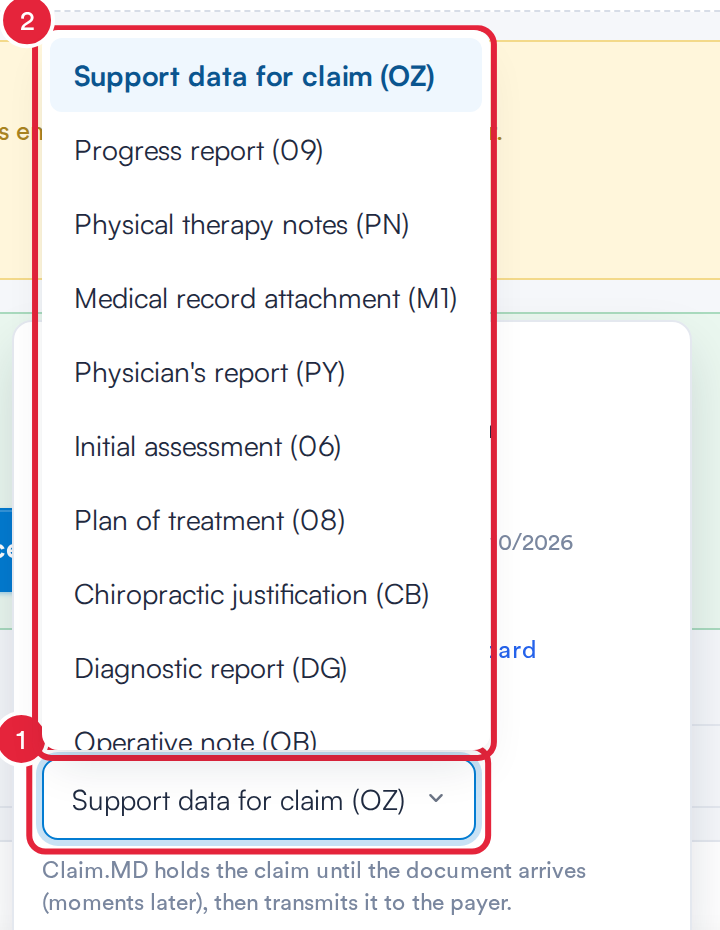
Attachment types you can choose
Step 2: Send the Claim
Click Validate, then Send Invoice to Claim.MD as usual.
The claim goes out with a reference to the document, and the document follows a moment later. Claim.MD holds the claim until the document arrives, then passes both to the payer. While that happens, the claim can show as On hold on the claims list. You do not need to send it again.
NOTE: If the claim stays On hold, the document did not arrive. Open the claim, check the document under Attach Document and send again. The claim keeps the same reference, so the payer does not receive a duplicate.
Workers’ Compensation Claims
When the insurer’s insurance program is workers’ compensation (including federal FECA and Black Lung claims), or the client’s policy marks the condition as employment related, new claims start with Send a chart note with this claim already ticked. If it is off on a workers’ comp claim, Pabau shows a reminder: Workers' comp claims usually need the treatment note. It is only a reminder, so you can still send the claim without a note.
Messages You May See
- This payer does not take electronic attachments: Claim.MD lists the payer as not accepting attachments, so the note may never reach it. Send the note by the payer’s own route, such as fax or their portal, or turn the attachment off.
- Enroll this payer for attachments first: the payer needs an attachment enrollment in your Claim.MD account before notes can go electronically. See Electronic enrollments with insurance payers.
IMPORTANT: When you correct a claim the payer already has, the corrected claim does not send the chart note again. The payer keeps the note from the original claim.
What's next?
- Understanding claim statuses on the Insurance claims list
- How to set claim defaults on a client’s insurance policy
- Insurance Guide Part 4: Submit and track insurance claims in Pabau
- Box 19 – Additional Claim Information
Was this guide helpful? Let us know by voting below - your feedback helps us write clearer articles.
For more guides, browse the related articles below or use the search bar at the top of the page. You can also watch our video learning series, the Pabau Academy, or visit the Support page for additional help.