
Step 1: Navigate to the Point of Sale
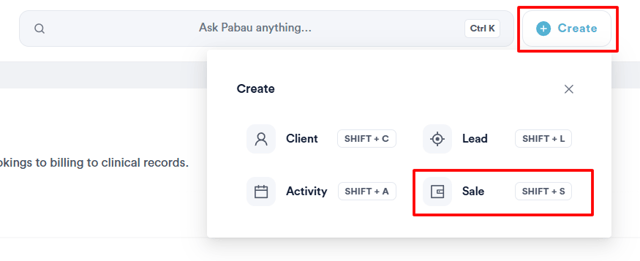
To access the Point of Sale, click the "Create" button in the top right corner of the screen, then select "Sale".
TIP: You can also start from the client’s card. If the client has no memberships yet, open the "Memberships" tab of their client card and click "Create membership" — the Point of Sale opens on the Memberships tab with the client already selected.
Step 2: Select a Membership
Proceed as you would when performing a sale. Item categories are displayed on the left-hand side. Clicking on "Memberships" will show all the memberships you have created in Pabau — select the one you want to sell.
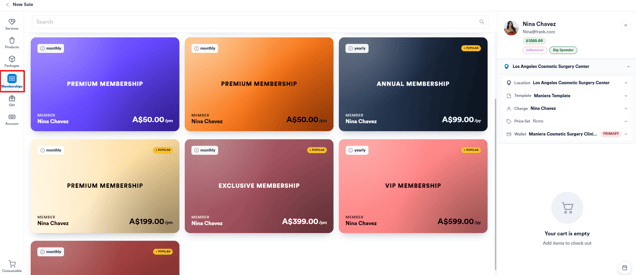
NOTE: A membership is sold on its own — you’re not able to add anything else to the cart once you’ve selected a membership.
Step 3: Complete the Subscription Setup
As soon as you select a membership, the "Subscription setup" window opens automatically.
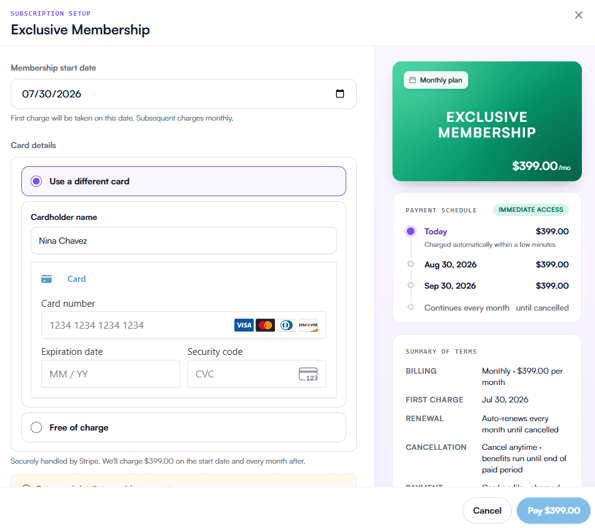
This window includes:
- Membership start date: Determines when the membership subscription will commence.
- Card details: Enter the client’s card details here, or select a card already saved on file.
- Payment schedule: Shows how much and when the client will be charged, including any pro-rated first charge.
- Summary of terms: Covers the billing frequency and amount, tax, any joining fee, the date of the first charge, renewal terms, cancellation terms and the payment method.
NOTE: Purchasing a membership requires card details to be entered, or a card on file to be selected, in order to enrol the client. Free (zero-priced) memberships don’t require card details — no payment is taken.
Once card details are entered (or selected) and the setup is confirmed, the following will occur:
- An invoice and payment under the item category "Membership" will be created.
- The employee listed on the invoice will be the one who sold the membership.
- The item name will match the name of the membership.
- The unit price will reflect the membership’s cost.
- Quantity will always be set to 1.
- No discount will be applied.
- Tax will follow the settings defined when the membership was created.
- The total price will include the membership cost after tax.
The invoice date and the associated payment will correspond to the date the membership is activated, which may differ from the actual sale date. An invoice and payment will be generated each time the membership renews, whether weekly, monthly or annually. Future invoices will be tied to the same location where the membership was originally sold.
By following these steps, you will be able to sell memberships successfully.
Was this guide helpful? Let us know by voting below - your feedback helps us write clearer articles.
For more guides, browse the related articles below or use the search bar at the top of the page. You can also watch our video learning series, the Pabau Academy, or visit the Support page for additional help.