
Selling gift cards in the Point of Sale is a seamless process that allows you to offer a convenient gifting option to your clients. Follow these steps to effortlessly execute gift card sales.
Step 1: Access the Point of Sale
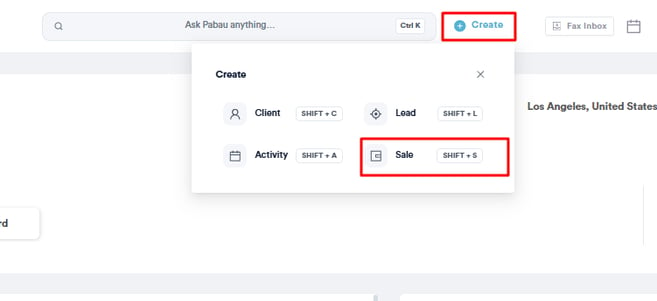
Start by logging in to your Pabau account using your login credentials. Click the Create button at the top of the page next to the search bar and select "Sale" to access the Point of Sale.
NOTE: For more details on the Point of Sale, please review this article.
Initially, you should select the client at the top right corner of the page for the features to become available for selection. Otherwise, they will remain greyed out until you select the client.
The Gift Voucher option appears in the bottom left corner of the page.
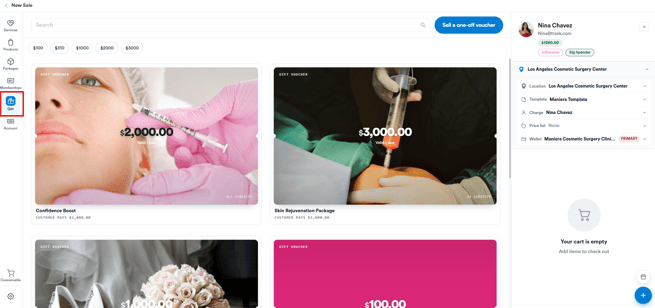
NOTE: If you have created gift cards in Pabau and the Gift Card option does not appear at the point of sale, check your POS Configuration to see if this option is disabled. Refer to this article on POS configuration for more information.
Step 2: Sell a Gift Card
When you click "Gift," the gift cards you have created in Pabau will appear. You can then select the voucher to proceed with the purchase. Details of the gift card will be displayed underneath the client's name.
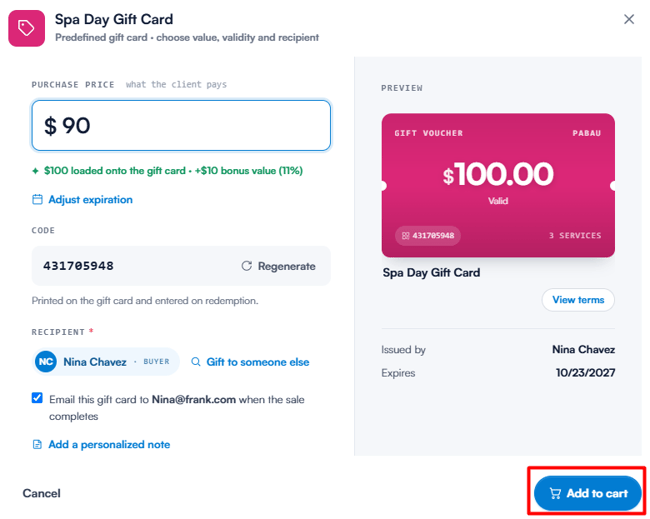
Clicking on the Gift Card line item in the cart will open the Edit Card pop-up, where the following components are present:
-
Gift Card value – Allows you to set or adjust the voucher’s redeemable amount. This enables flexible card values for promotions, special offers, or custom client requests.
-
Gift Card code - you can generate unique 9-digit codes or can manually input a code, ensuring there are no duplicate gift card codes in the system.
-
Quantity - allows you to choose the gift card quantity
-
Employee - allows you to select the employee under whom they want to record the gift card sale
-
Purchase this gift card for - This defaults to the client being charged for the card. However, you can select any client from their client base, allowing the card to be assigned to someone other than the paying client
-
Tax rate - allows you to add a tax rate if necessary
-
Trash can icon - remove item from cart
-
Cancel - cancel the edit card changes
-
Save - apply the edit card changes
What happens when I sell more than one gift card on one line?
Setting Quantity above 1 sells that many separate gift cards. For example, a quantity of 10 creates 10 gift cards, each with its own code and its own balance. The invoice lists them as separate lines.
- The price and the Gift Card value are for one card. The line total is the price multiplied by the quantity, so to sell ten £50 cards, keep the price at 50 and set the quantity to 10. Don't enter the total of all ten as the price.
- A code you type in Gift Card code goes on the first card only. The others get generated codes, which you can see on the client card's Gift Vouchers tab.
- Each card is redeemed on its own. At checkout, a card covers up to its own balance, so paying with several cards means using each one.
TIP: If the cards are for different people, add each one as its own line so you can set Purchase this gift card for on each.
If everything looks correct, click the "Continue" button to proceed to the payment page.
On the payment page, you can select the payment method that the client wants to use and click the "Confirm Payment" button to complete the transaction.
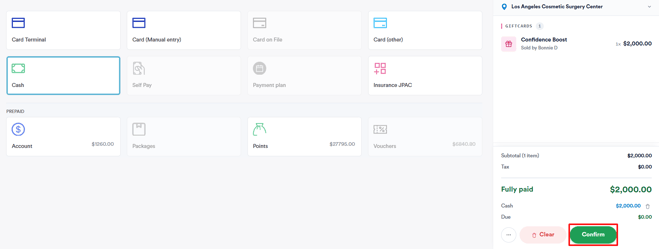
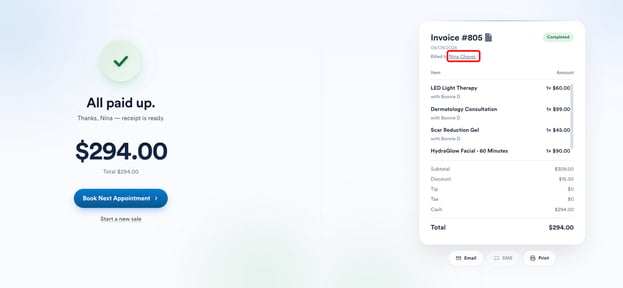
Once the payment is confirmed, you will view all invoice details, where you can select the client name to direct you to their client card to view the gift card.
Step 3: Navigate to the Client Card
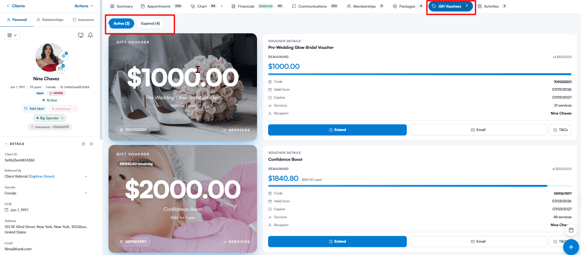
Once you access the client card, switch to the Gift Vouchers tab to view all vouchers the client has purchased. Pabau also categorizes vouchers into Active and Expired gift cards.
NOTE: To review how you can use a gift card to pay for an appointment, please review this article.
By following these steps, you can sell a gift card to a client from the checkout.
NOTE: In addition, we suggest reading our Gift Cards article for a more in-depth exploration of this topic.
Was this guide helpful? Let us know by voting below - your feedback helps us write clearer articles.
For more guides, browse the related articles below or use the search bar at the top of the page. You can also watch our video learning series, the Pabau Academy, or visit the Support page for additional help.