
Pabau records when everyone joins and leaves a video consultation. You can see how long each consultation really lasted against the time booked, how long the practitioner and the client were each in the call, and how many video credits it used: for one appointment on the client's card, or for all your video appointments in the Virtual Consultations report.
Step 1: See the Call on the Client Card
Open the client's card and go to the Appointments tab. A virtual appointment that had a call shows a Virtual label and a call chip with the consultation length against the time booked, for example 6 min of 30 min. If no times were recorded for the call, the chip says Call logged.
- Hover over the call chip.
- Read the breakdown:
- Consultation: the time the practitioner and the client (or a guest they invited) were in the call together, against the time booked.
- Practitioner in the call and Client in the call: each person's own time in the call, including any time spent waiting for the other.
- First joined and last left: when the call started and finished.
- How many video credits the call used.
- Each person's visits to the call, with the times they joined and left. "Reconnected" means they dropped out and came back.
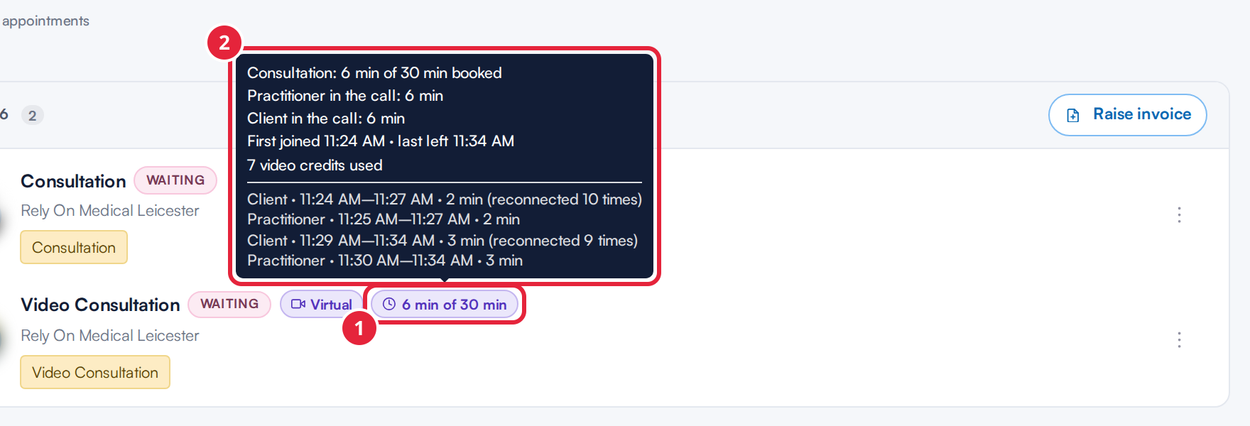
Hover over the call chip for the full breakdown
NOTE: All times are shown in your clinic's local time.
Step 2: Open the Virtual Consultations Report
- In the left sidebar, go to Analytics → Reports, click Appointments and, under Breakdowns, click Virtual Consultations.
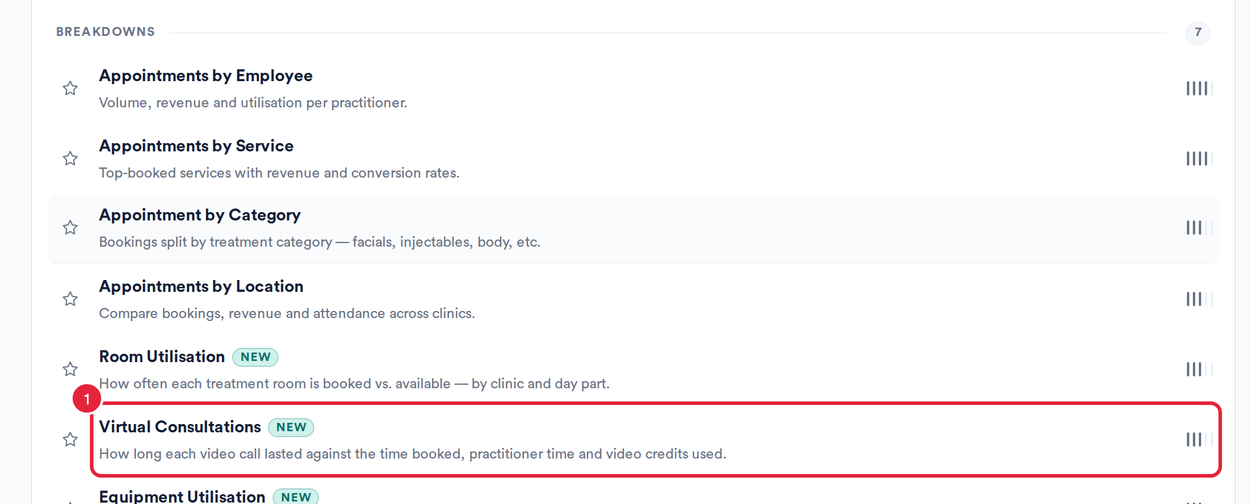
Virtual Consultations is one of the Appointments reports
Step 3: Choose the Dates and Filters
- Date starts on the current month. Pick your own range, or a preset: Today, Last 7 days, This month, Last month, Last 90 days or This year.
- Narrow the report by Location and Practitioner.
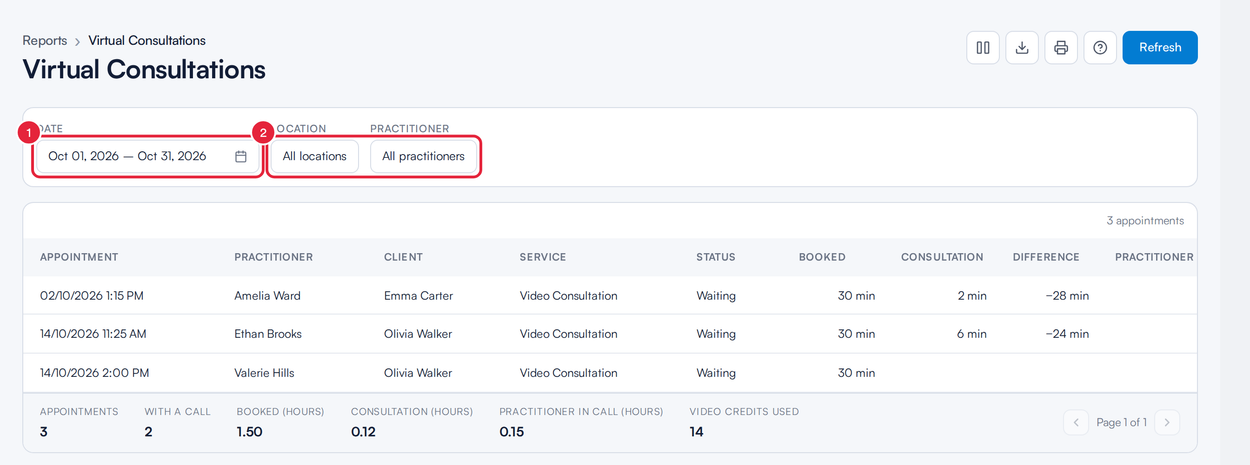
One row per virtual appointment, with totals underneath
Step 4: Read the Report
Each row is a virtual appointment, set against the call that actually took place. The columns are Appointment, Practitioner, Client, Service, Status, Booked, Consultation, Difference (how much shorter or longer the consultation was than booked), Practitioner in call, Client in call, First joined, Last left and Video credits used. Use the Columns button at the top right to add Location and Billed minutes (all participants).
The totals underneath show the number of Appointments, how many happened With a call, the Booked, Consultation and Practitioner in call time in hours, and the Video credits used. You can export the report as a CSV file or print it from the buttons at the top right.
NOTE: Video credits used are the minutes taken from your video credit balance. Only the practitioner's time is charged, after any video discount, and nothing is charged on a Care plan. Billed minutes (all participants) is the older figure that added up everyone's minutes.
TIP: The report lists every appointment for a virtual service in the date range, even without a call, so you can spot consultations that never happened. An appointment for another service appears if a video call was logged against it, and a cancelled, moved or deleted appointment appears only if a call still took place.
What's next?
- How to Use Pabau's Video Conferencing Feature
- How to Create a Virtual Service
- Video Consultations - FAQ
Was this guide helpful? Let us know by voting below - your feedback helps us write clearer articles.
For more guides, browse the related articles below or use the search bar at the top of the page. You can also watch our video learning series, the Pabau Academy, or visit the Support page for additional help.