
Who has access lists every team member and whether they can see a client's record. Most access comes from the client's visibility setting (Who can see this client). From this list you can also give individual team members access to one client, or take that extra access away again.
IMPORTANT: Only admins can open Who has access. For everyone else the option is greyed out, and hovering over it shows Only admins can view who has access.
Step 1: Open Who Has Access
- Open the client card and click Actions at the top, above the client's details.
- Click Who has access.
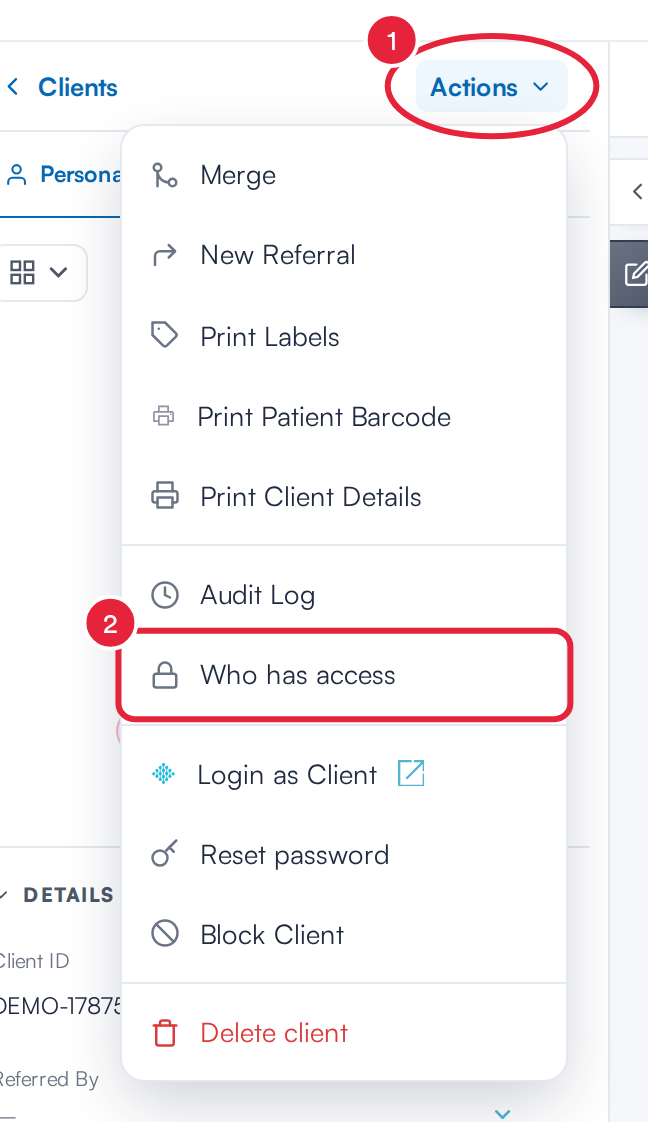
Actions → Who has access
Step 2: Find a Team Member and Change Their Access
The window lists your team with their Staff name, Location and Access switch. The bottom of the window counts how many of them can see the client, for example 1 of 63 granted.
- Type in Search staff or location to find a team member.
- Switch their Access on to let them see this client. The confirmation Access granted to followed by their name appears. Switch it off to take that access away again (Access removed for followed by their name).
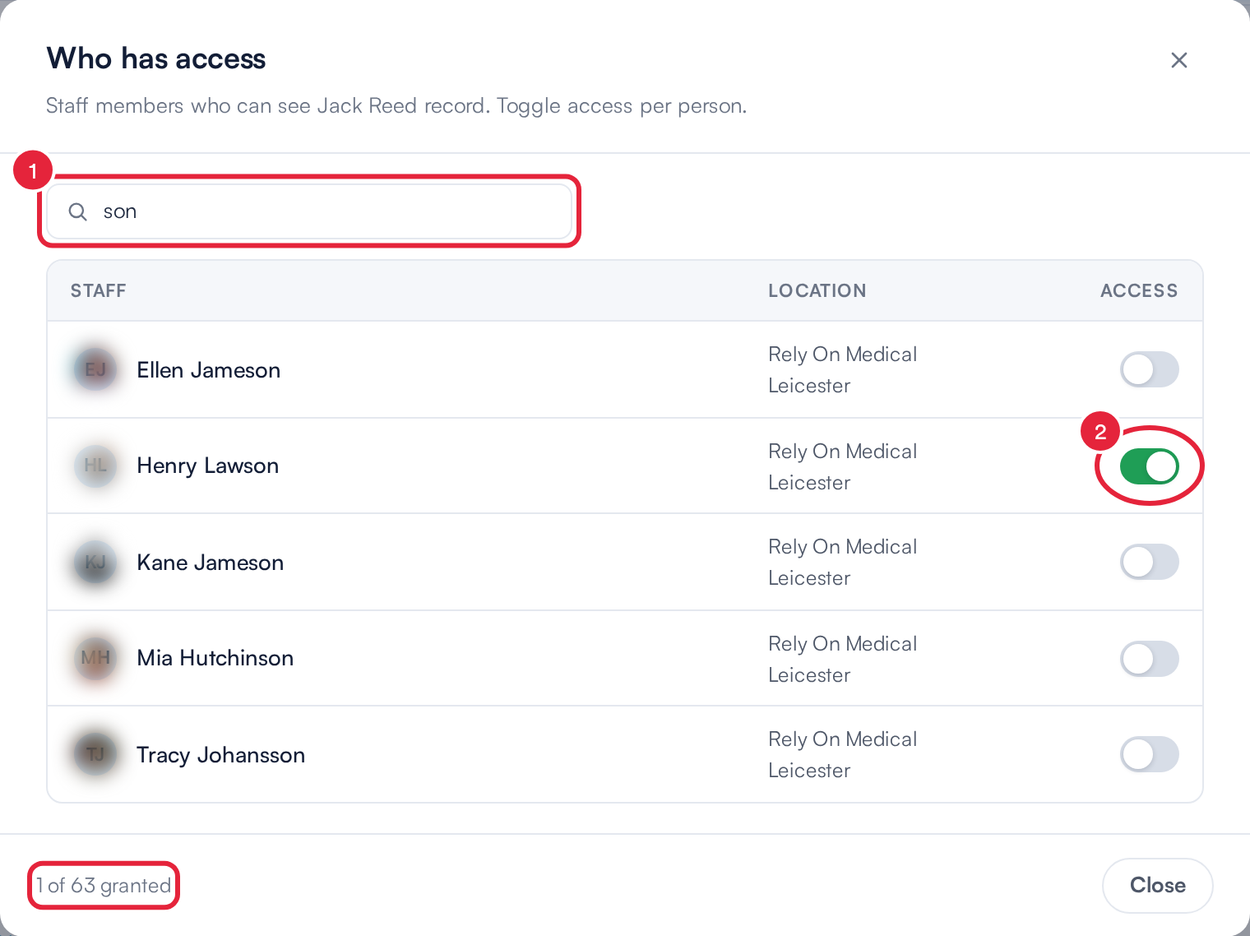
Giving one team member access to an Owners Only client
The change is saved straight away. Click Close when you've finished.
Step 3: Understand Locked Switches
Some switches are on and can't be changed. These people can already see the client because of the client's visibility setting: for example the primary owner, staff at the client's location when it's set to This location only, or everyone when it's set to Public. Hovering over a locked switch shows Access is set by this client's visibility mode — change it in Permissions.
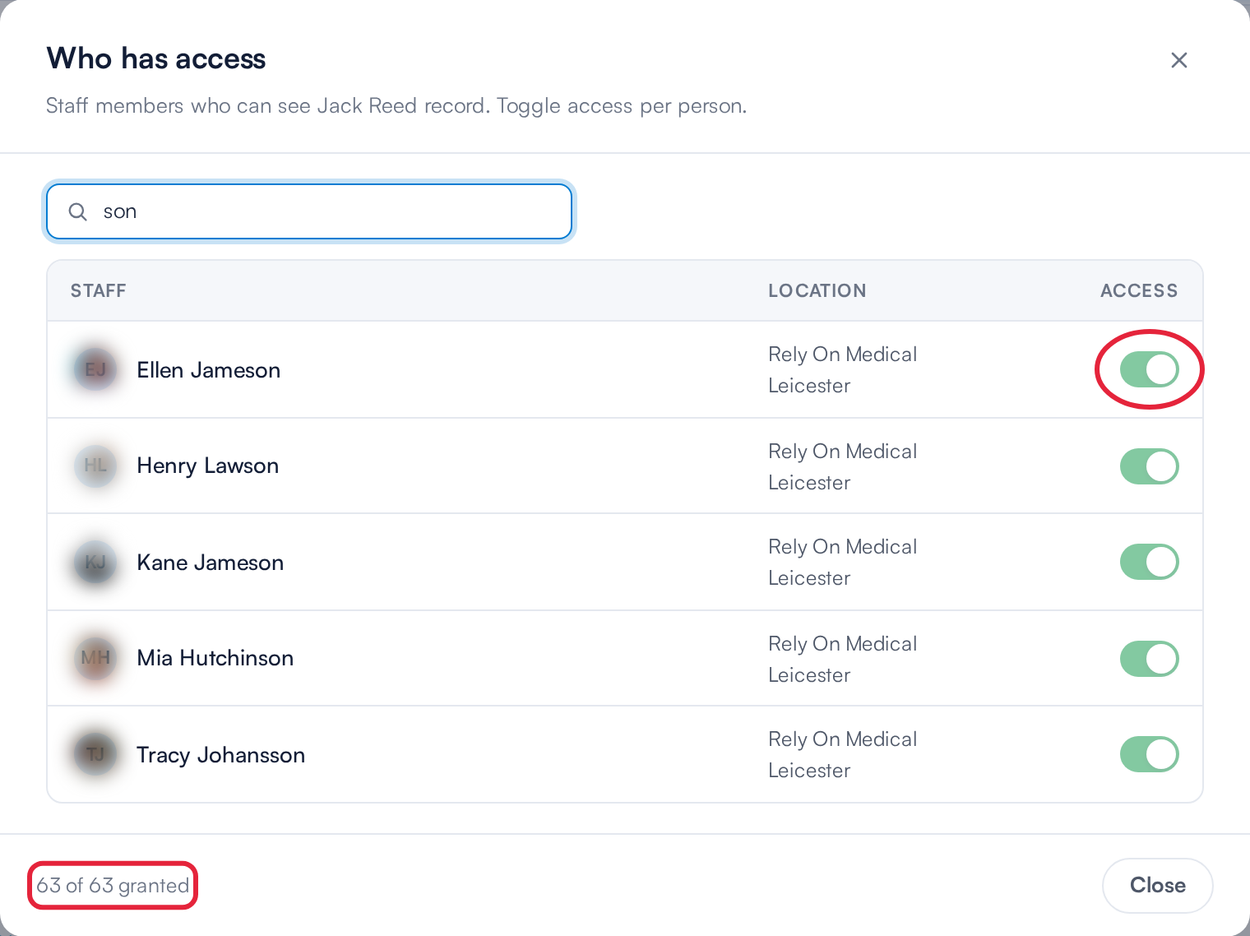
A Public client: every switch is on and locked
To change who gets access this way, click the grid icon above the client's photo to open Visibility & ownership and choose a different option under Who can see this client. See How to Manage Client Visibility Settings (New Client Card).
TIP: To keep a client's record private but let one or two extra people in, set Who can see this client to Owners Only, then switch on just those team members here.
What's next?
Was this guide helpful? Let us know by voting below - your feedback helps us write clearer articles.
For more guides, browse the related articles below or use the search bar at the top of the page. You can also watch our video learning series, the Pabau Academy, or visit the Support page for additional help.