
Why do you need Clients Permission?
Client records often contain sensitive personal and medical information, so these permissions help ensure only authorized staff members can view, edit, or delete that data - reducing the risk of accidental changes or privacy breaches.
Step 1: Navigate to Roles
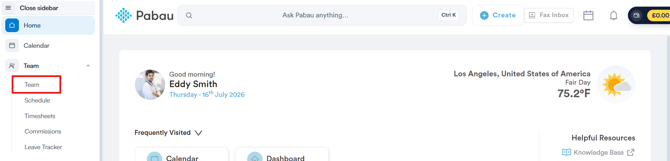
Log in to your Pabau account, and in the left sidebar menu, click on "Team" to expand it, then click on "Team" again from the submenu.
Step 2: Open the Clients Category
On the Roles page, you'll see a "Features" table listing every permission category down the left side, with each of your roles shown as its own column.
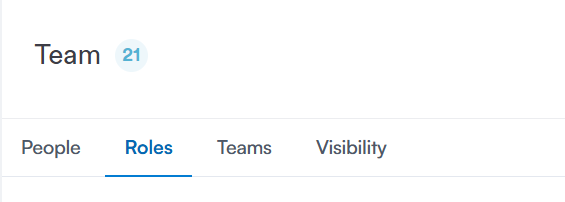
This opens the Team page, showing four tabs: People, Roles, Teams, and Visibility. Click on the "Roles" tab.
Find "Clients" in the Feature Name column and click the arrow beside it to expand the category. This reveals its individual permissions, listed as separate rows underneath.
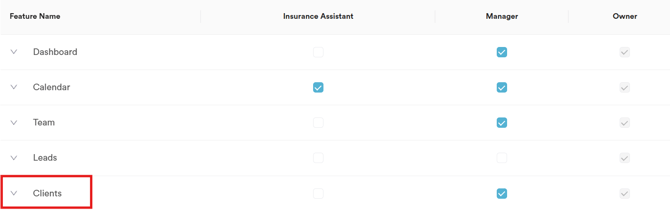
Each checkbox in the table turns that permission on or off for that role. Ticking the "Clients" row enables all of its permissions at once, while ticking an individual row only affects that one.
NOTE: The "Owner" role's checkboxes appear greyed out, since the Owner role always has full access and can't be restricted.
Step 3: Understand What Each Permission Does
- Can access clients page – Allows the staff member to open the patient record .
- Can create clients – Allows the staff member to add new client records.
- Can edit clients – Allows the staff member to update an existing client's details.
- Can delete clients – Allows the staff member to remove a client record.
- Can mark clients as archived – Allows the staff member to archive a client, removing them from active lists without permanently deleting their record.
- Can access labs page – Allows the staff member to open a client's Labs page.
- Can delete card – Allows the staff member to remove a saved payment card from a client's profile.
- Can access online bookings – Allows the staff member to view a client's online booking activity.
- Can edit form – Allows the staff member to edit a client's completed forms.
- Can delete form – Allows the staff member to delete a client's completed forms.
- Can override client visibility rules – Allows the staff member to view client records that would otherwise be restricted by visibility settings.
If any of these are disabled, the staff member simply won't be able to perform that specific action.
A few things to be aware of:
- Permissions apply to the role, not the individual — so if you set a permission for the Receptionist role, every staff member with that role gets the same access.
- If you don't see the right role for what you're setting up, you can create a new one and set its permissions from scratch.
Can I hide client photos without blocking the whole client card?
Yes. Photos are controlled by a visibility group, not by the Clients permissions above, so a staff member can open client records while the Photos section stays hidden.
- Go to Team → Team and open the Visibility tab.
- Create a group (or edit an existing one) and name it, e.g. "Reception – no photos".
- Under EMR, switch Photos off. Leave the areas they still need switched on.
- On the Users & Teams tab, add the staff members who should not see photos, then save the group.
Those staff members will no longer see Photos in the client card menu. If they open a photos link directly, they see "You don't have access to this section" instead.
NOTE: Only admins and owners can change visibility groups, and admins always see every section. If you never create a group, nothing is hidden. New staff join the Default Group unless you pick a different group when you invite them, so check that group's settings too.
Why can't one staff member see Email or Secure Share on a client's form?
This is usually not a Clients permission. In the client card's EMR → Forms list, each completed form carries its own privacy setting, and the row's actions follow it. Two things hide or block these options:
- The form is locked to someone else. If the form's author set it to Visible to me, or to a group the staff member isn't in, that staff member sees a padlock ("This form has been locked.") instead of the preview eye, and no three-dot menu, so neither Share Securely nor Send as email is available. Other forms on the same client are not affected, which is why it can look intermittent.
- The client has no email address on file. Send as email stays in the menu but is greyed out with "No email address on file". The same applies to Email under the + Create button's Communication menu. Add an email address to the client's details to enable it.
Where this comes from: a form's privacy is set by its author from Privacy in the form's three-dot menu (Visible to all users, Visible to me, or one of your groups). Only the author can change it, so ask them to switch the form back to Visible to all users or to a group that includes the staff member.
NOTE: If Share Securely opens but the share button can't be pressed for anyone, check that secure share notifications are enabled in Setup → Client Notifications. That setting applies to the whole business, not to one staff member.
By following these steps, you can control exactly what client-level access each role has in Pabau.
Was this guide helpful? Let us know by voting below - your feedback helps us write clearer articles.
For more guides, browse the related articles below or use the search bar at the top of the page. You can also watch our video learning series, the Pabau Academy, or visit the Support page for additional help.