
By default, every staff member can pick any of your forms. If a form should only be used at certain clinics or by certain people, for example a specialist assessment or a form for one location’s services, you can restrict it from the form builder. Staff who aren’t included won’t be offered the form when they write notes or send forms to clients.
Step 1: Open the Form’s Permissions
- Go to Setup, click Forms under Clinical and click the form you want to restrict.
- Click Advanced at the top of the form builder.
- Click the Permissions tab.
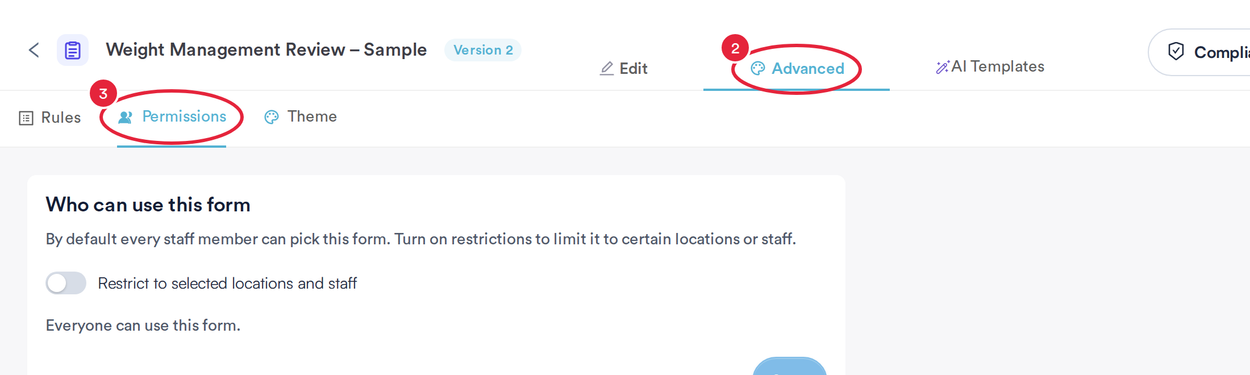
The Permissions tab sits under Advanced, next to Rules and Theme
NOTE: A brand-new form has to be saved before you can restrict it. Until then the tab shows Save the form first, then choose who can use it.
Step 2: Choose Who Can Use the Form
Under Who can use this form, the form starts with Everyone can use this form.
- Switch on Restrict to selected locations and staff.
- Click the Locations picker, tick the locations that can use the form (type in Search locations to find one) and click Apply.
- Click the Staff picker, tick any staff members who should always be able to use it (type in Search staff to find someone) and click Apply.
- Click Save. Pabau confirms Form permissions saved.
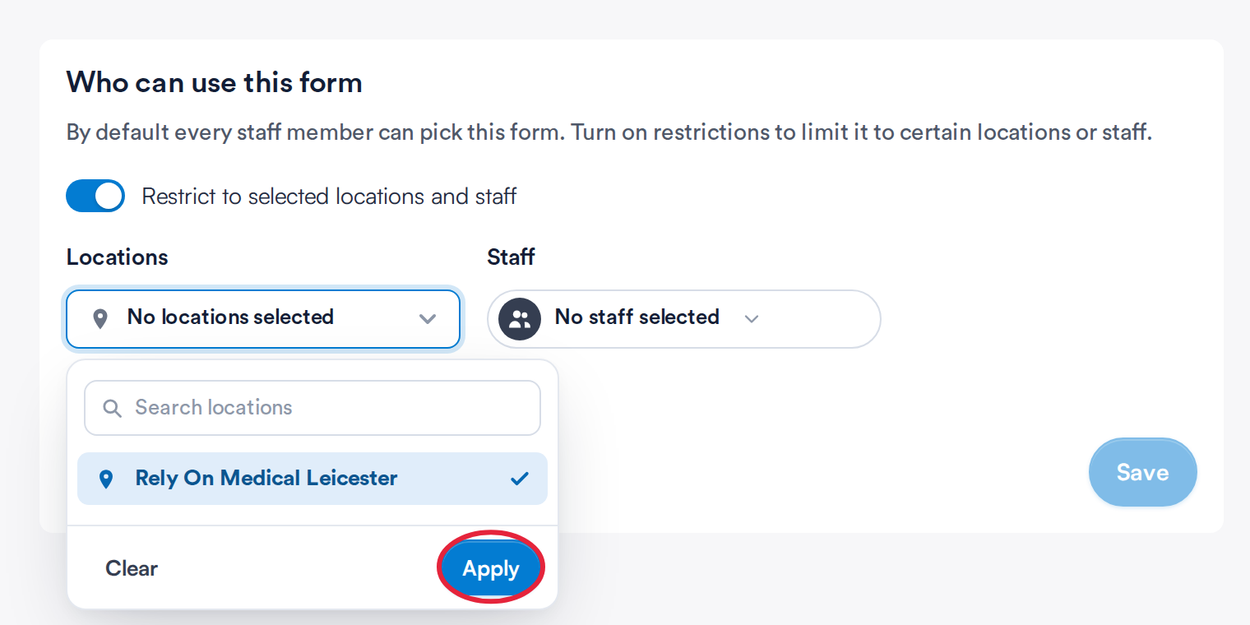
Tick the locations, then click Apply
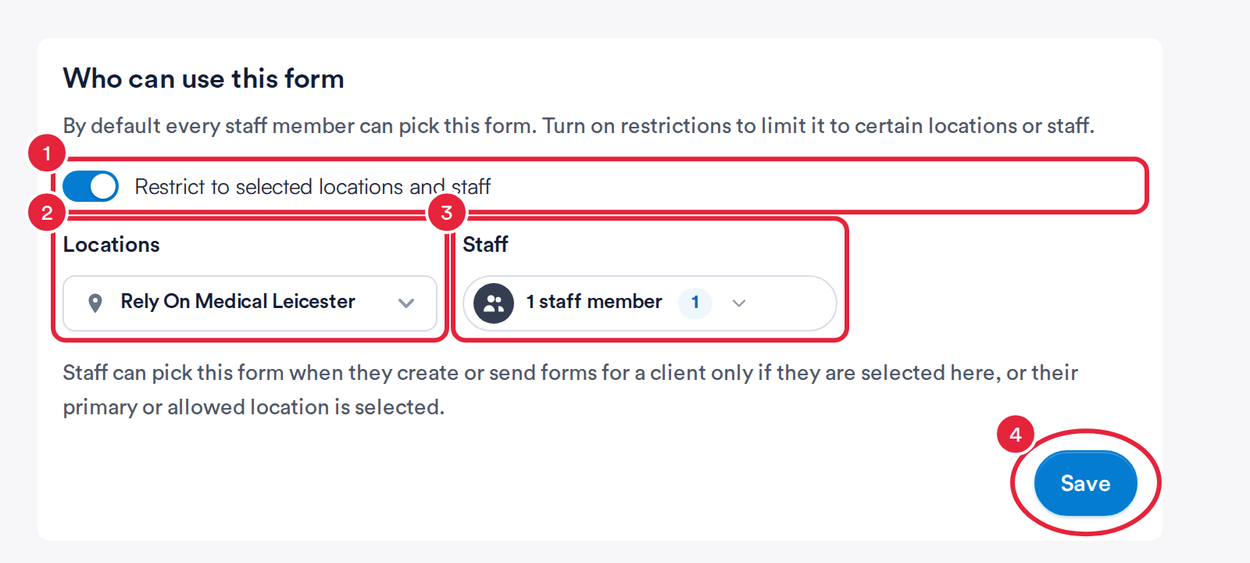
A form restricted to one location and one staff member
You need to choose at least one location or one staff member; until you do, Pabau shows Choose at least one location or staff member. and Save stays greyed out. Permissions save on their own, so you don’t need to click Save Form afterwards.
TIP: If you still need to use the form yourself, make sure your own location or your name is selected before you save.
Who Can Pick the Form Now
Once a form is restricted, a staff member can pick it only if they are selected under Staff, or their primary location or one of their allowed locations is selected under Locations. Everyone else doesn’t see the form in the lists they choose forms from for a client, for example when they write a treatment note, send a form to a client or add forms to an appointment.
The restriction only controls who can pick the form. Notes and forms that were already filled in with it stay on the client card as before.
Removing the Restriction
To make the form available to everyone again, open the Permissions tab, switch off Restrict to selected locations and staff and click Save.
What's next?
- How to Create a Medical Form
- How to Send a Medical Form from the Client Card
- How to Configure Advanced Settings in Medical Form Templates
- How to Write a Treatment Note From the Client Card (New Client Card)
Was this guide helpful? Let us know by voting below - your feedback helps us write clearer articles.
For more guides, browse the related articles below or use the search bar at the top of the page. You can also watch our video learning series, the Pabau Academy, or visit the Support page for additional help.