Skip to content
  • There are no suggestions because the search field is empty.

How to Reply to Messages and Switch Channels in Engage

This article guides you through replying to a conversation in the Engage inbox: writing your message, choosing which channel your reply is sent on, and sending it with confidence on each channel.

Step 1: Open the Conversation

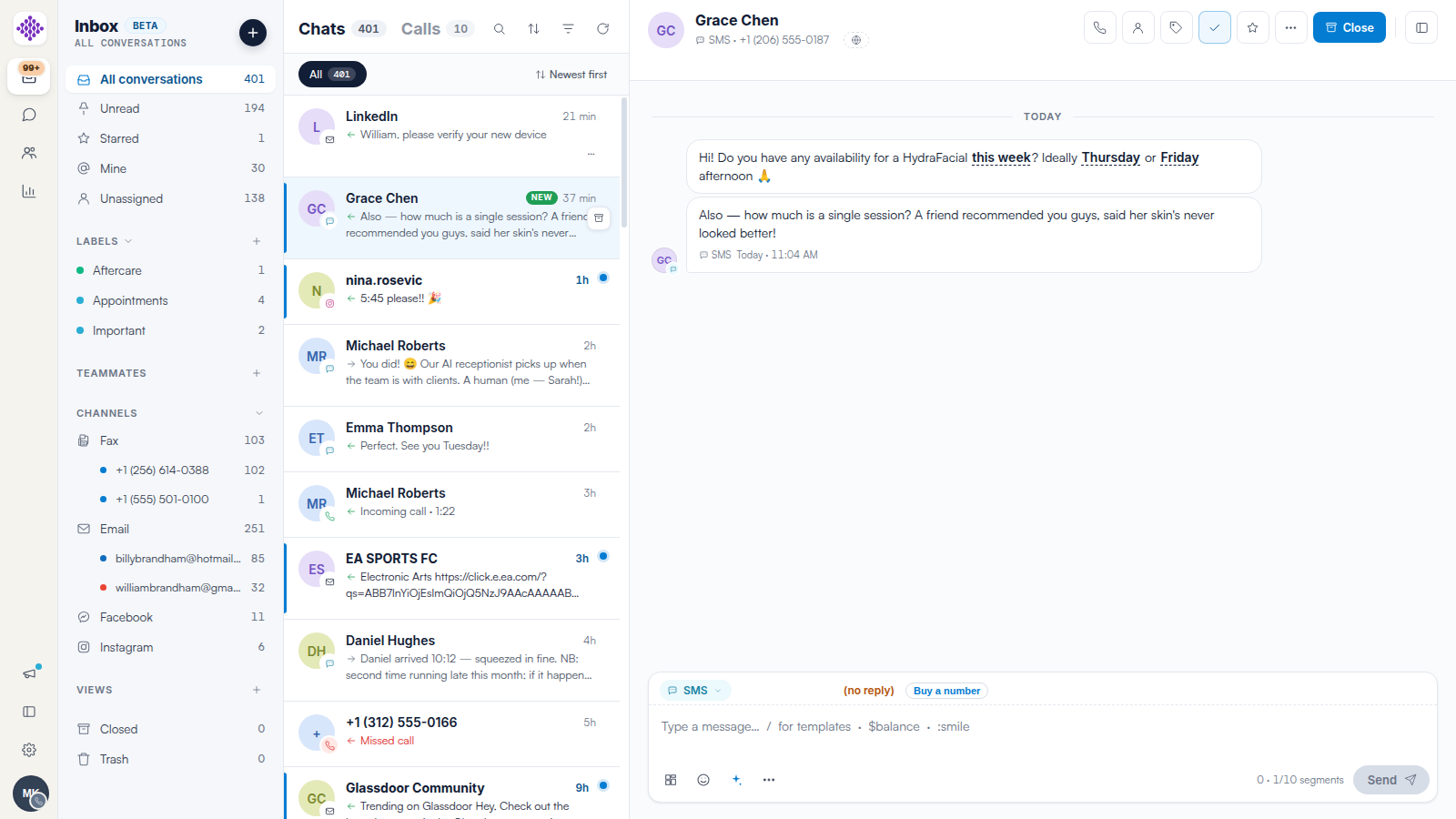
Click a conversation in the list to open it. The reply composer sits at the bottom of the conversation pane. The line above the message box shows who your reply goes to, and on SMS it also shows the number it is sent from, with replies on and a check mark confirming that the client's replies will arrive back in Engage.

The SMS reply composer with the SMS channel chip, the recipient line showing the sending number and "replies on" with a check mark, a typed message, the tool row, the character counter and the Send button

NOTE: If the recipient line shows (no reply) instead, your clinic does not have a two-way number yet, so the client cannot text you back. Click Buy a number to set one up. We suggest reading our How to Set Up Two-Way SMS in Engage article for the full walkthrough.

Step 2: Switch the Reply Channel

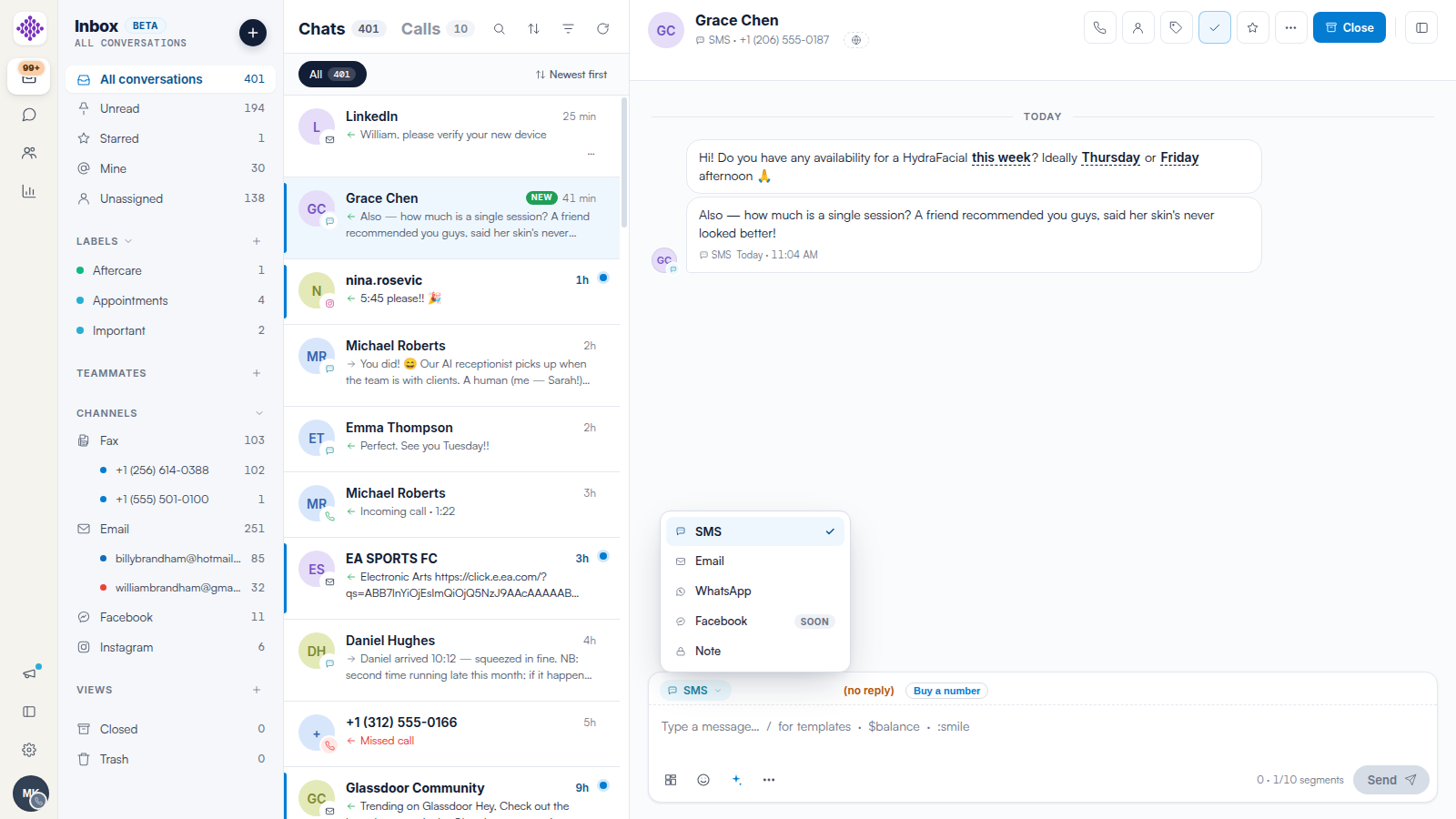
Click the channel chip at the bottom left of the composer to choose where your reply goes. For most conversations you can pick SMS, Chatbot, Email or WhatsApp — so a chat that started with your website chatbot can be answered by text message, for example. SMS and WhatsApp are hidden when the client has no phone number on file, and Facebook and Instagram conversations can only be answered on their own channel.

The composer's channel menu open above the channel chip, offering SMS (selected with a check mark), Chatbot, Email and WhatsApp

IMPORTANT: Switching channels clears anything you have already typed, so choose your channel before writing your message.

Step 3: Write Your Message

Type your reply in the message box. The tool row underneath gives you some helpful shortcuts:

  • Templates — insert a saved message, or type / in an empty message box to open the same menu. We suggest reading our How to Use Message Templates in Engage article for how templates are personalized.
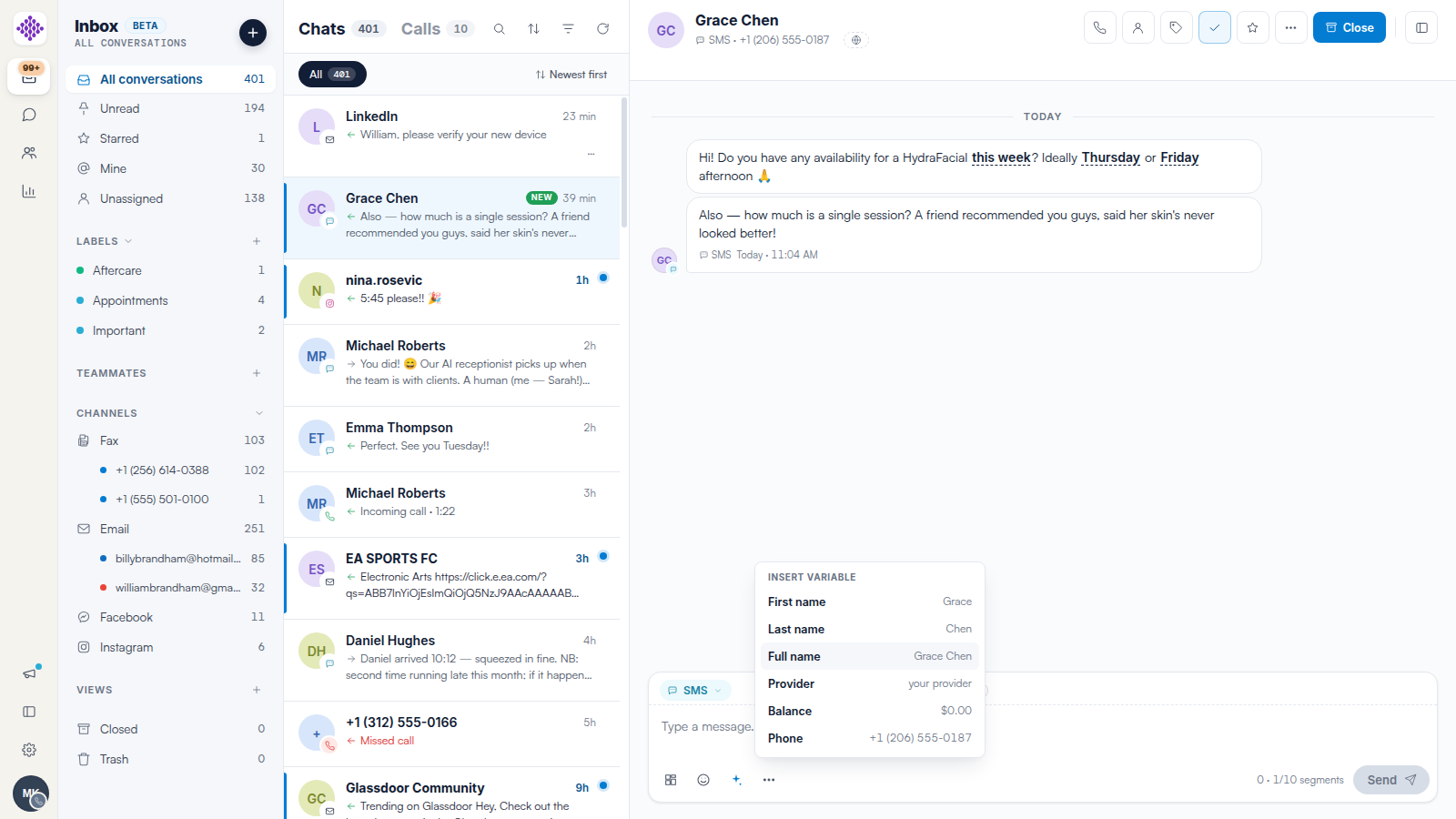
  • Insert variable — drop in details from the linked client's record, such as their first name, appointment date and time, or balance.
  • Emoji — add an emoji from the picker.
  • AI draft — the sparkle button writes a suggested reply based on the recent messages in the conversation. It only fills the message box; nothing is sent until you click Send, and you can edit or delete the draft freely.
  • Attach files and Attach image — available on email replies only.

An SMS conversation with the composer filled by the AI draft button: a ready-to-send suggested reply sits in the message box with the character counter showing before anything is sent

TIP: On SMS, the counter next to Send shows your message length and how many text messages it will be sent as. We suggest reading our SMS Pricing and Sending Limits in Engage article for how this affects your credits.

Step 4: Send Your Reply

Click Send, or press Cmd+Enter (Mac) or Ctrl+Enter (Windows). The message bubble shows a spinner while it sends and a double check mark once delivered to the channel. If a message fails, the bubble is stamped Failed to send with a red cross — click the bubble to choose Retry or Unsend.

What Each Channel Needs
  • Email — the composer adds From, To, Subject and Cc rows. To is the linked client's email address on file, a Subject is required before you can send, and + Add staff lets you Cc up to 10 team members. You can attach up to 10 files of up to 5 MB each (15 MB total), and your saved signature is added automatically when you send. We suggest reading our Email Signatures and Sending Email from the Engage Inbox article for more.

The email reply composer with From, To, Subject and Cc rows above the message, and the Signature preview block showing the signature that will be appended automatically at send

  • WhatsApp — free-form replies are only available for 24 hours after the client's last WhatsApp message. Outside that window, the composer asks you to choose an approved template instead. We suggest reading our WhatsApp Templates and the 24-Hour Window article for how this works.
  • Facebook and Instagram — replies always go back on the same channel. We suggest reading our Replying to Facebook and Instagram Messages in Engage article for details.
  • Fax — fax conversations do not have a chat composer; use the New fax button to send a fax back. We suggest reading our How to Send a Fax from Engage article for the steps.

Replying When the AI Assistant Is Handling a Conversation

When your AI assistant is looking after a conversation, a bar above the composer tells you it is handling the conversation, and the message box is dimmed. Click Takeover conversation to pause the assistant and reply yourself — the bar then reads "You've taken over - the AI assistant is paused". When you are finished, click Resume AI to hand the conversation back to the assistant.

A chatbot-handled conversation with the bar above the composer reading "Pearl (AI Assistant) is handling this conversation", the Takeover conversation button, and the dimmed Chatbot composer below

If You Can't Reply

If a message came from someone who is not in Pabau yet, the conversation header shows a Not a patient badge, and on most channels the composer is replaced by a read-only notice — Facebook, Instagram and email conversations with a connected Gmail or Outlook mailbox can still be answered. Link the sender to an existing client or create a new record to unlock replies — we suggest reading our How to Link a Conversation to a Client in Engage article for how to do this.

We suggest reading our How to Send and Receive SMS in Engage article for a deeper look at texting clients, and our How to Start a New Conversation in Engage article for messaging a client before they have messaged you.

For more guides, refer to related articles below, select additional guides, or use the search bar at the top of the page. These guides will help you get the most out of your Pabau account.

Additionally, to help you fully utilize and understand your Pabau account, we recommend exploring additional guides and resources offered at the Pabau Academy.