
Step 1: Navigate to the Client Card
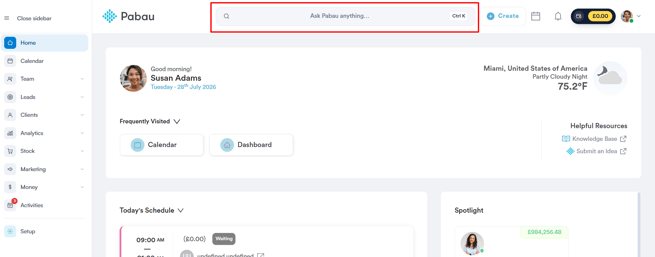
Log in to your Pabau account and open the client card of the client you want to remove a relationship from by using the search bar at the top of the screen.
Step 2: Navigate to the Relationships Tab
In the client details panel on the left, click the "Relationships" tab next to Personal to view the client’s linked contacts and connections.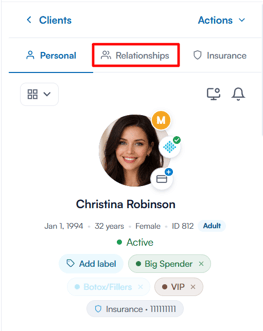
Step 3: Remove the Relationship
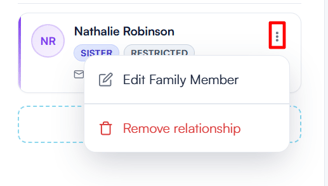
In the "Relationships" tab, you’ll see all contacts linked to the client. To remove a relationship, click the three-dot menu next to the contact and select "Remove relationship".
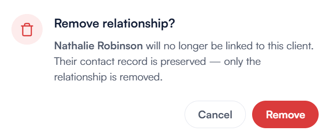
A confirmation prompt will appear — click "Remove" to confirm.
The relationship is now removed from the client card.
NOTE: Removing a relationship only unlinks the two records — the contact’s own record is preserved.
By following these steps, you can remove a client’s linked contact, keeping their Relationships tab accurate and up to date.
NOTE: We suggest reading our Clients article for a more in-depth exploration of this topic.
Was this guide helpful? Let us know by voting below - your feedback helps us write clearer articles.
For more guides, browse the related articles below or use the search bar at the top of the page. You can also watch our video learning series, the Pabau Academy, or visit the Support page for additional help.