
This article covers the new Client Card, available to selected clinics from August 2026. If your Client Card looks different, see the How to Record an Allergy for a Client (Classic) guide instead.
Step 1: Navigate to the Client Card
Start by logging in to your Pabau account using your login credentials. Then navigate to the search bar at the top of the page and type at least three letters of the client’s name — Pabau will filter the results as you type. Click the client’s name to open their card.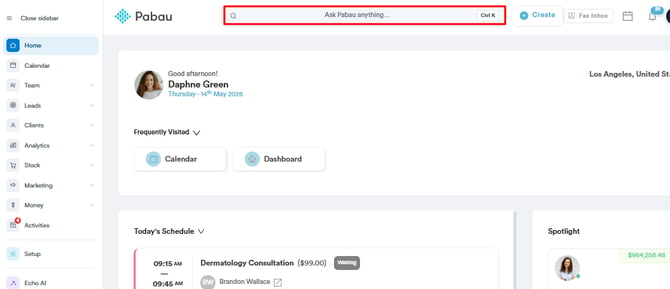
Step 2: Open the Allergies Section
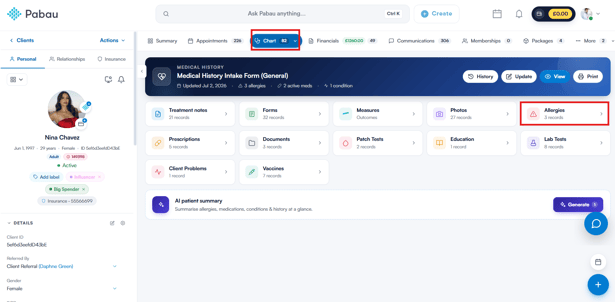
In the client card, click EMR in the navigation at the top (this tab is labelled Chart for US accounts). This opens the EMR overview. Click the Allergies card.
Step 3: Click on “Add Allergy”
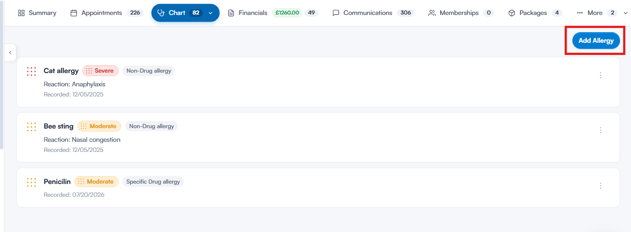
Click the Add Allergy button at the top right of the Allergies section. If the client has no allergies recorded yet, you’ll find the Add Allergy button in the centre of the page instead.
Step 4: Enter the Allergy Details
In the Add Allergy window, start by choosing the Allergy type. There are three options:
- Specific Drug allergy — a confirmed reaction to a specific medication.
- Non-Drug allergy — food, environmental or other non-medication allergens.
- No Known Drug Allergies (NKDA) — record that the client has no known drug allergies. No further details are needed for this option.
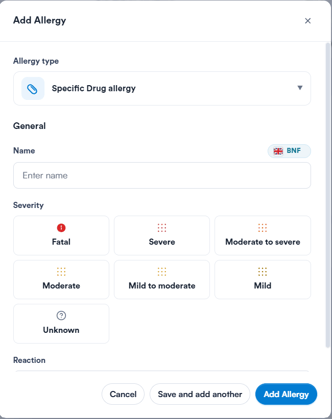
For a Specific Drug or Non-Drug allergy, the General section appears once you’ve chosen the type:
- Name: Start typing to search for the allergen. Specific drug names are searched in your clinic’s drug database (shown as a badge on the field), while non-drug allergens come from a clinical allergen list that you can narrow with the All, Food, Environment and Biological filters.
- Severity: Select one of Fatal, Severe, Moderate to severe, Moderate, Mild to moderate, Mild or Unknown.
- Reaction (optional): Select the reaction the client experiences, such as Anaphylaxis, Hives or Nausea.
Step 5: Save the Allergy
Click Add Allergy to save the record — for a No Known Drug Allergies (NKDA) record, this button reads NKDA instead. To record several allergies in a row, click Save and add another instead — this saves the allergy and keeps the window open for the next one.
Any allergies you record are displayed in the Allergies section and flagged across the client card — including prescriptions and treatment notes — to help keep the client safe.
By following these steps, you can successfully record an allergy in the client card.
Was this guide helpful? Let us know by voting below — your feedback helps us write clearer articles.
For more guides, browse the related articles below or use the search bar at the top of the page. You can also watch our video learning series, the Pabau Academy, or visit the Support page for additional help.