
This article covers the new Client Card, available to selected clinics from August 2026. If your Client Card looks different, see the How to Record a Client Problem (Classic) guide instead.
Step 1: Navigate to the Client Card
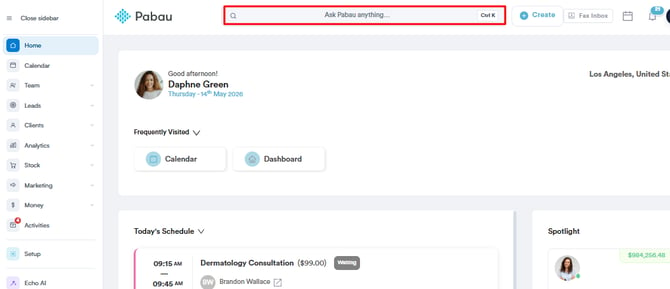
Navigate to the search bar at the top of the page and type at least three letters of the client’s name — Pabau will filter the results as you type. Click the client’s name to open their card.
Step 2: Open the Client Problems Section
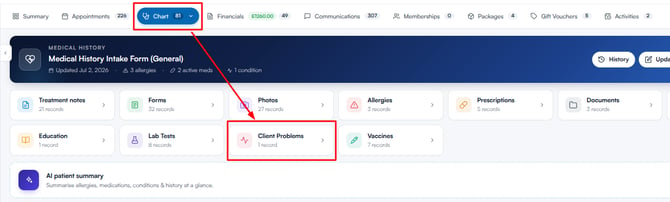
In the client card, click EMR in the navigation at the top (this tab is labelled Chart for US accounts). This opens the EMR overview grid. Click the Client Problems card to view the client’s problem list. If you don’t see the Client Problems card, the Diagnostics feature is not enabled for your business.
Step 3: Add a Problem
Click the Add Problem button in the top right corner of the section. If the client has no problems recorded yet, you’ll find the Add Problem button in the centre of the section instead.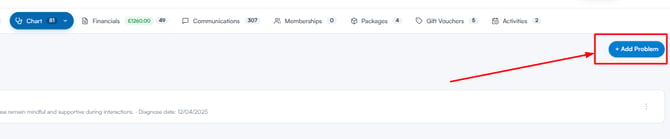
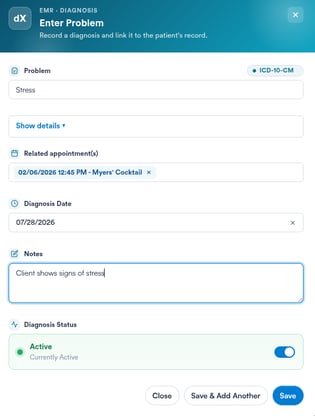
The Enter Problem window appears, where you can fill in the following details:
-
Problem: Start typing to search for a condition by name or code. Results are pulled from your clinic’s configured diagnostic code set — such as ICD-10, ICD-11 or SNOMED — as well as your clinic’s custom Medical Conditions list. Select the relevant entry from the results.
-
Show details (optional): Expand this section to add or adjust code details — the ICD Version, ICD Code and SNOMED CT Code.
-
Related appointment(s) (optional): Link one or more of the client’s appointments to this problem.
-
Diagnosis Date (optional): Add the date the condition was diagnosed. If you leave it blank, today’s date is used when you save.
-
Notes (optional): Enter any relevant notes about this diagnosis.
-
Diagnosis Status: Set the problem as Active or Inactive. Active problems appear in the Active tab and count towards the client’s conditions total.
TIP: If you need to record several problems in a row, click Save & Add Another after each entry instead of Save. This keeps the form open so you can log the next condition without having to reopen it.
Once the fields are filled in, click Save to record the problem. It will appear in the Client Problems list, in the tab matching its status.
With the problem recorded, it is reflected in the condition count on the Medical History banner at the top of the EMR overview, keeping the client’s clinical record accurate and up to date.
Was this guide helpful? Let us know by voting below — your feedback helps us write clearer articles.
For more guides, browse the related articles below or use the search bar at the top of the page. You can also watch our video learning series, the Pabau Academy, or visit the Support page for additional help.