
Step 1: Navigate to the Client Card
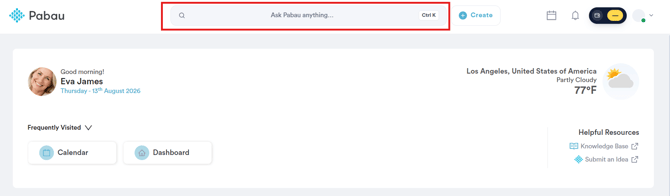
Start by logging into your Pabau account using your login credentials. Then navigate to the search bar at the top of the screen and type at least three letters of the client's name for their client card to pull up.
Step 2: Open Client Problems
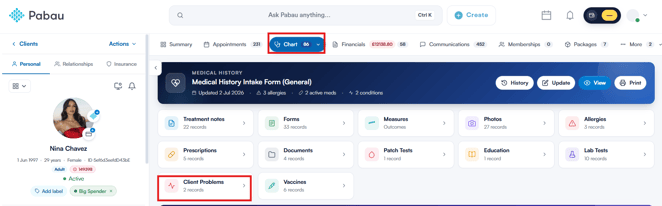
Click the Chart/EMR tab (shown as EMR in some regions) to open the client's clinical record, then click the Client Problems card.
Step 3: Click Add Problem
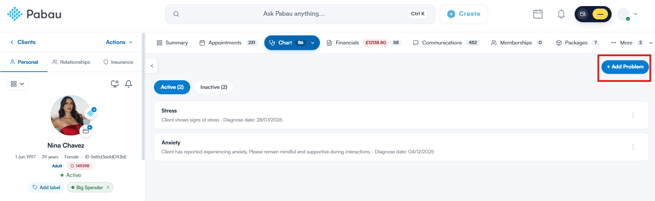
On the Client Problems screen, click + Add Problem in the top-right corner.
Step 4: Enter the Problem
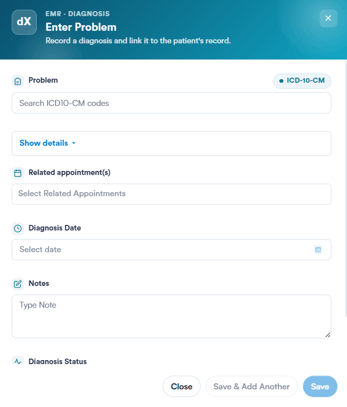
The Enter Problem window opens. Fill in:
- Problem — search for the diagnosis using its code set (e.g. ICD-10-CM). Click Show details to see more information about the selected code.
- Related appointment(s) — link the problem to one or more of the client's appointments.
- Diagnosis Date — select the date the problem was diagnosed.
- Notes — add any relevant free-text notes.
Step 5: Set the Diagnosis Status
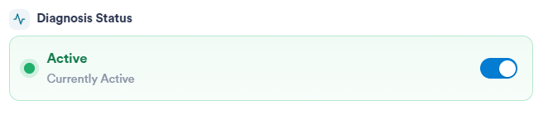
Scroll down to Diagnosis Status and toggle it to mark the problem as Active (currently active) or inactive.
Step 6: Save the Problem
Click Save to add the problem to the client's record, or Save & Add Another to save it and immediately start entering another. Click Close at any point to exit without saving.

By following these steps, you can record and track a client's problems or diagnoses in Pabau, keeping their clinical record accurate and up to date.
Was this guide helpful? Let us know by voting below - your feedback helps us write clearer articles.
For more guides, browse the related articles below or use the search bar at the top of the page. You can also watch our video learning series, the Pabau Academy, or visit the Support page for additional help.