
Step 1: Navigate to the Client Card
Log in to your Pabau account, and from the search bar located at the top of the page, search for the client you want to open the client card for.
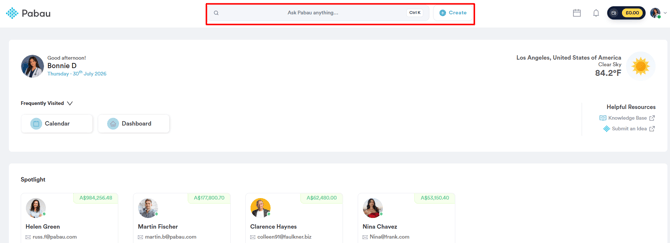
Step 2: Open the Packages Tab
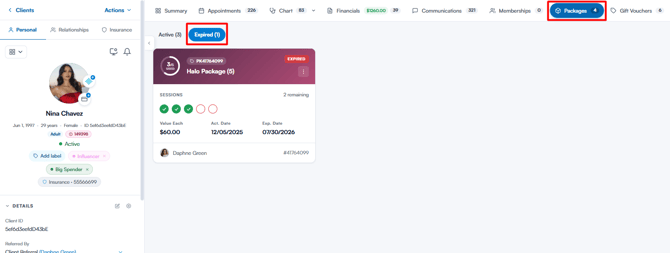
Once you’re in the client card, navigate to the Packages tab, then select the Expired tab.
Step 3: Reopen the Package
Find the package you wish to reactivate, click on the three vertical dots on the right, and select Reopen package (+ 30 days).
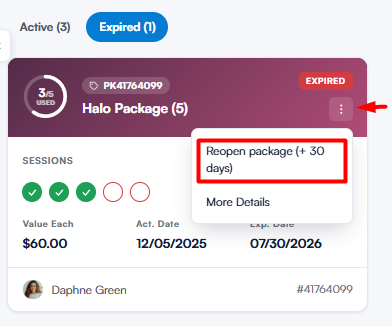
The package is reopened straight away — it becomes valid from today for 30 days and moves to the Active tab. If your client needs longer than that, you can extend the package duration — once the package is active again, Change package duration appears in its three-dot menu.
NOTE: Reopening applies to packages that expired with unused sessions remaining. A package listed under Expired because all of its sessions have been used will stay in the Expired tab even after reopening.
Was this guide helpful? Let us know by voting below - your feedback helps us write clearer articles.
For more guides, browse the related articles below or use the search bar at the top of the page. You can also watch our video learning series, the Pabau Academy, or visit the Support page for additional help.