
NOTE: This guide covers the new Online Bookings and Client Portal, which are being rolled out to clinics in phases. If your screens look different, your account may still be on the classic version — message us via the in-app chat and we will help.
In this article, you will learn how to let clients choose add-ons — extras such as a booster, a longer session or an upgrade — when they book a service on your new booking page. You will see which settings decide whether a group of add-ons appears online, what clients see, and how their choices change the price and length of the appointment.
Add-ons are built on the service in Pabau. This guide focuses on the online booking side; for every option in the add-on builder, see Add-ons: Detailed Walkthrough.
Step 1: Open the Service’s Addons Tab
Go to Setup → Services and click the service. Then:
- Click the Addons tab.
- Click Create option group (or New option group if the service already has add-ons). Choose Start blank, or pick a ready-made group under From your library.
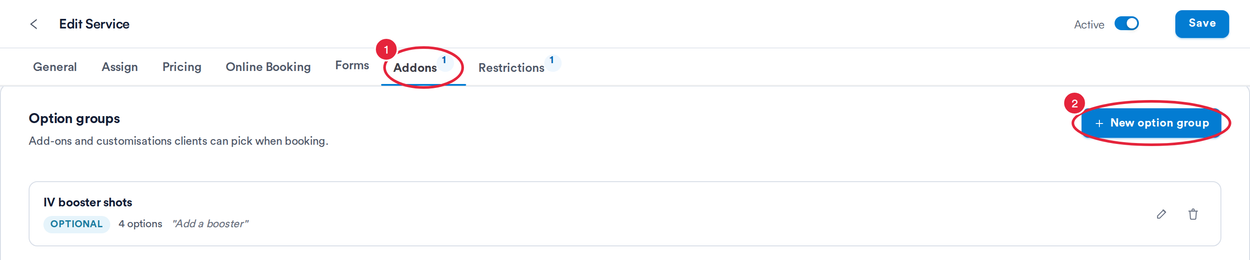
The Addons tab of a service, with one option group
Step 2: Add the Options Clients Can Choose
- In Prompt for clients, type the heading clients see above the options, for example Add a booster. The Group name is for your team only.
- Under Available options, click Add option (or the pencil on an option) and set its name and an optional description. Switch on This option changes the service price and This option changes the service duration to set how much it adds.
- Check the Online booking tab of the Live preview on the right to see the group as clients will.
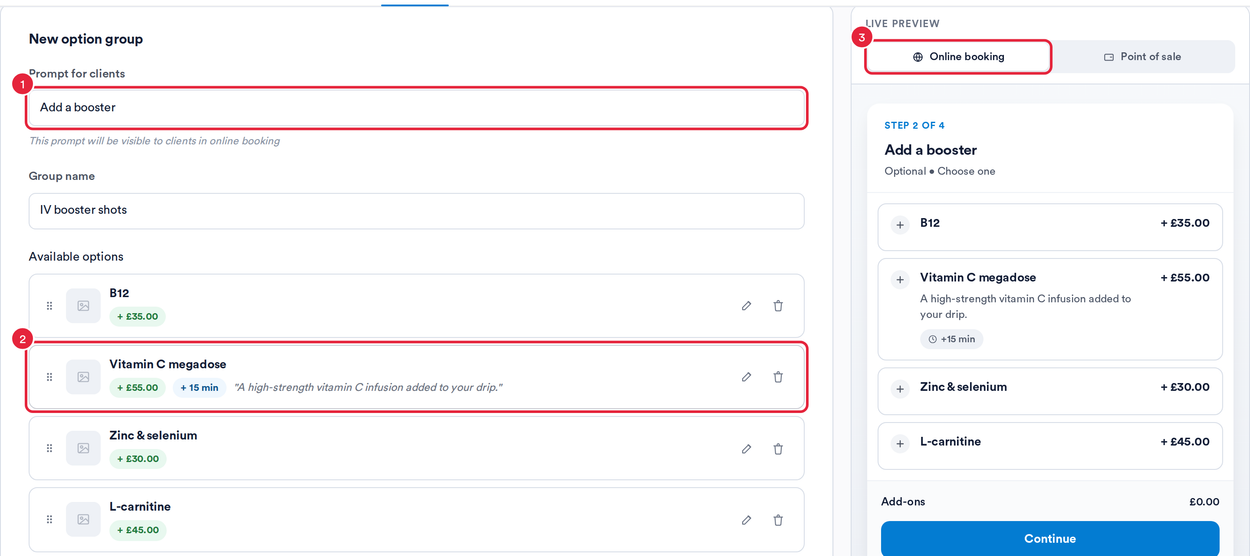
The prompt, the options with their price and duration changes, and the live preview
Step 3: Make the Group Available Online
- Under Is this option group required or optional?, choose Required if clients must pick something before they can book the service, or Optional for extras they can skip. Then choose How many can be selected?: One at a time, Multiple or Custom (a minimum and maximum).
- Under Where can this be used?, tick Online Booking.
- Open Advanced options and switch on Show option prices in online booking and Show duration changes in online booking if you want clients to see them next to each option.
Click Save at the bottom of the form, then Save at the top right of the service.
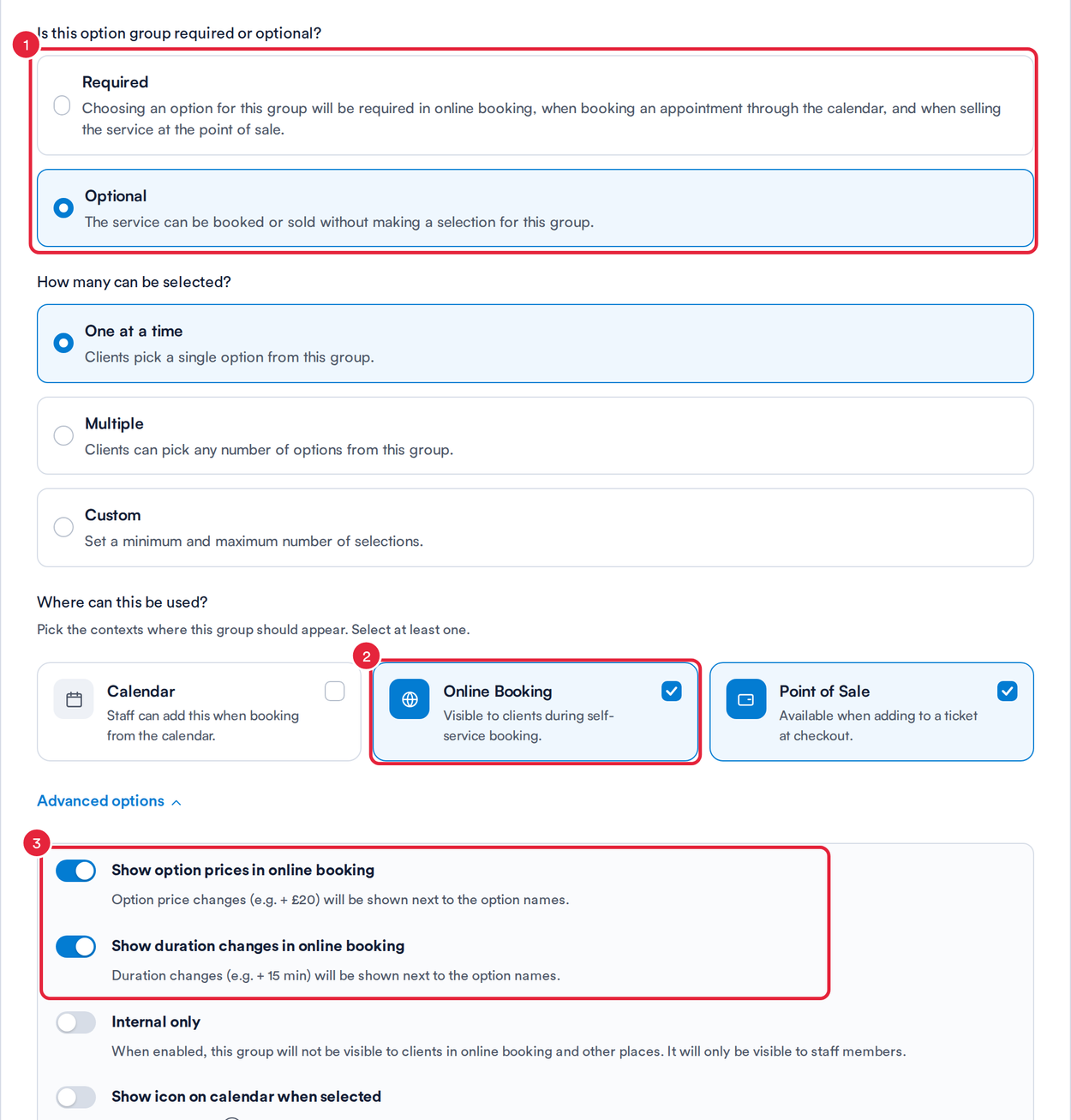
Required or optional, the Online Booking context and the advanced display options
IMPORTANT: A group only appears on your booking page when Online Booking is ticked and Internal only (under Advanced options) is off. Internal only groups are shown to staff, never to clients.
Step 4: Check What Your Clients See
When a client adds the service, its details window opens with your add-ons listed under the prompt (A). A required group is marked with an asterisk (*), and Add to booking stays unavailable until it has been answered. A required group that allows one choice starts with its first option already selected.
The price and length at the bottom (B) update as the client picks options.
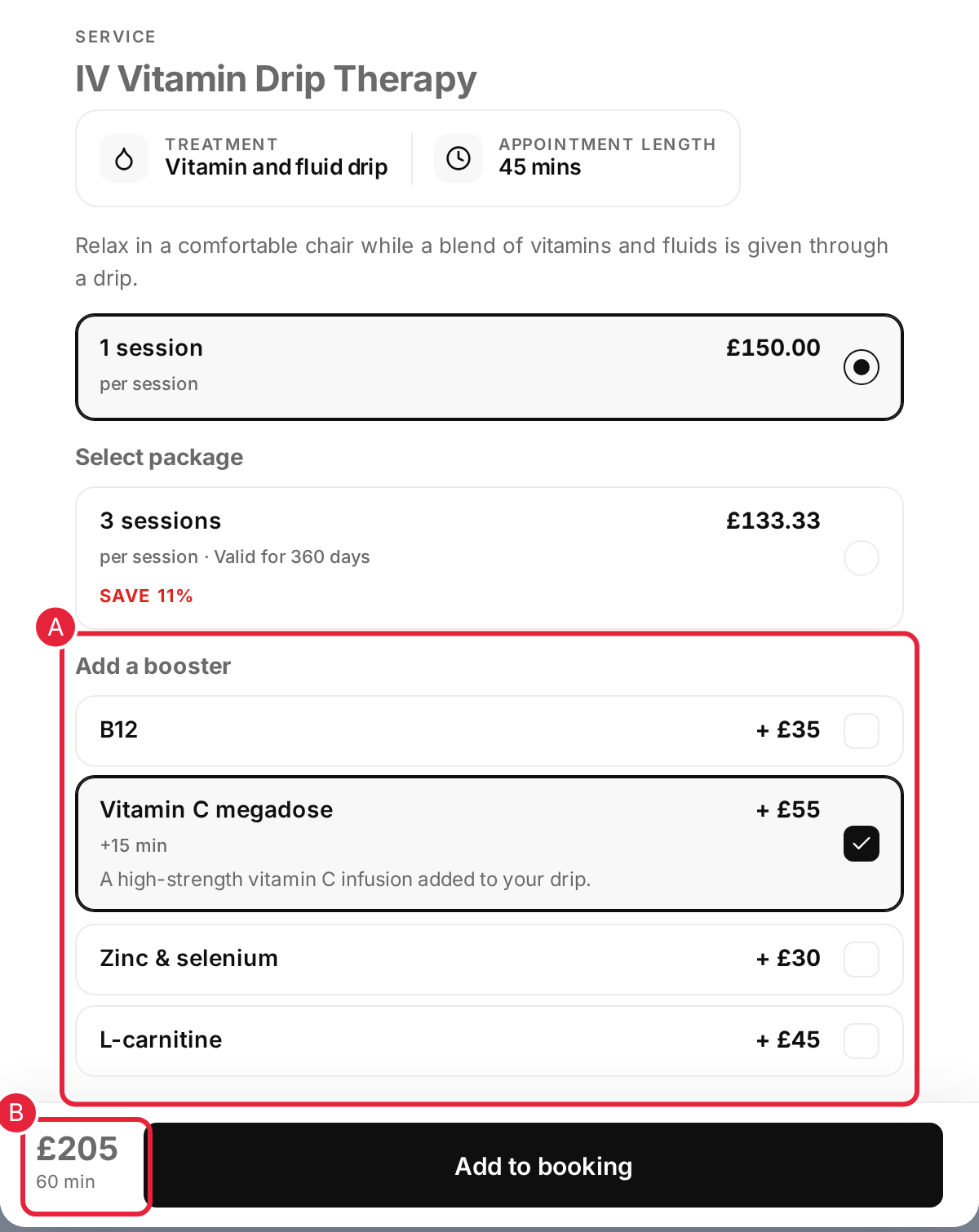
Add-ons in the service’s details window, with the running price and length
The add-on appears under the service in the booking summary, with the new price and length. Clients are then only offered times long enough for the longer appointment, and the add-on prices are included in the total they pay.
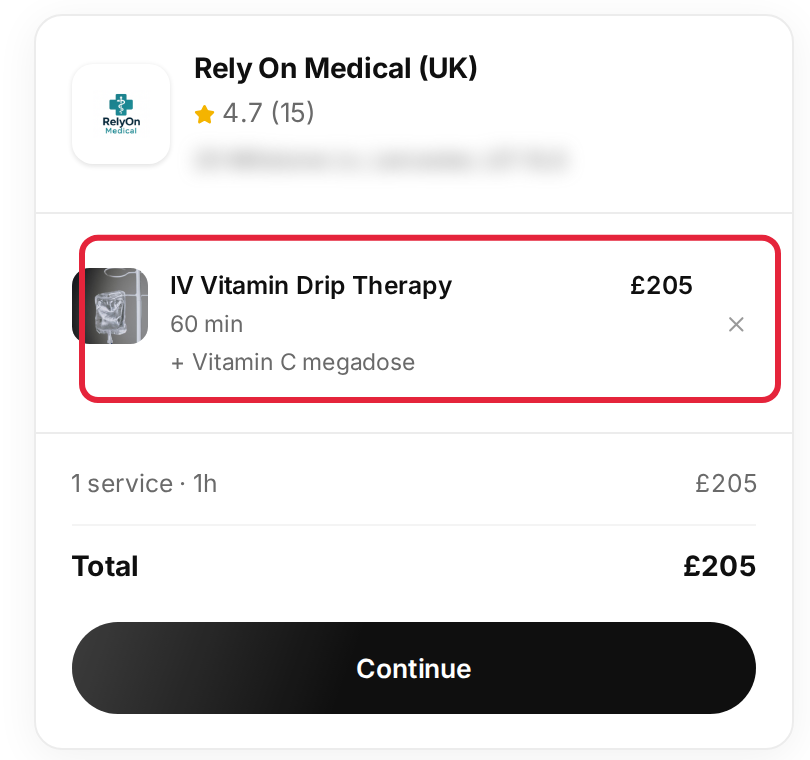
The booking summary: the add-on, the new length and the new total
NOTE: Changes to add-ons show on your booking page as soon as you save the service. There is nothing to publish in Pabau Studio.
What's next?
- Add-ons: Detailed Walkthrough — templates, selection limits, resources and using add-ons on the calendar and at the Point of Sale.
- How to Add Highlights, an Extended Description and a Notice to a Service — more ways to describe a service online.
- New Online Bookings Part 4: Take Payments and Deposits Online — how clients pay at checkout.
Questions? Reach us any time via the in-app chat — we’re happy to help.
Was this guide helpful? Let us know by voting below - your feedback helps us write clearer articles.
For more guides, browse the related articles below or use the search bar at the top of the page. You can also watch our video learning series, the Pabau Academy, or visit the Support page for additional help.