
Your clinic’s directories hold the outside professionals you work with: the specialists you refer clients to, your clients’ GP practices and the pharmacies you use. Setup → Directories lists them all in one place, shows how many of your clients are linked to each one, and lets you keep your own GP and pharmacy records up to date.
NOTE: Records get into your directories when you add or link them on the Relationships tab of a client card. There’s no Add button on the Directories page itself. See How to Add a Client Relationship.
Step 1: Open Directories
Click Setup in the left sidebar and open Directories, under Clinical in the Reference group. You can also type directories in Search by keyword.
- Click the directory you want to see: Specialists, GPs or Pharmacies. Each tile shows how many records it holds.
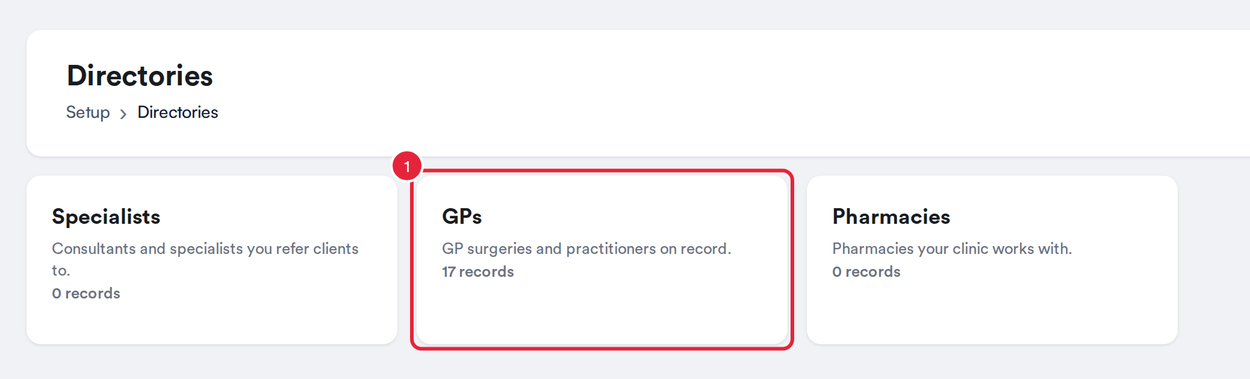
Your three directories, each with its number of records
Step 2: Find a Record
Each directory is a table. The columns depend on the directory:
- Specialists: Name, Role, Email and Clinic.
- GPs: Practice, GP name, Address, Phone and Email.
- Pharmacies: Pharmacy, Address, Phone, Email and Website.
The last column, # Contacts, shows how many of your clients are linked to each record.
- Type in Search… to find a record.
In Specialists and Pharmacies you can also click a column heading to sort the table. When the GPs directory runs to more than one page, use Previous and Next at the bottom to move between pages.
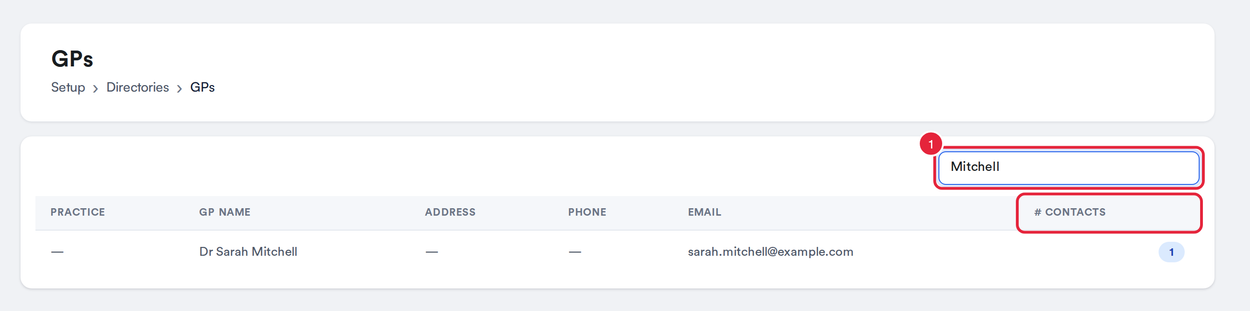
Search, sort and see how many clients are linked to each record
The GPs directory lists the GP practices your clinic has added itself, plus any practice from the shared Pabau Network that you’ve linked to a client. It’s the same list you see under Clinic GPs when you add a GP to a client.
Step 3: Update a GP Practice or Pharmacy
- Click the record. The Edit GP practice or Edit pharmacy window opens.
- Update the details, such as the practice name, GP name, address, city, postcode, phone or email.
- For a GP practice, manage the GPs who work there under Employees: click Add employee and enter their Name and Email, or click Remove next to someone who has left.
- Click Save. Pabau confirms with Changes saved.
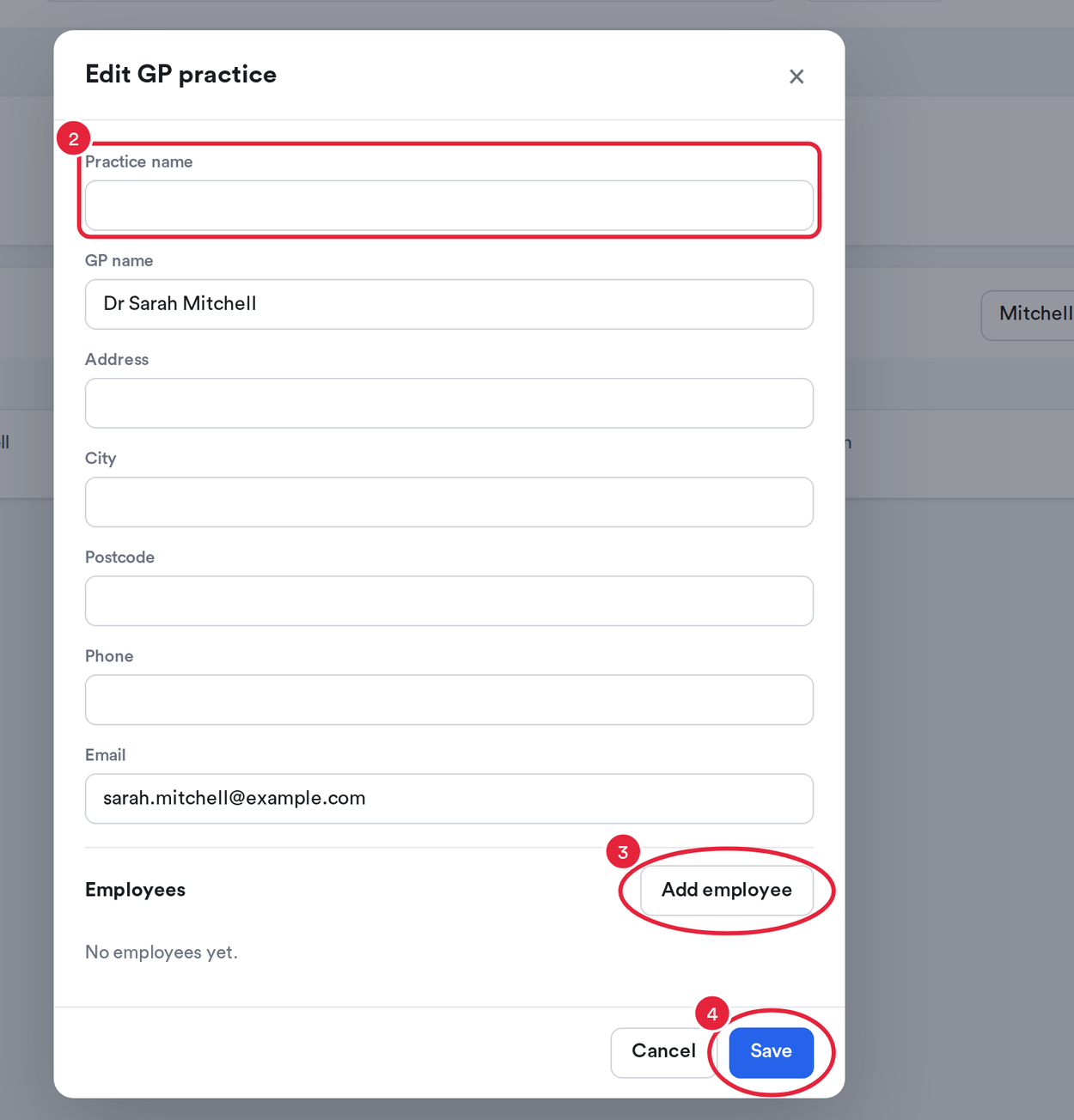
Keep your GP practice details and its GPs up to date
NOTE: Email addresses must be valid before you can save. For a pharmacy, the name, address, city and postcode can’t be left empty.
Shared Pabau Network Records
Some GP practices come from the shared Pabau Network, which other clinics use too. When you open one of these, Pabau shows This is a shared reference record used by other clinics, so it can’t be edited here. The details are read-only and the window only has a Close button. To keep your own details for that practice, add it as a new GP from a client’s Relationships tab.
What's next?
Questions? Reach us any time via the in-app chat. We're happy to help.
Was this guide helpful? Let us know by voting below - your feedback helps us write clearer articles.
For more guides, browse the related articles below or use the search bar at the top of the page. You can also watch our video learning series, the Pabau Academy, or visit the Support page for additional help.