
Step 1: Navigate to the Client Card
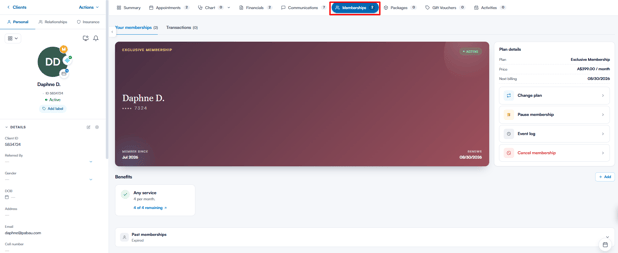
Search for the client’s name in the search bar to open their client card, then click on the "Memberships" tab. The tab has two views: "Your memberships", showing the client’s membership cards, and "Transactions", listing every membership payment. Active and pending memberships are shown first, while expired ones are grouped under "Past memberships" — click it to expand the list.
Step 2: Review the Membership
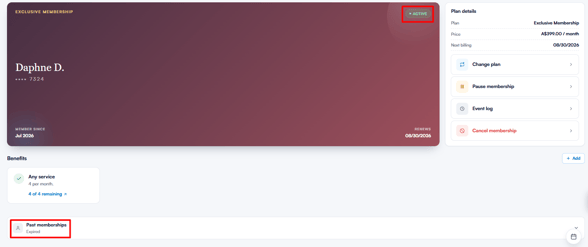
Each membership is displayed as a card with a status pill, next to a "Plan details" panel showing the plan name, price and next billing date. A client can have only one active membership at a time.
Each membership will have one of the following statuses:
- Active (green): The membership is active and payments are being processed automatically. The card shows the date it renews.
- Paused (amber): The membership has been paused. The client isn’t charged, and the membership can’t be used until it’s resumed.
- Pending (amber): The membership hasn’t reached its start date yet. The card shows the date it starts.
- Payment failed (red): The most recent charge failed. A "Retry payment" action appears so you can take the payment again (for a pending membership’s first charge, this is "Pay now").
- Expired (grey): The membership has been cancelled or has ended. It won’t renew, the client can no longer use it, and it’s listed under "Past memberships".
Step 3: Membership Actions
The "Plan details" panel on the right-hand side of each membership card lists the actions available for that membership:
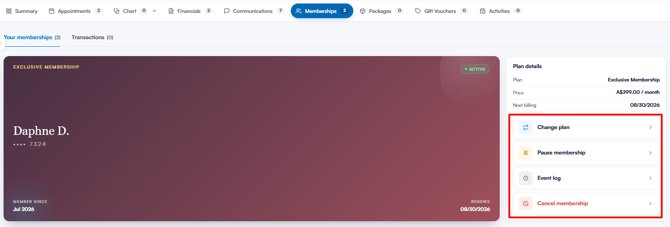
- Change plan: Switch the client to a different membership plan. Select the new plan you want to move the client to, and the system will update their membership accordingly. This option is being rolled out gradually, so it may not be available on your account yet.
- Pause membership: Pause the membership indefinitely or until a custom date. While paused, the client isn’t charged, the "Membership" payment method is shown as paused in the Point of Sale and can’t be used to pay, and discount perks aren’t applied automatically. A paused membership shows a "Resume membership" action instead. See How to Pause a Membership (New Client Card).
- Edit start date: Available for pending memberships only — change the date the membership will start.
- Relationships: Shown when the plan is shared with linked clients (for example, family memberships) — view and manage who’s covered.
- Event log: Review the membership’s invoices, payment events and usage events. See How to View Event Logs for Memberships (New Client Card).
- Cancel membership: Cancel the membership immediately, at the end of the current billing period, or on a custom date. When cancelling at a future date, the client keeps access to the benefits until the cancellation takes effect. See How to Cancel a Membership (New Client Card).
Step 4: Review Benefits and Transactions
Below each membership card, the Benefits section lists everything included in the plan. Metered benefits show how much the client has left (for example, "3 of 5 remaining") — click the remaining count to see the membership’s usage history, including the invoices each use was applied to. Discount perks show a "View usage" link instead.
The Transactions view lists every membership payment with its date, invoice number, description, payment method, amount and status.
By following these steps, you can easily keep track of active and past memberships, pause or cancel them, and ensure clients get the most out of their plans.
Was this guide helpful? Let us know by voting below - your feedback helps us write clearer articles.
For more guides, browse the related articles below or use the search bar at the top of the page. You can also watch our video learning series, the Pabau Academy, or visit the Support page for additional help.