
The booking panel in the Calendar has a Payments section. It shows what has been asked for and paid on the appointment: a deposit or payment request, deposits the client has paid, and any payment plan. From here you can ask for a deposit after booking, change or remove the request, send the client the payment link, and refund a deposit.
NOTE: This feature is being rolled out to clinics gradually. If you don't see it in your account yet, message us via the in-app chat.
Step 1: Open the Payments Section
In the Calendar, click the appointment to open the booking panel, then scroll down to Payments. If nothing has been asked for or paid yet, it reads No payment policy or deposit recorded.
Step 2: Add a Payment Request
- Click Add policy.
- If the client has more than one appointment in the visit, choose the appointment the request is for.
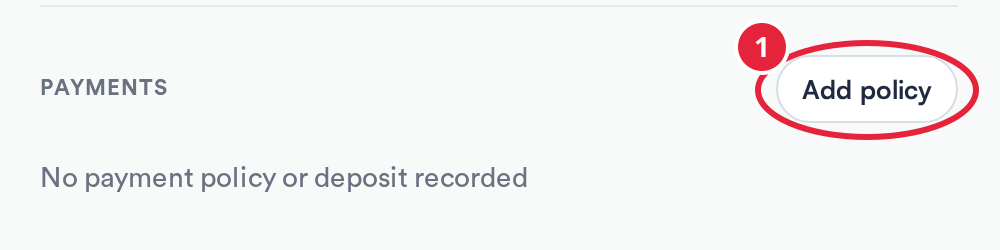
Add policy in the Payments section of the booking panel
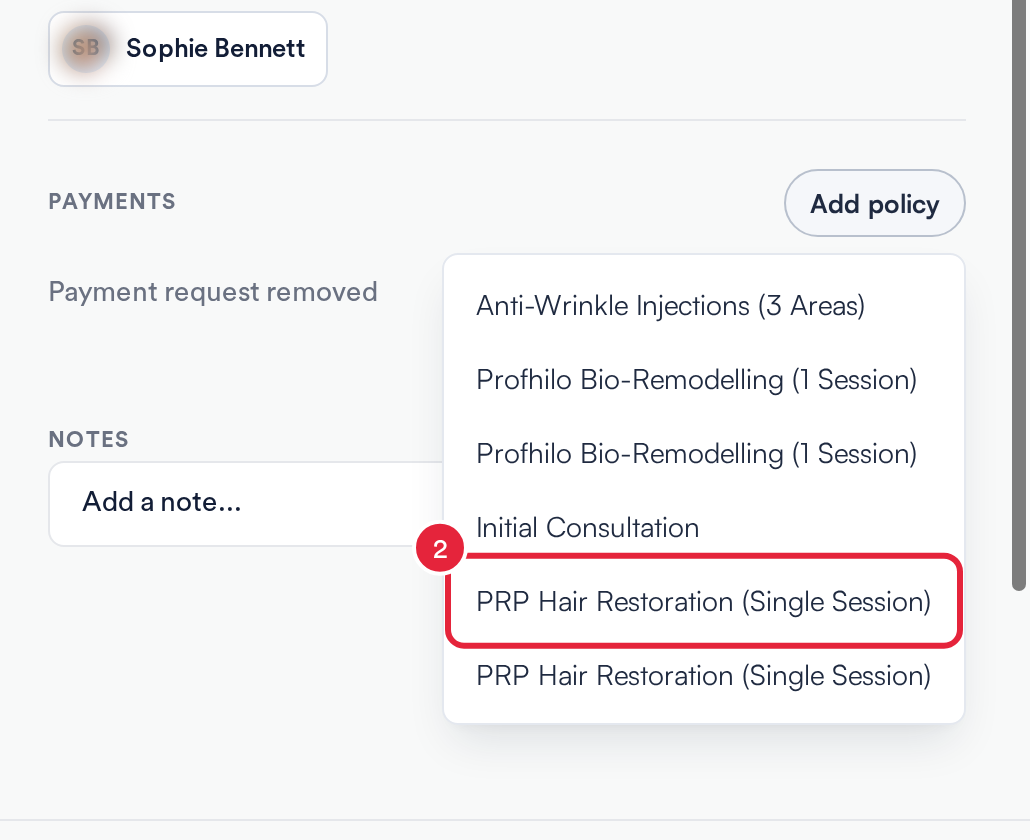
Choose the appointment when the visit has more than one
Step 3: Choose What to Ask For
The Add policy window opens with the service's name at the top. Pick what the client should pay:
- Use service policy: ask for the deposit set on the service.
- Require a deposit upfront: a fixed amount or a percentage of the appointment.
- Require full payment upfront: the full appointment price.
- Capture card details only: save a card without taking a payment today.
- Select Require a deposit upfront, for example.
- Enter the Amount and choose the Deposit type: Percentage (%) or Fixed amount. The Deposit amount box shows what the client will be asked for.
- Click Save.
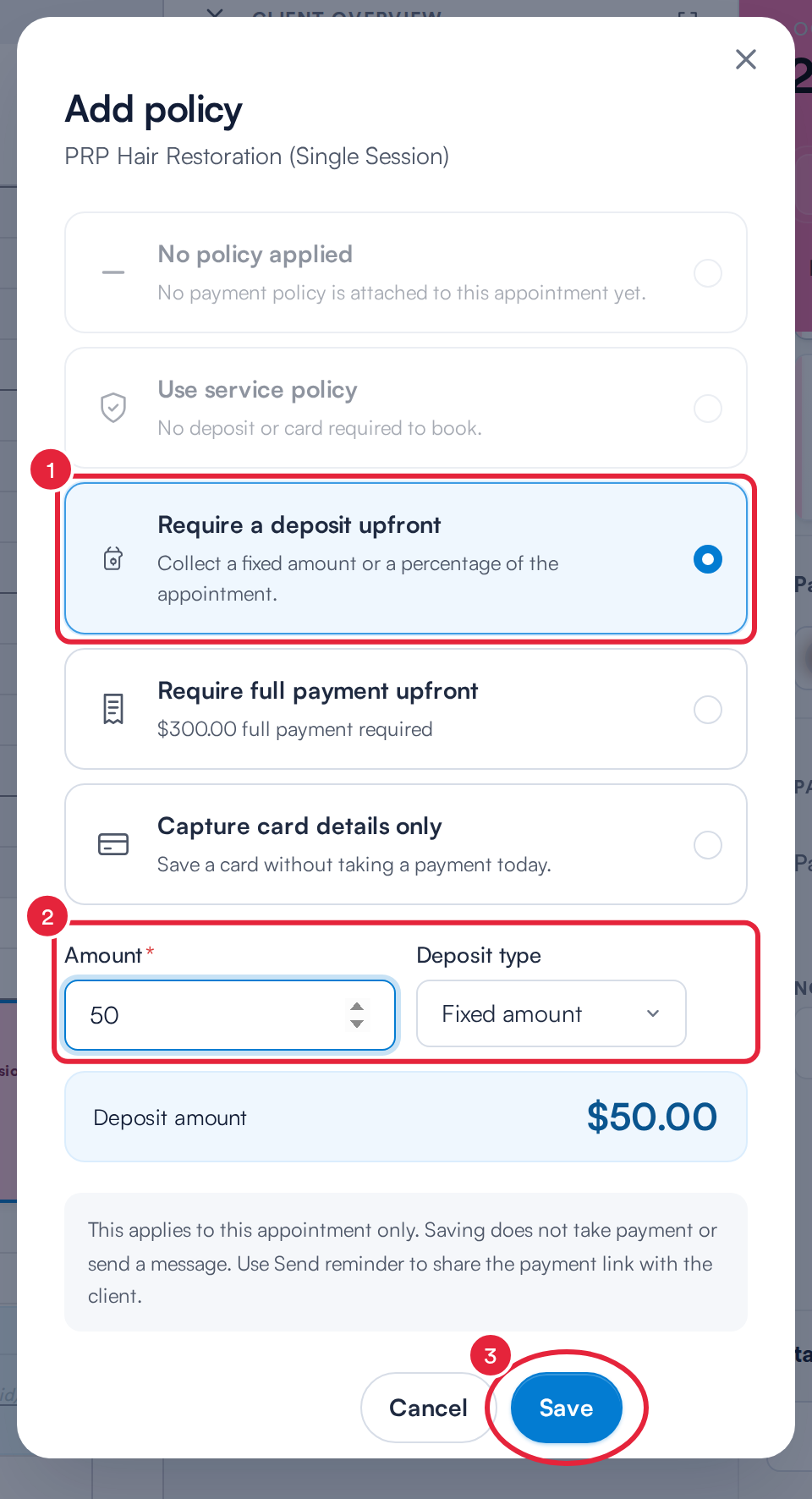
A $50.00 deposit for this appointment
NOTE: The request applies to this appointment only: the service and clinic settings stay the same. Saving does not take a payment or send a message. Use Send reminder (Step 4) to send the client the payment link. If your clinic doesn't let staff waive deposits, you can't ask for less than the clinic's minimum.
Step 4: Manage the Request
The request appears in Payments as Awaiting deposit with the amount requested (or Full payment for a full payment request) and the service.
- Click the three dots on the row.
- Choose what to do:
- Send reminder: send the client the payment link.
- Show policy: see the deposit asked for on this appointment.
- Edit policy: change the request for this appointment, for example the Deposit amount. Use Send reminder afterwards to share the updated request.
- Remove policy: remove the request. The appointment stays booked, and its payment link no longer asks for payment. The section then shows Payment request removed.
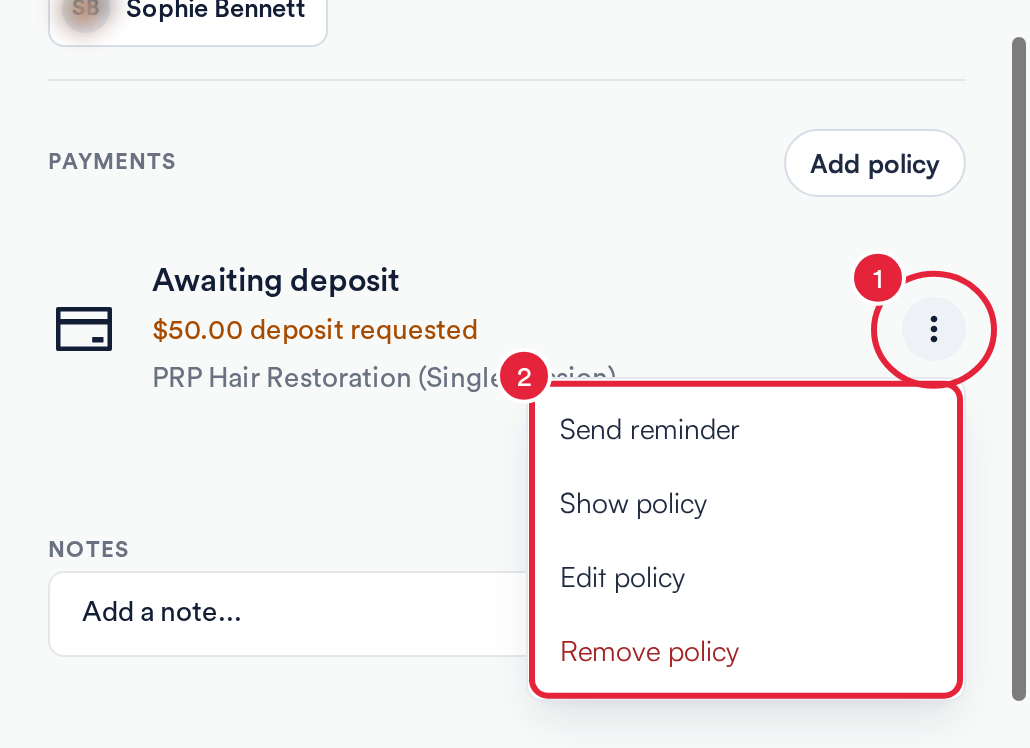
The actions for a deposit request
IMPORTANT: Once an invoice has been created for the appointment, the request is locked: An invoice has already been created. Open the invoice to change the amount or cancel the request.
Deposits the Client Has Paid
When the client pays, the row shows the deposit amount and Paid on with the date. If part of it has been refunded, you'll see how much was refunded and how much remains. Click the three dots to Show policy or Refund deposit. If the deposit's invoice also holds other payments, Pabau asks you to review the refund in the client's Financials instead.
Appointments Paid by a Payment Plan
If the appointment is paid by a payment plan set up in the Point of Sale, a Payment plan row shows its progress, for example 1 of 2 payments taken and Next payment with the amount and date, or All payments taken once it's finished.
- If a payment fails, the row says so and that Stripe will retry the card on file. Your team also gets a Payment failed notification.
- If a payment can't be collected and won't be retried, the row tells you, so you can contact the client.
- A plan that has been stopped shows Stopped. No further payments will be taken.
Cancelling an Appointment with a Payment Plan
When you cancel an appointment that's paid by a payment plan (Actions → Cancel appointment), the cancel screen tells you how many payments are still to take and asks what should happen to them:
- Stop the remaining payments: no more card payments are taken. Payments already taken stay, so refund them separately if needed.
- Keep taking payments: the plan carries on, for example for a non-refundable course.
NOTE: If the plan also pays for other appointments that stay booked, it carries on and the cancel screen tells you so. Cancel those appointments too to stop it.
TIP: Changing a payment request or removing it needs permission to edit appointments. Refunding a deposit needs permission to refund payments.
What's next?
- How to Book an Appointment for a Service with a Payment Schedule
- How to Set Up a Payment Plan in Point of Sale
- How to Link an Unlinked Deposit Payment
- How to Request Payment on Booking
- How to Take a Deposit or Save a Card When Booking (New Booking Panel)
Was this guide helpful? Let us know by voting below - your feedback helps us write clearer articles.
For more guides, browse the related articles below or use the search bar at the top of the page. You can also watch our video learning series, the Pabau Academy, or visit the Support page for additional help.