
Step 1: Navigate to the Payments Page
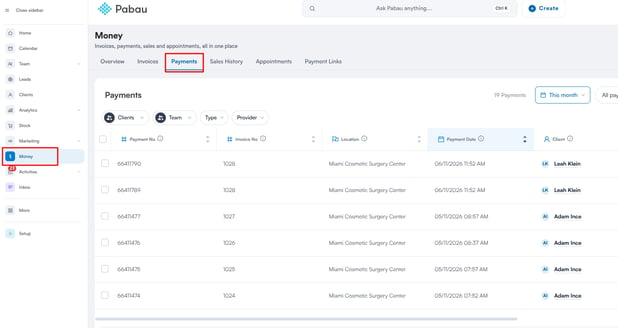
Log into your Pabau account and click on Money in the left sidebar menu. From the sub-tabs, select Payments. This page displays all payments recorded in your Pabau account.
Step 2: Locate the Deposit Payment
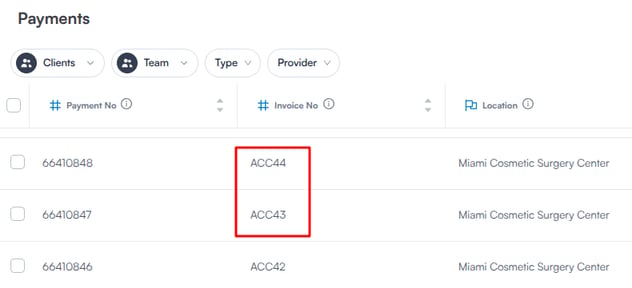
Use the search bar at the top right corner of the Payments page to search for deposit payments. These payments appear with 'ACC' at the beginning of the invoice number.
Step 3: Open the Payment
Click on the invoice number of the deposit payment to open its details. You will be able to see the payment amount, date, and the client it belongs to.
Step 4: Link the Payment
Within the payment details, navigate to the 'Appointment' field. It will state 'None assigned' if an appointment is not linked.
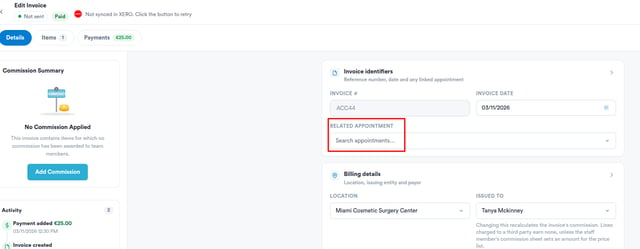
Click this field to open a dropdown and select the relevant appointment for that client. Select the correct record and confirm the link.
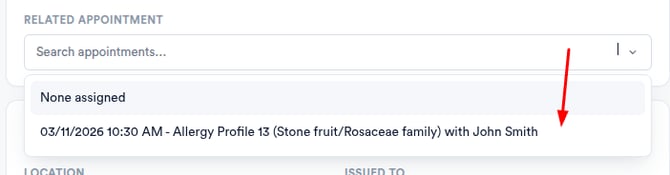
This action will update the invoice details.

To finalize, navigate to the top right corner of the screen and click the 'Save changes' button.
Step 5: Confirm the Payment is Added as Money on Account
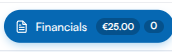
Once linked, the deposit will be applied to the client’s account. You can verify this by navigating to the Client Card and opening the Financials tab. The amount will appear highlighted in green in the tab, indicating the balance available on the client’s account.
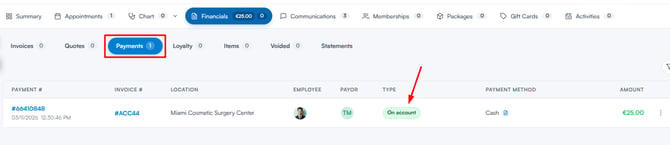
The payment should also appear under the Payments section, and the funds will be available as Money on Account to be used against future invoices.
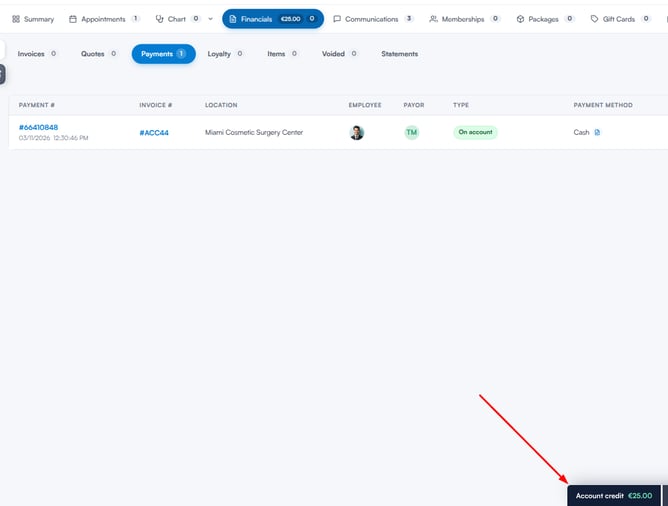
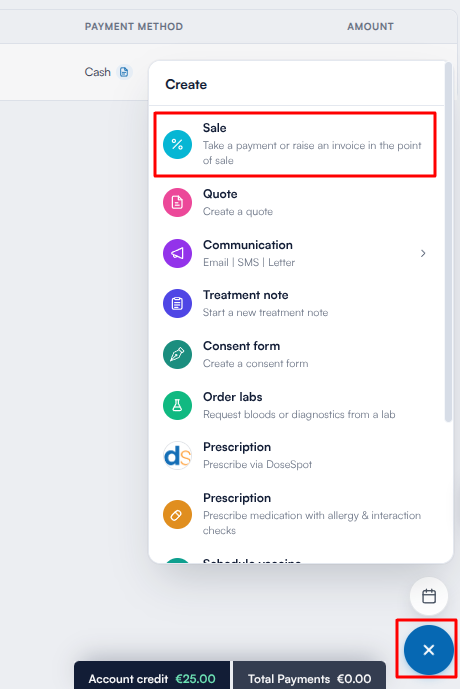
It also shows on the screen below as Account Credit.
Step 6: Perform Sale
Navigate to the 'Create' button represented as a blue plus sign on the bottom right corner of the screen. This will reveal many available actions from the client card. Proceed to select 'Sale' to raise an invoice.
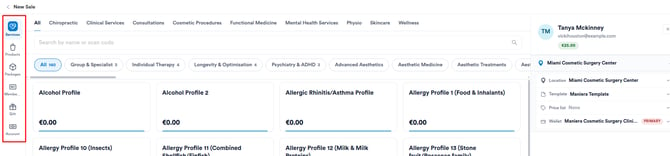
Select the item the client would like to purchase (for example, a gift voucher, package, service, etc.).
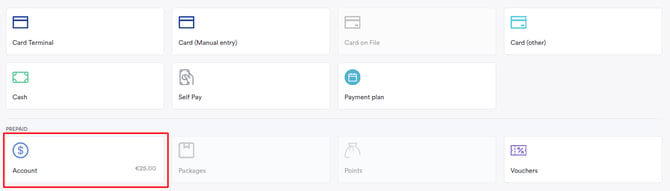
Then proceed to the Choose Payment Method step. You will see the option to pay using the money on account.
Why can't I see a Transfer option on a deposit?
A deposit held for an upcoming appointment is an #ACC account entry, and the transfer option lives inside that entry rather than on the appointment or on the payments list. To move a deposit to another client:
- Open the client card, click Financials, and click the deposit's #ACC number to open it (or find it under Money → Payments as in Step 2).
- On the Details tab, scroll to the bottom to the Transfer invoice section (Move this invoice to another client) and click Transfer →.
- Search for the client, confirm, then click Save Changes — the transfer is Applied when you save changes.
NOTE: The Transfer invoice section is not shown when the entry has already synced to Xero. The deposit marker on an appointment row only shows that a deposit is held on account for it — it has no transfer action of its own.
See How to Transfer an Invoice (New Client Card) for the full walkthrough.
Will rescheduling ask for a new deposit?
Use Reschedule to move an appointment. Rescheduling moves the same appointment to the new time, so a deposit already linked to it stays with it.
Rebook works differently: it creates a second, separate appointment rather than moving the original. The new appointment has no deposit linked to it, so your deposit policy treats it like any new booking. If that happened, link the existing deposit to the new appointment using Steps 1–4 above.
How is a paid deposit used at checkout?
A deposit sits on the client’s account as credit, held for the appointment it’s linked to. Check out that appointment and the deposit is available to pay with as money on account (see Step 6).
If you raise a different sale, the held amount isn’t spendable straight away. The payment screen shows “… of the client’s account credit is held for an appointment that hasn’t been checked out yet. Check that appointment out to use it.” To spend it on this sale anyway, click Use it on this sale.
NOTE: Holds only apply to upcoming or recent appointments that haven’t been cancelled, marked as a no-show or invoiced. Holds on appointments older than 30 days are ignored, so that credit is free to spend on any sale.
Was this guide helpful? Let us know by voting below - your feedback helps us write clearer articles.
For more guides, browse the related articles below or use the search bar at the top of the page. You can also watch our video learning series, the Pabau Academy, or visit the Support page for additional help.