
You don't have to type a client's whole address. Enter their postcode and Pabau looks the rest up for you, both when you create a client or lead and when you change the address on their client card. It saves typing and keeps town and region names spelt the same way across your client list.
NOTE: What the lookup fills in depends on the address's country. A UK postcode gives you a list of full addresses to pick from. A US ZIP code, or a Swiss or Liechtenstein postcode, fills in the town and the state or canton, and you type the street yourself. For other countries, type the address as usual.
Step 1: Open the New Client Form
- Click Create at the top of the screen and choose Client. The form for a new lead (Create → Lead) works the same way.
- Scroll down to the Address section.
- Check the Country field first. It starts on your clinic's country, so change it if the client lives somewhere else. The lookup follows the country you choose.
TIP: No Address section on your form? The address fields can be switched off in Customize View. See How to Customize the Layout of the Client Creation Form.
Step 2: Look Up a UK Address
- With Country set to United Kingdom, type the postcode in Post Code, then click the magnifier icon at the end of the field (or press Enter).
- Choose the client's address from the Select Address list. Pabau fills in Street, City, County, Post Code and Country for you.
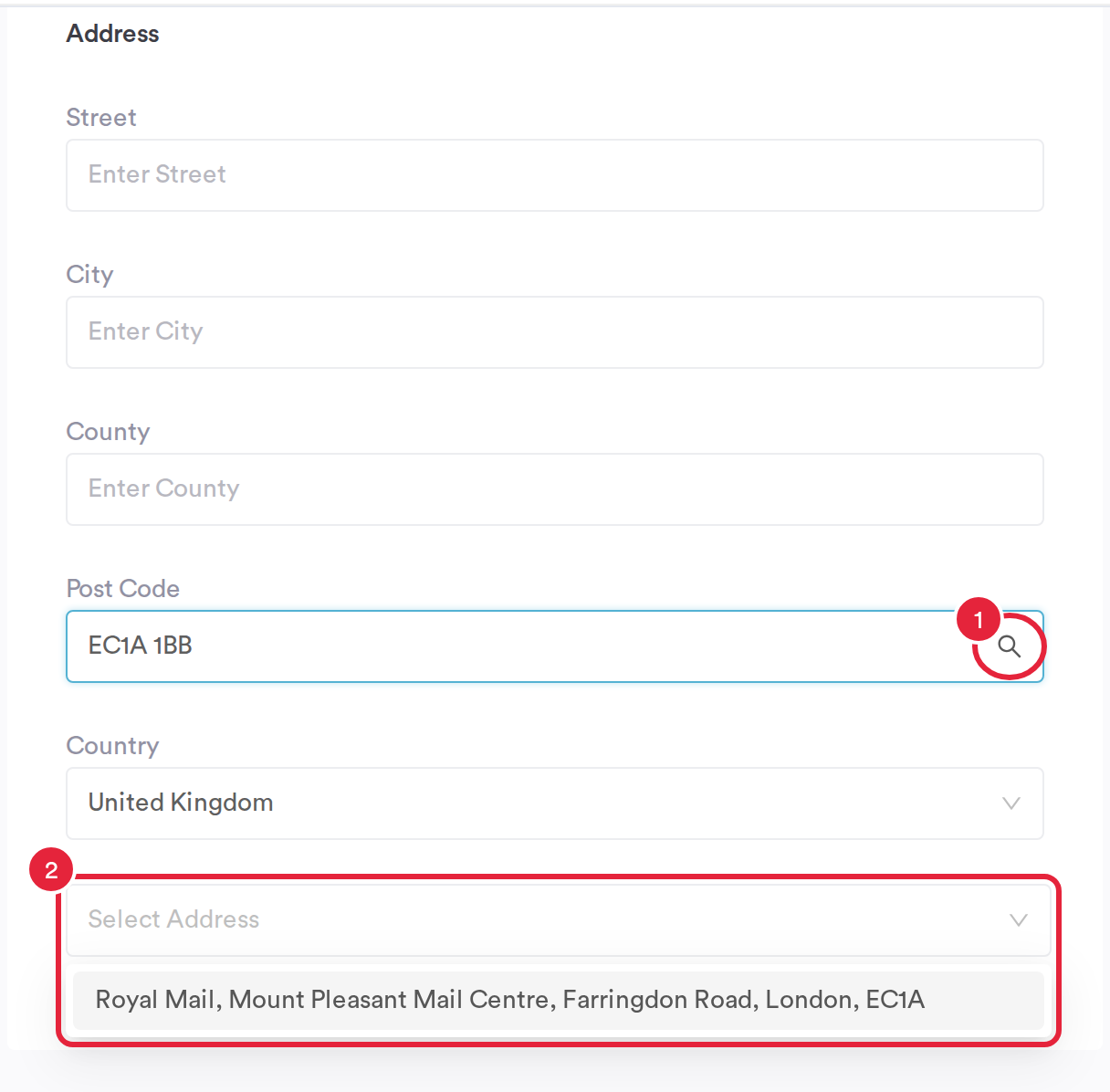
Search the postcode, then pick the address
Step 3: Fill In the City and State From a US ZIP Code
- Set Country to United States.
- Type the 5-digit ZIP code in Post Code. A ZIP+4 code (for example 33131-1234) works too.
- As soon as the ZIP code is complete, Pabau fills in the City and the State on its own. There's nothing to click. Add the street yourself.
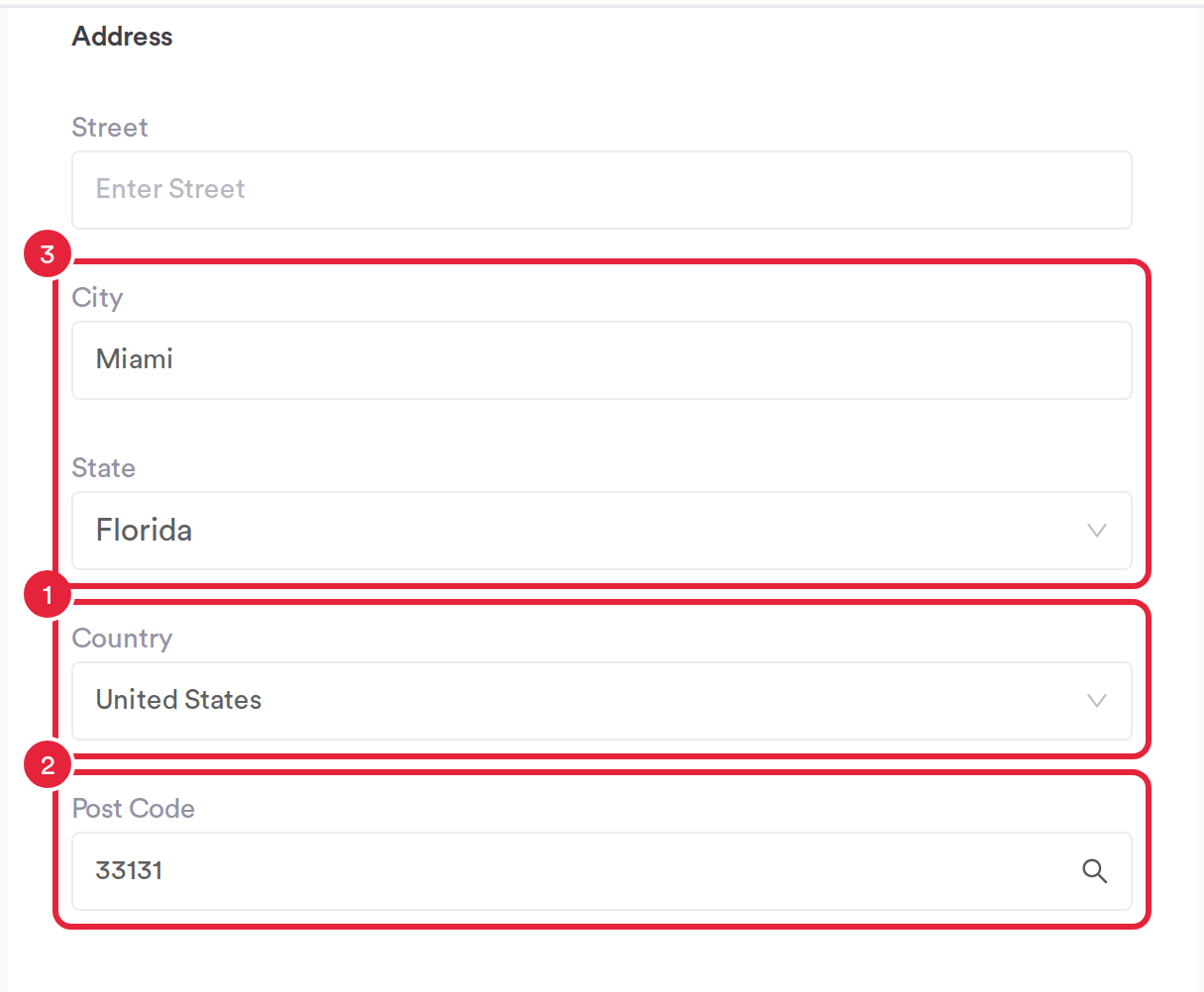
A US ZIP code fills in City and State as you type
Step 4: Look Up a Swiss or Liechtenstein Postcode
Set Country to Switzerland or Liechtenstein and type the 4-digit postcode. A CH- or FL- prefix is fine. When the postcode belongs to one town, City and Canton fill in as you type.
Step 5: Pick a Town When a Postcode Covers Several
Some postcodes are shared by more than one town. Typing doesn't guess in that case, so ask Pabau for the list:
- Click the magnifier icon in Post Code (or press Enter).
- Choose the right town from Select the town. Pabau fills in City and Canton (or State for a US address).
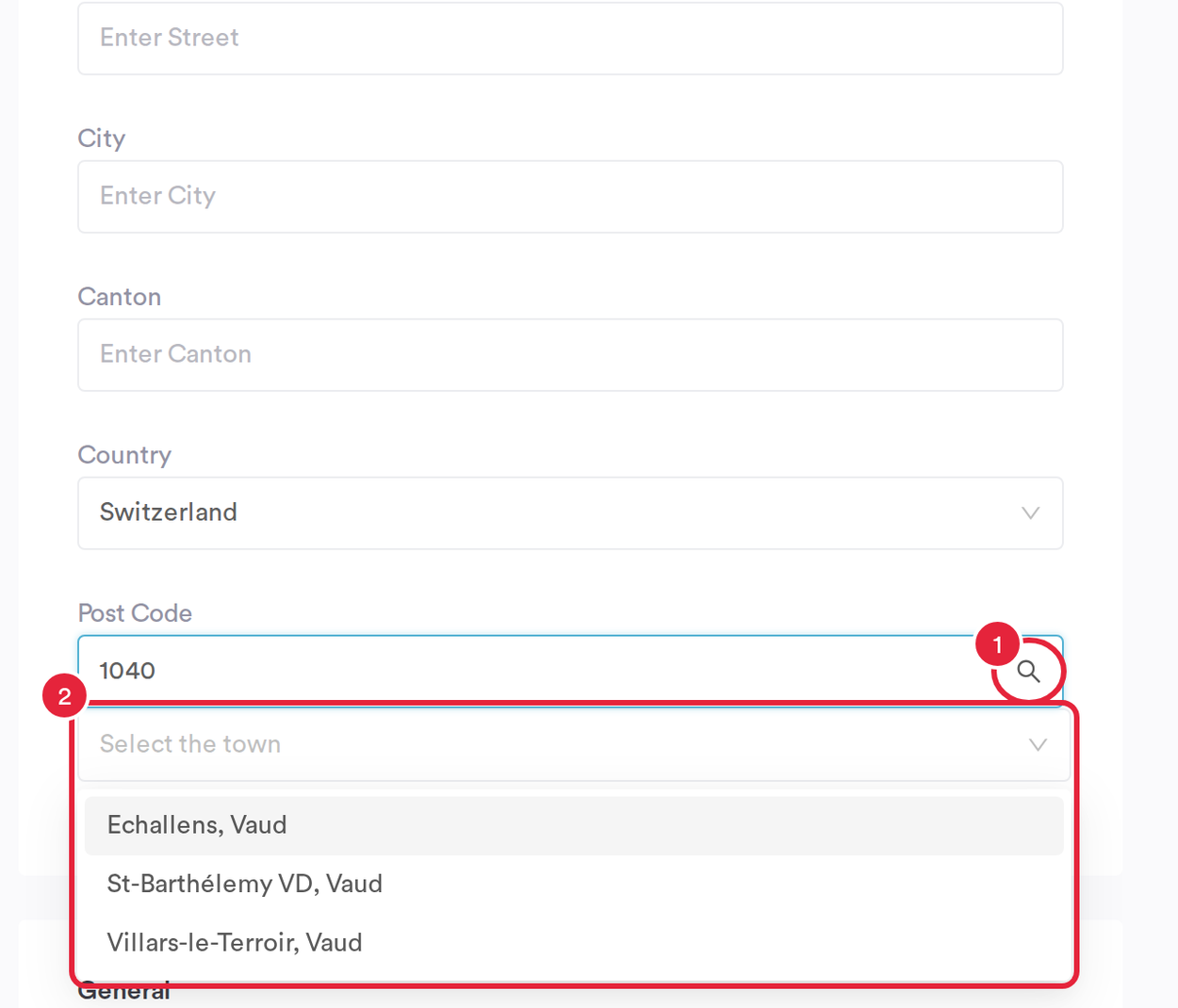
Choose the town when a postcode has more than one
If Pabau can't find the code, you'll see We couldn't find that ZIP code. Enter the city and state yourself. (or We couldn't find that postcode. Enter the town yourself.). Check the code, or just type the details in.
NOTE: The town and region Pabau suggests never overwrite something you typed yourself. While you type a postcode, Pabau only fills a field that is empty or still holds its own earlier suggestion. Clicking the magnifier icon or picking a town is a direct request, so that does replace what's there. Click Create when the rest of the form is done.
Step 6: Open the Address of an Existing Client
- Open the client's card and stay on the Personal tab.
- Under Details, hover over Address and click the pencil icon. The Edit address window opens.
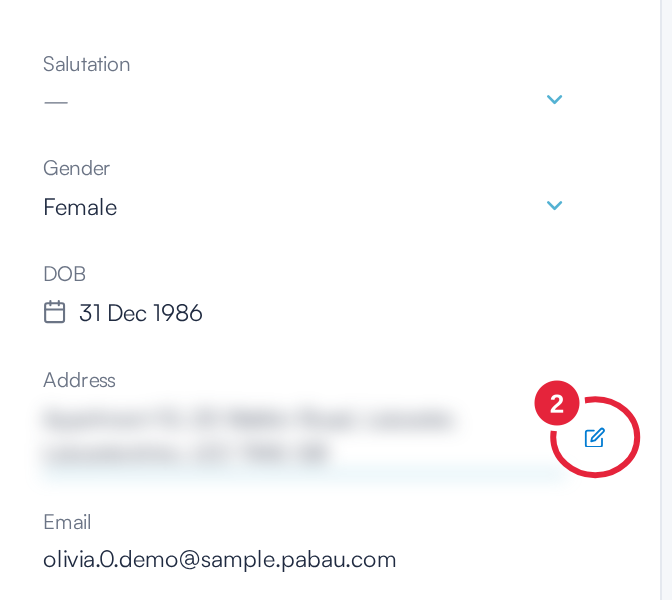
Hover over Address and click the pencil
Step 7: Find a UK Address on the Client Card
- Type the postcode in Postcode and click Find.
- Click the right address in the list. Pabau fills in every field. If the list reads No addresses found, check the postcode or type the address yourself.
- Click Save.
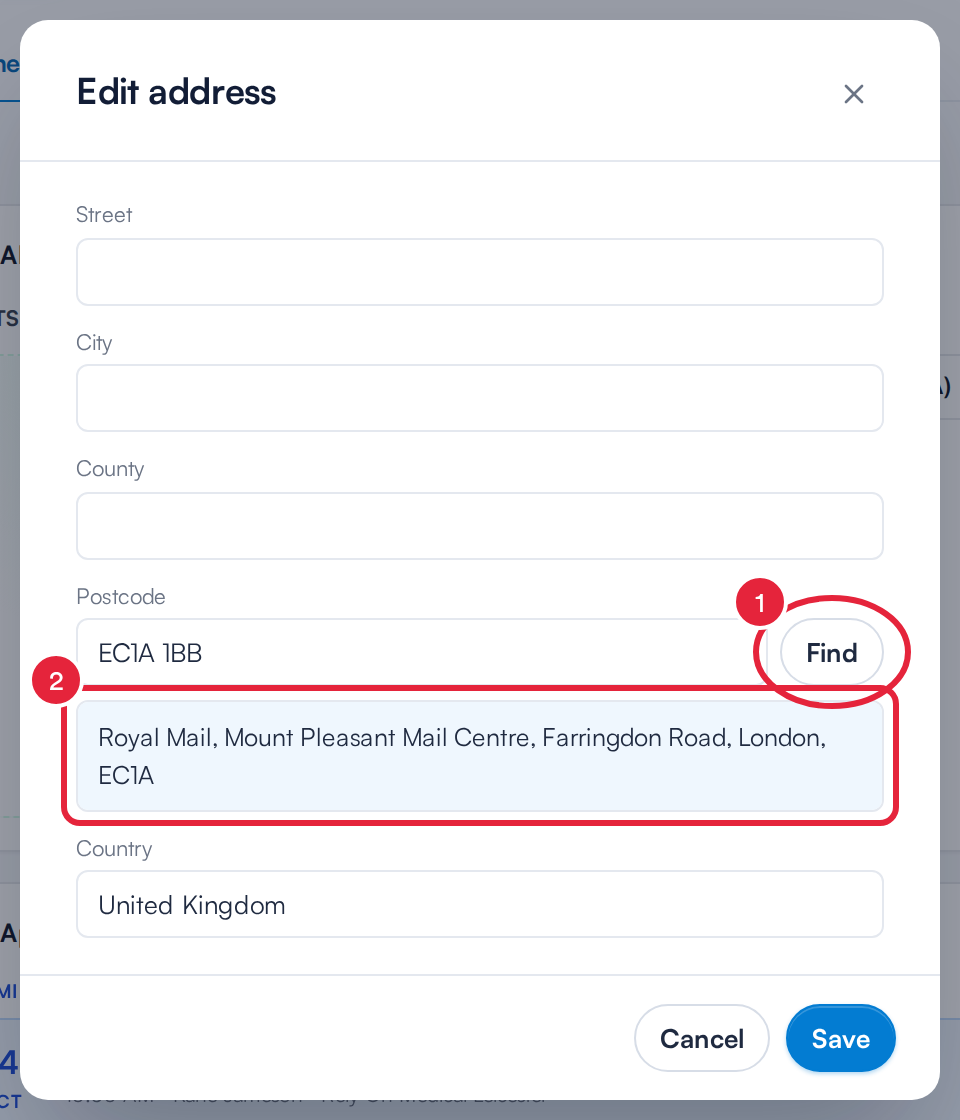
Find lists the addresses for a UK postcode
NOTE: On the client card, the UK address search is offered to clinics based in the UK. The postcode field's name also follows your clinic's country: Postcode in the UK, ZIP code in the US, Eircode in Ireland and Postal code in most other countries.
Step 8: Fill In a US, Swiss or Liechtenstein Address on the Client Card
- Type the country in Country. For the US, US, USA and United States all work.
- Type the ZIP code or postcode.
- City and State (or Canton) fill in as you type. When the code covers several towns, click Find and choose the town from the list.
- Add the street and click Save.
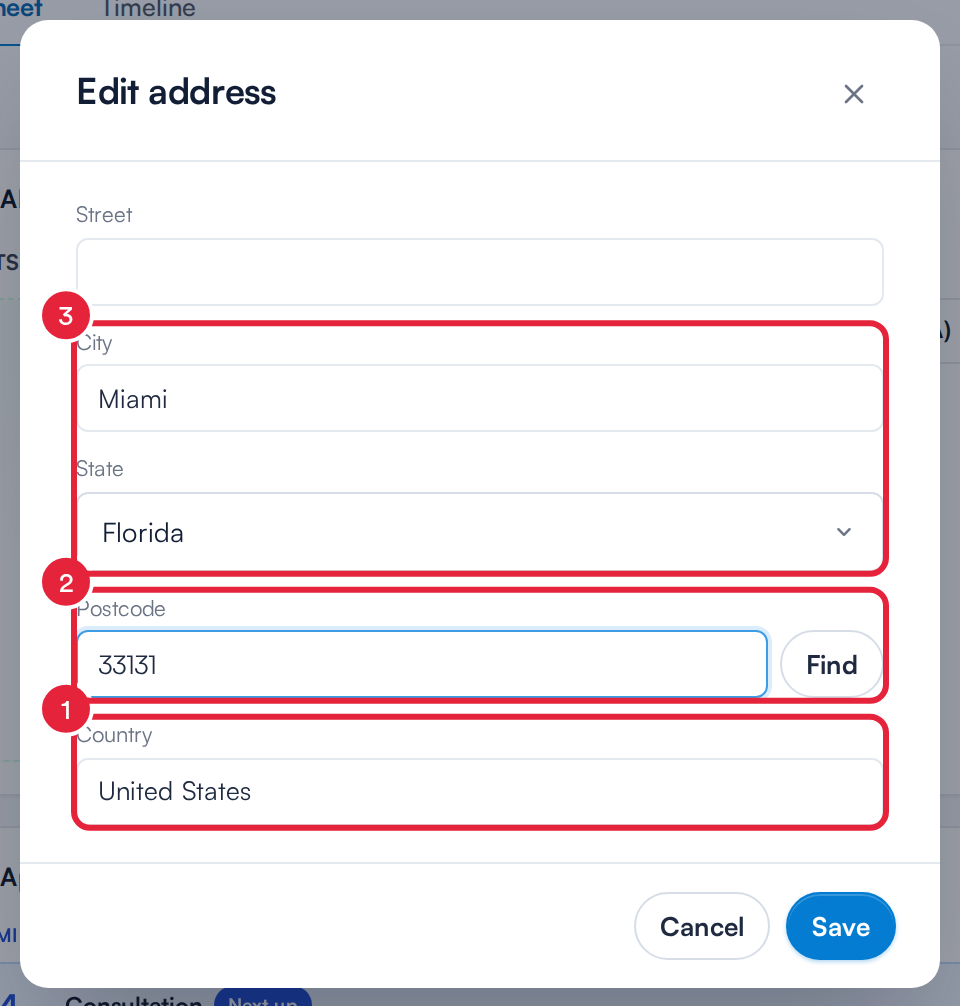
The client card fills in City and State from a US ZIP code
Town names come from public postcode directories and are only suggestions. You can always change any field before you save.
What's next?
- How to Create a Client
- How to Create Leads
- How to Edit a Client (New Client Card)
- How to Customize the Layout of the Client Creation Form
Was this guide helpful? Let us know by voting below - your feedback helps us write clearer articles.
For more guides, browse the related articles below or use the search bar at the top of the page. You can also watch our video learning series, the Pabau Academy, or visit the Support page for additional help.