
NOTE: Login as Client opens the new Client Portal, which is being rolled out to clinics in phases. If your screens look different, message us via the in-app chat and we will help.
Login as Client opens your Client Portal in a new browser tab, signed in as the client. Use it to see exactly what a client sees, for example when you're helping them over the phone or checking that a form, document or payment request has reached their portal.
IMPORTANT: Only clinic admins can log in as a client. For everyone else the option is greyed out, and hovering over it shows Only admins can log in as a client.
Step 1: Open the Client Card
Go to Clients, search for the client and click their name to open their client card.
Step 2: Choose Login as Client
- Click Actions at the top of the client card, above the client's details.
- Click Login as Client.
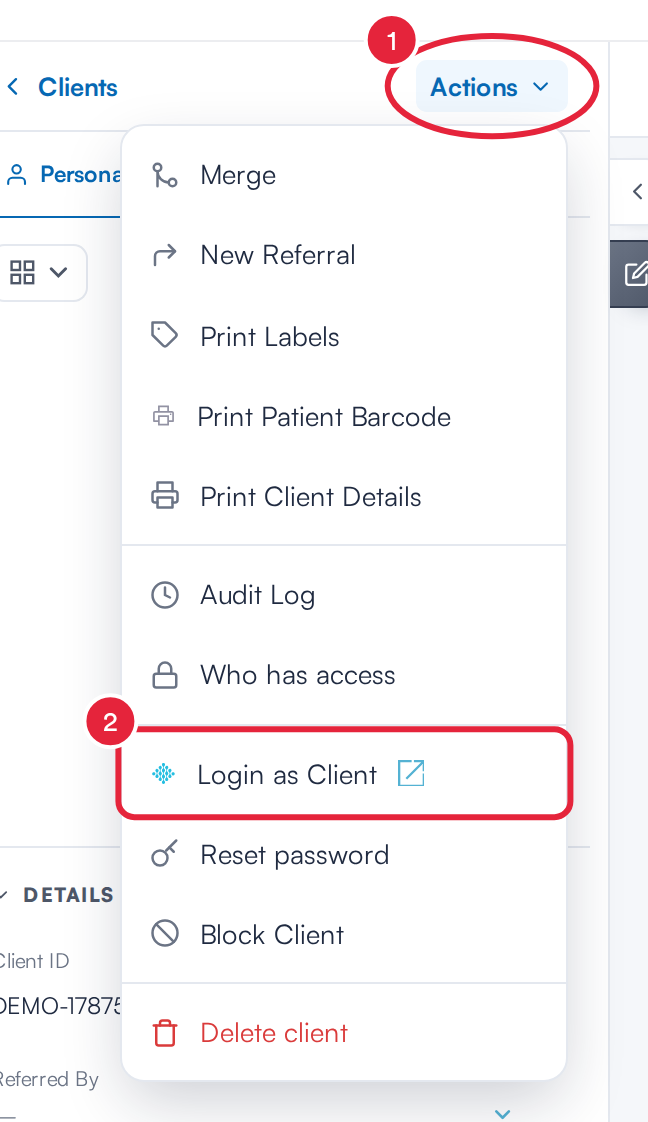
Actions → Login as Client
A new tab opens. It shows Opening client portal… for a moment, then your Client Portal loads, signed in as the client. There is no password to enter and nothing is sent to the client.
Step 3: Check What the Client Sees
You see the portal exactly as the client does: their dashboard, appointments, documents, forms, payments and every other feature you've switched on for your portal. The client's name shows at the bottom of the portal menu, so you can check whose portal you're in.
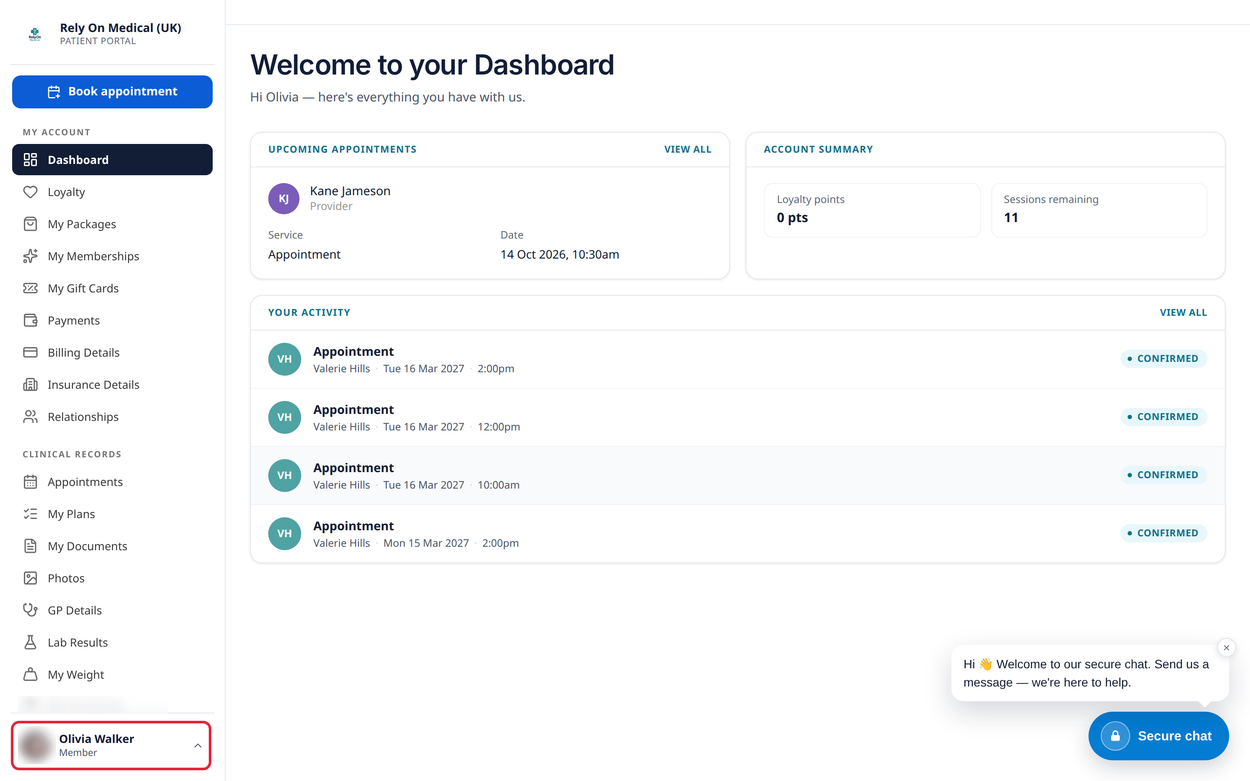
The Client Portal, signed in as the client
WARNING: Anything you do in this tab is done as the client. Booking an appointment, paying, filling in a form or sending a secure message from here does it in the client's name. Only take an action if the client has asked you to.
Step 4: Close the Tab When You're Done
Close the browser tab to leave the portal. The session ends by itself after 30 minutes. Pabau keeps a record of every Login as Client: who used it, for which client and when.
If the Portal Doesn't Open
- Couldn't open the client portal with Allow pop-ups for Pabau to open the client portal. Your browser blocked the new tab. Allow pop-ups for Pabau in your browser settings, then try again.
- Login as Client is greyed out with Unblock this client before logging into their portal. The client is blocked. Unblock them from the same Actions menu first.
- Couldn't open the client portal with another reason. This happens when the client is archived, their portal account has been suspended, or your Client Portal isn't set up yet. See How to Set Up the New Client Portal.
What's next?
- How to Help a Client Who Can’t Sign In to the Client Portal (New Client Card)
- How to Set Up the New Client Portal
- How to Use Your Client Portal (New Client Portal)
Was this guide helpful? Let us know by voting below - your feedback helps us write clearer articles.
For more guides, browse the related articles below or use the search bar at the top of the page. You can also watch our video learning series, the Pabau Academy, or visit the Support page for additional help.