
Between visits, clients on GLP-1 treatment can send you a check-in from the My Weight page of their client portal: the date of their last dose, the dose they took, their weight and anything else your form asks. Each check-in is saved to the client's record and shows up on the GLP-1 tab of their client card, ready for your clinician to review.
NOTE: My Weight is part of the new Client Portal, which is being rolled out to clinics in phases. If your clinic is still on the classic client portal, message us via the in-app chat and we will help. Only admins can change the GLP-1 setup.
Step 1: Switch On GLP-1
Skip this step if GLP-1 is already on. Go to Setup → Business Details.
- Click Features.
- Switch on GLP-1.
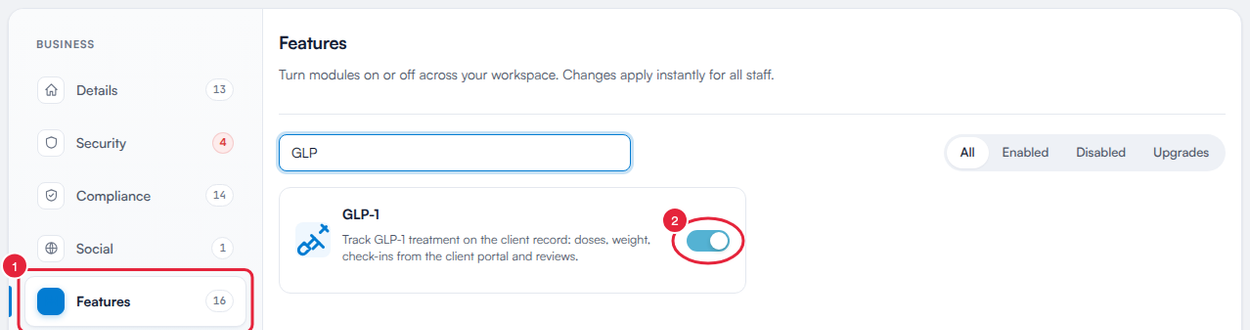
GLP-1 is a feature you switch on for your clinic
Step 2: Prepare a Check-In Form
Clients fill in one of your own forms, so you choose exactly what they're asked. Go to Setup and click Forms under Clinical.
- Click Create Form, or open an existing form.
- Make sure the form type is Medical History. Only Medical History forms can be used for check-ins.
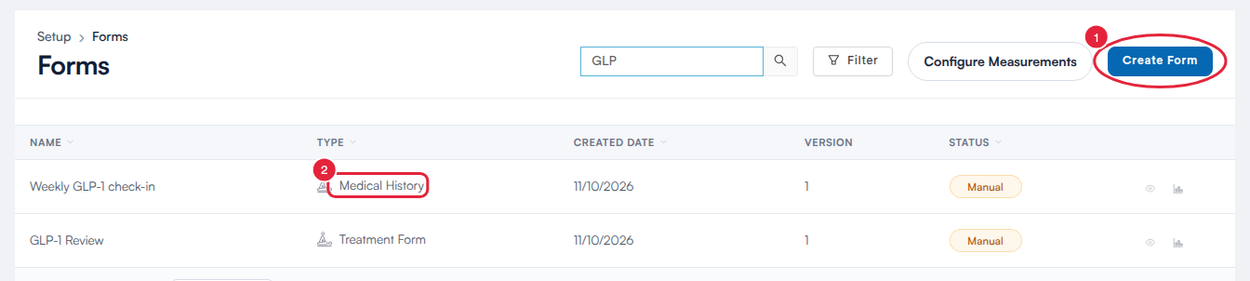
A check-in form is a Medical History form
Give the form one question each for:
- the date of the client's last dose,
- the dose they took, for example “Mounjaro 5mg”,
- their weight. Put the unit in the question, for example Weight (kg), so Pabau reads the number in the right unit.
You can add anything else you'd like to know, such as side effects or a progress photo. For help building the form, see How to Create a Medical Form.
Step 3: Open the GLP-1 Setup
The GLP-1 setup is shared by the whole clinic, so you can open it from any client's card. Open a client's card, click EMR (Chart in the United States) and click the GLP-1 card.
- Click Configure. The GLP-1 setup window opens.

Configure opens the clinic's GLP-1 setup
Step 4: Choose the Check-In Form and Its Questions
Scroll down to Client portal check-in.
- Choose your Check-in form (“Clients fill this in from My Weight in the client portal.”). The list shows your Medical History forms, except any you already use as review forms.
- Match the three questions to your form: Question: date of dose, Question: dose taken and Question: weight.
- Click Save. You'll see GLP-1 setup saved.
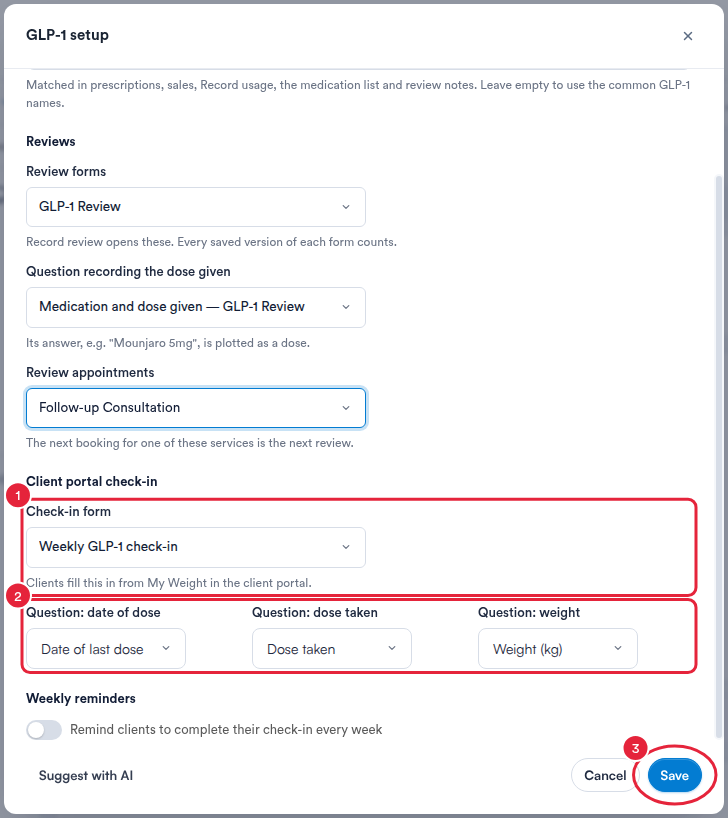
Choose the form, match its questions and save
TIP: Not sure which questions to pick? Click Suggest with AI at the bottom of the window. Pabau suggests a check-in form and its questions from your existing forms, and explains each choice. Check the suggestions, then click Save.
As soon as you save, My Weight appears under Clinical Records in the menu of your client portal. There is no separate switch for it in the Client Portal settings, and every client who signs in to your portal sees it, not only those on GLP-1 treatment.
NOTE: The Weekly reminders option in this window doesn't send reminders to clients yet. Until it does, let your clients know how often you'd like them to check in, for example the day after each weekly dose.
Step 5: Review Check-Ins on the Client Card
Open the client's card, click EMR and then the GLP-1 card.
- The summary under the chart tells you when a check-in is waiting, for example “A check-in from 14 Oct 2026 is waiting for review.”
- The Patient check-in card shows the client's latest check-in: when it was Submitted, the Dose taken, the Dose date, their Weight and any photos. Click Open check-in in the card to read every answer.
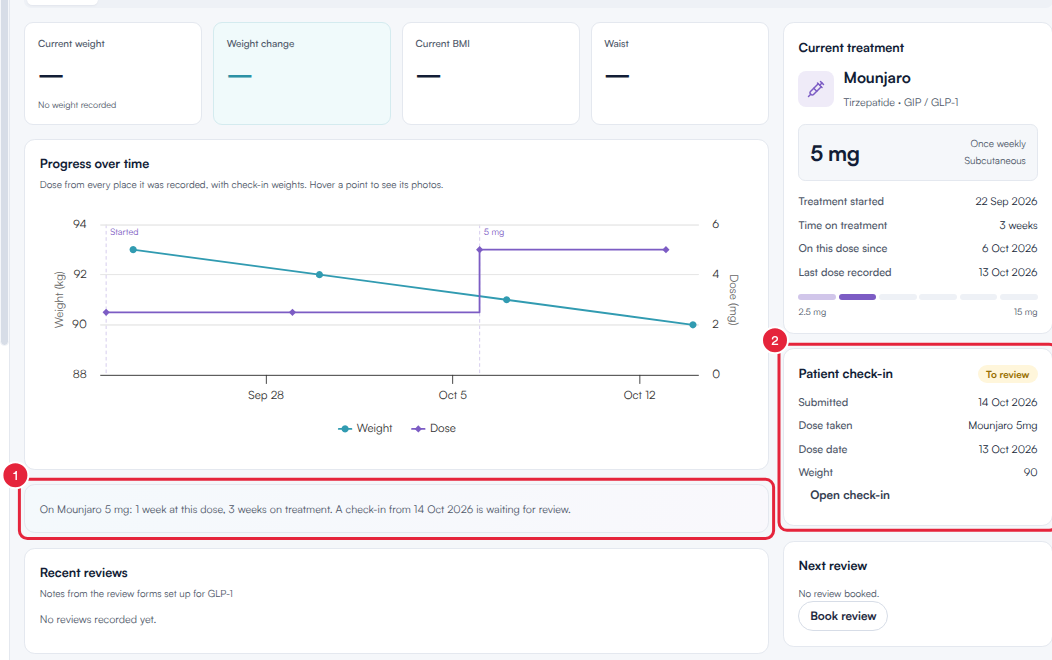
A new check-in is marked To review
The check-in opens view only, exactly as the client filled it in:
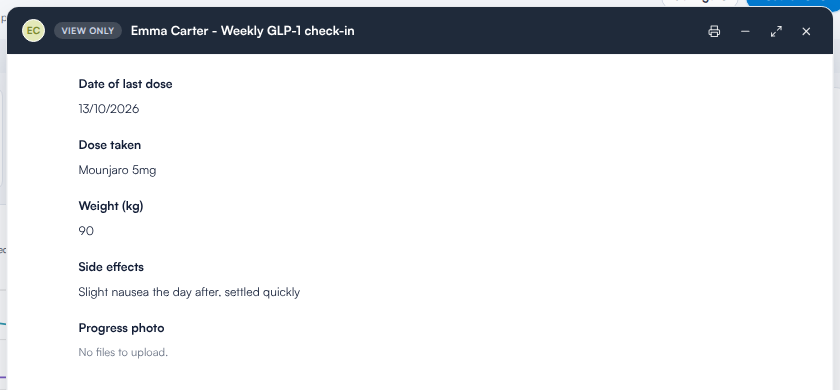
The client's answers, view only
The check-in's weight is added to the Progress over time chart, and its dose appears in History labelled Client check-in. The card stays To review until a clinician records a review with Record review; after that it reads Reviewed.
What's next?
- How to Create a Medical Form
- How to Choose What Clients See About Their Health in the Client Portal
- How to Set Up the New Client Portal
- How to Use Your Client Portal (New Client Portal)
Was this guide helpful? Let us know by voting below - your feedback helps us write clearer articles.
For more guides, browse the related articles below or use the search bar at the top of the page. You can also watch our video learning series, the Pabau Academy, or visit the Support page for additional help.