
Step 1: Navigate to Invoices
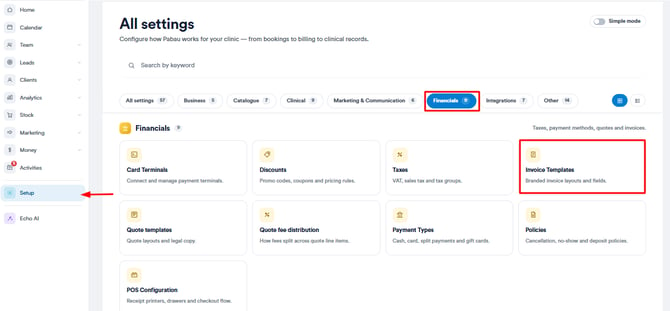
Start by logging into your Pabau account. Once you're in, click on Setup in the left sidebar menu, then click on Financials and choose Invoice Templates.
Step 2: Create Invoice Template
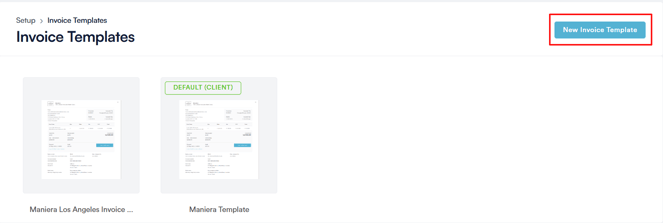
Once in the Invoice templates, you can preview previously created ones. To create a new invoice template, go to the top right corner and click on the "New Invoice Template" button. From here, you can name the template, choose its appearance, and customize it to your preference.
Step 3: Include Payment Links
To include the payment link in an invoice template, navigate to the "Payment Info" section and select "Payment." Under "Payment," you'll see three toggles. Ensure to enable the second one, "Enable client to pay invoice via Stripe." Click on "Save" to update the changes.
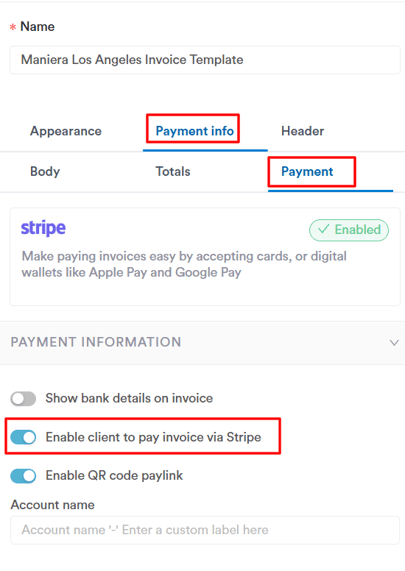
Enabling this toggle will display a "Pay with Card" button in the bottom right corner of the invoice.
Step 4: Send Invoice to Client
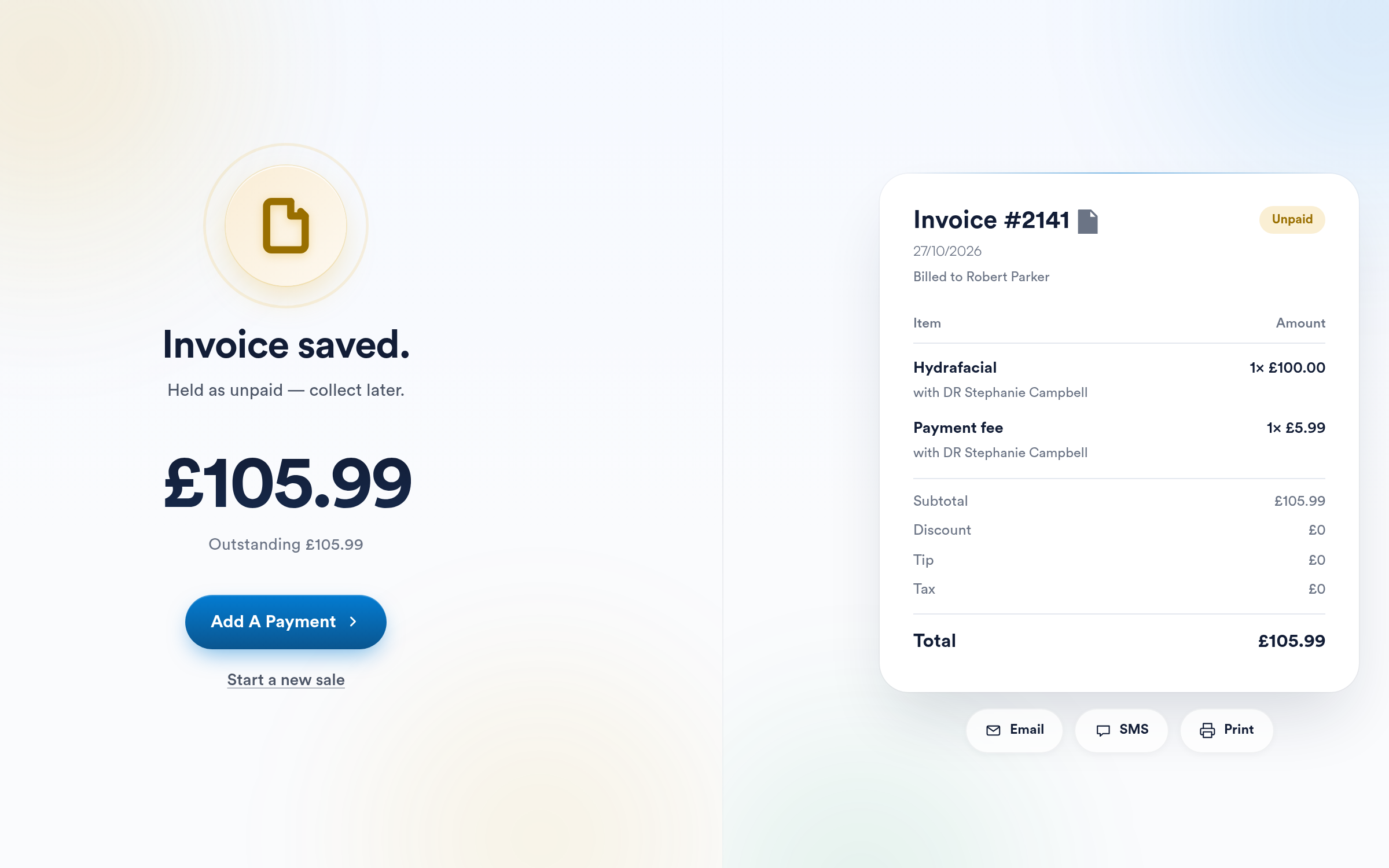
To send the invoice to the client, when proceeding to checkout, save the invoice as unpaid or partly paid, and then click Email on the Invoice saved screen.
Your client receives the invoice by email. With the new client portal, clicking Pay with card on the invoice opens a secure page for paying that invoice, and they do not need to sign in. Clients can also sign in to your client portal, click Payments, open the invoice and pay it there (see How to Use Your Client Portal (New Client Portal)).
NOTE: Pabau requires integration with Stripe for payment processing.
Reconnecting will ensure that all Pabau Pay terminal features function smoothly and will also unlock 12 additional payment processing options.
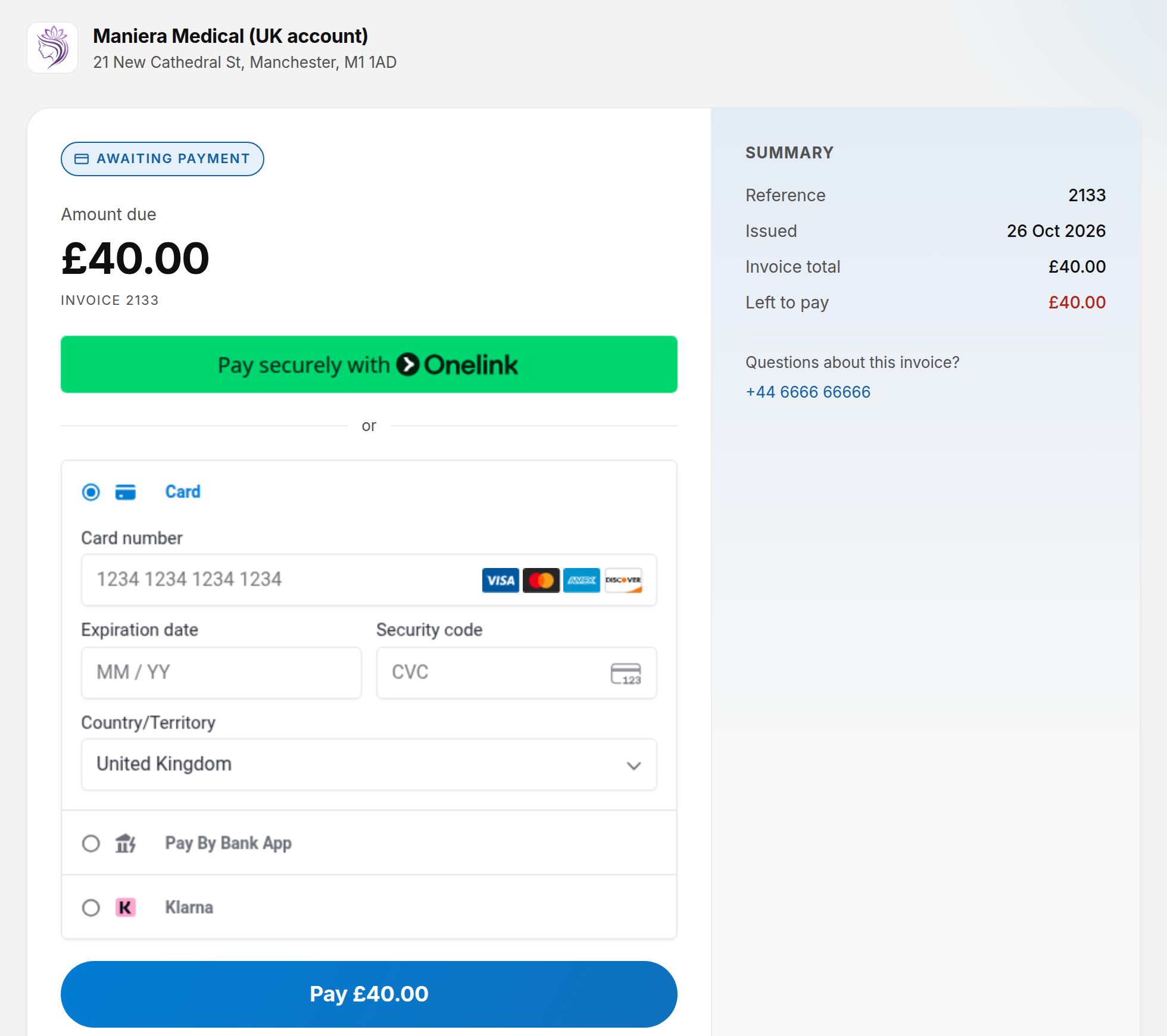
The page shows the Amount due. If you allow part payments, clients choose Full balance or Another amount under How much would you like to pay?, then click Pay (the button shows the amount) to pay by card. You choose whether clients can pay part of an invoice online in your deposit policy (see New Online Bookings Part 4).
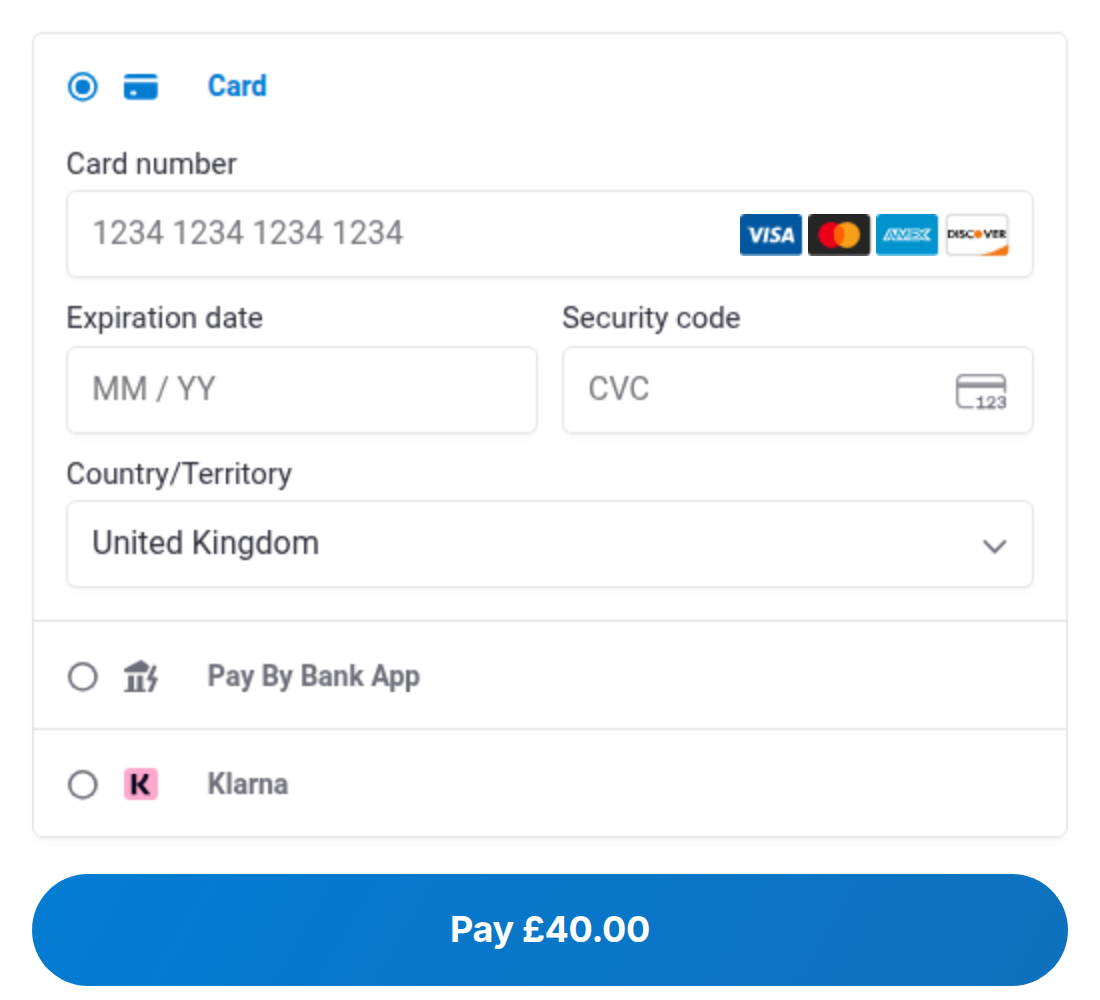
If you prefer not to use your real card for testing, you can use the test cards provided by Stripe by following the instructions here.
By following these steps, you can enable or disable the option to include payment links in the invoice, and you can always change it from the Invoice Templates menu.
Was this guide helpful? Let us know by voting below - your feedback helps us write clearer articles.
For more guides, browse the related articles below or use the search bar at the top of the page. You can also watch our video learning series, the Pabau Academy, or visit the Support page for additional help.