
When a payer settles your claims, it sends an electronic remittance advice (an ERA, also called an 835) to your Claim.MD account. Pabau lists those remittances for you, matches each claim on them to the invoice you billed, and posts the payments, contractual adjustments and patient responsibility in one go. This guide shows you how to import an ERA, check its matches and process it, and how to upload an 835 file you downloaded from a payer's portal.
NOTE: Insurance billing is available for practices in the United States. The Claim.MD remittance list needs a connected Claim.MD account; uploading an 835 file does not. To see the Remittance tab, your role needs the Can access remittance page permission.
Step 1: Open Your Claim.MD Remittances
- Go to More → Claims and select the Remittance tab.
- Click Remittances.
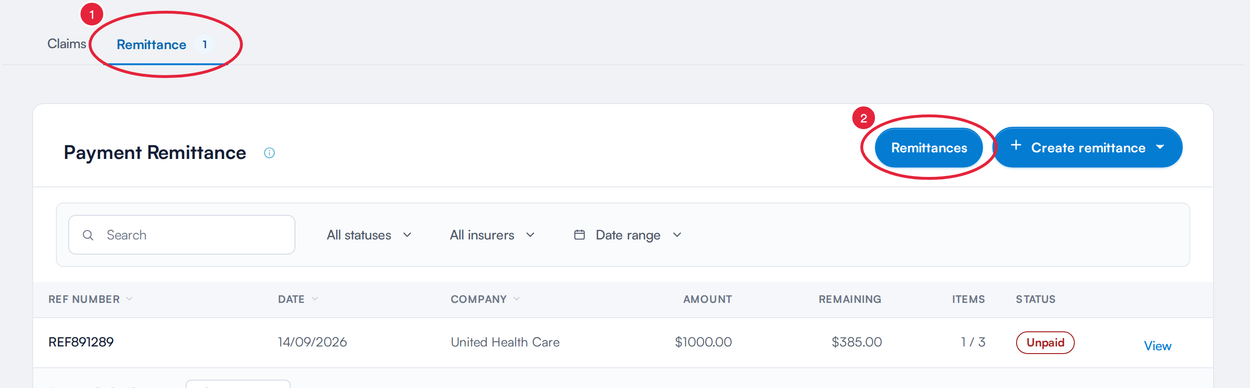
The Remittance tab sits beside Claims
The panel lists every electronic remittance (835) received on your Claim.MD account. Each row shows the payer and its payer ID, the reference (the check or EFT number), the Paid on and Received dates, the Amount paid and the Pabau status: Not imported, or Draft, Unpaid or Paid once you have brought it into Pabau. The tiles at the top count the Payments and total the Insurer payments for the rows you are looking at.
- Use Search payer, reference or amount, the All remittances filter (Not imported, Pending download, Past week payments, Past 30 days payments or a single month) and All payers to narrow the list.
- Pending download under a status means the remittance has not been downloaded from Claim.MD yet.
- PDF opens the payer's statement, and Refresh checks Claim.MD again.
TIP: Switch on background ERA checks and the panel title shows how many new remittances have arrived since you last looked. See Automatic checks for new remittances (ERAs).
Step 2: Review the Remittance
- Click Review import on the remittance you want to post. If you have already imported it, the button reads Open and takes you straight to it.
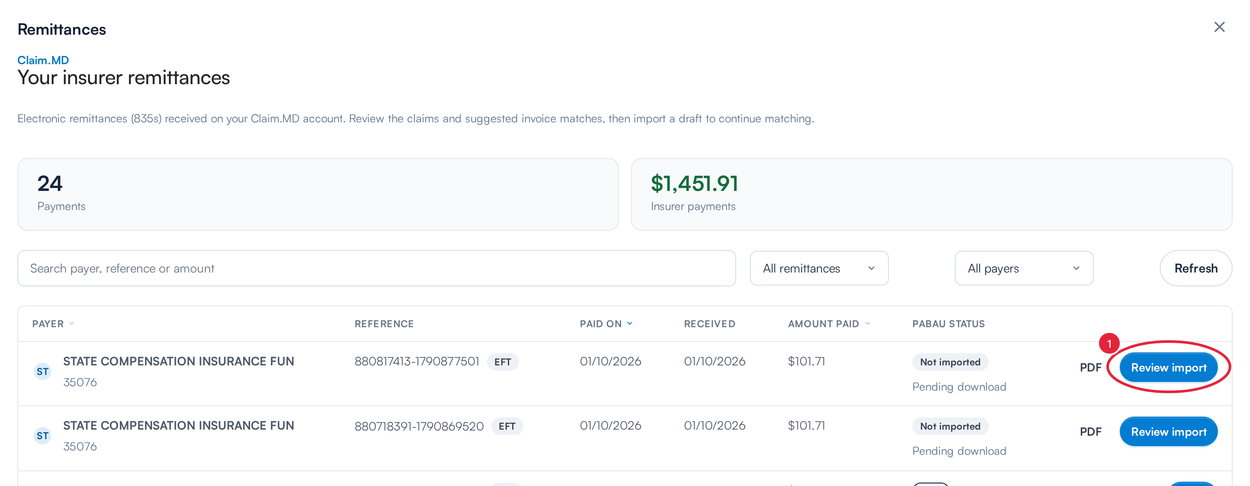
Every ERA on your Claim.MD account, with its Pabau status
The review screen lists each claim on the ERA: the claim number and patient, the Appointment date, how it was matched (Match), and the Charged, Amount paid and Patient responsibility amounts. Adjustments breaks the difference down into Copay, Coinsurance, Deductible and Contractual adjustment. The Ready to import, Needs review and Already paid counters at the top filter the rows, and View statement PDF opens the payer's statement.
Step 3: Link the Payer to an Insurer (First Time Only)
An ERA names its payer by a payer ID, which is not always the ID or name you submit claims under. The first time a payer's remittance arrives, Pabau asks you to link it to one of your insurers so it can find that insurer's outstanding invoices.
- Click Set up remittance insurer. The first step, 1. Identify payer, shows the Payer, Payer ID and Reference number from the ERA. Click Continue.
- In 2. Set up insurer, pick the insurer under Link to an existing insurer or create one. Pabau lists its best guesses first under Suggested, then All insurers. If the payer is new to you, choose Create insurer: (payer name).
- Click Save insurer link (or Create and link insurer).
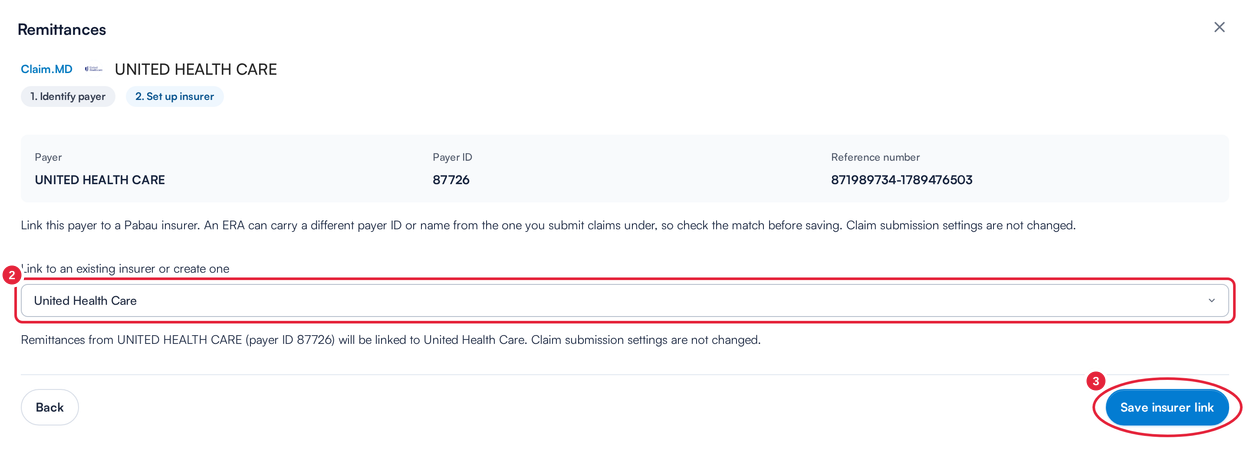
Link the ERA's payer to your insurer once
Pabau remembers the link, so later remittances from that payer match straight away. Your claim submission settings are not changed. To check or change a link, click Review insurer link on the review screen.
TIP: If a payer's remittances arrive under another name or payer ID, add them to the insurer's Other names and ERA payer IDs. See How to set up an insurer's claim settings.
Step 4: Confirm the Matches and Import
Claims Pabau matched with confidence show Matched, with the invoice number under Matched to. Anything else needs a look. For example, Check client means the invoice Pabau found (shown as Suggested) belongs to a client whose name differs from the patient on the ERA, and Invoice not found means there was no invoice to suggest.
- Check the Suggested invoice on any row that needs review.
- Click Match invoice to choose the right one. In Match an invoice, find the client, choose their outstanding invoice for this insurer, tick I have checked that this is the correct client and invoice for this payment, and click Confirm match.
- Click Import and match. The bar at the bottom tells you how many invoices will be filled in automatically.
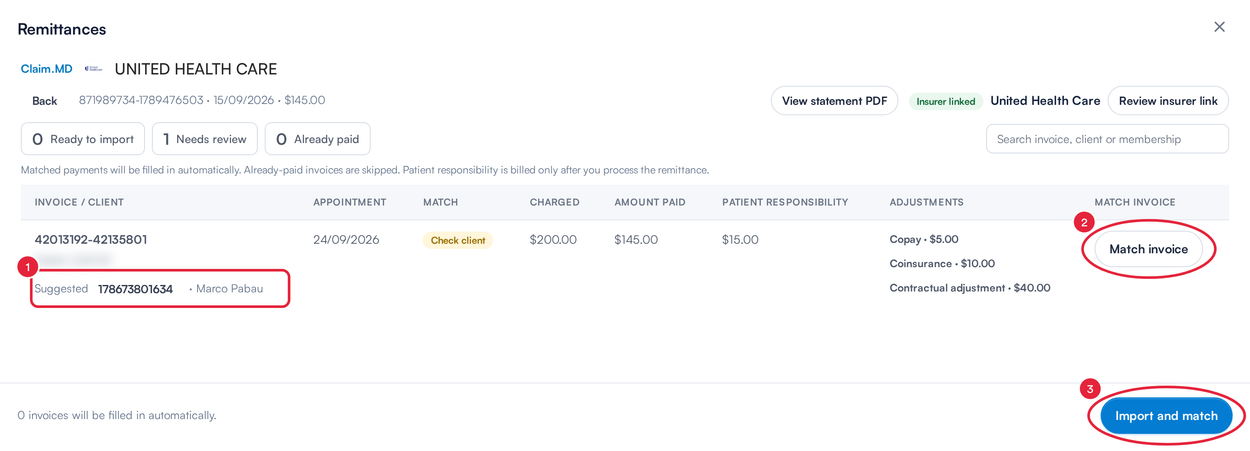
Confirm any uncertain matches, then import
Pabau saves the remittance as a draft and opens it on the match screen. Matched payments are filled in automatically, invoices that are already paid are skipped, and nothing is billed to a patient until you process the remittance.
NOTE: A Claim.MD remittance is imported whole: every claim on the check comes in together, and the remittance keeps the check or EFT number as its reference.
Step 5: Upload an 835 File Instead (Optional)
Use this when a remittance did not come through Claim.MD, for example an 835 file you downloaded from a payer's portal.
- On the Remittance tab, click Create remittance.
- Choose Upload 835 file. In Upload remittance, click Choose or drop an 835 file (X12, 835, EDI or TXT, up to 10 MB).
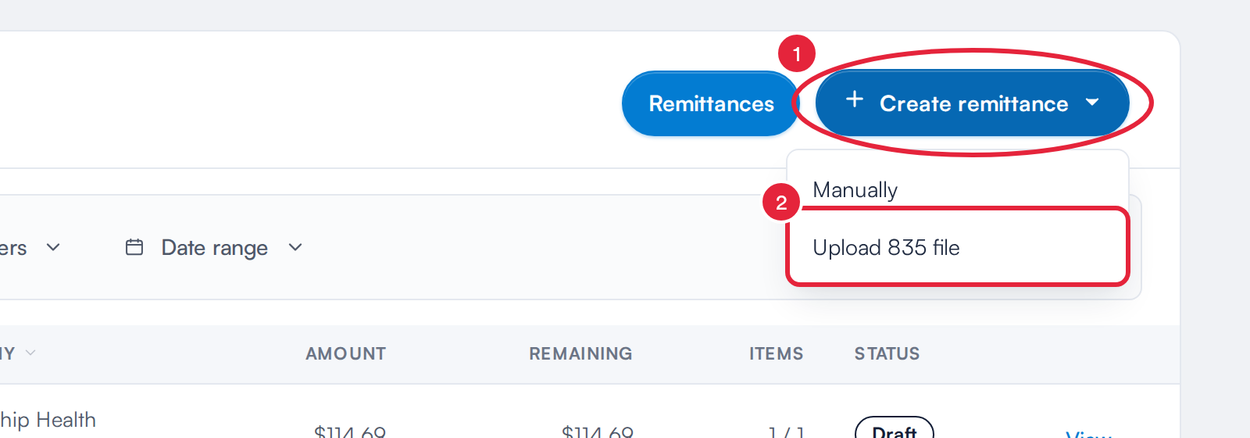
Upload an 835 from a payer portal
Pabau reads the statement and matches invoices, then shows the same review as in Step 2. Link the payer if asked and click Import and match. You do not need a Claim.MD account to import an uploaded statement.
Step 6: Process the Remittance
The match screen (Manage remittance) shows the Remittance Total, Payments Matched and Left to match. The Imported from Claim.MD panel names the payer and reference; View statement and reasons shows the original amounts and reason codes. Each invoice row shows the payer's payment, and the patient responsibility and contractual adjustment from the ERA under its balance.
- Click Process remittance. Before anything is saved, Pabau shows what it is about to post, for example EOBs to post (for each claim: the amount paid, the contractual adjustment written off and the patient responsibility) and Patient responsibility to bill. Confirm with Process remittance.
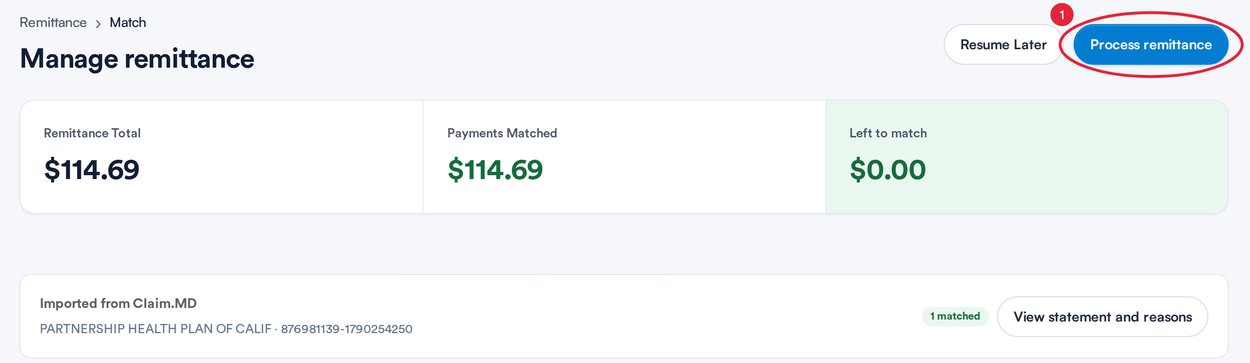
Process the remittance when the matches look right
Not ready yet? Click Resume Later: the remittance stays a draft on the Remittance tab and you can pick it up from View. When it is processed, each claim's payment is posted to its invoice and the claim moves on, to Approved or, if a balance is left, Partially paid.
IMPORTANT: Some claims post only the insurer's payment here, with nothing billed to the patient: secondary claims, claims whose amounts on the ERA don't add up to what you billed, and claims whose payment you changed on the match screen. The breakdown names these invoices; post their EOB from the claim screen. See How to record a payer payment or denial from a paper EOB and When a payer reverses a payment.
What's next?
- Automatic checks for new remittances (ERAs)
- How to set up an insurer's claim settings
- Insurance Guide Part 4: Submit and track insurance claims in Pabau
- How long does it take to process ERA and claims?
Was this guide helpful? Let us know by voting below - your feedback helps us write clearer articles.
For more guides, browse the related articles below or use the search bar at the top of the page. You can also watch our video learning series, the Pabau Academy, or visit the Support page for additional help.