
You don’t have to open a whole category of Analytics reports to give someone the one report they need. With Report access you can switch on single reports, such as End of Day, for a staff member or for everyone in a role, while the rest of that category stays closed to them.
NOTE: The account owner and admins can change report access, and so can staff with the Team permission Can manage user permissions (for a staff member) or Can manage group permissions (for a role). Unless you’re the account owner, you can’t change your own permissions or the role you’re in. Staff who aren’t admins also can’t change an admin’s permissions or a role an admin is in, and can only give reports they can open themselves.
Step 1: Open a Staff Member’s Report Access
Go to Team → Team, open the People tab, click the staff member and choose Permissions in the left-hand menu.
- Click Analytics in the category list.
- Below the Analytics permissions you’ll find Report access: Turn a category on to open all its reports, including ones added later. Leave it off to turn on single reports instead.
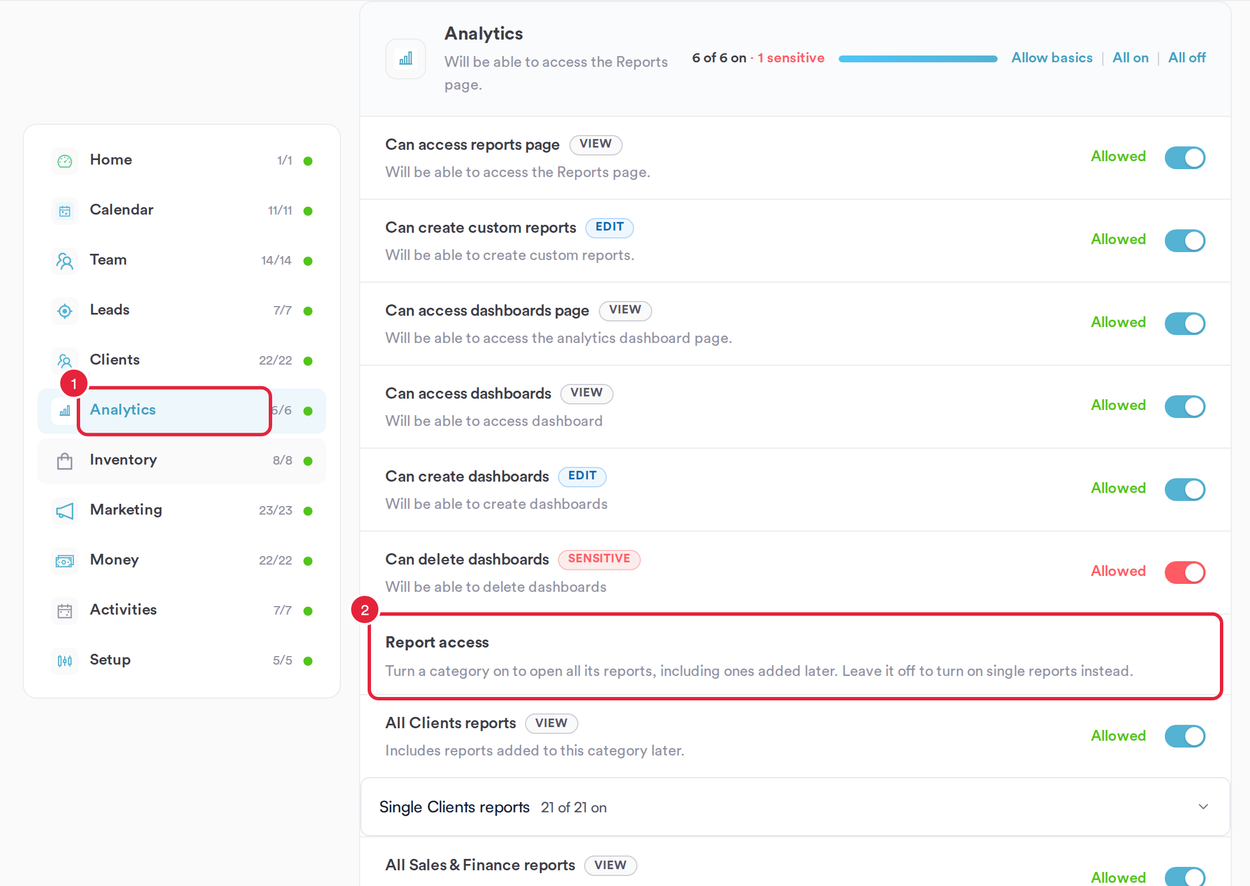
Report access sits under the Analytics permissions
Step 2: Choose Single Reports
Each report category (Clients, Sales & Finance, Appointments, Activities, Business, Memberships and PabauPay) has an All … reports switch, with its reports listed underneath.
- Leave the category’s switch off, for example All Appointments reports.
- Expand Single Appointments reports to see every report in the category.
- Switch on each report the person needs. The count shows how many are on, for example 2 of 18 on.
- Click Save changes at the top of the Permissions panel.
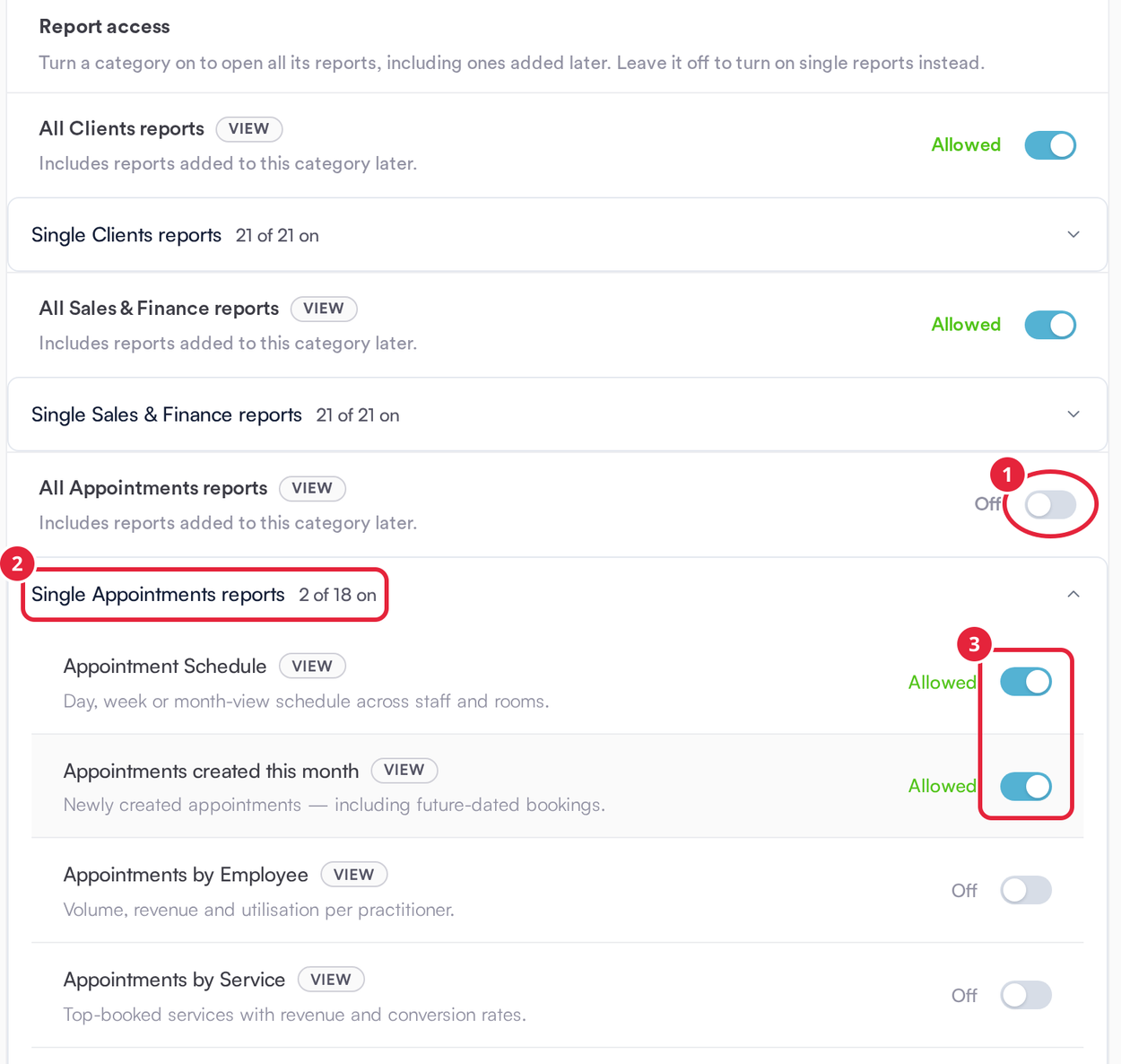
Two Appointments reports switched on with the category left off
When a category switch is on, the person can open every report in it, including reports added to that category later. Its single reports show as on and can’t be changed one by one; hover over one to see On through All … reports. Turn that off to choose these one by one.
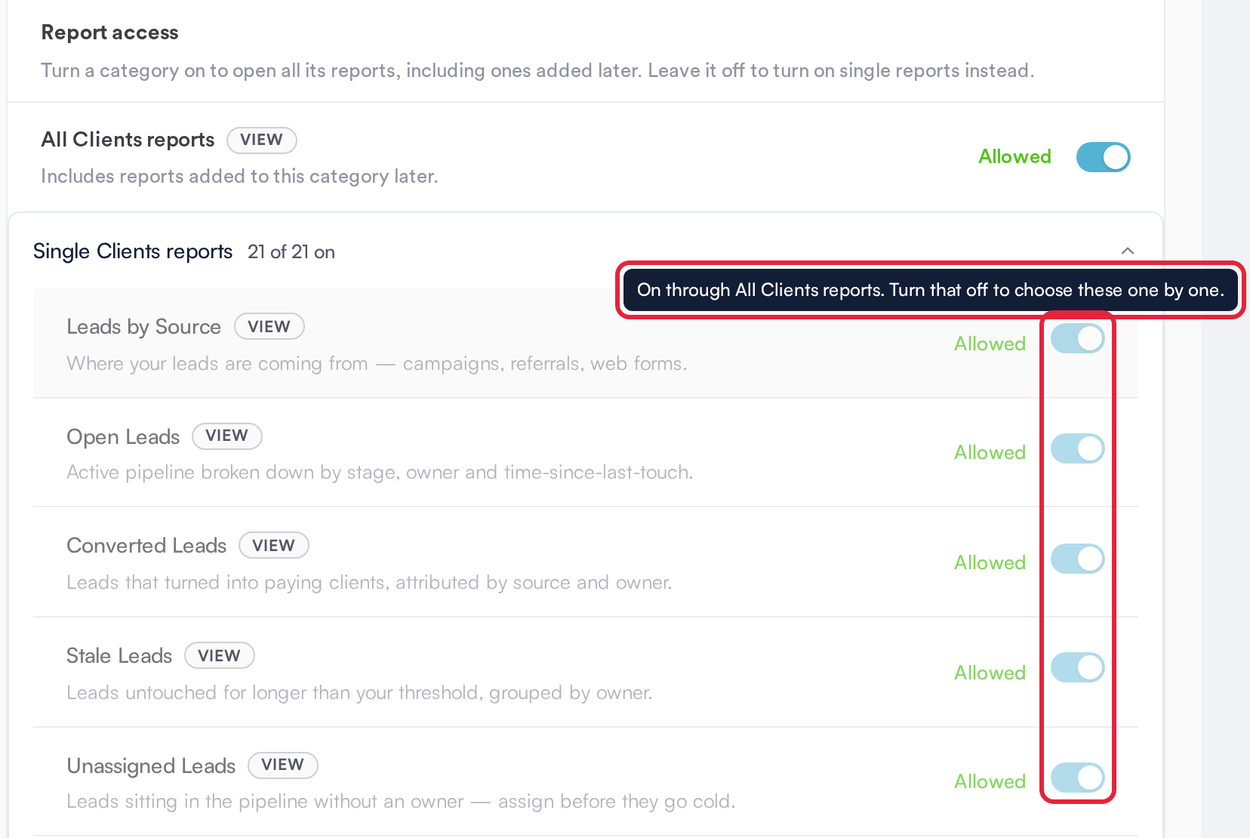
Reports opened by their category switch are locked on
NOTE: Some switches cover more than one area. All Clients reports covers both client and lead reports, and All Sales & Finance reports covers both sales and financial reports. All Memberships reports is turned on and off with All Sales & Finance reports, and All PabauPay reports with All Business reports.
Step 3: Give Reports to Everyone in a Role
Go to Team → Team and open the Roles tab. In the Roles and permissions table, expand Analytics (or click Expand all).
- Find the Report access row.
- Click the role’s count in that row, for example 0 of 87 on.
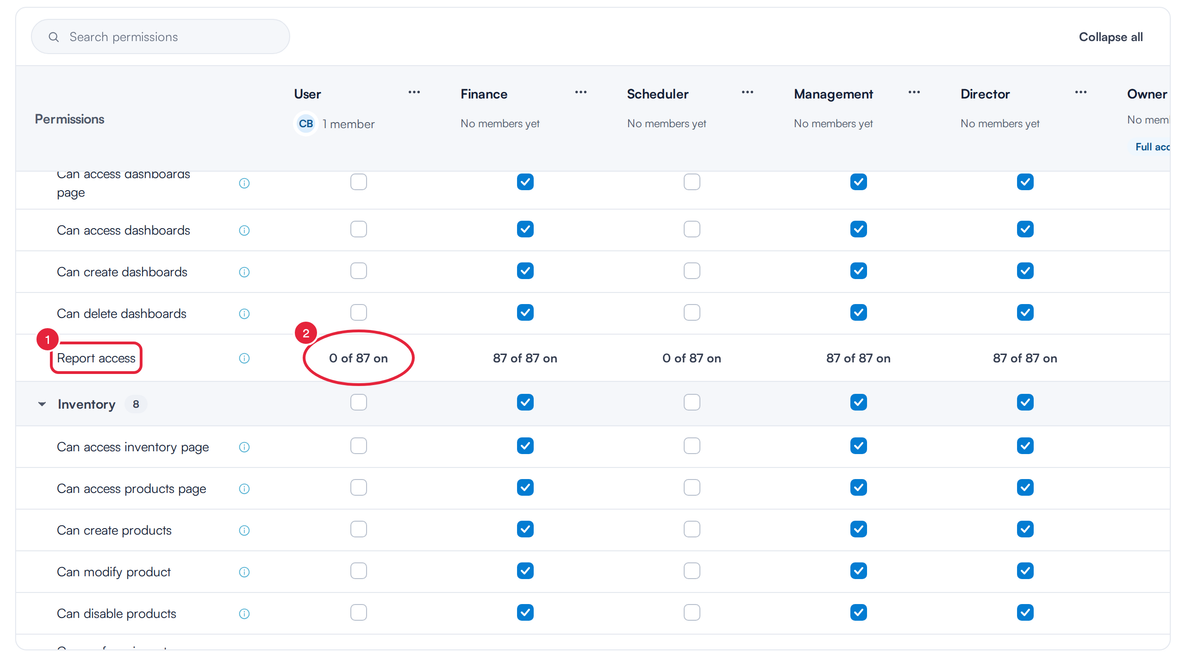
The Report access row in the Roles and permissions table
Report access for <role> opens with the same switches as a staff member’s Permissions tab.
- Leave a category off, expand its single reports and switch on the ones the role needs (or switch a whole category on).
- Click Save reports. The message Report access saved confirms it.
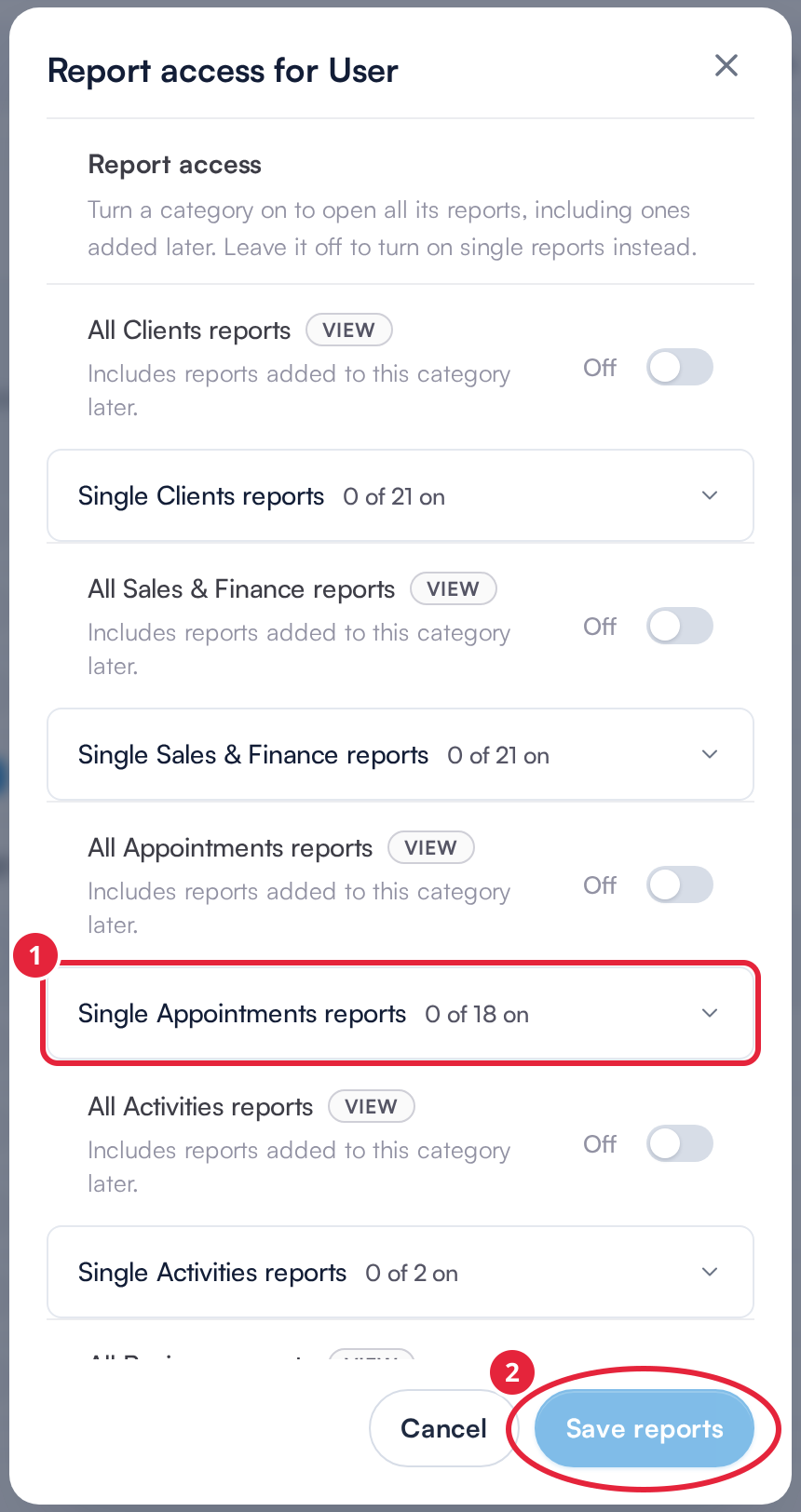
Choosing reports for a role
What the Staff Member Sees
In Analytics → Reports (they also need Can access reports page switched on to open it), the staff member now sees the report cards they have access to: every report in a category that’s switched on, plus each single report you switched on. Giving someone the End of Day report also shows End of Day in their sidebar. Report access only ever adds reports: switching on a single report never takes away a category the person already has.
What's next?
- How to Set Analytics Permission for a Staff Member
- Analytics Permissions (for roles)
- How to Manage Report Access by Teams (for custom reports)
Was this guide helpful? Let us know by voting below - your feedback helps us write clearer articles.
For more guides, browse the related articles below or use the search bar at the top of the page. You can also watch our video learning series, the Pabau Academy, or visit the Support page for additional help.