
When Healthcode or the insurer sends a claim back, Pabau puts it in Needs action and explains each error in plain English: what went wrong, who can fix it, what value was sent, and where that value comes from in Pabau. This guide shows you how to read those explanations, fix the claim and send it again.
NOTE: This guide is for practices in the United Kingdom that submit claims through Healthcode. If you are new to claims, start with Insurance Guide Part 4 (UK).
Step 1: Find the Rejected Claim
- Go to More → Claims and click the Needs action tile. It lists the claims Healthcode or the insurer sent back with errors. If you don't see the claim you expect, widen the date range next to the tiles.
- Click View on the claim's row.
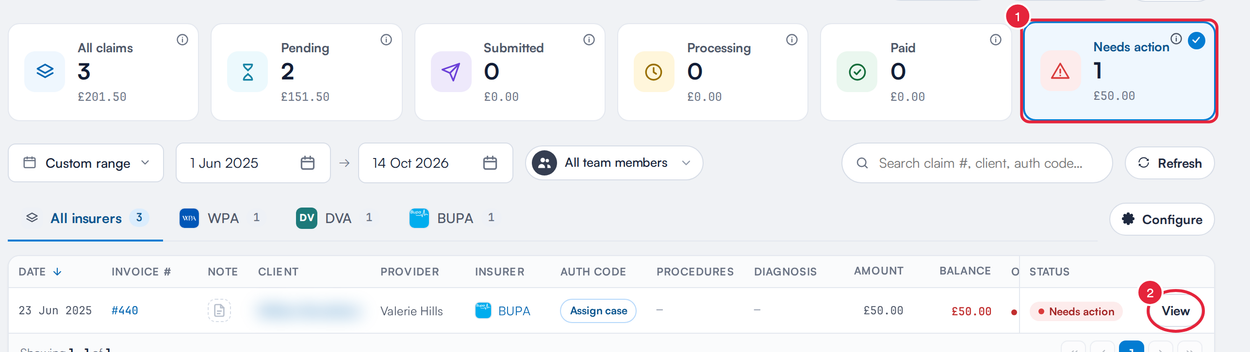
Needs action holds every claim that came back with errors
Step 2: Read the Rejection Banner
A rejected claim opens on the claim form, with a red banner at the top: Claim rejected by and the insurer's name, followed by how many fields need attention. You can still resubmit while fields are flagged.
- The counter on the right (for example 0/1 fixed) goes up as you correct each flagged field.
- Under Jump to fix, click a field's chip to scroll straight to it on the form. Once you correct it, the chip shows it as fixed.
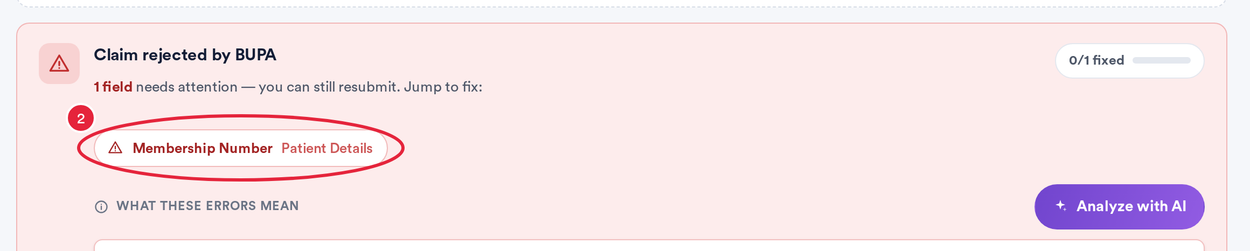
Each chip takes you to a field that needs fixing
Step 3: Find Out What Each Error Means and Who Fixes It
Under What these errors mean, every error has its own card.
- Click a card to open it. You'll see a plain-English explanation, How to fix, Sent to Healthcode (the value Pabau sent) and, where Pabau knows it, Comes from (where that value is set in Pabau). Healthcode's original message is shown at the bottom right.
- The badge on the card says who can clear the error.
- Use the button at the bottom of the card. Which button you get depends on the badge:
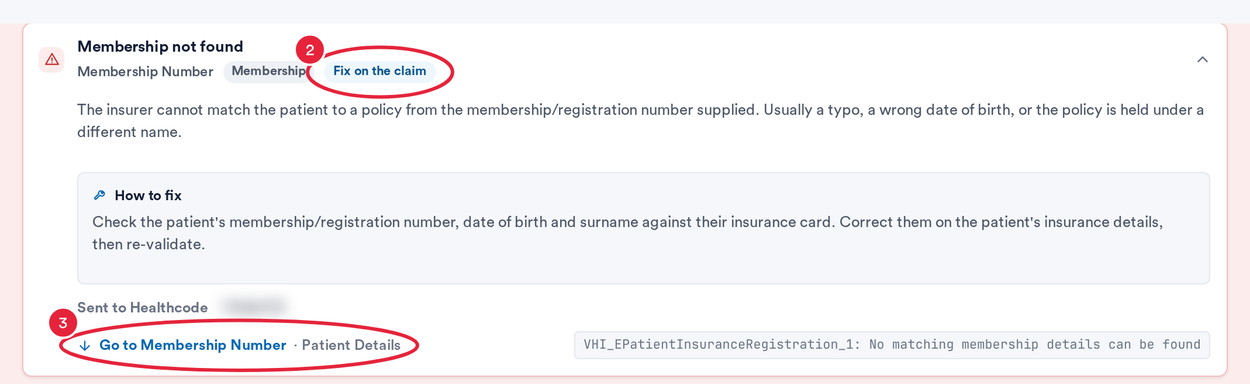
An error card explains the problem and how to fix it
| Badge | What to do |
|---|---|
| Fix on the claim | Click Go to and the field name to jump to it, then correct it. If the value comes from the client record (for example their membership number), correct it there too so the next claim is right. |
| Pabau setup | The fix belongs in your claims settings, such as your Healthcode login or an insurer mapping. Click Open Claims setup. |
| Contact Healthcode | Only Healthcode can clear it, for example an access problem with your Healthcode account. Click Copy details for Healthcode and paste them into your email or support ticket. |
| Contact insurer | The insurer must authorise or validate something first. Click Copy details for insurer and send them to the insurer. |
| Healthcode issue — retry | A temporary problem at Healthcode. Click Retry now to check the claim with Healthcode again. |
TIP: The copy buttons put the claim's details and the error on your clipboard. Pabau confirms with Paste into your email or support ticket.
Step 4: Get a Second Opinion With AI (Optional)
Not sure what to change? Let AI read the claim's codes and errors for you.
- Click Analyze with AI. It can take up to a minute.
- The AI analysis panel gives a short summary, then each finding with who should fix it (Clinic to fix, Healthcode to fix, Insurer to fix or Pabau to fix), how sure it is (Likely cause, Possible cause or Unconfirmed), Why and Fix.

AI explains the likely cause and who should fix it
NOTE: Patient details are removed before anything is sent to the AI. Treat the analysis as advice and check it before changing anything.
Step 5: Fix the Fields, Re-Validate and Send Again
- Correct the flagged fields, then click Re-validate under the error cards. Pabau checks the claim with Healthcode without sending it. Made a mistake? Reset puts back the original claim details.
- When you are happy, click Send Invoice to Healthcode in the bar at the bottom of the screen. The bar also tells you how many fields are still flagged; you can still send if you know the flag is wrong.
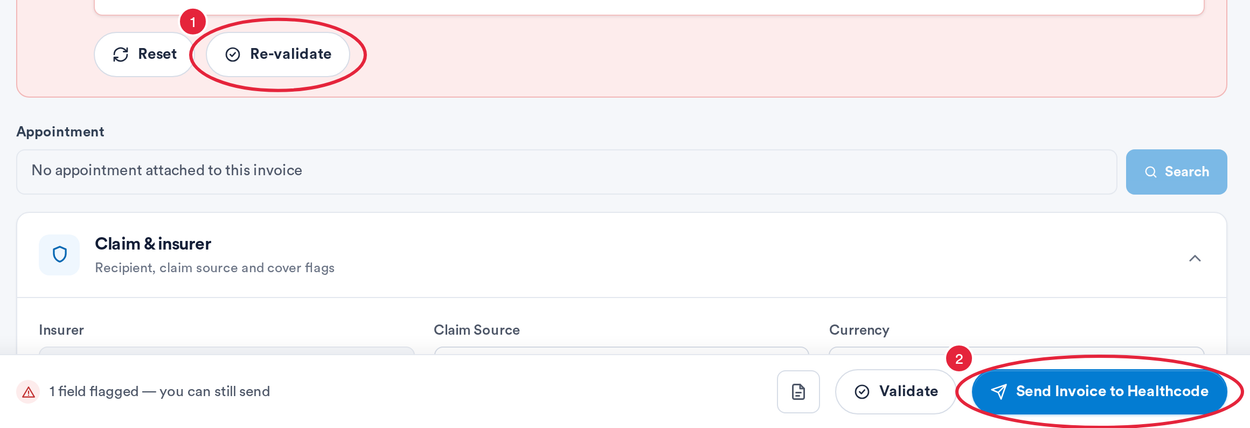
Re-validate first, then send the corrected claim
Every request Pabau has made to Healthcode for this claim is listed at the bottom of the claim under Healthcode requests, with the time, the action, the status and Healthcode's response.
What's next?
- Insurance Guide Part 4 (UK): Submit and track claims with Healthcode
- How to verify a Bupa membership in Pabau
- Insurance Guide Part 2 (UK): Client insurance setup in Pabau
Was this guide helpful? Let us know by voting below - your feedback helps us write clearer articles.
For more guides, browse the related articles below or use the search bar at the top of the page. You can also watch our video learning series, the Pabau Academy, or visit the Support page for additional help.