
NOTE: Cases is part of the Care Plus plan. If you do not see Cases under Clients in the sidebar, speak to your account manager about upgrading.
Step 1: Use the KPI Tiles
The five tiles across the top of the Cases screen are both a summary and a filter. Click one to show only those cases; click it again to clear it.

Cases, Open, Flagged, Warnings and Resolved
- Cases — every case you can see.
- Open — cases still being worked on.
- Flagged — open too long, against the threshold your clinic has set.
- Warnings — no activity recently, against the same settings.
- Resolved — closed cases.
TIP: Flagged and Warnings only count cases that are still open, and only when the KPI setting is switched on. See How to Configure Case Flags and Warnings.
Step 2: Filter by Case Owner
Click Case Owner and select one or more staff members. Your own name is pinned to the top of the list for convenience.

Your own name is pinned to the top of the owner list
Step 3: Filter by Location
Click Select Location, tick the locations you want and click Save. Clear All removes the selection.

Choose one or more locations, then Save
Step 4: Filter by Date
Click All time to limit the list by when cases were created. Choose Today, Yesterday, Last 7 Days, Last 30 Days, This Month, Last Month or Custom Range, then click Apply.

Preset ranges, or a custom range of your own
Step 5: Search and Sort
The Search box above the list matches on case number, type, location, case owner and client name. Click any column heading to sort by it, and click the same heading again to reverse the order.
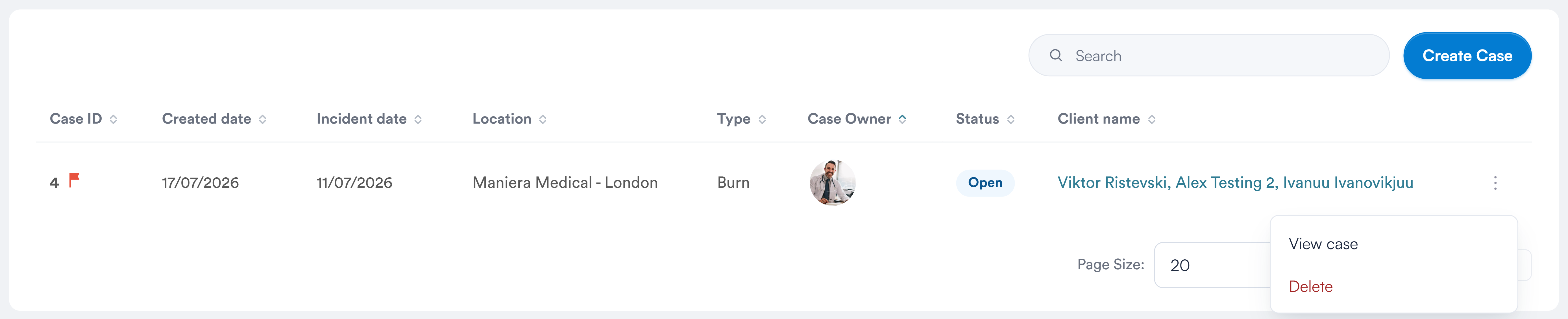
Every column heading can be sorted
Use Page Size at the bottom to show 20, 50 or 100 cases per page.
Why can I not see a case a colleague can?
NOTE: You only see cases for the locations your user account is assigned to. If a colleague can see a case that you cannot, it belongs to a location that is not on your profile — an administrator can add it under Team → Users.
NOTE: If your filters exclude everything you will see "No cases match the current filters." Clear the filters and the KPI tile to see the full list again.
Was this guide helpful? Let us know by voting below - your feedback helps us write clearer articles.
For more guides, browse the related articles below or use the search bar at the top of the page. You can also watch our video learning series, the Pabau Academy, or visit the Support page for additional help.