
Step 1: Navigate to Client Notifications
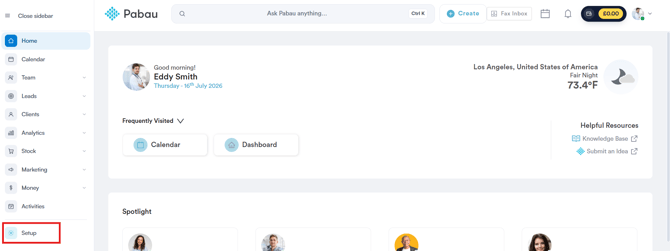
Start by logging in to your Pabau account using your login credentials. Then, in the left sidebar menu, click on "Setup."
Step 2: Open Client Notifications
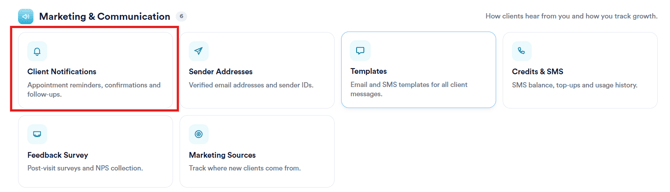
Under the "Marketing & Communication" section, click on "Client Notifications." This opens a list of all your outbound notification messages (Email/SMS) that are sent automatically to clients.
Step 3: Select a Notification Message
From the list, click on the notification you want to edit — for example, "New appointment is booked." Each notification shows whether it's sent by SMS, email, or both, and whether it's currently enabled.
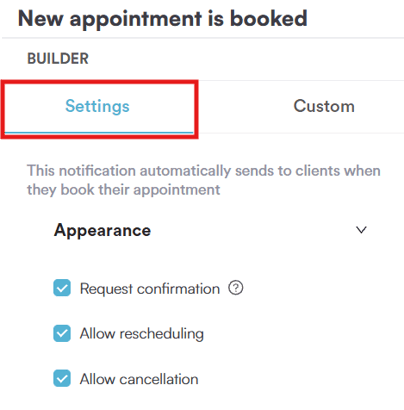
This opens the notification's builder page, where you need to select ''Settings''.
Step 4: Edit the Email Subject
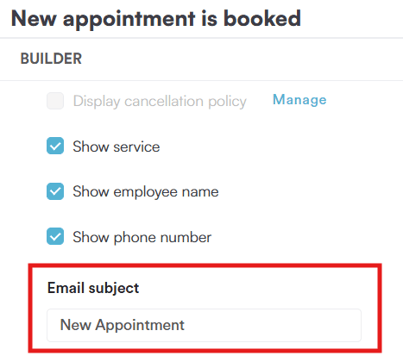
On the Settings tab, scroll down to the "Email subject" field, found above the Attachments section. This field is pre-filled with the current default subject line used by the system.
NOTE:
-
The Email subject field can be edited on both the Standard Email Template and any Custom templates you've created.
-
You can't save the subject as blank, or with only spaces or special characters - if you clear it, the system's default subject will automatically apply instead.
Step 5: Save Your Changes
Once you're done with your subject line, click "Save" in the top right corner of the screen to apply your changes.
By following these steps, you can customise the email subject for your client notifications in Pabau.
What's next?
- Understanding the Notification Messages Page
- How to Edit a Client Notification in the Notification Studio
Was this guide helpful? Let us know by voting below - your feedback helps us write clearer articles.
For more guides, browse the related articles below or use the search bar at the top of the page. You can also watch our video learning series, the Pabau Academy, or visit the Support page for additional help.