
Step 1: Navigate to the Client Card
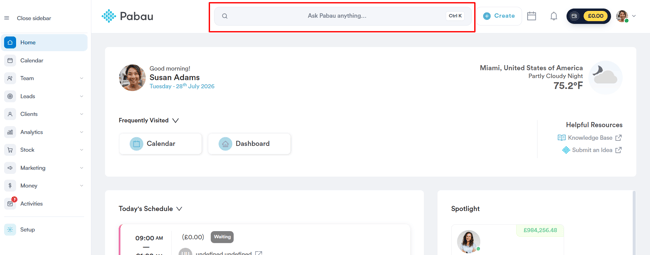
Start by logging in to your Pabau account, then open the client card of the desired client using the search bar located at the top of the screen.
Step 2: Access Financials
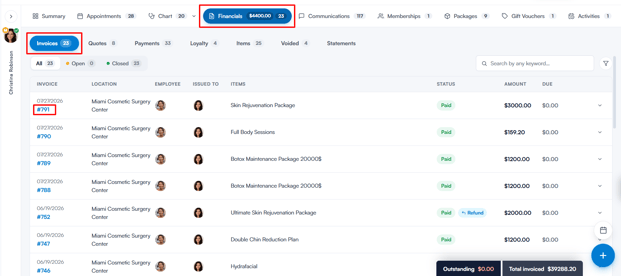
Open the Financials tab, then under Invoices, click on the number of the invoice you wish to edit.
Step 3: Edit the Invoice
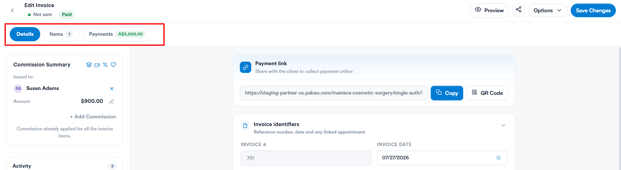
Within the Edit Invoice screen, you’ll find tabs for Details, Items, and Payments.
Under the Details tab, information is grouped into sections:
- Payment link – share a link with the client so they can complete payment online. You can copy the link or generate a QR code.
- Invoice identifiers – view the invoice number, update the invoice date, or link the invoice to an appointment.
- Billing details – update the location, who the invoice is issued to, the price list, and the payor/recipient (plus the issuing company, where your account has more than one).
- Invoice notes – add internal context, special instructions, or follow-ups. These notes are for internal use only and are not shown on the invoice PDF.
- Transfer invoice – move the invoice to another client using the Transfer button.
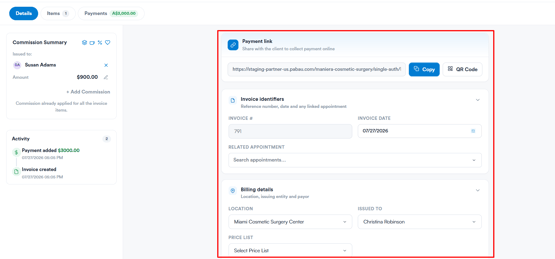
On the left side, a Commission Summary panel shows who the commission is issued to and the amount, with the option to add or edit a commission (shown when the invoice contains commissionable items). An Activity panel below it logs actions such as payments added, items changed, and when the invoice was created.
Under the Items tab, you’ll find a comprehensive list of all items featured in the invoice, along with a Billing Codes section below it.
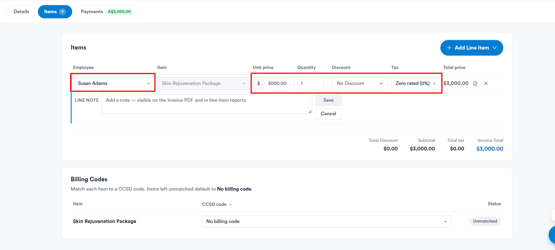
For each item, you can edit:
- Employee – the staff member assigned to the item.
- Unit price – the price per unit.
- Quantity – the number of units.
- Discount – any discount applied.
- Tax – the tax rate applied (e.g. Zero rated (0%)).
Please note:
When changing the employee on an invoice item, Pabau will alert you if the selected employee is not part of any commission structure.
A warning message will explain that no commission will be awarded for the item, so you’re aware of the effect before confirming the change.
The Total price for each item updates automatically based on these fields. You can also:
- Add a line note to an item by clicking the note icon next to the total price. Unlike invoice notes, line notes do appear on the invoice PDF.
- Remove an item by clicking the X next to it.
- Add a new item by clicking Add Line Item in the top-right corner.
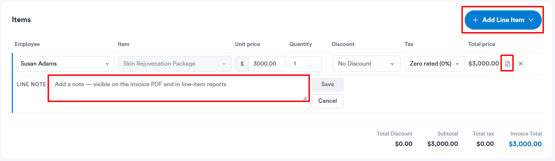
At the bottom of the Items list, a summary shows the Total Discount, Subtotal, Total tax, and Invoice Total.
There are a few important rules to keep in mind when editing invoice items:
-
An item’s total cannot be reduced below zero.
-
The invoice total cannot be reduced below the amount already paid.
-
Items cannot be edited on credit notes, or on invoices that have a credit note raised against them.
-
Some changes ask you to confirm before they apply, as they affect invoice reports and other dependent workflows. Remember to click Save Changes before leaving — if you try to leave with unsaved changes, you’ll be asked whether to save or discard them.
How do I add ICD-10 diagnosis codes to an invoice after the sale?
You can add or change diagnosis codes on an existing invoice from the Items tab of the Edit Invoice screen:
- Open the invoice from Financials → Invoices on the client card and go to the Items tab.
- Scroll to the Billing & diagnosis codes section below the items.
- For each item, use the diagnosis field (it reads No diagnosis code until one is set) and search by code or description. Diagnoses already used on the invoice are listed under Invoice diagnoses, so you can pick a shared diagnosis or search to add a new one.
- Click Save Changes.
Codes default from the selected policy, and any changes you make here apply to this invoice only.
NOTE: If you see Choose your default billing and diagnosis code sets in Settings to search for codes., set your default code sets (for example ICD-10) first under Setup → Diagnostic & Billing Codes. The section only appears when the invoice contains items that can be coded, and you need the Can edit invoices permission to change codes.
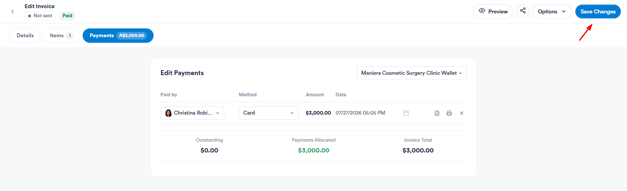
In the Payments tab, you can review and manage payments linked to the invoice under Edit Payments.
If your account uses multiple wallets, a wallet dropdown at the top lets you switch between the different wallets associated with the payment.
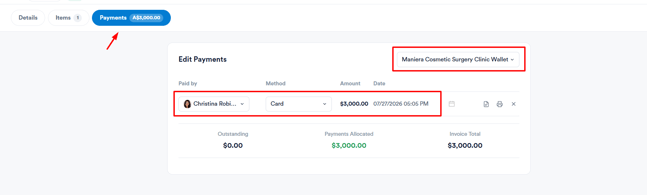
Each payment entry shows:
- Paid by – the person who made the payment. Use the dropdown to change this.
- Method – how the payment was made (e.g. card, cash, bank transfer). Use the dropdown to change this.
- Amount – the amount paid.
- Date – the date and time the payment was made. Click the calendar icon to change this.
At the bottom, a summary shows the Outstanding balance, Payments Allocated, and Invoice Total.
You can also:
- Add a note to a payment by clicking the note icon beside the entry.
- Print a receipt for the payment using the print icon.
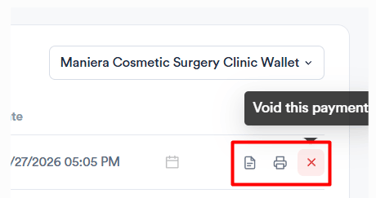
- Void a payment by clicking the X button on the far right of the payment entry — you’ll be asked to confirm, as voiding a payment is permanent.
If the invoice still has an outstanding balance, you can take a payment with the + Add payment button — see How to Pay for an Unpaid Invoice From the Client Card.
Upon completion, you have the option to either Preview the invoice or, if satisfied, click Save Changes.
By following these steps, you can confidently edit an invoice’s details, items, and payments directly from the client card, keeping every record accurate and up to date.
Was this guide helpful? Let us know by voting below - your feedback helps us write clearer articles.
For more guides, browse the related articles below or use the search bar at the top of the page. You can also watch our video learning series, the Pabau Academy, or visit the Support page for additional help.