
1. Through the Client Card
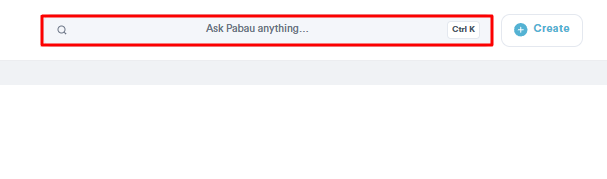
Log in to your Pabau account and use the search bar at the top of the screen to find the client whose information you want to edit, then open their client card.
- Edit a specific field:
In the Details section on the left of the card, hover over the field you wish to edit and click the pencil icon that appears (you can also click the value itself). Make your change, then click “Save”.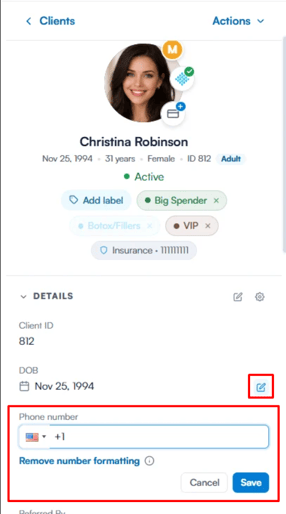
NOTE: The Client ID field cannot be edited.
- Edit all fields:
Click the pencil icon next to the “Details” heading to open the full edit form, where you can update every field in one place.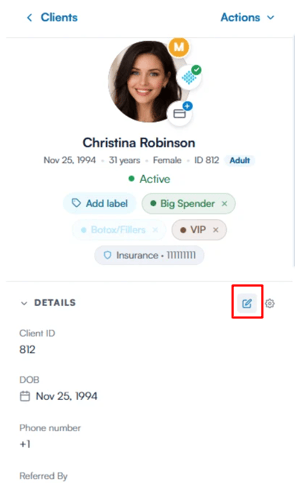
- Change the client photo:
Hover over the client’s photo and click “EDIT”. In the “Upload avatar” pop-up, click “Choose photo” to pick a new image (a square JPG, PNG or WebP up to 20 MB works best), then click “Save”. The new photo replaces the old one and you’ll see “Photo updated”. - Use a photo already on the client’s card:
Open the Photos section of the client card, open the actions menu on the photo you want, and click “Set as profile picture”.
I Can’t Find the Edit Button on the New Client Card
On the new client card, find the DETAILS section and click the edit (pencil) button in that section’s heading — hover it to see Edit client. This opens the edit form where you can change any detail, such as a phone number, then save.
NOTE: If the button is greyed out and shows You don't have permission to edit this client, you need the Can edit clients permission. Ask an admin to turn it on for you.
Can I remove a client’s photo?
Not at the moment. The client card has no option to delete a profile photo and go back to the client’s initials — you can only replace it with another photo using either of the options above.
NOTE: Changing the photo needs the Can edit clients permission (admins always have it). Without it, the “EDIT” button on the photo is greyed out and shows “You don't have permission to edit this client”.
2. Through the Client List
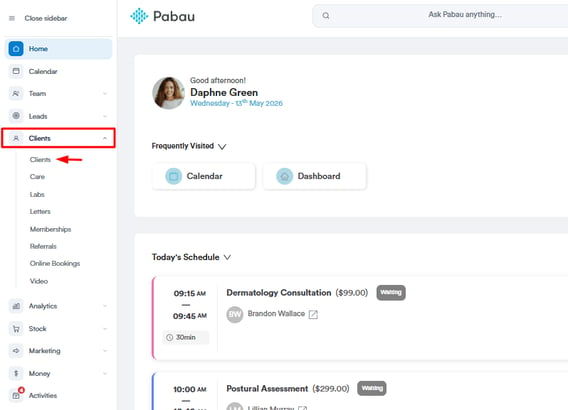
In the left sidebar menu, go to Clients, then click on Clients again.
- Select the clients to edit:
Tick the checkbox next to the client(s) you want to edit, then click the pencil icon that appears next to “X Selected” above the list. This opens the Bulk Edit panel.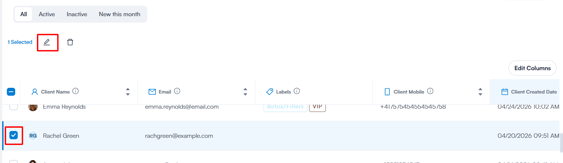
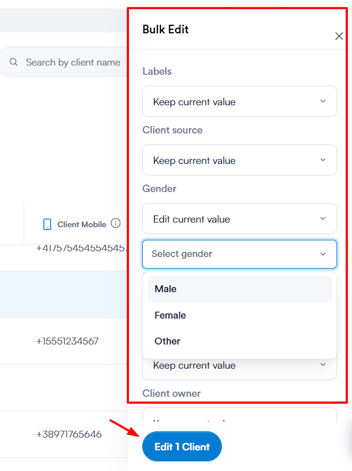
In the Bulk Edit panel, each field defaults to “Keep current value”. Click the dropdown next to the field you want to change (e.g. Labels, Client source, Gender, Client location, Active or Client owner) and select the new value.
- Confirm the changes:
Click “Edit 1 Client” (the button shows the number of clients selected, e.g. “Edit 3 Clients”) to apply the changes.
NOTE: Only a set list of fields — including your custom fields — can be edited in bulk from the client list. To change any other details, open the client’s card.
By following these steps, you can update and manage client information in Pabau, ensuring your records are always accurate and up to date.
NOTE: We suggest reading our Clients article for a more in-depth exploration of this topic.
Was this guide helpful? Let us know by voting below - your feedback helps us write clearer articles.
For more guides, browse the related articles below or use the search bar at the top of the page. You can also watch our video learning series, the Pabau Academy, or visit the Support page for additional help.