
When a new service is close to one you already offer, for example a longer version of a treatment or the same treatment at a different price, you don’t need to set it up from scratch. Duplicate the existing service, give the copy a new name, change what’s different and save it.
Step 1: Choose the Service to Copy
Go to Setup and open Services (in the Catalogue section).
- Hover the service you want to copy. Two icons appear at the end of its row: a pencil (Edit) and a copy icon (Duplicate).
- Click the copy icon.
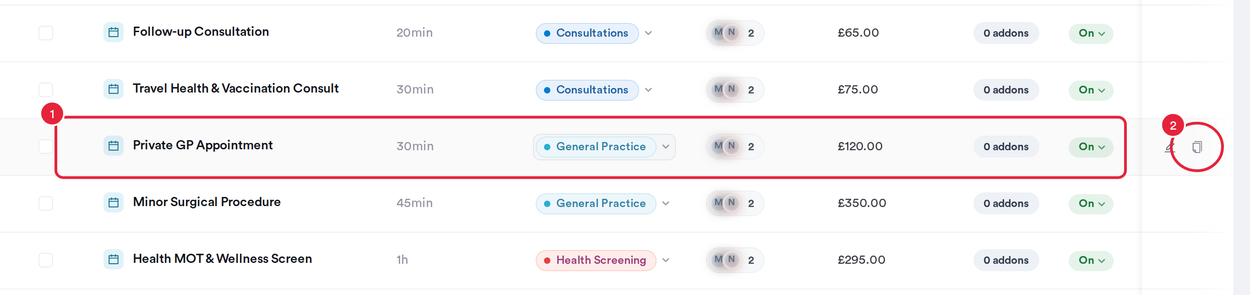
Hover a service to show its Duplicate icon
Step 2: Name the Copy
The Duplicate service window opens: “Create a copy of [service]. All settings, pricing and assignments will be duplicated.”
- Under New service name, keep the suggested name (the original name followed by “(Copy)”) or type a new one.
- Click Duplicate.
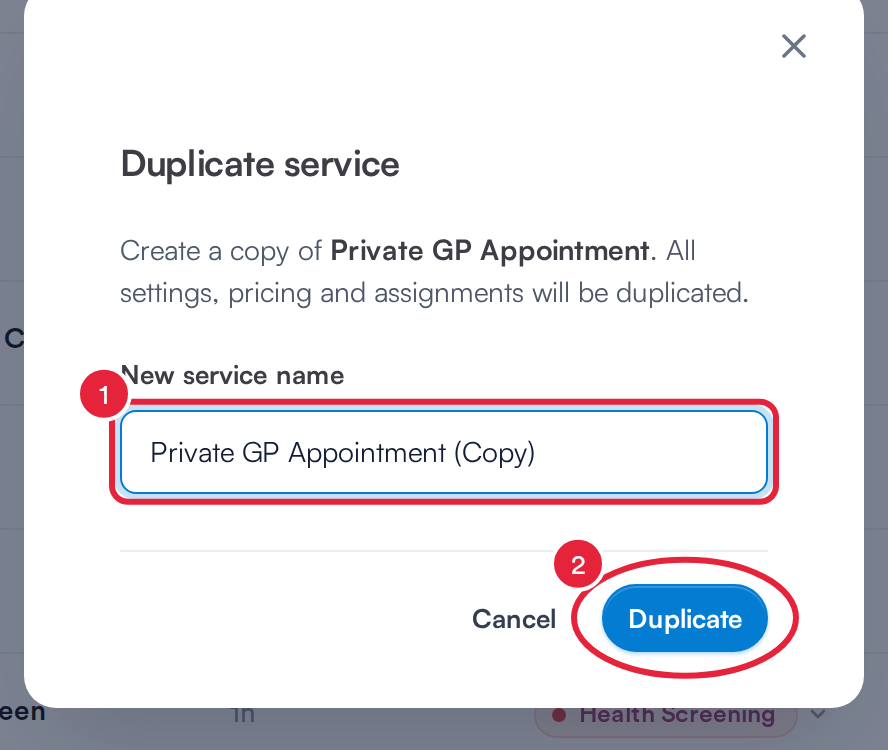
Give the copy its own name
Step 3: Review and Save the New Service
The Create Service window opens with everything copied from the original: its details on the General tab, plus the Assign, Pricing, Online Booking, Forms and Addons tabs. Change whatever is different about the new service, then click Save at the top right.
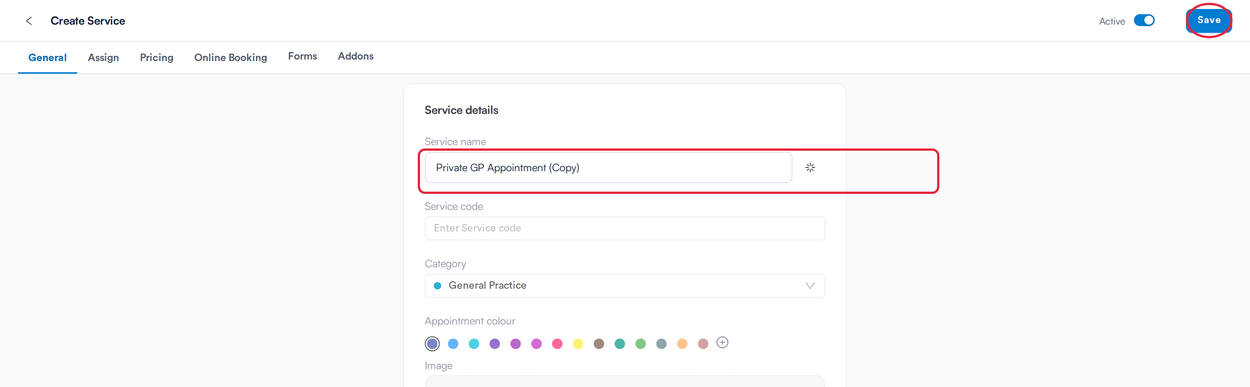
Check the copied settings, then click Save
NOTE: Nothing is created until you click Save. If you leave the window with the back arrow instead, no copy is made and the original service isn’t changed.
TIP: The copy is a separate service. Changing it later never changes the original, and the other way round. To change several services at once, see How to Bulk Edit Services.
What's next?
Questions? Reach us any time via the in-app chat. We're happy to help.
Was this guide helpful? Let us know by voting below - your feedback helps us write clearer articles.
For more guides, browse the related articles below or use the search bar at the top of the page. You can also watch our video learning series, the Pabau Academy, or visit the Support page for additional help.