
This article covers the new Client Card, available to selected clinics from August 2026. If your Client Card looks different, see the How to Deactivate a Client (Classic) guide instead.
Step 1: Navigate to the Client Card
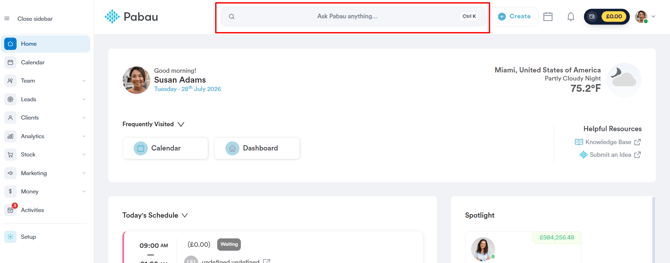
Log in to your Pabau account and navigate to the client card of the client you want to deactivate by using the search bar at the top of the screen.
Step 2: Click the Status Indicator
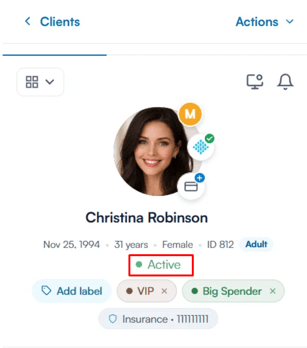
Just below the client’s name on the Personal tab, you’ll see a status indicator showing whether the client is currently Active or Inactive. Click it to change the client’s status.
Step 3: Confirm Deactivation
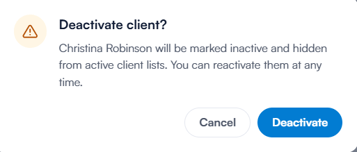
A confirmation window appears, explaining that the client will be marked inactive and hidden from active client lists. Click Deactivate to confirm.
The client is now marked as inactive. You can reactivate them at any time by clicking the status indicator again and then clicking Reactivate.
You need permission to edit clients to change a client’s status. If the client is Blocked, their status can’t be changed from the indicator - manage blocking from the Actions menu at the top of the client card instead.
Inactive clients won’t be displayed when using the search bar. To find them, perform an advanced search and tick the checkbox for “Show inactive clients”.
In the Clients feature, both active and inactive clients are visible by default, with inactive clients shown greyed out. Use the Active and Inactive filter pills above the list to show only one status.
NOTE: We suggest reading our Clients article for a more in-depth exploration of this topic.
Was this guide helpful? Let us know by voting below - your feedback helps us write clearer articles.
For more guides, browse the related articles below or use the search bar at the top of the page. You can also watch our video learning series, the Pabau Academy, or visit the Support page for additional help.