
This article covers the new Client Card, available to selected clinics from August 2026. If your Client Card looks different, see the How to Customize the Details Sidebar in the Client Card (Classic) guide instead.
The details sidebar is the left-hand panel of the client card, showing the client’s details and custom fields. You can reorder the fields and sections and pin a section to the top — the layout is saved to your login.
Step 1: Navigate to Fields
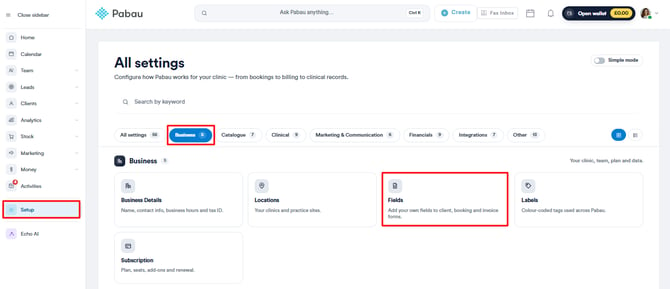
Go to the left-hand menu and click Setup. From there, under the Business section, click Fields.
Step 2: Locate the "Customize Details Sidebar" Option
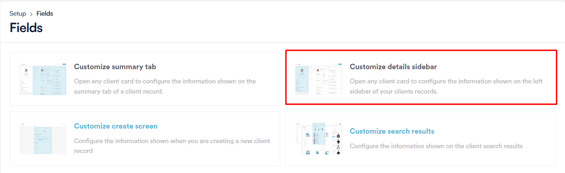
Within the Fields section, you’ll see the Customize Details Sidebar option. This is for reference only, as the sidebar can only be customised directly from a client card. To make changes, open any client’s card instead — see Step 3 below.
Step 3: Access Client Details
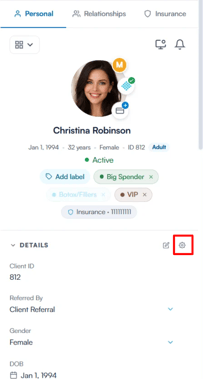
Open any client card where you’d like to make changes, then look at the client details section on the left-hand side. To start rearranging the fields, click the cog (settings) icon on the DETAILS heading — its tooltip reads Customize section order.
NOTE: For more information about the Client Card and its available options, please refer to this article.
Step 4: Customise the Details Sidebar
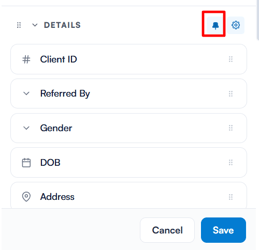
Once you’re in customise mode, you’ll notice a drag-and-drop handle next to each field under DETAILS. Simply drag a field up or down to change its position within the section.
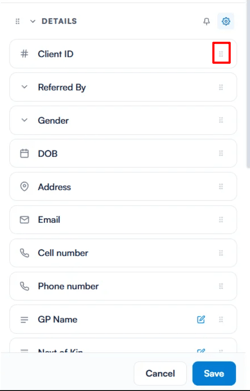
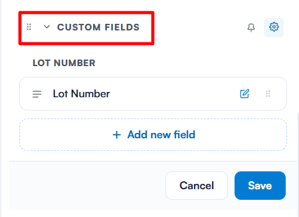
Scroll further down to view the CUSTOM FIELDS section. You can reorder the fields inside it in the same way, and reorder the two sections themselves by dragging a section heading. Fields can’t be moved between sections.
Additionally, you can pin a section to the top for easier access and better visibility by clicking the pin icon next to the section name.
TIP: While customising, you can also click Add new field at the bottom of a section to create a new field.
When you’ve finished rearranging, click Save at the bottom of the panel, then confirm in the Save field order? dialogue. To leave without saving, click Cancel instead.
By following these steps, you’ll successfully customise the details sidebar in the client card to fit your preferences.
Was this guide helpful? Let us know by voting below - your feedback helps us write clearer articles.
For more guides, browse the related articles below or use the search bar at the top of the page. You can also watch our video learning series, the Pabau Academy, or visit the Support page for additional help.