
NOTE: This guide covers the new Online Bookings and Client Portal, which are being rolled out to clinics in phases. If your screens look different, your account may still be on the classic version — message us via the in-app chat and we will help.
In this article, you will learn how to customise three parts of your booking page in Pabau Studio: the header (what shows at the top, including your own links), the photo gallery, and how your clients’ reviews appear.
Step 1: Open the Section You Want to Change
Go to Setup → Online Bookings and click Customise page to open Pabau Studio. The gallery and reviews sit on the Services page, so choose Services from the Booking pages strip. Then:
- Click Edit at the top right.
- Hover over the section and click the blue label that appears — Header, Gallery or Reviews. Its settings open on the right.
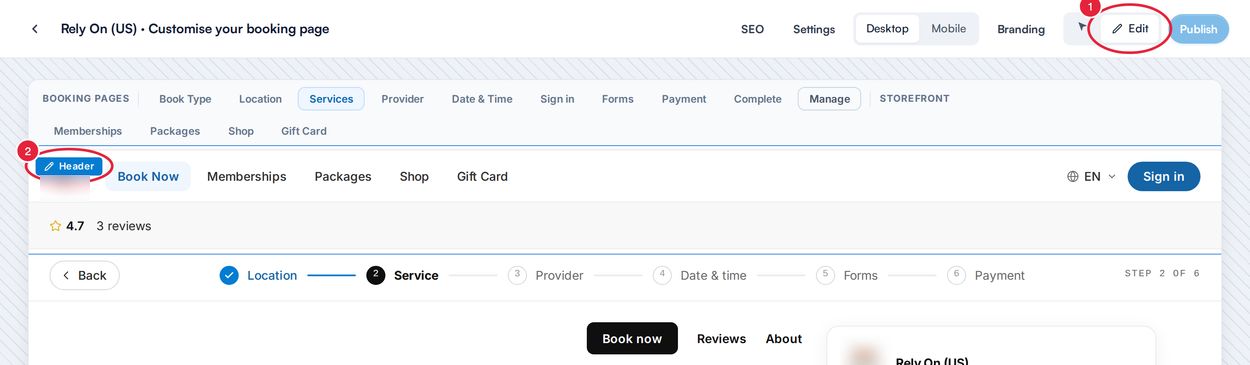
Hover over a section in Edit mode and click its label
Step 2: Customise the Header
- Under Show / hide, choose what appears: the Reviews link, the About link, Hide logo (useful when the booking page is embedded below your own website’s header) and the Clinic info bar (your rating, reviews, address and today’s hours under the header).
- Under Menu position, choose Left, Centre or Right for the menu.
- Under Storefront, choose which store pages show in the menu next to Book Now: Memberships, Packages, Shop and Gift Card. A page you hide drops off the menu everywhere, but anything a client has already bought stays theirs to use.
- Under Your links, click Add link to add up to five links of your own — for example to your website’s contact page. Type the text and the address, and choose Link or Button.
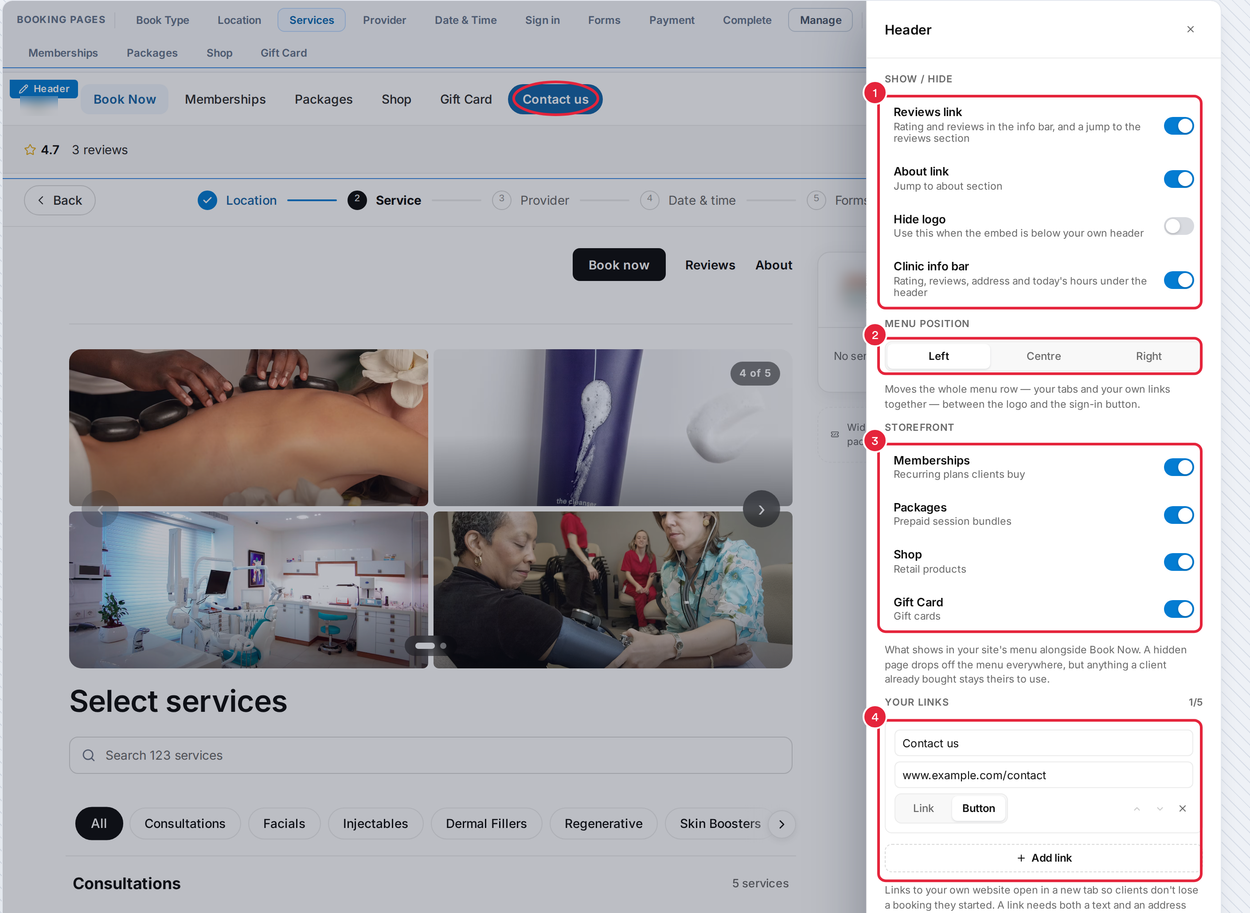
The Header settings, with a Contact us button added to the menu
NOTE: A link only shows once it has both text and an address. Links to your own website open in a new tab, so clients don’t lose a booking they have started. Book Now can’t be hidden.
TIP: On phones the header has no menu row. When you preview with Mobile, the store page switches and your links are in the Book Type section instead, and the links show on the first page of the booking flow.
Step 3: Set Up Your Photo Gallery
Open the Gallery section on the Services page.
- Leave Show this section on to show the gallery, or switch it off to hide it.
- Under Layout, choose how the photos are arranged: Single hero, Side-by-side, Three across, Grid 2×2, Mosaic or Wide cinematic.
- Under Photos, use the arrows to change the order or × to remove a photo. The first photo is marked Featured: it leads the gallery and is also used as your clinic’s picture in the booking summary.
- Click Upload photos to add photos (up to 5 MB each), or Add photo by URL instead to use a picture that is already online.
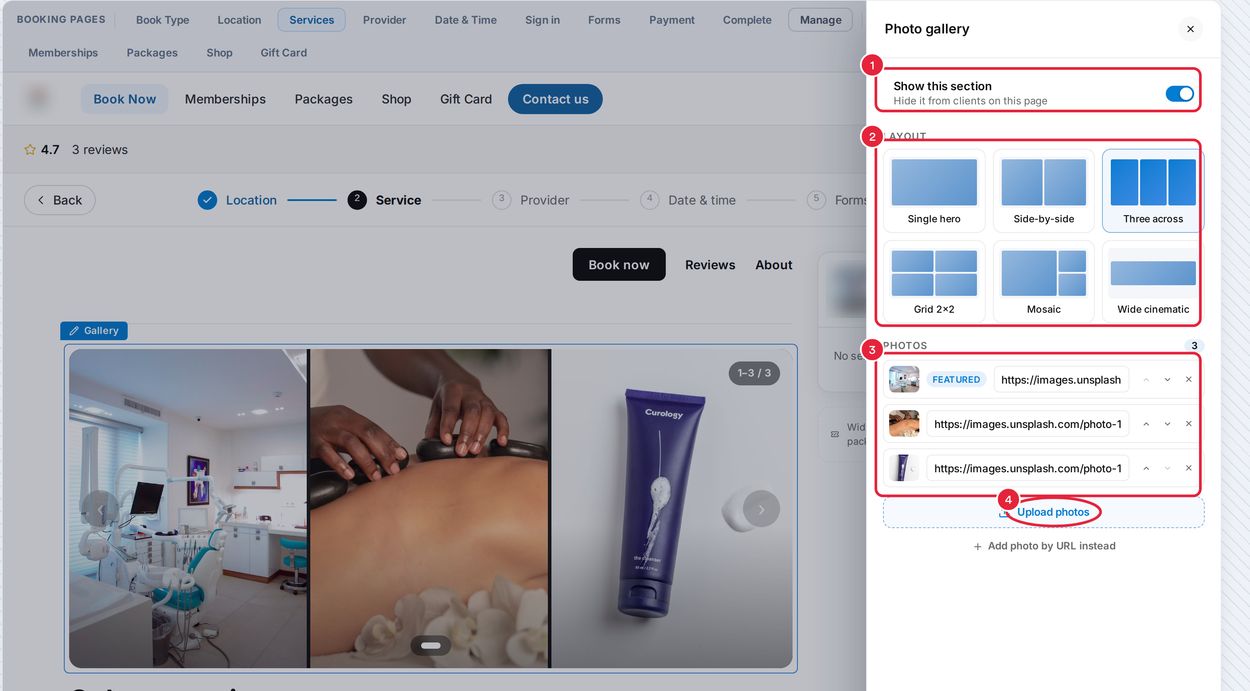
The Photo gallery settings: layout, photos and the Featured photo
NOTE: Until you add your own photos, Studio shows sample photos so you can try the layouts. Your clients don’t see the sample photos.
Step 4: Choose How Reviews Appear
Open the Reviews section, further down the Services page.
- Show this section — switch it off to hide reviews from your booking page completely, including the star rating in the header and the booking summary.
- Show service — shows the treatment each review was for.
- Anonymize client names — shows only the first letter of each reviewer’s name.
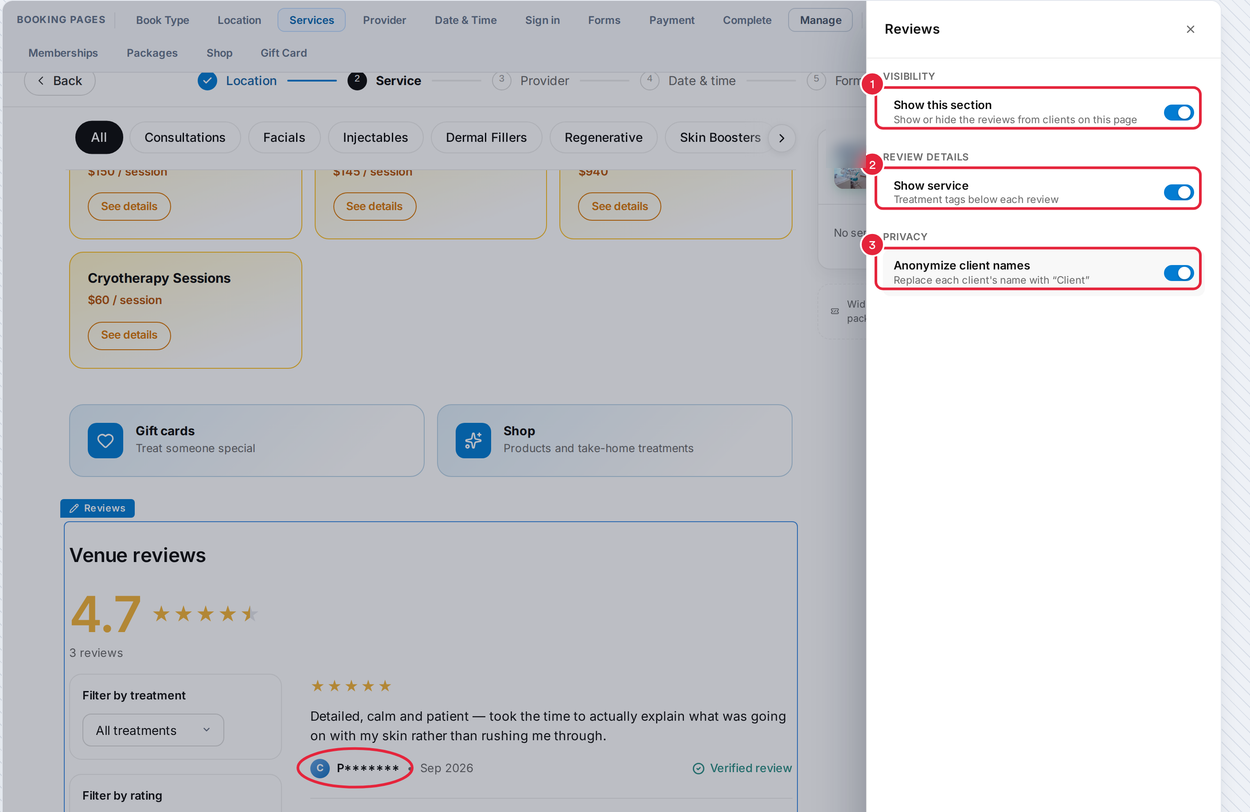
The Reviews settings, with client names anonymised in the preview
NOTE: The reviews come from the feedback your clients leave. Only reviews that clients have agreed to share publicly appear on your booking page. In Studio you may see sample reviews.
Step 5: Publish
Click the arrow icon next to Edit to check the page as a client would, then click Publish. Clients don’t see your changes until you publish. If you close Studio first, you are asked whether to Discard changes or Keep editing.
What's next?
- How to Add Widgets to Your Booking Page — announcement bars, banners, featured packages and more.
- New Online Bookings Part 2: Customise and Publish Your Booking Page in Pabau Studio — branding, SEO and publishing.
- How to Sell Memberships, Packages, Products and Gift Cards in Your Online Store — what your store pages sell.
Questions? Reach us any time via the in-app chat — we’re happy to help.
Was this guide helpful? Let us know by voting below - your feedback helps us write clearer articles.
For more guides, browse the related articles below or use the search bar at the top of the page. You can also watch our video learning series, the Pabau Academy, or visit the Support page for additional help.