
Custom fields offer a way to tailor Pabau according to your specific requirements. Whether you need to capture specific information about clients, leads, appointments, products, staff, locations, or services that aren't initially available, this feature allows you to create it yourself easily.
Step 1: Access Custom Field Setup
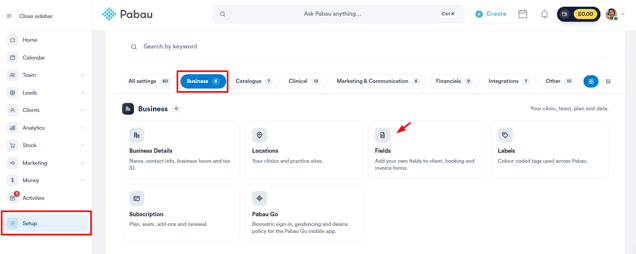
Log in to your Pabau account, navigate to the left sidebar menu, and click on Setup. From there, click on the Business tab, then select Fields.
NOTE: You can also learn about this topic by watching a lesson on Pabau Academy.
Step 2: Initiating Custom Field Creation
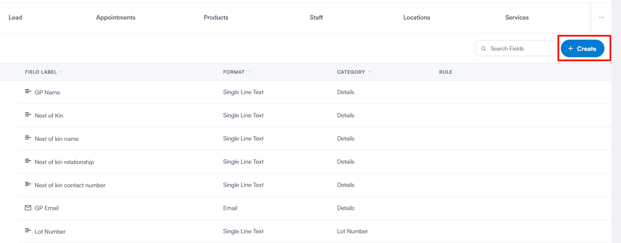
Scroll down below the quick-access cards to the fields list, then click the "+ Create" button on the right.
Step 3: Custom Field Configuration
After clicking "+ Create," you'll first be asked to choose a Field Object - the area you want the custom field to apply to (e.g. Client, Appointment, Product).
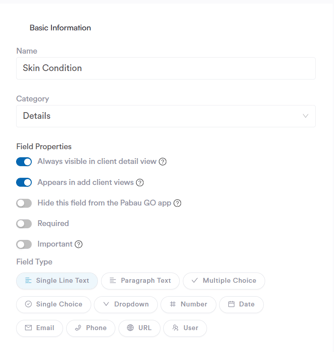
Once selected, the "Create A Custom Field" page opens, where you can fill in the following:
- Name: A name for the custom field.
- Category: The category under which the field will appear.
- Field Properties: Toggles that control how the field behaves and displays, such as whether it's required or visible in certain views.
- Field Type: The type of input the field will accept, such as text, dropdown, date, or number.
Step 4: Add Choices and Pick a Default
For a Dropdown, Single Choice or Multiple Choice field, you list the answers staff can pick from under Field Items. On Client and Lead fields you can also choose the answer a new record starts with.
- Under Field Type, choose Dropdown, Single Choice or Multiple Choice.
- Under Field Items, type the first choice and click Add Item To List for each extra one. Drag a choice by the handle on its left to change the order.
- Tick Default next to the choice new clients or leads should start with.
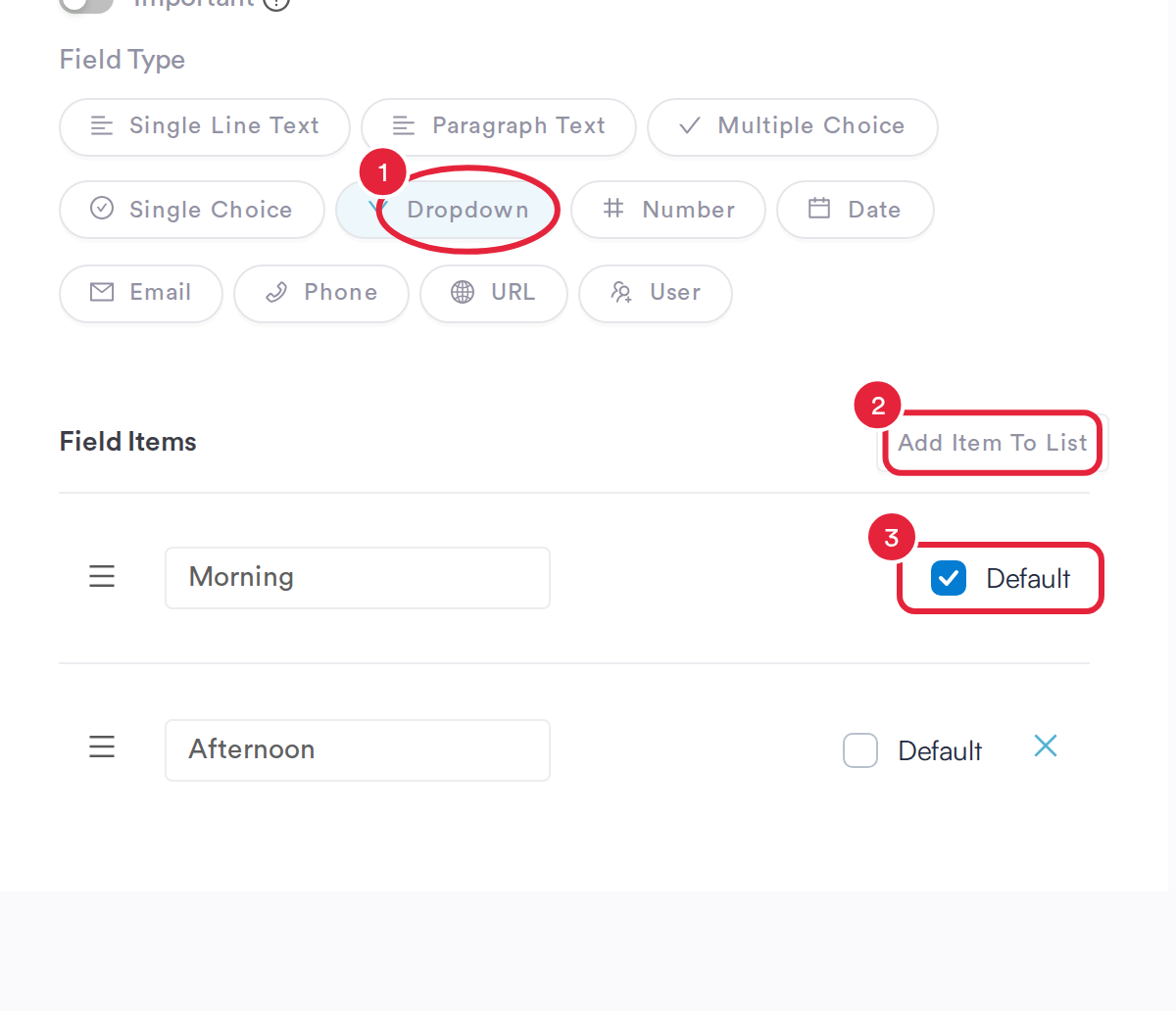
Tick Default next to the choice new records should start with
- A Dropdown or Single Choice field has one default. Ticking Default on another choice clears the first.
- A Multiple Choice field can start with several choices ticked.
- Untick Default to remove it, and the field starts empty again.
NOTE: A default is filled in only when someone adds a new client or lead. Existing records keep their saved answer, and a record that never answered the field stays empty. The Default box appears only on Client and Lead fields.
Step 5: Confirming Custom Field Creation
Once all necessary details are filled, make sure the Active toggle in the top right is switched on, then click "Create" to confirm and create the custom field.
By following these steps, you can create custom fields in your Pabau account, allowing you to capture and manage specific information tailored to your business needs.
What if the Category list is empty, or my category isn't there?
The Category list always offers Details and + New Category, followed by any categories you have created. Pick Details if you don't need a separate section.
- To create a category while you add the field: open the Category list, choose + New Category, type a name and click Save. The list reloads and you can select the new category.
- To manage categories: go to Setup → Business → Fields and open the Groups tab. Click Create to add a group, or edit an existing one. Groups and categories are the same thing.
- Each field type (Client, Lead, Appointment and so on) shows only the categories that already hold a field of that type, plus categories that are still empty.
NOTE: If the list shows nothing at all, not even Details, the categories haven't loaded. Close the window, refresh the page and click + Create again. If it is still empty, contact Support.
How do I fill in a custom field when I create a lead through the API?
A custom field has no separate system name. When you create a lead through the Pabau API, for example from a Google Apps Script or another tool that sends web requests, send each custom field using its Name exactly as it appears in Setup → Business → Fields. You can write spaces in the name as underscores, so a field called Treatment Interest can be sent as Treatment_Interest.
- Use a custom field for leads (or for clients and leads) and make sure it is Active.
- To check the exact names, and to see each field's ID, use the custom fields endpoint in the Pabau API documentation with the object type
lead. It lists every lead field with its ID and name. - If a name doesn't match a field, the lead is still created, but that value isn't saved.
Where this comes from: the value you send is saved in that custom field on the lead and shows on the lead card with your other custom fields.
IMPORTANT: Your API key gives access to your Pabau account. Keep it out of scripts or spreadsheets you share with others. See How to Find Your API Key.
What does the lock icon next to some fields mean?
In Setup → Business → Fields, a lock icon marks one of Pabau's built-in fields, such as Salutation, First Name or Email on clients. These fields are part of Pabau itself, so you can't edit, clone, archive or drag them into a different order from the list. Fields you create yourself never show the lock.
Why isn't my custom field in a medical form's Linked field list?
When you select a question in the form builder, the Linked field list shows Pabau's built-in client fields under Basic Fields and your own fields under Custom Fields. A custom field appears there only if all of the following are true:
- It is a Client field (or a field shared by clients and leads). A field created only for leads, appointments, products or other objects isn't offered, because the answer is written to the client's record.
- It is switched to Active and hasn't been archived.
- Its Field Type matches the question type: Short answer ↔ Single line text or Date, Long answer ↔ Paragraph text, Single choice ↔ Single Choice, Dropdown ↔ Dropdown, Multiple choice or Checkbox grid ↔ Multiple Choice.
Other question types, such as a signature, don't offer a linked field at all. To add or fix a field without leaving the builder, choose Manage Custom Fields at the bottom of the list. It opens the Fields page in a new tab; reselect the question afterwards to reload the list.
NOTE: A linked field overwrites the client's saved information with the answer to the question, so link only fields you want the form to update. For more on linking, see How to Use Linked Fields in Medical Forms.
What's next?
Was this guide helpful? Let us know by voting below - your feedback helps us write clearer articles.
For more guides, browse the related articles below or use the search bar at the top of the page. You can also watch our video learning series, the Pabau Academy, or visit the Support page for additional help.