
Can I move a payment from one invoice to another?
Not directly. Pabau has no option to pick up a single payment and drop it onto a different invoice. What you can do depends on two things: whether the whole invoice is on the wrong client, and how the payment was taken.
- The whole invoice belongs to another client (the treatment and the payment were both recorded under the wrong person) — transfer the invoice. Its payments move with it and the card is not touched. See Option 1.
- The payment is on the wrong invoice and was recorded manually — for example Cash, Card (taken on a card machine that is not connected to Pabau) or bank transfer — void it and add it again on the correct invoice. See Option 2.
- The payment is on the wrong invoice and went through Pabau Payments — an online card payment, a card on file, or a Pabau card terminal — it cannot be voided. Refund it, either to the client's account or back to their card, and then pay the correct invoice. See Option 3.
Option 1: Transfer the Invoice to the Right Client
Use this when the invoice itself was raised on the wrong client. Transferring re-points the invoice and every payment on it to the client you choose, so a card payment stays exactly as it was — no refund, no new charge.
Step 1: Open the Invoice
- Open the client card of the client the invoice is currently on.
- Click Financials, then click the invoice number to open it.
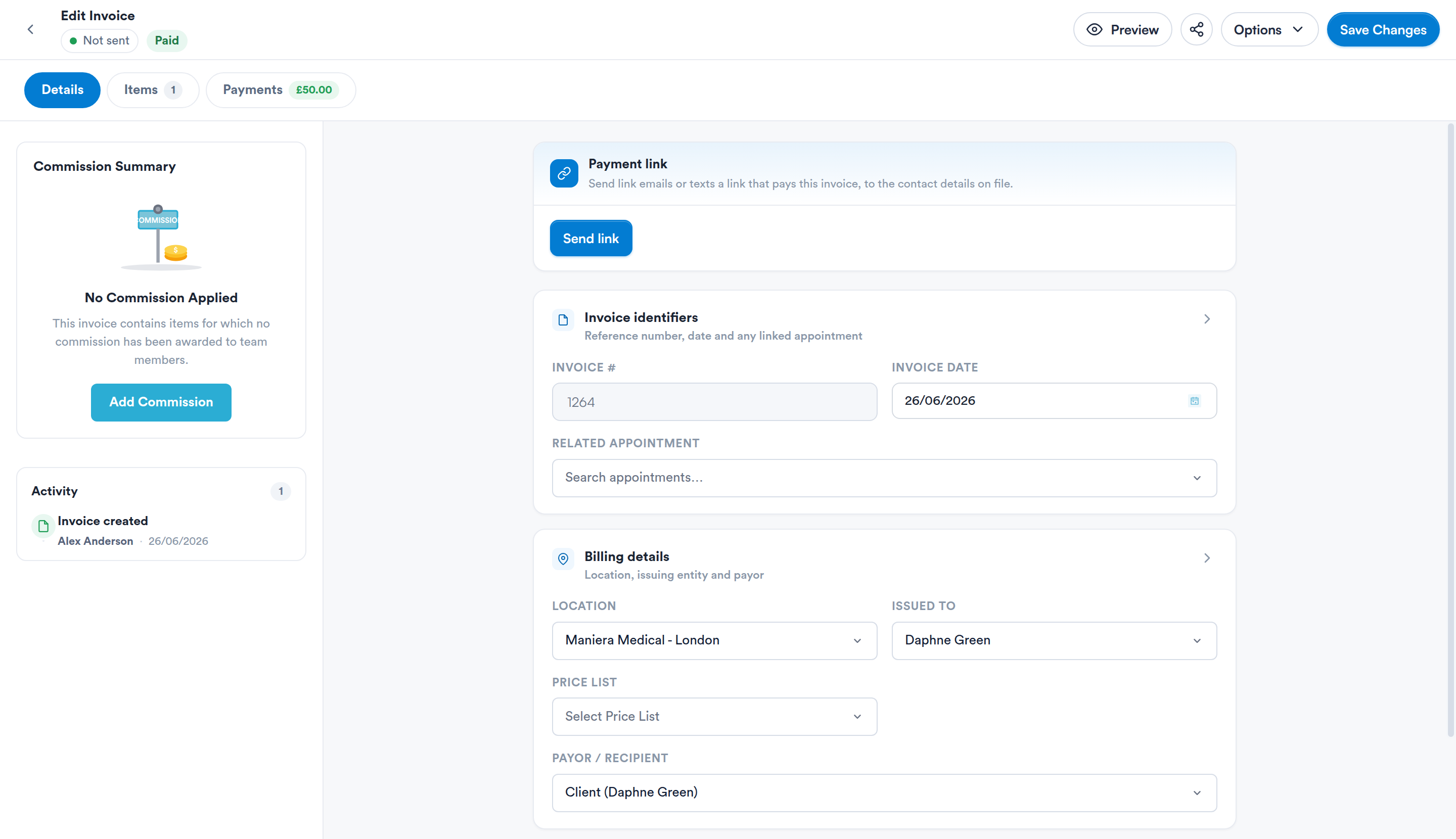
An invoice opened from Financials, showing the Details, Items and Payments tabs.
Step 2: Choose the New Client
- On the Details tab, scroll to the Transfer invoice section at the bottom and click Transfer →.
- In the Transfer Invoice window, search for the correct client, select them and click Transfer.
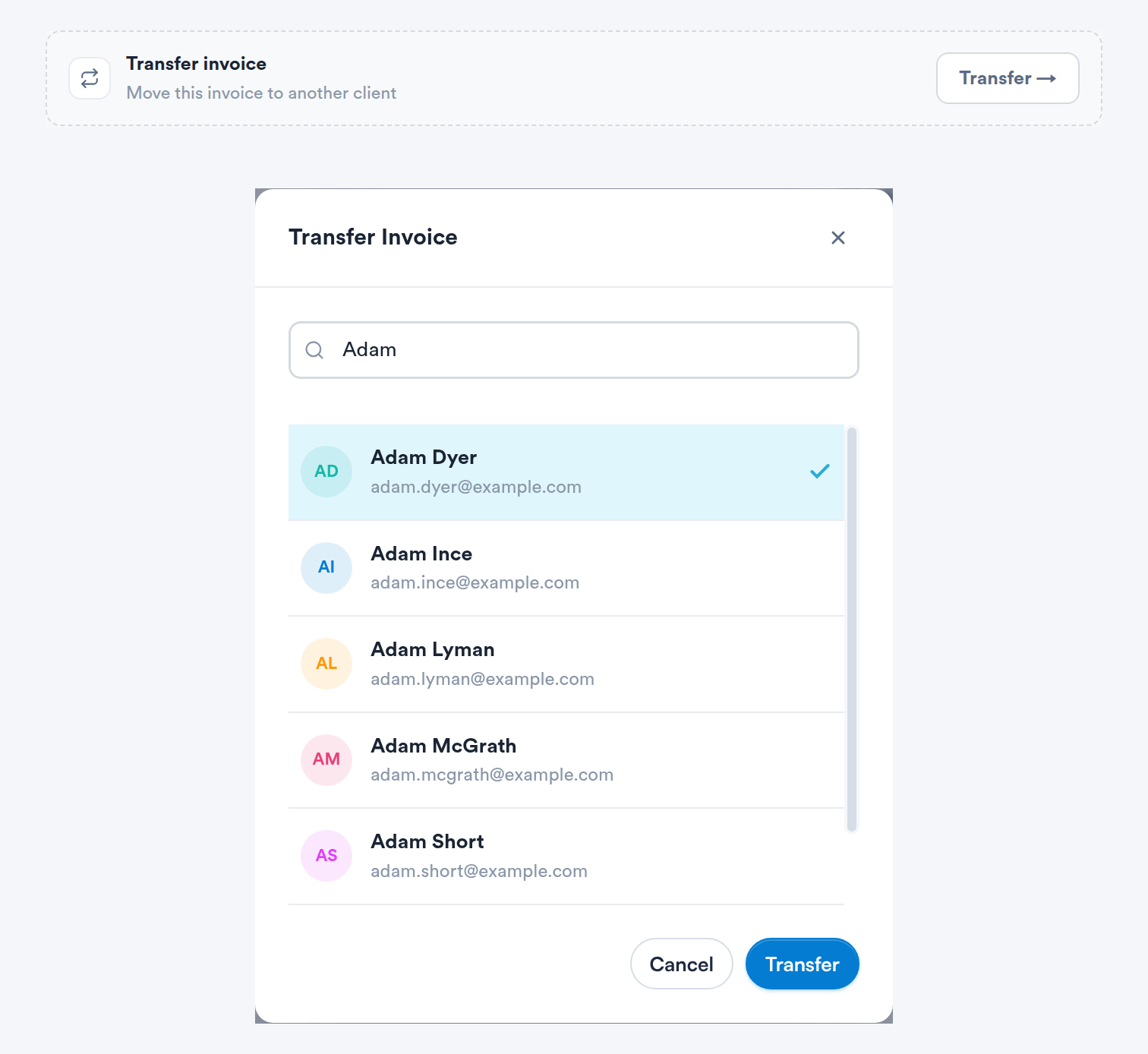
The Transfer invoice section at the bottom of the Details tab, and the Transfer Invoice window with a client selected.
Step 3: Save the Transfer
- The section now reads Transfer to [client name] — Applied when you save changes. Click Undo if you picked the wrong person.
- Click Save Changes. You are taken to the new client's Financials, where the invoice and its payments now appear.
IMPORTANT: If any of the invoice was paid from account balance, the new client must have enough account credit to cover it, otherwise the transfer is refused. If the invoice contained packages, gift cards or account balance entries and payments were made from them, you will need to void those payments manually.
NOTE: The Transfer invoice section is not shown on an invoice that has already synced to Xero.
See How to Transfer an Invoice (New Client Card) for the full walkthrough.
Who paid? Recording a family member as the payer
If the treatment really is the other client's and only the payment came from someone else (a parent paying for their child, for example), keep the invoice on the client who had the treatment and record the payer instead. In the invoice's Payments tab, use the Paid by dropdown on the payment row. The list shows the invoice's client, the client's family relationships and any linked insurance or company. If the person who paid is not listed, add them as a relationship on the client card first.
Option 2: Void a Manually Recorded Payment and Add It Again
Use this when the payment was recorded with a manual method such as Cash, Card or bank transfer. Voiding removes the record only — no money is sent anywhere — so you then record the same payment on the correct invoice.
Step 1: Void the Payment on the Wrong Invoice
- Open the wrong invoice from Financials and go to its Payments tab.
- Click the X at the end of the payment's row, then click Void payment to confirm. Voiding is permanent and cannot be undone.
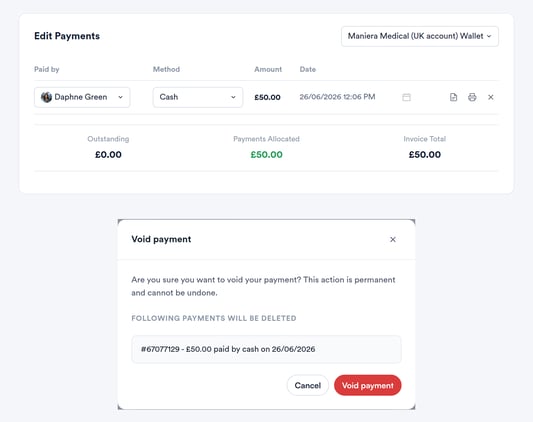
The X at the end of a payment row opens the Void payment confirmation.
Step 2: Add the Payment to the Correct Invoice
- Open the correct invoice (on the correct client's card, if it belongs to someone else) and go to its Payments tab.
- Click Add payment, choose the same payment method, check the Amount and Date paid, then click Collect.
See How to Void a Payment (New Client Card).
Option 3: Refund a Pabau Payments Card Payment, Then Pay the Right Invoice
A payment taken through Pabau Payments (shown as Stripe or Card Terminal) cannot be voided: voiding only changes Pabau's records, so the client would stay charged on their card while the invoice went back to unpaid. Hovering over the greyed-out X shows "You cannot void payments processed via [method]. Please refund the payment instead." Refund it using one of the two routes below.
IMPORTANT: A refund raises against the invoice it is taken from. Only refund the wrong invoice if its charge should not stand. If that invoice is genuinely owed by the client it is on, they will need to settle it again afterwards.
Route A: Refund to Account (No Second Card Charge)
- Open the wrong invoice, click Options and select Refund.
- Set the refund amount with the percentage buttons or Custom, add a Refund note, then click Account. If your account uses Xero, Refund opens Create Credit Note instead — keep Refund the allocated payment on and choose Account.
- The amount is now account credit on the client the invoice is on. It appears in Financials → Payments as an On account entry whose number starts with #ACC.
- If the correct invoice belongs to the same client, open it, click Add payment, choose Account and collect the amount. See How to Allocate Money from Account Towards an Invoice.
- If the correct invoice belongs to a different client, open the new #ACC entry and transfer it to that client using the Transfer invoice section (as in Option 1). The credit moves with it, and you can then pay the correct invoice with Account from that client's card.
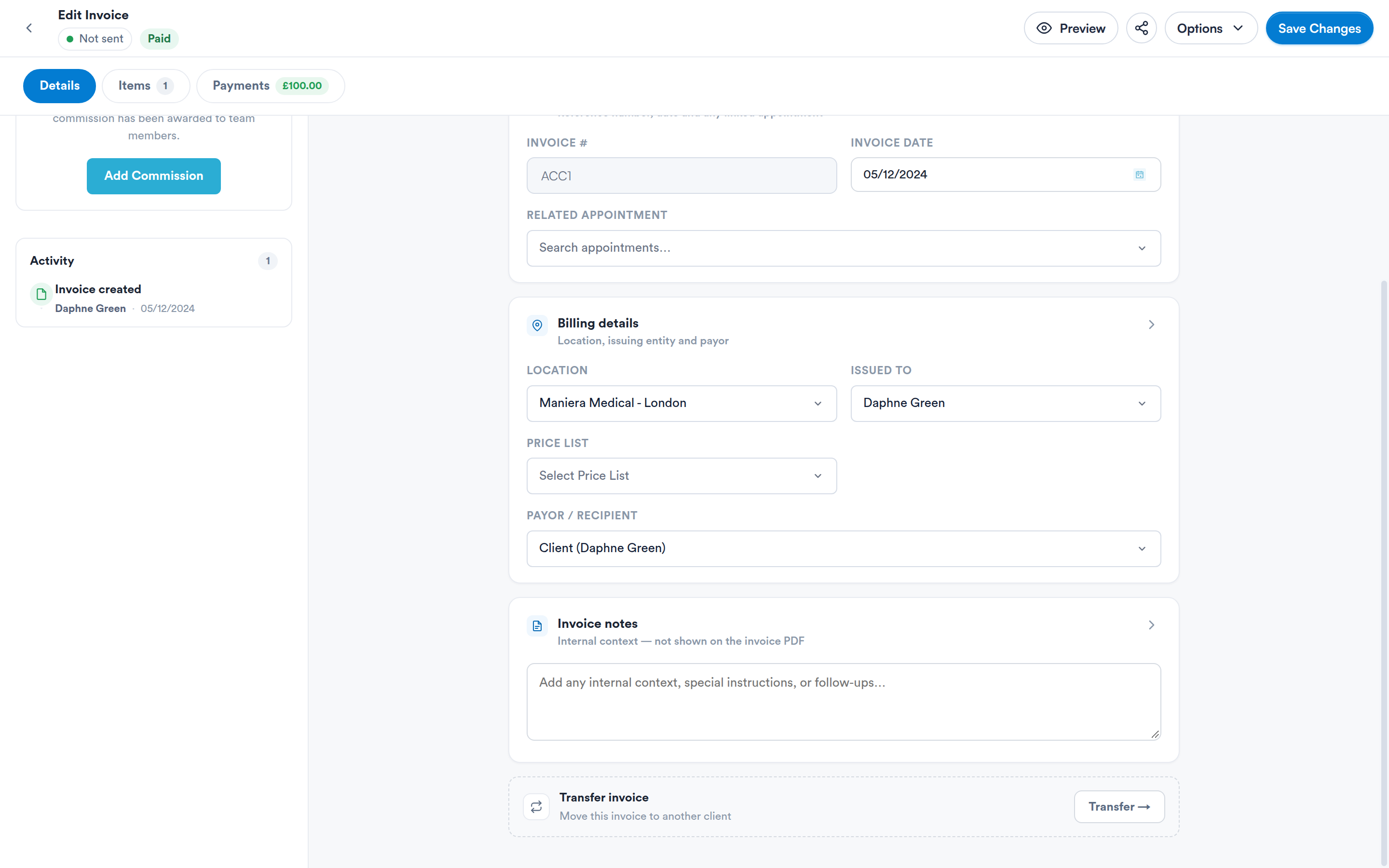
An #ACC account entry opened from Financials -> Payments; the Transfer invoice section is shown at the bottom of the Details tab.
Where this comes from: the Account amount you can use on an invoice ← the account balance of the invoice's own client ← built up from #ACC entries (top-ups and refunds to account), less what has already been spent.
Route B: Refund to the Card and Take a New Payment
- Open the wrong invoice, click Options and select Refund.
- Choose Stripe as the payment type to send the money back to the original card. You can refund up to the amount that was paid through Stripe on that invoice.
- Open the correct invoice and take a new payment with Add payment.
See How to Refund an Invoice (New Client Card).
Why can't I void a card terminal payment?
A void only removes Pabau's record of the payment; it never contacts the card provider. For a payment taken through Pabau Payments that would leave the client charged while the invoice shows as unpaid, so the void option is disabled for those payments and a refund is the supported route.
Why is the Transfer invoice section missing?
It is hidden once an invoice has synced to Xero. In that case use Option 2 or Option 3.
Related articles
- How to Transfer an Invoice (New Client Card)
- How to Void a Payment (New Client Card)
- How to Refund an Invoice (New Client Card)
- How to Refund Payments and Transfer Funds to Client Accounts
- How to Allocate Money from Account Towards an Invoice
- How to Edit an Invoice from Client Card (New Client Card)
- Client Account Balance: Where It Appears in Pabau
Was this guide helpful? Let us know by voting below - your feedback helps us write clearer articles.
For more guides, browse the related articles below or use the search bar at the top of the page. You can also watch our video learning series, the Pabau Academy, or visit the Support page for additional help.